
GROWATT ShineLink-X
GROWATT Shine Link X Instruction Manual
Model: ShineLink-X
Brand: GROWATT
1. Introduction
The GROWATT Shine Link X is a plug-and-play RF monitoring kit designed to connect your Growatt X, XE, or XH series inverter to the internet. This system enables seamless data transmission for online monitoring via the ShinePhone application or the Growatt Shine server portal.
The kit consists of two main components: the ShineLanBox and the Shine RF X USB. Communication between these two units is established via Radio Frequency (RF), while the ShineLanBox connects to your internet modem via an Ethernet LAN cable.
Key Features:
- Cable-free and easy installation between inverter and ShineLanBox.
- Dynamic IP, supporting plug-and-play functionality.
- Communication distance up to 120 meters (RF).
- Supports monitoring of up to 8 devices.
- Built-in memory capable of storing up to one month of data.
- Facilitates online monitoring and maintenance.
This device is compatible with all Growatt inverters whose reference ends with X, XE, or XH, including models such as MIC, MIN, MOD, MID, MAC, and MAX series.
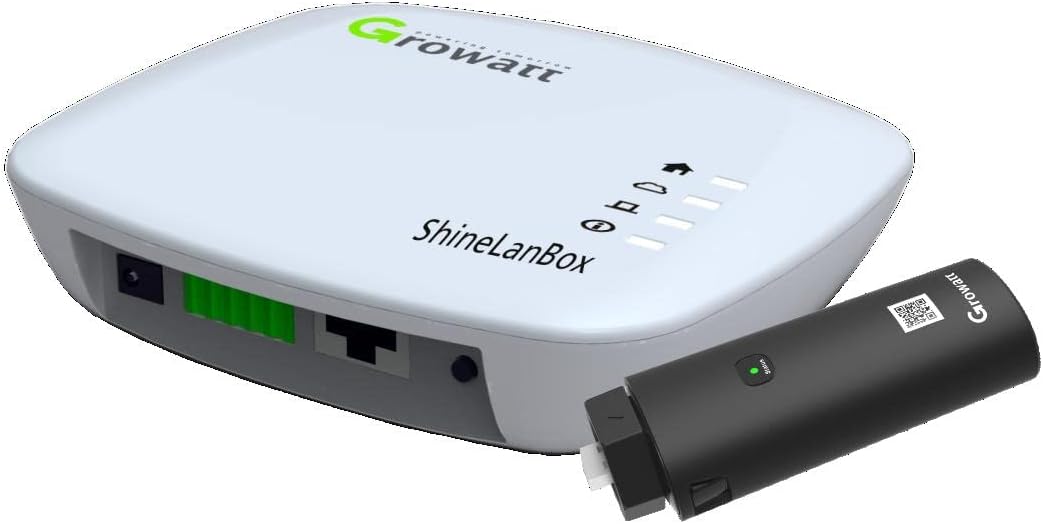
Figure 1.1: The GROWATT Shine Link X kit, featuring the ShineLanBox and the Shine RF X USB module.

Figure 1.2: Overview of Growatt ShineLink-X key features and benefits.
2. Package Contents
Upon opening the package, please verify that all the following items are included and in good condition:
| Item | Quantity |
|---|---|
| ShineLanBox | 1 |
| Shine RF X USB | 1 |
| Network cable (Ethernet) | 1 |
| Power adapter | 1 |
| Wall plastic parts | 2 |
| User manual | 1 |

Figure 2.1: The ShineLanBox and Shine RF X USB module as packaged.

Figure 2.2: Complete package contents, including the network cable and power adapter.
3. Specifications
Detailed technical specifications for the GROWATT Shine Link X:
| Category | Value |
|---|---|
| Communication Interface | |
| RF433 | Yes |
| RF433 (No barrier wall) | Up to 120m |
| RF433 (Two walls blocking) | 20m |
| Power Supply | |
| Power consumption | <2W standby, <5W peak |
| Voltage range | 196V - 250V |
| Frequency | 50/60Hz |
| General Specifications | |
| Dimensions (L/W/H) | 105/85/26mm |
| Weight | <1Kg |
| Mounting options | Tabletop/wall-mount |
| Protection degree | IP30 |
| Display | LED |
| Ambient temperature range | -20 to 65 °C |
| Humidity | 0-95% (non condensing) |
| Features | |
| Remote firmware upgrade | Yes |
| Max. number of devices to monitor | 8 (RF433) |

Figure 3.1: Official Datasheet for Growatt ShineLink-X.
4. Setup and Installation
Follow these steps to set up your GROWATT Shine Link X monitoring kit:
4.1. Step 1: Unpacking
Carefully remove all components from the packaging. Refer to the "Package Contents" section to ensure all items are present.
4.2. Step 2: Electrical Connection
- Connect Shine RF X USB to Inverter: Locate the Datalogger port on your Growatt inverter. Insert the Shine RF X USB module into this port. Ensure it is securely fastened by rotating the lock clockwise until it clicks into place.
- Connect ShineLanBox to Router: Plug one end of the provided Ethernet network cable into the LAN port of the ShineLanBox. Connect the other end of the Ethernet cable to an available LAN port on your internet router.
- Power On ShineLanBox: Connect the power adapter to the ShineLanBox and plug it into a power outlet. The device will power on automatically.
LED Indicators:
Monitor the LED indicators on both the Shine RF X USB and the ShineLanBox to confirm proper connection and operation.
| ShineRFStick-X's LED Status | Status of the ShineRFStick-X |
|---|---|
| Always on | The ShineRFStick-X is initializing |
| Always off | Loose connection |
| Flashing (every 0.2 second) | USB port find the inverter |
| Flashing slowly (every 1 second) | Connection works |
| ShineLanBox LED Status | Status of working condition |
|---|---|
| Power light | The light is on means power is on |
| Web light | Flashing means connect to web, on means connect to web |
| Device light | Time of frequently flashing means the ShineLanBox is communicating with the device |
| Paired light | Flashing when pairing, go off if pairing successful |
4.3. Step 3: Use ShineLink-X App (ShinePhone)
To monitor your inverter's data, download and set up the ShinePhone app:
- Download the App: Scan the QR code below or visit http://server.growatt.com/app/xml/download_growatt.png.jsp to download the "ShinePhone" application.
- Register and Log In: Open the ShinePhone app, register a new account, and log in.
- Add Collector Page:
- In the app, navigate to the "Collector page".
- Scan the barcode located on the bottom of your ShineLanBox.
- Follow the on-screen prompts to complete the addition of the collector.
- Add Power Station:
- After successfully adding the collector, click the "+" button to add a new "Power Station".
- Enter the required plant information, including country and city.
- Confirm the details. Once successfully added, you can view your inverter's data on the "Power Station List" page.

Figure 4.1: Comprehensive Quick Installation Guide for the Growatt Shine Link X.
5. Operating the Shine Link X
Once the Shine Link X kit is successfully set up and connected, it will automatically begin collecting data from your Growatt inverter and transmitting it to the Growatt Shine server. You can access and monitor your inverter's performance and energy production through the ShinePhone app or the Growatt Shine server web portal.
Monitoring Data:
- ShinePhone App: Open the ShinePhone app on your smartphone or tablet. After logging in, you will see a dashboard displaying real-time and historical data for your power station, including power generation, daily yield, total yield, and operational status.
- Growatt Shine Server: Access the Growatt Shine server portal via a web browser on your computer. Log in with your credentials to view detailed reports, analytics, and manage your power station settings.
The system provides online monitoring and maintenance capabilities, allowing you to keep track of your solar system's health and performance from anywhere with an internet connection.
6. Troubleshooting
If you encounter issues during setup or operation, refer to the following common troubleshooting tips:
6.1. Tip 1: Adding New ShineLink-X Device (Connection Issues)
If you are unable to connect your ShineLink-X device to the server or experience frequent disconnections:
- Check IP Address: Ensure the ShineLanBox has obtained a valid IP address. If the IP address is 0.0.0.0, it indicates a network connection problem. Verify your Ethernet cable connection to the router and ensure the router is functioning correctly.
- Reset ShineLanBox: If the IP address is valid but connection issues persist, try resetting the ShineLanBox. Press and hold the reset button on the ShineLanBox for approximately 10 seconds until the lights flash, then release. This will reset the network settings.
- Re-pair ShineLanBox and Shine RF X USB: If the "Paired light" on the ShineLanBox is off, it indicates a pairing issue.
- Quickly press the button on the Shine RF X USB module twice within 2 seconds. The green light on the Shine RF X USB will flash rapidly.
- Within 1 minute, quickly press the button on the ShineLanBox twice within 2 seconds. The "Paired light" on the ShineLanBox will flash.
- If pairing is successful, the "Paired light" on the ShineLanBox will turn off.
- Check Communication Distance: Ensure the distance between the ShineLanBox and the Shine RF X USB is within the recommended range (up to 120m without barriers, 20m through two walls).
6.2. Tip 2: Reset ShineLanBox
If the ShineLanBox is not functioning as expected or you need to clear its settings:
- Press and hold the reset button on the ShineLanBox for 10 seconds.
- All lights on the ShineLanBox will flash, indicating a successful reset.
- After the reset, the device will restart and attempt to re-establish network connections. You may need to re-configure settings in the ShinePhone app if they were specific to the previous connection.
7. Maintenance
The GROWATT Shine Link X is designed for low maintenance. However, regular checks can ensure optimal performance:
- Physical Inspection: Periodically check the physical connections of the Ethernet cable to the router and the Shine RF X USB to the inverter. Ensure all cables are securely plugged in and not damaged.
- Cleanliness: Keep the ShineLanBox and Shine RF X USB free from dust and debris. Use a soft, dry cloth for cleaning. Do not use liquid cleaners or solvents.
- Firmware Updates: The device supports remote firmware upgrades. Ensure your device's firmware is up-to-date through the ShinePhone app or Growatt Shine server to benefit from the latest features and improvements.
- Environmental Conditions: Ensure the operating environment remains within the specified temperature (-20 to 65 °C) and humidity (0-95% non-condensing) ranges to prevent damage.
8. Warranty Information
The GROWATT Shine Link X comes with a 1-year warranty from the date of purchase. This warranty covers defects in materials and workmanship under normal use. Please retain your proof of purchase for warranty claims.
The warranty does not cover damages resulting from:
- Improper installation or use not in accordance with this manual.
- Unauthorized repairs or modifications.
- Accidents, abuse, neglect, or acts of nature.
- Damage during transit.
For detailed warranty terms and conditions, please refer to the official Growatt warranty policy or contact Growatt customer support.
9. Support and Contact
For further assistance, technical support, or inquiries regarding your GROWATT Shine Link X, please use the following resources:
- Online Monitoring Portal: Access the Growatt Shine server portal for comprehensive data monitoring and management.
- ShinePhone App: Utilize the mobile application for convenient monitoring and basic troubleshooting.
- Email Support: For technical inquiries, you can reach Growatt support via email at info@ginverter.com.
- Manufacturer Website: Visit the official Growatt website for product information, FAQs, and additional support resources.
Please have your product model number (ShineLink-X) and any relevant error messages ready when contacting support.
Related documentsShineLink-X


Ask a question about this manual
Ask about setup, troubleshooting, compatibility, parts, safety, or missing instructions. Manuals+ will review the question and use this page’s manual context to help answer it.