
GEEZER A_Coffee (B0BP1L53GT)
GEEZER Wireless Keyboard and Mouse Combo User Manual
Model: A_Coffee (B0BP1L53GT)
Brand: GEEZER
Introduction
This user manual provides comprehensive instructions for setting up, operating, maintaining, and troubleshooting your GEEZER Wireless Keyboard and Mouse Combo. Designed for comfort and efficiency, this combo offers a seamless wireless experience for various computing environments.
Package Contents
- GEEZER Wireless Keyboard
- GEEZER Wireless Mouse
- USB 2.4G Nano Receiver (stored inside the mouse)
- Cleaning Brush (for keyboard maintenance)
- User Manual

Image: The GEEZER Wireless Keyboard and Mouse Combo, showcasing the full-sized keyboard with round keycaps, the ergonomic mouse, and the compact USB receiver.
Setup Guide
- Install Batteries:
- Open the battery compartment on the underside of the keyboard and insert one AA battery (not included).
- Open the battery compartment on the underside of the mouse and insert one AAA battery (not included).
- Locate USB Receiver: The mini USB Nano receiver is conveniently stored inside the battery compartment of the mouse. Carefully remove it.
- Connect Receiver: Plug the USB Nano receiver into an available USB port on your computer (PC, Laptop, Desktop, Chrome-Book, Mac, Smart TV, etc.).
- Automatic Connection: The keyboard and mouse will automatically connect to your device. No additional drivers are required.
- Verify Connection: Test the keyboard and mouse functionality. If they do not respond, ensure batteries are correctly installed and the receiver is securely plugged in.

Image: A visual representation of the plug-and-play setup, showing the USB receiver connected to a laptop, enabling wireless communication with the keyboard and mouse up to 33 feet.
Operating Instructions
Keyboard Features:
- Full-Sized Layout: The keyboard features a 104-key full-sized layout, including a numeric keypad for comprehensive input.
- Round Keycaps: Designed with round keycaps for a comfortable and unique typing experience.
- Ergonomic Design: The keyboard includes foldable stands on the back to adjust the typing angle, reducing wrist fatigue during prolonged use.
- 13 Hotkey Functions: Access common functions quickly using the integrated hotkeys.
- Intelligent Auto-Sleep Function: To conserve battery life, the keyboard will enter sleep mode after one minute of inactivity. Press any key or click the mouse to wake it up.

Image: The ergonomic design of the keyboard is highlighted, showing the foldable stands on the underside that allow for an inclined typing position to alleviate wrist pressure.

Image: This image demonstrates the intelligent auto-sleep feature, with the keyboard and mouse appearing to be in a low-power state, indicating battery saving when not in use.
Mouse Features:
- Optical Design: The mouse features an optical sensor for precise and smooth cursor control.
- Comfortable Hand-feeling: Designed with smooth surfaces for a comfortable grip during extended use.
- Silent Clicks: The mouse buttons are designed for quiet operation.
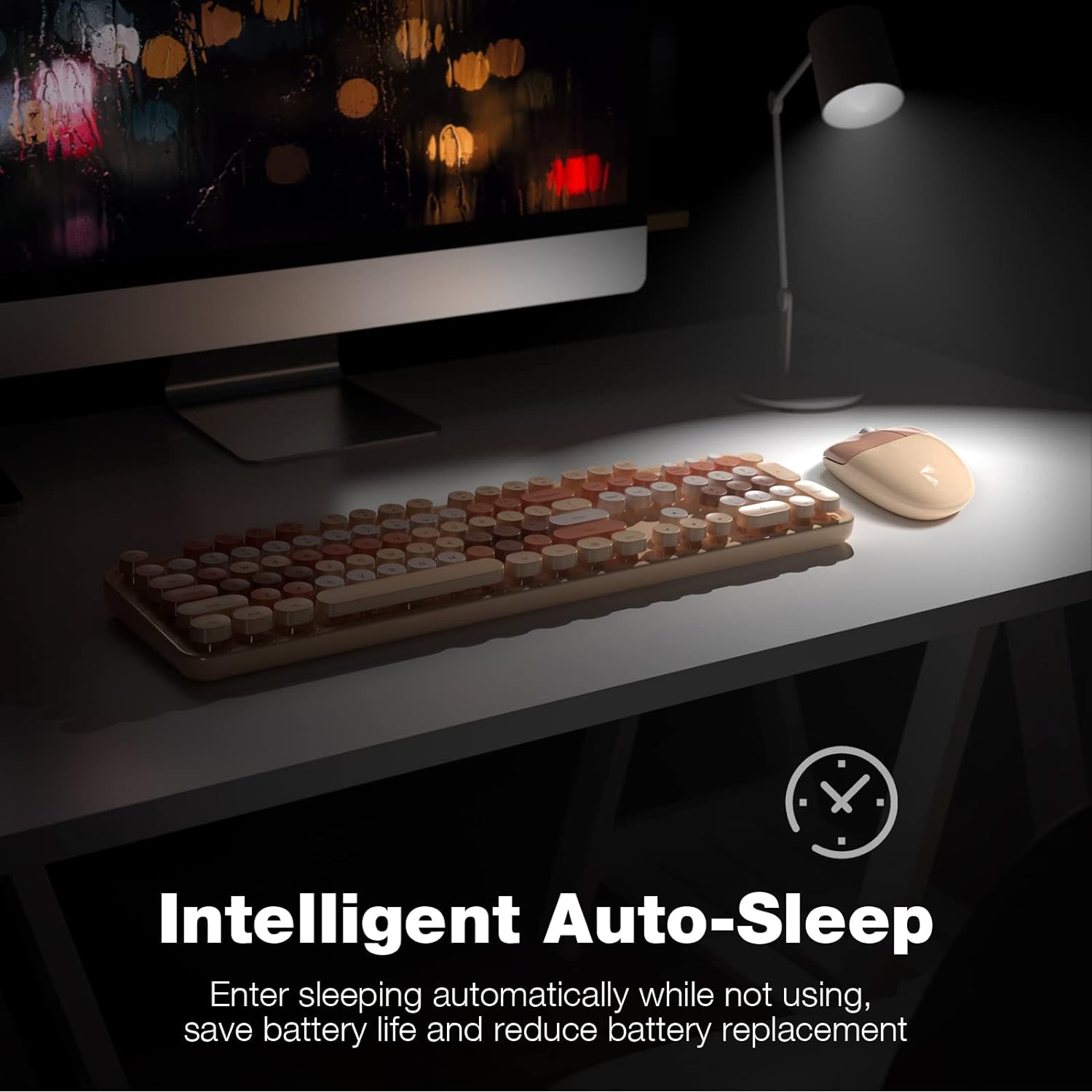
Image: A user's hands are shown actively typing on the GEEZER Wireless Keyboard and operating the mouse, demonstrating the product in a typical work environment.
Maintenance
- Cleaning: Use the provided cleaning brush to remove dust and debris from between the keycaps. For deeper cleaning, the keycaps are detachable. Gently pull them upwards to remove.
- Battery Replacement: Replace batteries when performance degrades. The keyboard uses one AA battery, and the mouse uses one AAA battery.
- Storage: When not in use for extended periods, store the USB receiver inside the mouse's battery compartment to prevent loss.

Image: The keyboard is shown with several keycaps detached, illustrating the ease of cleaning. A blue cleaning brush is also visible, indicating its use for maintaining the keyboard's cleanliness.
Troubleshooting
- No Response from Keyboard/Mouse:
- Ensure the USB receiver is securely plugged into a working USB port on your computer.
- Check if the batteries in both the keyboard and mouse are correctly installed and have sufficient charge. Replace if necessary.
- Move the keyboard and mouse closer to the USB receiver to ensure they are within the 10m/33ft operating range.
- If the devices are in sleep mode, press any key on the keyboard or click the mouse to wake them up.
- Intermittent Connectivity:
- Avoid placing the USB receiver near other wireless devices or large metal objects that may cause interference.
- Try plugging the USB receiver into a different USB port on your computer.
- Keys Not Responding or Lagging:
- Clean under the affected keycaps using the provided brush or by detaching the keycap.
- Ensure the keyboard is not in sleep mode.
If you encounter any problems during use that are not covered here, please contact GEEZER customer support via Amazon email for assistance. We aim to respond within 12 hours and provide satisfactory solutions.
Specifications
| Brand | GEEZER |
| Model | A_Coffee (B0BP1L53GT) |
| Connectivity Technology | Wireless 2.4G |
| Compatible Devices | Laptop, Personal Computer (Windows XP/X/Win 7/8/10/2000/ME Vista iOS OS, Chrome-Book, Mac, Smart TV) |
| Keyboard Layout | Full-Sized, 104 Keys with Numeric Keypad |
| Keycap Type | Round Keycap Typewriter Style |
| Special Features | Ergonomic Design, Intelligent Auto-Sleep, Detachable Keycaps, 13 Hotkey Functions |
| Operating Range | Up to 10m / 33ft |
| Keyboard Battery | 1 x AA Battery (not included) |
| Mouse Battery | 1 x AAA Battery (not included) |
| Item Weight | 1.37 pounds |
| Package Dimensions | 17.76 x 5.51 x 3.03 inches |

Image: A detailed diagram illustrating the full-size dimensions of both the GEEZER Wireless Keyboard and Mouse, providing precise measurements for user reference.
Warranty and Support
For any product-related inquiries, technical support, or warranty claims, please contact GEEZER customer service directly through your Amazon order page. We are committed to providing prompt assistance and ensuring your satisfaction.
Please refer to your purchase documentation for specific warranty terms and conditions.
Related documentsA_Coffee (B0BP1L53GT)


Ask a question about this manual
Ask about setup, troubleshooting, compatibility, parts, safety, or missing instructions. Manuals+ will review the question and use this page’s manual context to help answer it.