
1. Product Overview
The SCYAN D1 Smart Deadbolt Lock offers a keyless entry solution with a touchscreen keypad, designed for residential and rental property applications. It provides multiple unlocking methods and advanced management features via a mobile application.
Key Features:
- Multiple unlocking methods: Passcode, IC Card, and Mechanical Key.
- Illuminated touchscreen keypad with a matte finish to resist fingerprints and smudges.
- Supports up to 250 passcodes and 1000 key fobs.
- Records up to 2000 audit trail logs.
- Mobile app management for user access and lock settings.
- Auto-locking function with adjustable delay time.
- Memory function retains user codes and cards even after power loss.
- Micro USB port for emergency power supply.
- Voice prompts for easier setup and operation.
- Adjustable for both left-handed and right-handed doors.

Image 1.1: Overview of the SCYAN D1 Smart Deadbolt Lock, showcasing its touchscreen keypad, auto-locking mode, privacy mode, micro USB port for backup power, and backup key functionality.
2. What's Included
Carefully unpack the box and ensure all components are present and in good condition. If any parts are missing or damaged, please contact customer support.
- Front Lock Unit (Exterior)
- Back Lock Unit (Interior)
- Two Mechanical Keys
- Metal Mounting Plate
- Deadbolt Latch
- Strike Plate
- Mounting Screws
3. Specifications
| Feature | Specification |
|---|---|
| Brand | SCYAN |
| Model Number | D1 |
| Lock Type | Deadbolt |
| Material | Zinc |
| Adjustable Backset | 2 ⅜” or 2 ¾” (60mm or 70mm) |
| Door Thickness Compatibility | 1 ⅜” to 2” |
| Operating Temperature | -4°F (-20°C) to 158°F (70°C) |
| Connectivity | Bluetooth |
| Power Source | 4 AA Batteries (not included) |
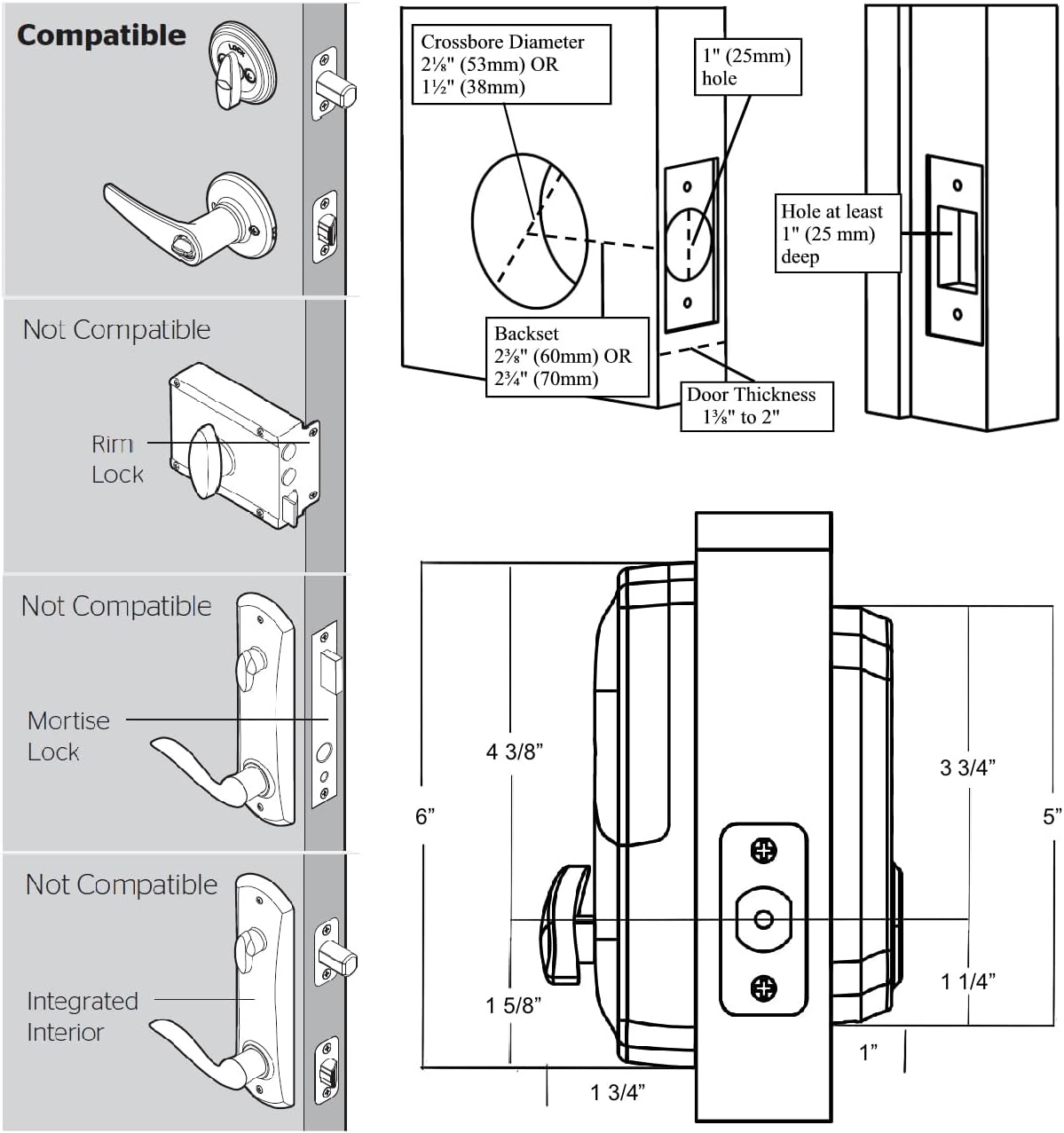
Image 3.1: Detailed diagram illustrating compatible door dimensions, crossbore diameter, backset, and door thickness requirements for installation. Also shows types of locks that are not compatible.
4. Installation Guide
Installation of the SCYAN D1 Smart Deadbolt Lock is designed to be straightforward and typically requires only a Phillips screwdriver. No drilling or professional locksmith is needed for standard installations.
Installation Steps:
- Prepare the Door: Ensure your door meets the specifications for backset (2 ⅜” or 2 ¾”) and thickness (1 ⅜” to 2”).
- Install the Deadbolt Latch: Insert the deadbolt latch into the door edge. Adjust the bolt length if necessary by twisting the mechanism. Secure it with screws.
- Install the Exterior Keypad Assembly: Feed the cable from the exterior keypad through the crossbore hole in the door. Align the spindle with the deadbolt latch.
- Install the Interior Mounting Plate: Route the cable through the mounting plate. Secure the mounting plate to the door using the provided screws, ensuring it is vertically aligned with the exterior unit.
- Adjust Handing Switch: On the interior lock unit, locate the handing switch. Slide the switch to the left if the deadbolt extends to the left when locked. Slide it to the right if the deadbolt extends to the right when locked.
- Install the Interior Lock Unit: Connect the cable from the exterior unit to the interior unit. Align the interior unit with the mounting plate and secure it with screws. Ensure the knob can be turned freely.
- Insert Batteries: Open the battery cover on the interior unit and insert four (4) AA batteries (not included), observing polarity. Close the battery cover.
- Test the Lock: Manually test the deadbolt operation using the interior knob and the mechanical key from the exterior.
Video 4.1: Official installation guide for the SCYAN D1 Smart Deadbolt Lock, demonstrating step-by-step physical installation and initial setup.
5. Operating Instructions
The SCYAN D1 Smart Deadbolt Lock offers multiple ways to operate and manage access.
5.1. Unlocking Methods
- Passcode: Enter your 4-9 digit passcode on the touchscreen keypad, then press the '#' key.
- IC Card: Present a registered IC card to the card reader sensor on the exterior unit.
- Mechanical Key: Insert the provided mechanical key into the keyhole and turn to unlock.
- Mobile App: Use the designated mobile application to remotely unlock the deadbolt (requires a compatible gateway, sold separately, for remote access).
5.2. Mobile App Setup and Management
The SCYAN D1 lock is managed via a mobile application (e.g., TTLock App). Download the app from your device's app store.
- Add Lock to App:
a. Open the app and tap 'Add Lock'.
b. Select 'Door Lock' type.
c. Touch any key on the lock's keypad to activate it and put it in pairing mode.
d. The app will detect the lock. Tap the '+' icon next to the detected lock to add it.
e. Assign a name to your lock and confirm. - Add Fingerprints (if applicable):
a. In the app, navigate to the lock's settings and select 'Fingerprints'.
b. Tap 'Add Fingerprint', enter a name, and follow the on-screen prompts to place your finger on the lock's sensor multiple times until recorded successfully. - Add Passcodes:
a. In the app, navigate to the lock's settings and select 'Passcodes'.
b. Tap 'Generate Passcode'. You can choose between Permanent, Timed, One-time, or Customized passcodes.
c. Enter a name and the desired passcode (4-9 digits). Tap 'Set Passcode' and confirm. - Add IC Cards:
a. In the app, navigate to the lock's settings and select 'Cards'.
b. Tap 'Add Card', enter a name, and follow the on-screen prompts to present the IC card to the lock's sensor until recorded successfully. - Auto-Locking: Enable auto-locking and set a delay time (e.g., 5-60 seconds) through the app settings. The lock will automatically engage after the set time.
- Mute Function: You can turn off voice prompts via the app settings if desired.
6. Maintenance
- Battery Replacement: The lock will provide a low battery warning. Replace all four AA batteries promptly to ensure continuous operation. Use high-quality alkaline batteries.
- Cleaning: Clean the touchscreen keypad and lock body with a soft, dry cloth. Avoid abrasive cleaners or solvents that could damage the finish or electronic components.
- Keypad Protection: The matte finish on the keypad is designed to resist fingerprints. Avoid scratching the surface to maintain its integrity.
- Mechanical Key Access: Keep the mechanical keys in a safe, accessible location outside the property for emergency backup.
7. Troubleshooting
| Problem | Possible Cause | Solution |
|---|---|---|
| Lock does not respond | Dead batteries | Replace all four AA batteries. Use a micro USB power bank for emergency power if needed. |
| Keypad not lighting up | Batteries are dead or incorrectly installed | Check battery orientation and replace if necessary. |
| Cannot unlock with passcode | Incorrect passcode entered; Lock not activated | Ensure the keypad is active (touch any key first). Re-enter the correct passcode followed by '#'. Verify passcode in the app. |
| Knob cannot be turned after installation | Incorrect handing switch setting | Remove the interior unit and adjust the handing switch to match the deadbolt's extension direction (left for left, right for right). |
| App cannot connect to the lock | Bluetooth is off; Lock is not in pairing mode; App issue | Ensure Bluetooth is enabled on your phone. Touch any key on the lock to activate it for pairing. Restart the app or your phone. |
| Auto-lock not working | Auto-lock feature is disabled or delay time is too long | Check the auto-lock settings in the mobile app and ensure it is enabled with a desired delay time. |
8. Warranty and Support
The SCYAN D1 Smart Deadbolt Lock comes with a 1-year limited manufacturer warranty. This warranty covers defects in materials and workmanship under normal use.
For technical support, warranty claims, or any questions regarding your SCYAN D1 Smart Deadbolt Lock, please contact SCYAN customer service. We offer customer service from Washington.
Please retain your proof of purchase for warranty service.
