
1. Introduction
This manual provides comprehensive instructions for the installation, configuration, and operation of your Vonets VAP11AC Dual-Band WiFi Bridge, Wireless Repeater, and Wired to WiFi Adapter. Please read this manual carefully before using the device to ensure proper setup and optimal performance.
2. Product Overview
The Vonets VAP11AC is a versatile networking device designed to provide wireless connectivity to wired devices or extend existing Wi-Fi networks. It supports dual-band Wi-Fi (2.4GHz and 5GHz) with a combined transmission rate of up to 1200Mbps, ensuring fast and stable connections. Its compact design and multiple power options make it suitable for various applications, including security systems, IP cameras, DVRs, and other Ethernet-only devices.

Figure 2.1: Vonets VAP11AC device connected with its power and Ethernet cables. The device is white and rectangular, featuring a Vonets logo and indicator lights. The cables include a USB connector for power and an RJ45 Ethernet connector.
3. Key Features
- Dual-Band Wi-Fi: Supports 2.4GHz (300Mbps) and 5GHz (900Mbps) for a combined 1200Mbps data transfer rate, compatible with 802.11a/b/g/n/ac standards.
- Multi-functional: Operates as a Wi-Fi Bridge, Wireless Repeater, or Access Point (AP).
- Enhanced Stability: Features a new process design with an independent cooling fan for improved heat dissipation and stable operation in various environments. The fan automatically starts and stops based on temperature.
- Flexible Power Options: Wide voltage DC5V-24V power supply, with USB or DC options (typical 5V/2A).
- Compact Design: Card-sized form factor, making it portable and suitable for space-constrained installations.
- Broad Compatibility: Ideal for connecting wired devices such as surveillance cameras, DVRs, IP devices, electronic scales, and other IoT devices to a wireless network.

Figure 3.1: A comparison chart highlighting improvements in the new version of the Vonets WiFi Bridge, including wider supply voltage, more network ports, added router function, and an integrated cooling fan.
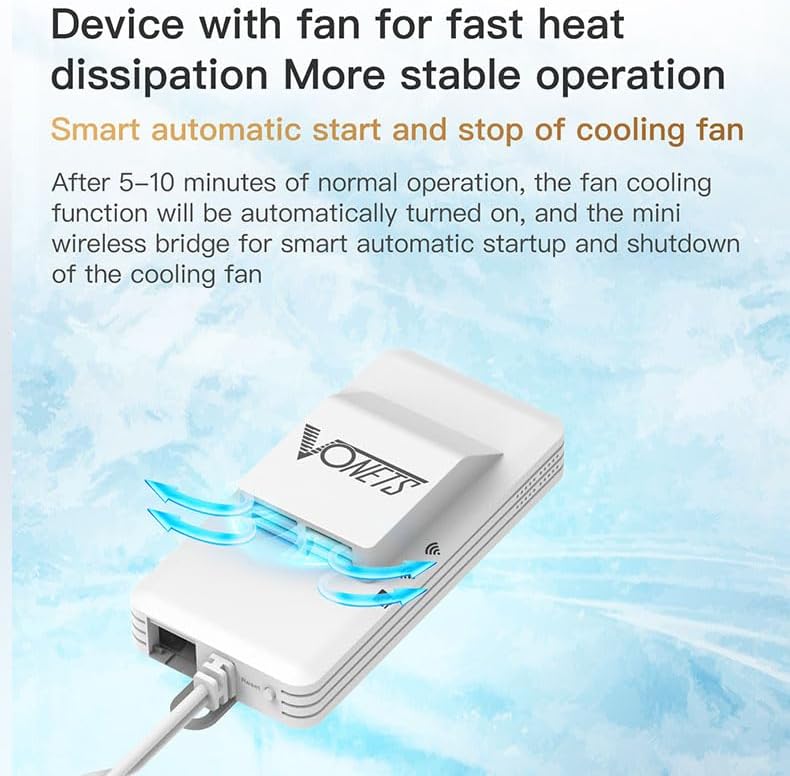
Figure 3.2: Illustration of the Vonets VAP11AC device showing airflow from its integrated cooling fan, emphasizing its smart automatic start and stop function for stable operation.
4. Package Contents
Please verify that all items are present in your package:
- Vonets VAP11AC Dual-Band WiFi Bridge
- RJ45 Ethernet Cable
- USB Power Cable (with DC connector)
- User Manual (this document)
5. Setup Guide
Follow these steps for initial configuration of your VAP11AC device:
- Power On: Connect the USB power cable to the VAP11AC and plug the USB end into a power source (e.g., a USB port on a computer, a USB wall adapter, or the provided DC adapter if applicable). The device will power on.
- Initial Connection: For the most stable initial setup, connect the VAP11AC directly to your computer's Ethernet port using the provided RJ45 Ethernet cable.
- Access Web Interface: Open a web browser on your computer and enter the default IP address
192.168.254.254into the address bar. If this does not work, tryvonets.cfg. - Configuration:
- Once logged into the web interface, navigate to the Wi-Fi settings.
- Scan for available Wi-Fi networks.
- Select your desired Wi-Fi network (SSID) and enter the password.
- Choose the appropriate operating mode (Bridge, Repeater, or AP) based on your needs.
- Apply the settings and allow the device to reboot.
- Verification: After rebooting, check the indicator lights on the VAP11AC. Green light indicates 5G Wi-Fi connection, Blue light indicates 2.4G Wi-Fi connection, and Yellow light indicates Ethernet cable connection. Ensure your wired device now has internet access.
Note: For detailed visual guidance, refer to the configuration video or specific sections of this manual for your chosen operating mode.
6. Operating Modes
6.1. Repeater/Bridge Application
In Repeater/Bridge mode, the VAP11AC can either extend the range of an existing Wi-Fi network (Repeater) or convert a Wi-Fi signal into an Ethernet connection for wired devices (Bridge). This is ideal for connecting devices like desktop computers, printers, surveillance cameras, or attendance machines that lack wireless capabilities to your Wi-Fi network.
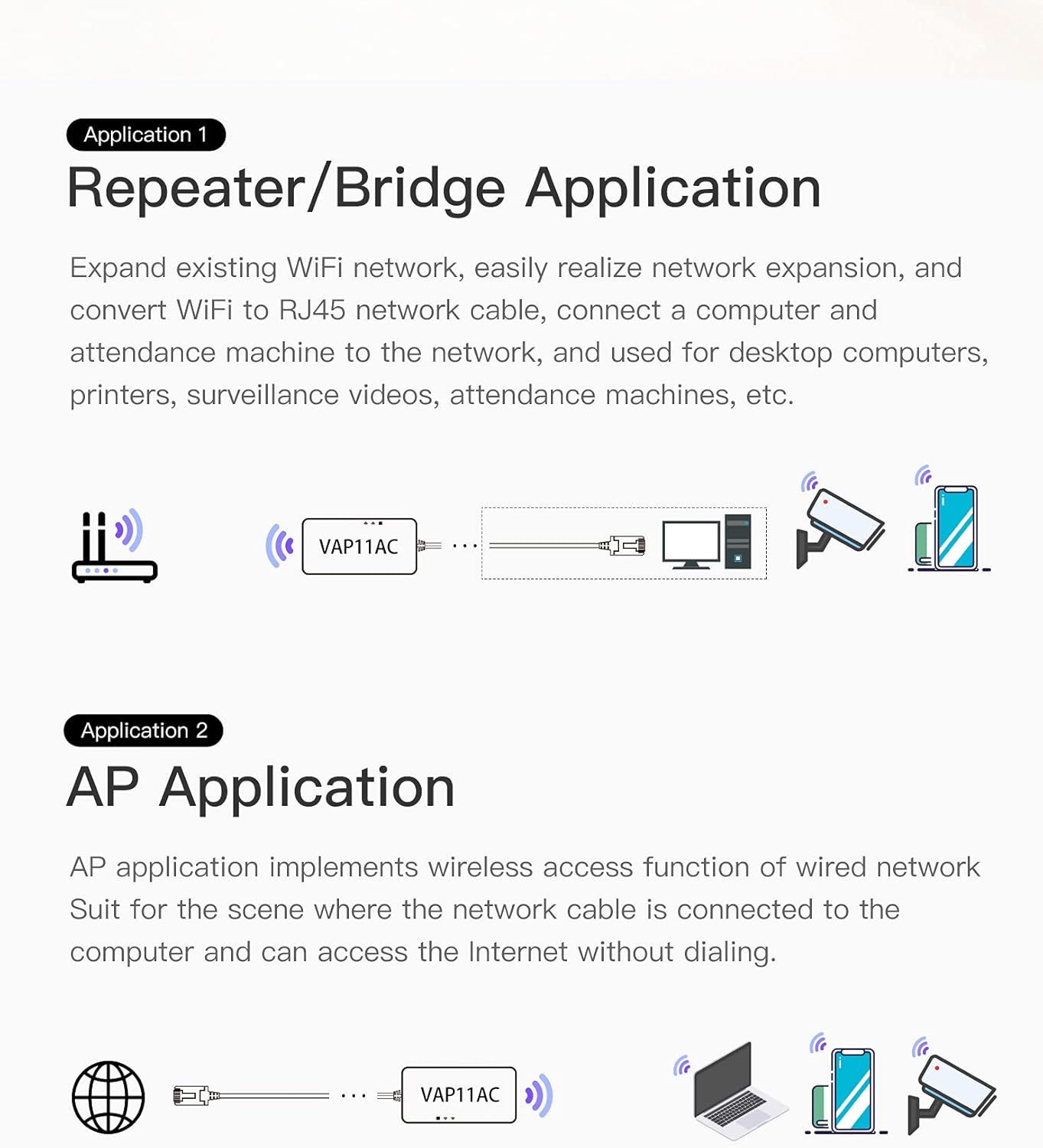
Figure 6.1: Diagram illustrating two application scenarios. The top diagram shows the VAP11AC in Repeater/Bridge mode, connecting a wired device (computer/camera) to a Wi-Fi router. The bottom diagram shows the VAP11AC in AP mode, providing Wi-Fi access from a wired internet source.
6.2. AP (Access Point) Application
In AP mode, the VAP11AC functions as a wireless access point, allowing wireless devices to connect to a wired network. This is useful when you have a wired internet connection (e.g., from a modem or router) and need to create a new Wi-Fi hotspot for wireless devices without requiring a dial-up connection.
7. Troubleshooting
- Cannot Access Web Interface:
- Ensure the device is powered on and connected directly to your computer via Ethernet for initial setup.
- Try both
192.168.254.254andvonets.cfgin your browser. - If the interface becomes unresponsive after prolonged use, try power cycling the device.
- Temporarily disable any VPN or firewall software on your computer.
- Frequent Disconnections During Setup:
- Perform the initial configuration with a direct wired Ethernet connection to your computer to ensure stability.
- No Internet Access After Configuration:
- Verify that the Wi-Fi network name (SSID) and password entered are correct.
- Check the indicator lights on the VAP11AC to confirm Wi-Fi and Ethernet connection status.
- Ensure your main router is functioning correctly and providing internet access.
- Try a factory reset (refer to Section 8.1) and reconfigure.
- Device Runs Warm:
- It is normal for the device to generate some heat during operation. The integrated cooling fan is designed to manage this. Ensure adequate ventilation around the device.
8. Maintenance
8.1. Factory Reset
If you encounter persistent issues or wish to reconfigure the device from scratch, you can perform a factory reset:
- With the device powered on, locate the "Reset" button (usually a small pinhole).
- Use a paperclip or a similar pointed object to press and hold the Reset button for approximately 5-10 seconds until the indicator lights flash.
- Release the button. The device will reboot with factory default settings. You will then need to reconfigure it as per the Setup Guide.
8.2. Firmware Updates
Periodically check the manufacturer's website for firmware updates. Firmware updates can improve performance, add new features, or fix bugs. Follow the instructions provided with the firmware update package carefully. It is recommended to perform firmware updates via a wired connection to prevent interruptions.
9. Specifications
| Feature | Specification |
|---|---|
| Model | VAP11AC |
| Wireless Standard | 802.11a/b/g/n/ac |
| Data Transfer Rate | 1200Mbps (300Mbps 2.4GHz + 900Mbps 5GHz) |
| Frequency Band | Dual-Band (2.4GHz & 5GHz) |
| Power Supply | DC 5V-24V (USB or DC optional) |
| Network Ports | 1 x RJ45 Ethernet Port |
| Product Dimensions | 3.7 x 1.77 x 0.59 inches (9.4 x 4.5 x 1.5 cm) |
| Item Weight | 5 ounces (141.75 grams) |
| Operating Modes | WiFi Bridge, Wireless Repeater, Access Point (AP) |
10. Warranty and Support
For warranty information, please refer to the documentation provided with your purchase or contact the manufacturer directly. If you encounter any issues or have questions not covered in this manual, please contact customer support:
Email: htxus2021@163.com
Please provide your product model (VAP11AC) and a detailed description of your issue when contacting support.


