
1. Product Overview
The CUSP 10.1 Inch Android Car Stereo Radio is a versatile double DIN multimedia player designed for universal vehicle compatibility. It features a 1280x720 pixel QLED screen, offering clear visuals and an intuitive touch interface. This unit supports both wired and wireless Apple CarPlay and Android Auto, integrating seamlessly with your smartphone for navigation, communication, and entertainment. Key features include GPS navigation, Bluetooth connectivity for hands-free calling and music streaming, FM radio, and a manual 360-degree rotatable screen for optimal viewing angles.

Figure 1: CUSP 10.1 Inch Android Car Stereo Main Unit.
2. What's in the Box
Carefully unpack the box and ensure all items are present. The package includes:
- Radio Unit x1
- Power Cable x1
- A/V Cable x1
- Rear Camera Cable x1
- USB Cable x2
- GPS Antenna x1
- Extra Microphone x1
- Rear Camera x1
- Mounting Brackets x2
- Screws x6
Video 1: Unboxing and overview of included components for the CUSP 10.1'' Adjustable Android Car Stereo Radio.
3. Installation Guide
Proper installation is crucial for optimal performance. It is recommended to have this unit installed by a professional. Refer to the wiring diagram and follow these general steps:
- Prepare the Dashboard: Carefully remove the existing car stereo and any necessary trim panels to access the double DIN slot.
- Connect Wiring Harness: Connect the provided power cable, A/V cable, and other necessary wiring harnesses to the car stereo unit and your vehicle's electrical system. Ensure all connections are secure.
- Install GPS Antenna: Mount the GPS antenna in a location with a clear view of the sky, typically on the dashboard or under the windshield.
- Connect Rear Camera (Optional): If installing the rear camera, route the rear camera cable from the back of the vehicle to the stereo unit and connect it.
- Secure the Unit: Use the provided mounting brackets and screws to firmly secure the car stereo into the double DIN slot.
- Test Functionality: Before reassembling the dashboard, power on the unit and test all functions (radio, Bluetooth, GPS, touch screen, steering wheel controls, camera) to ensure proper operation.
- Reassemble Dashboard: Once all functions are verified, reassemble the dashboard trim panels.

Figure 2: Product dimensions and detailed wiring diagram. Ensure correct connections for all components.
Video 2: Demonstration of cable connection for the CUSP 10.1'' Adjustable Android Car Stereo.
4. Setup
4.1 Screen Rotation and Adjustment
The 10.1-inch screen offers manual 360-degree rotation, as well as tilt adjustments (±30° back/front, ±30° left/right) and vertical movement (±2.36 inches up/down) to achieve the perfect viewing angle.
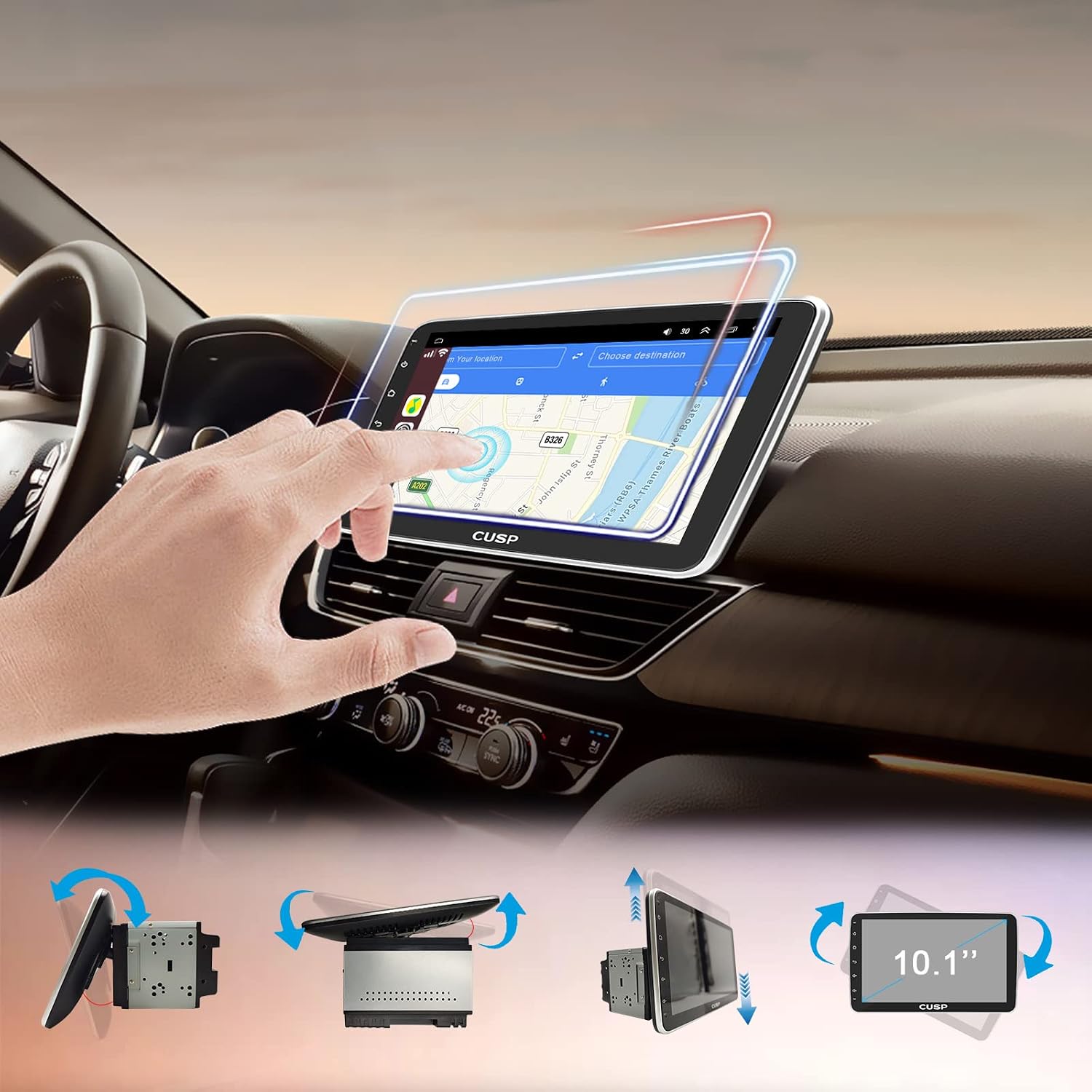
Figure 3: Screen rotation and tilt adjustments for optimal viewing.
Video 3: Demonstration of the 10.1 Inch Manual Rotation feature of the Android Car Stereo.
4.2 Customizing Boot Logo
You can personalize your car stereo by setting a custom boot logo. Prepare an image (1280x720px, PNG or BMP format) on a USB drive, then navigate to the settings menu to select and apply it.
Video 4: Instructions on how to customize the boot logo on the 10.1 Inch Android Rotation Car Stereo.
4.3 Changing User Interface (UI) Themes
The unit offers various UI themes to match your preference. Access the 'Theme' application from the main interface to browse and select different UI options.
Video 5: Guide to changing UI themes on the CUSP Android Car Stereo Radio.
4.4 CANBUS Setup
For vehicles equipped with CANBUS, proper configuration is necessary to integrate steering wheel controls and other vehicle data. Navigate to the Protocol Settings in the Factory Settings menu to select your car model and confirm the CANBUS setup.
Video 6: Detailed instructions on how to set up the CANBUS for the CUSP 10.1'' Rotation Car Stereo Radio.
5. Operating Instructions
5.1 Bluetooth Functions
Connect your smartphone via Bluetooth for hands-free calling and audio streaming. The unit supports Bluetooth hands-free function, allowing you to answer/make calls and play music wirelessly.

Figure 4: Bluetooth, FM Radio, Music, Video, and Steering Wheel Control interfaces.
5.2 Apple CarPlay & Android Auto
Integrate your smartphone for a smarter driving experience. The unit supports both wired and wireless Apple CarPlay and Android Auto, providing access to navigation, music, messages, and more directly on the stereo's display.

Figure 5: Apple CarPlay and Android Auto interfaces for seamless smartphone integration.
Video 7: Demonstration of wired Apple CarPlay functionality on the 10.1 inch Rotating Car Stereo.
Video 8: Explanation of wired and wireless Android Auto functionality.
5.3 GPS Navigation & WiFi Connectivity
The unit supports online and offline GPS navigation. Connect to Wi-Fi or a mobile hotspot to access online maps and other internet-based features. The QLED screen provides a clear display for navigation.

Figure 6: Reversing camera view and WiFi/Hotspot features.
5.4 Steering Wheel Control
If your vehicle supports steering wheel controls and CANBUS is correctly configured, you can operate basic functions like volume, track changes, and mode selection directly from your steering wheel for safer driving.
6. Maintenance
- Screen Cleaning: Use a soft, lint-free cloth to clean the QLED screen. Avoid abrasive cleaners or solvents that could damage the display.
- Software Updates: Periodically check for software updates to ensure optimal performance and access to new features. Follow the instructions provided with the update package.
- General Care: Keep the unit free from dust and moisture. Avoid exposing it to extreme temperatures.
7. Troubleshooting
| Problem | Possible Cause | Solution |
|---|---|---|
| Unit does not power on | Incorrect wiring, blown fuse | Check power cable connections, inspect vehicle fuses. |
| No sound | Speaker wires disconnected, volume too low | Verify speaker connections, increase volume, check audio settings. |
| GPS signal lost or inaccurate | Poor antenna placement, interference | Ensure GPS antenna has a clear view of the sky, check antenna connection. |
| Bluetooth connection issues | Device not paired, Bluetooth off | Ensure Bluetooth is enabled on both devices, re-pair the device. |
| Steering wheel controls not working | CANBUS not configured, incorrect wiring | Check CANBUS settings for your vehicle model, verify wiring. |
For further assistance, please refer to the detailed troubleshooting section in the included user manual or contact customer support.
8. Specifications
- Brand: CUSP
- Model Name: CV-1031
- Screen Size: 10.1 Inches
- Resolution: 720 x 1280 pixels
- Operating System: Android
- Memory Storage Capacity: 32 GB
- Connectivity Technology: Bluetooth, 3G/4G, Wi-Fi
- Special Features: Android Auto, Apple CarPlay, Manual Rotation, Touchscreen, GPS
- Supported Satellite Navigation System: GPS
- Mounting Type: Dashboard Mount (Double DIN)
- Item Dimensions L x W x H: 10.1"L x 12.88"W x 10.1"H
9. Warranty & Support
This CUSP product comes with a 1-year warranty from the date of purchase. For technical support, troubleshooting, or warranty claims, please contact CUSP customer service through the retailer where the product was purchased or visit the official CUSP website.