
1. Introduction
This manual provides essential information for setting up, operating, maintaining, and troubleshooting your HP ProDesk 600 G4 Small Form Factor (SFF) Desktop PC. The HP ProDesk 600 G4 SFF is designed for various computing needs, offering a compact design with robust performance.
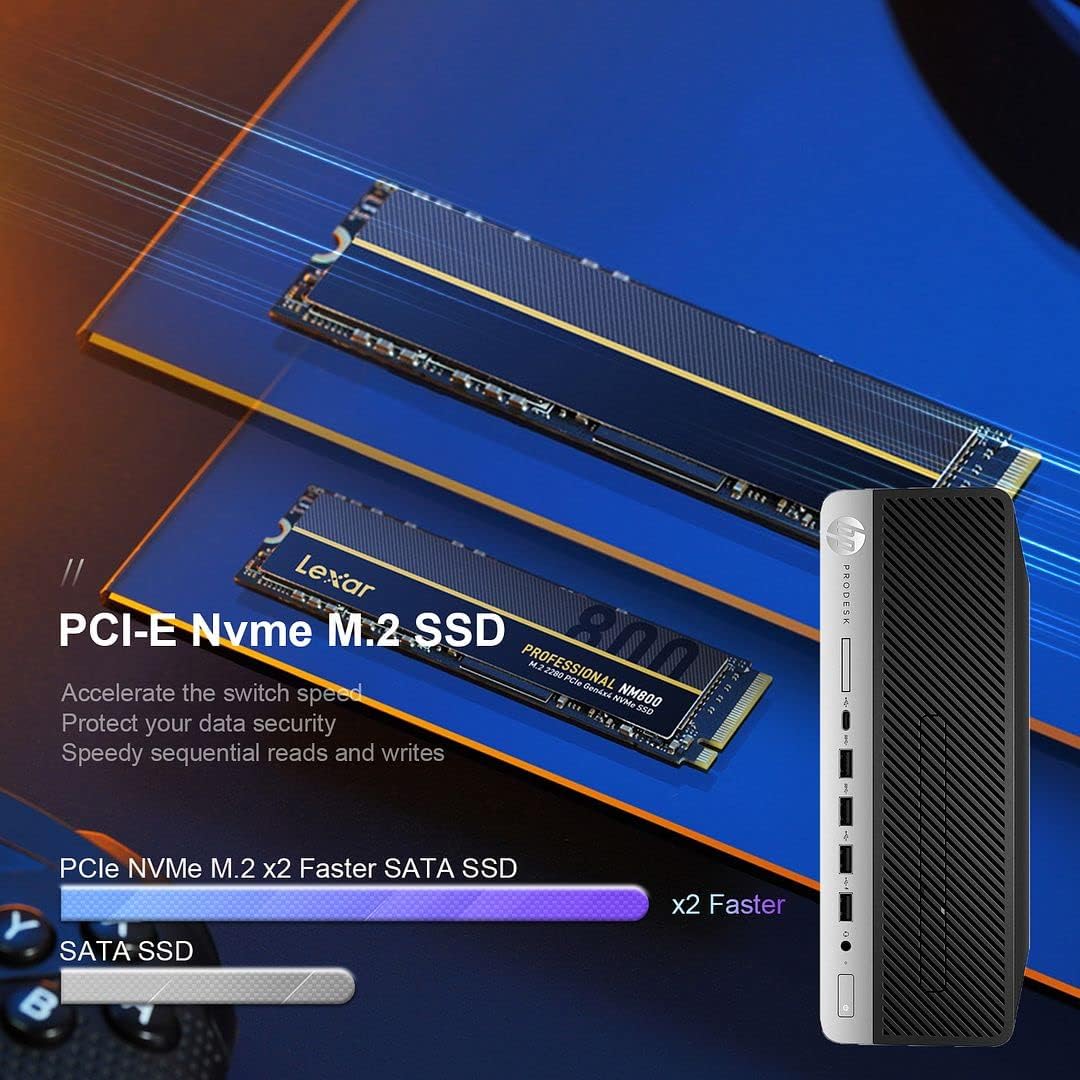
This system comes pre-installed with Windows 11 Pro and features an Intel i7-8700 processor, 32GB DDR4 RAM, a 512GB NVMe M.2 SSD, and a 1TB HDD for ample storage. Integrated Wi-Fi and Bluetooth 6E AX210 provide wireless connectivity, while a range of ports including USB-C, USB-A, HDMI (via adapter), and DisplayPort ensure broad compatibility with peripherals.

2. Setup Guide
2.1 Unpacking
Carefully remove all components from the packaging. Ensure the following items are present:
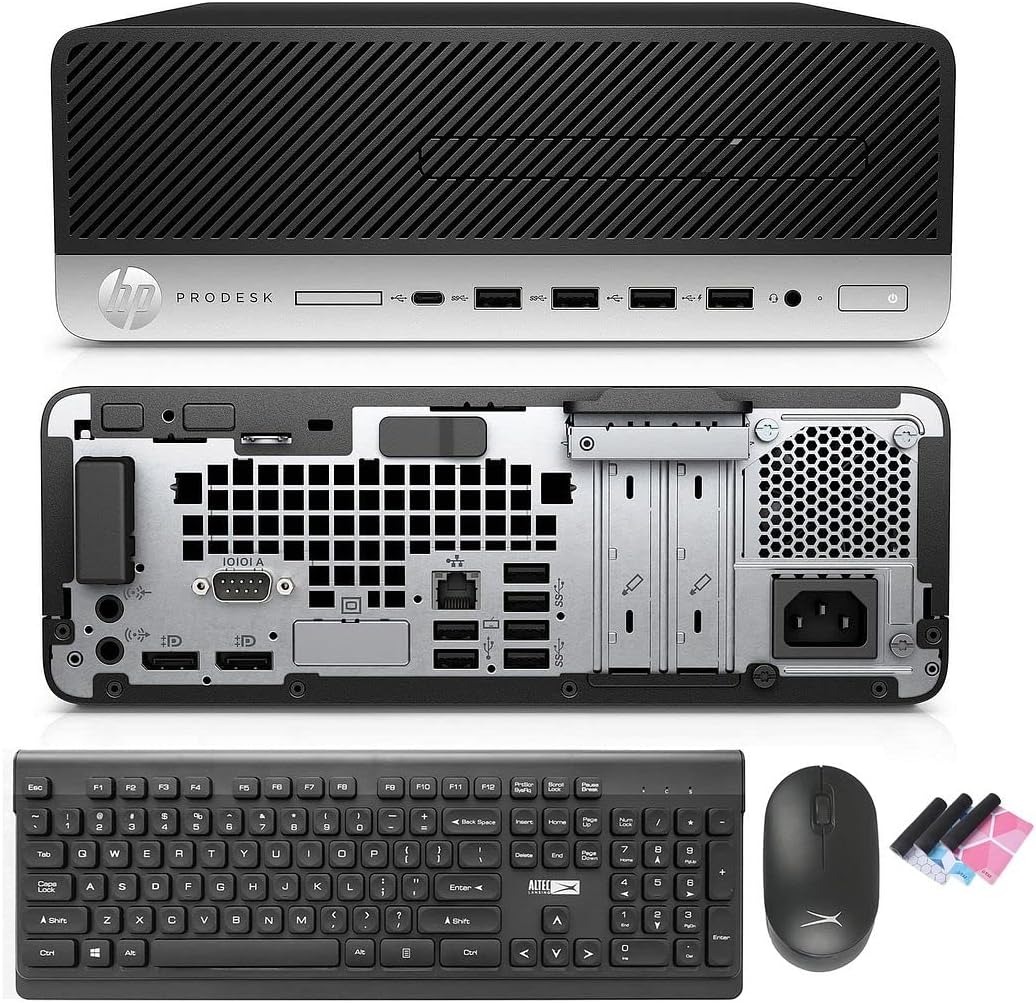
- HP ProDesk 600 G4 SFF Computer Desktop PC
- Altec Wireless Keyboard and Mouse Combo
- TJJ Large Mouse Pad (color may vary)
- Power Cord
- DP to HDMI Adapter
2.2 Connecting Peripherals
Follow these steps to connect your computer:
- Connect Monitor: Use the provided DP to HDMI adapter or a DisplayPort cable to connect your monitor to one of the DisplayPort outputs on the rear of the PC.
- Connect Keyboard and Mouse: Insert the wireless USB receiver for the Altec keyboard and mouse combo into any available USB-A port on the front or rear of the PC.
- Connect Power: Plug the power cord into the power input on the rear of the PC, then plug the other end into a wall outlet or surge protector.
- Optional Connections: Connect any other peripherals such as speakers, printers, or external drives to the appropriate ports.
2.3 Initial Boot-Up
Press the power button on the front of the PC. The system will boot into Windows 11 Pro. Follow the on-screen instructions for initial Windows setup, including language, region, and user account creation.
3. Operating Instructions
3.1 Windows 11 Pro Overview
Your PC comes with Windows 11 Pro. Familiarize yourself with the new Start Menu, taskbar, and multi-window snapping layout for improved productivity.

3.2 Network Connectivity
The HP ProDesk 600 G4 features built-in Wi-Fi 6E AX210 for wireless internet access. To connect to a Wi-Fi network:
- Click the Wi-Fi icon on the taskbar.
- Select your desired network from the list.
- Enter the network password if prompted.
For wired connections, connect an Ethernet cable to the Ethernet port on the rear of the PC.

3.3 Display Configuration
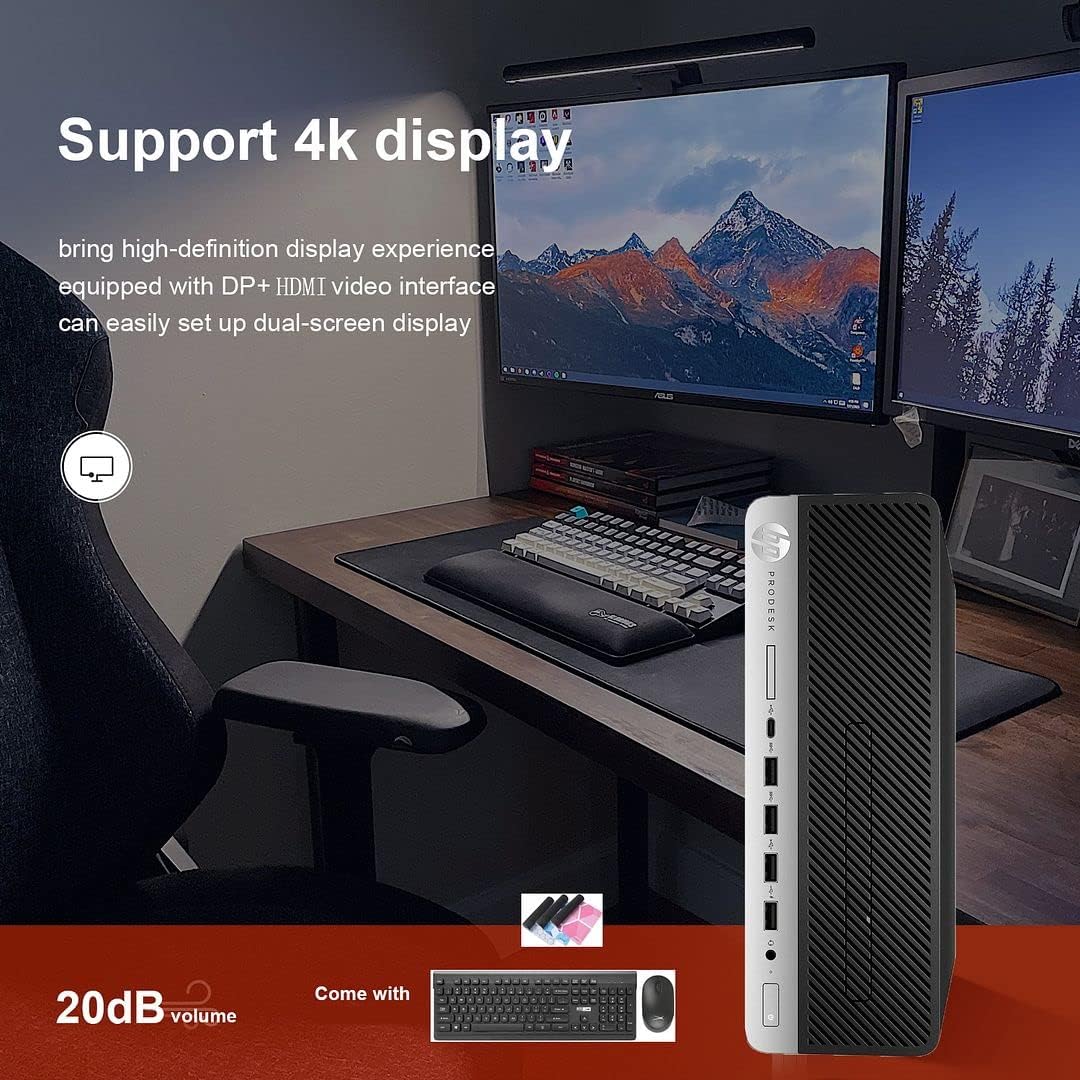
The PC supports 4K display output and dual-screen configurations using its DisplayPort outputs. Use the provided DP to HDMI adapter for HDMI-only monitors. To configure multiple displays in Windows 11:
- Right-click on the desktop and select "Display settings."
- Detect and arrange your displays as needed.
3.4 Optical Drive Usage
The integrated DVD-RW drive allows you to read and write CDs and DVDs. Insert the disc into the drive, and Windows will typically prompt you with options for playback or burning.
4. Maintenance
4.1 System Cleaning
To ensure optimal performance and longevity, regularly clean your PC:
- Use a soft, dry cloth to wipe down the exterior.
- Use compressed air to clear dust from vents and ports. Ensure the PC is powered off before cleaning.
- Keep the area around the PC clear to allow for proper airflow.
4.2 Software Updates
Regularly update Windows and device drivers to maintain security and performance. Windows Update can be accessed via Settings > Windows Update.
4.3 Data Backup
It is recommended to regularly back up important data to an external drive or cloud storage to prevent data loss.
4.4 Upgradability
The Small Form Factor design allows for some internal upgrades, such as adding a low-profile graphics card or additional storage, thanks to its PCIe slots.
5. Troubleshooting
If you encounter issues with your HP ProDesk 600 G4, refer to the following common troubleshooting steps:
- No Power: Ensure the power cord is securely connected to both the PC and the power outlet. Try a different outlet.
- No Display: Verify that the monitor is powered on and correctly connected to the PC. Check that the correct input source is selected on your monitor.
- No Internet Connection: For Wi-Fi, ensure you are connected to the correct network and have entered the password correctly. For wired connections, check the Ethernet cable and router status.
- Peripheral Not Responding: Ensure the keyboard, mouse, or other peripherals are properly connected. Try connecting them to a different USB port.
- System Slowdown: Close unnecessary applications. Check for background processes in Task Manager. Ensure sufficient free space on your drives.
For more complex issues or persistent problems, please contact technical support.
6. Specifications
Below are the key technical specifications for the HP ProDesk 600 G4 SFF Desktop PC:
| Component | Specification |
|---|---|
| Processor | Intel Core i7-8700 (3.20-4.60 GHz, 6 Cores, 12 Threads, 12 MB Cache) |
| Operating System | Windows 11 Pro |
| Memory (RAM) | 32GB DDR4 |
| Storage | 512GB NVMe M.2 SSD + 1TB HDD |
| Graphics | Intel UHD Graphics 630 |
| Wireless Connectivity | Built-in Wi-Fi + Bluetooth 6E AX210 Combo |
| USB-C Ports | 1 (USB 3.1) |
| USB-A Ports | 4 (USB 3.1) + 2 (USB 3.0) + 4 (USB 2.0) |
| Display Ports | 2 (with 1x DP to HDMI Adapter included) |
| Ethernet Port | 1 |
| Optical Drive | DVD-RW |
| Dimensions (LxWxH) | 16 x 11 x 7 inches |
| Weight | 22 pounds |
7. Warranty and Technical Support
Your HP ProDesk 600 G4 SFF Desktop PC comes with a 90-day warranty. This warranty covers defects in materials and workmanship under normal use.
For any technical issues, questions, or warranty claims, please contact the seller's technical support. They are committed to responding within 24 hours to assist you.
Please retain your proof of purchase for warranty validation.


