
OMOTON WK001
OMOTON Wireless Keyboard User Manual
Model: WK001
1. Introduction
Thank you for choosing the OMOTON Wireless Keyboard. This compact and quiet keyboard is designed for seamless connectivity with your laptop, tablet, computer, desktop, and PC via a 2.4G USB receiver. Its slim profile and ergonomic design ensure comfortable and efficient typing. This manual will guide you through the setup, operation, and maintenance of your new keyboard.

Figure 1.1: OMOTON Wireless Keyboard with USB Receiver
2. Package Contents
Please check the package contents to ensure all items are present:
- 1 x Black Wireless Keyboard
- 1 x USB Receiver
- 1 x User Manual
3. Setup Guide
3.1 Battery Installation
The OMOTON Wireless Keyboard requires 2 AAA batteries (not included). Follow these steps to install them:
- Locate the battery compartment on the back of the keyboard.
- Slide open the battery compartment cover.
- Insert two AAA batteries, ensuring correct polarity (+/-).
- Close the battery compartment cover securely.
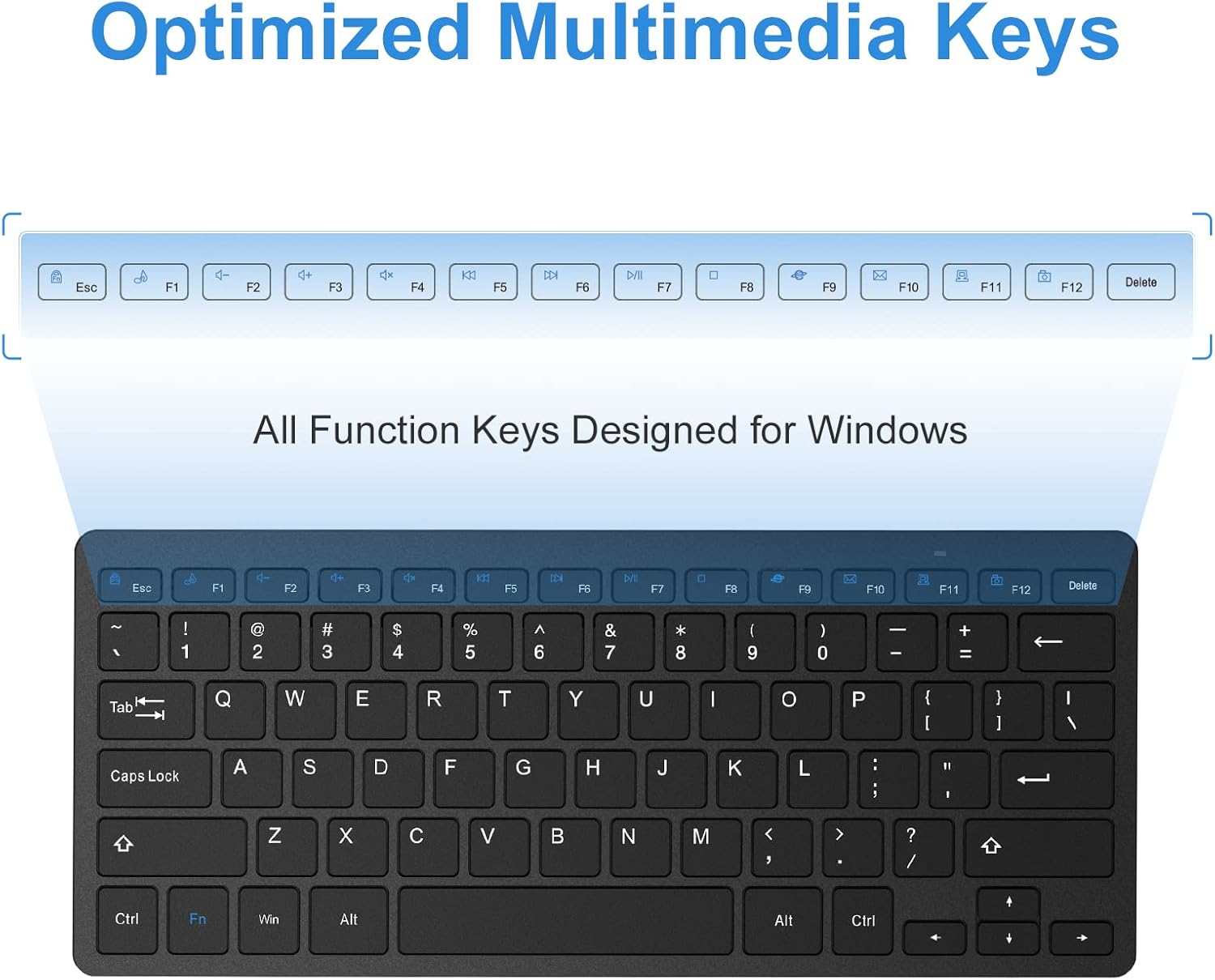
Figure 3.1: Battery Compartment and Power Switch
3.2 Connecting the USB Receiver
The keyboard connects wirelessly via a 2.4G USB receiver. The receiver is typically stored in a dedicated slot on the back of the keyboard for convenience during travel.
- Remove the USB receiver from its storage slot on the back of the keyboard.
- Plug the USB receiver into an available USB port on your computer, laptop, or tablet.
- Turn on the keyboard using the ON/OFF switch located on the back of the keyboard (refer to Figure 3.1).
- The keyboard should automatically connect to your device. No additional drivers are typically required.
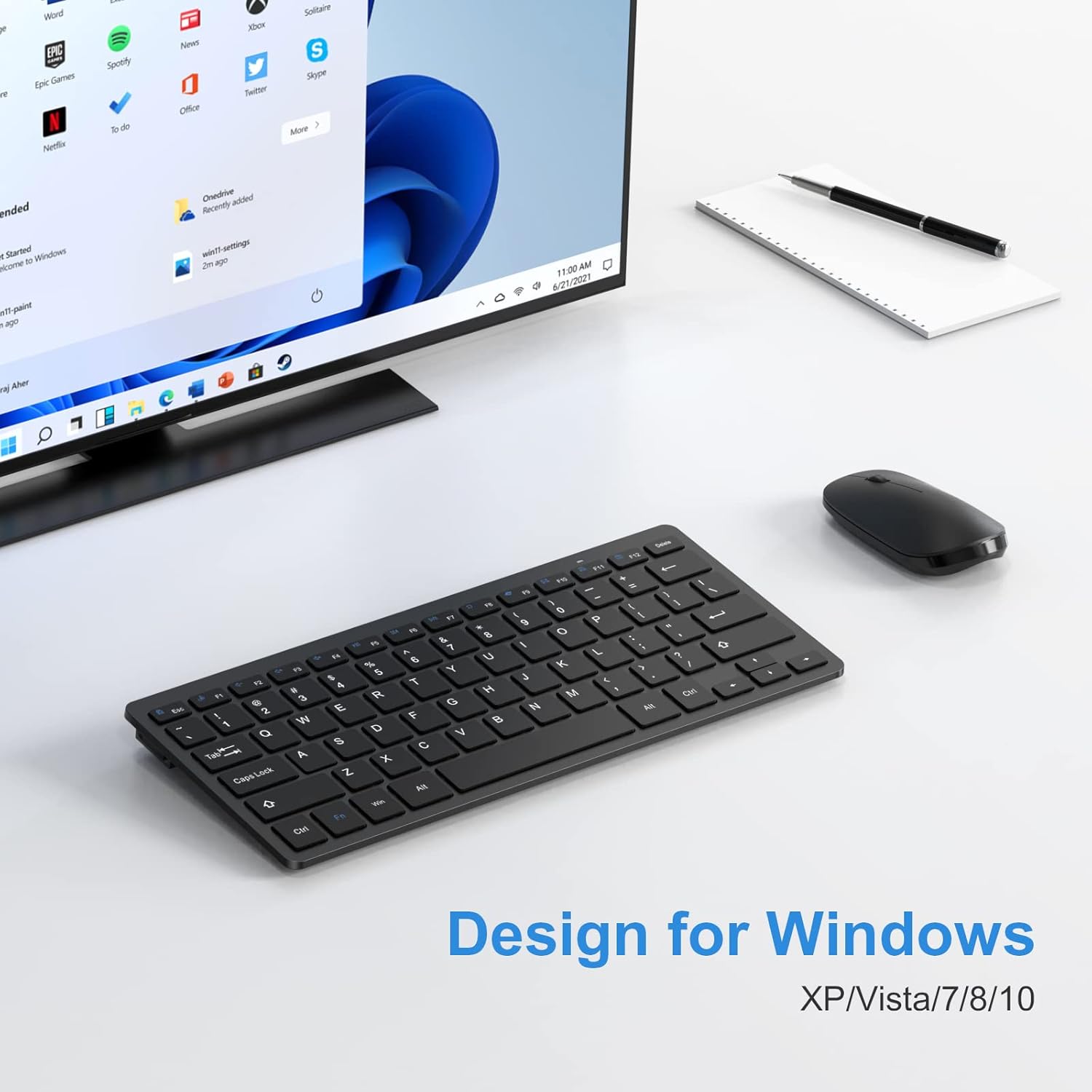
Figure 3.2: Connecting the USB Receiver
4. Operating Instructions
4.1 Stable 2.4G Wireless Connection
The keyboard provides a stable and reliable 2.4G wireless connection, allowing you to operate your device from up to 33 feet (10 meters) away. This ensures flexibility and convenience in your workspace.
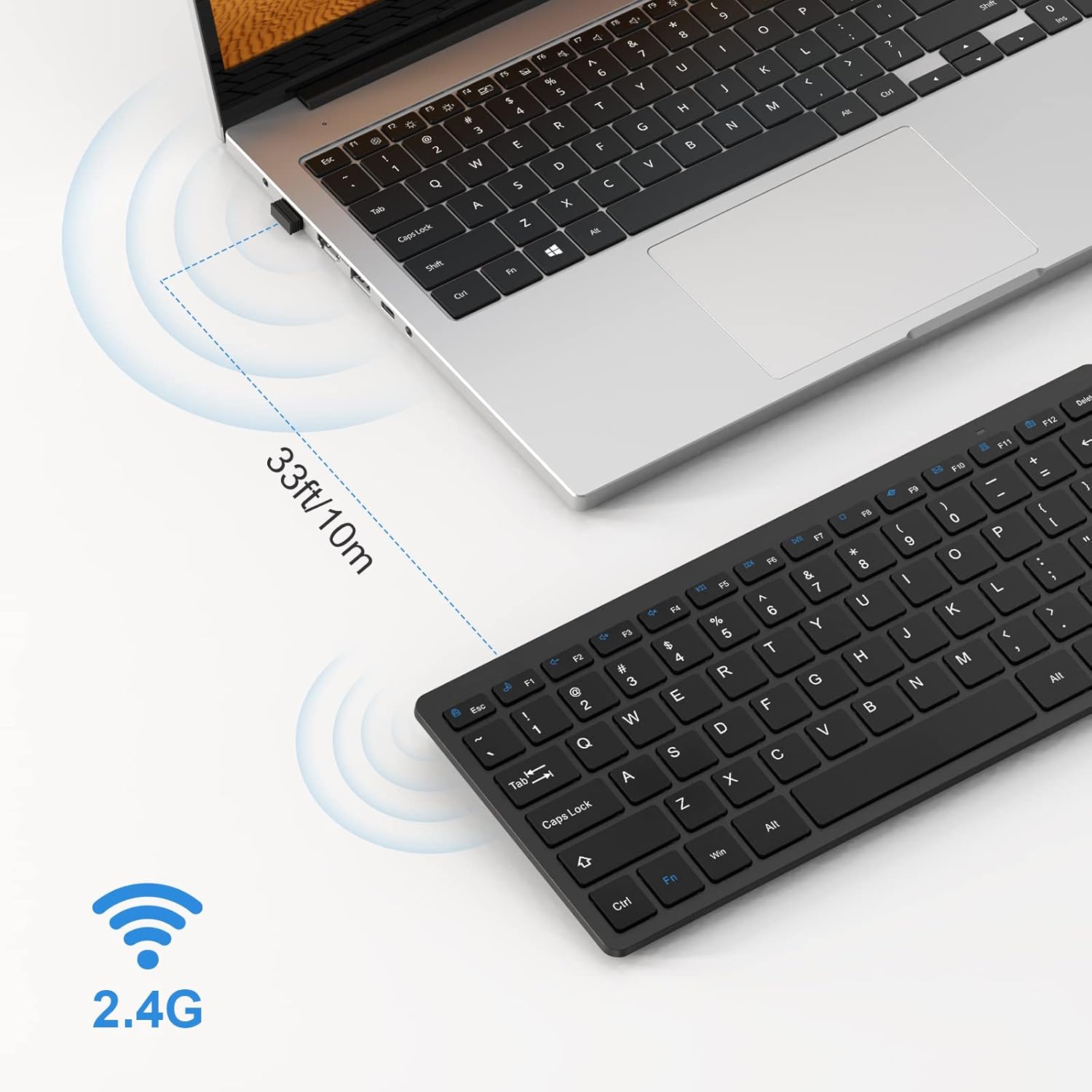
Figure 4.1: 2.4G Wireless Connection Range
4.2 Scissor-Switch Keys
The keyboard features scissor-switch keys, which provide a responsive and quiet typing experience. This mechanism ensures precise keystrokes and reduces typing noise, making it ideal for various environments.
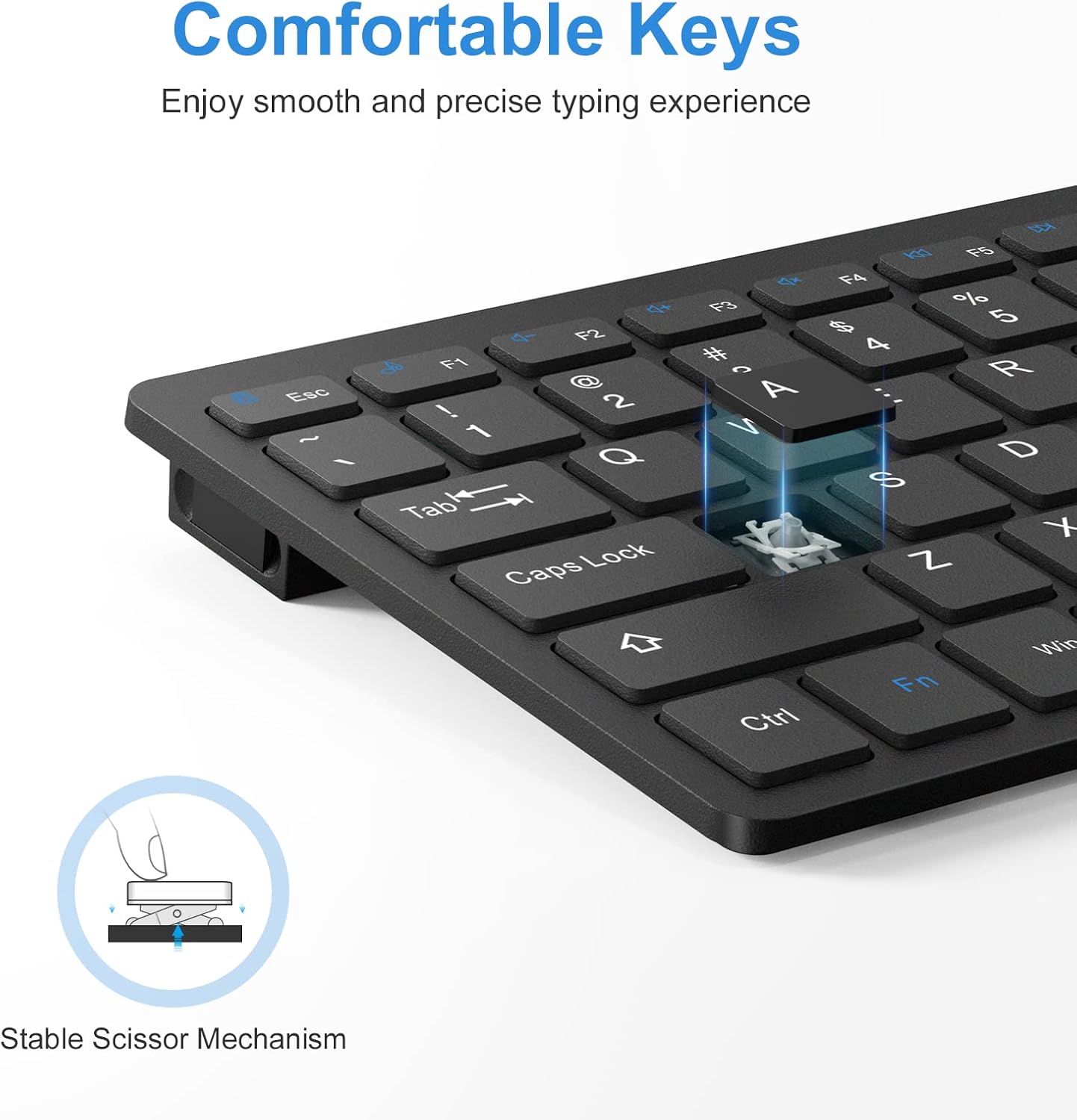
Figure 4.2: Scissor-Switch Key Mechanism
4.3 Optimized Multimedia Keys
The keyboard includes optimized multimedia keys designed for Windows operating systems. These function keys (F1-F12) provide quick access to various controls such as volume, media playback, and more, enhancing your productivity.
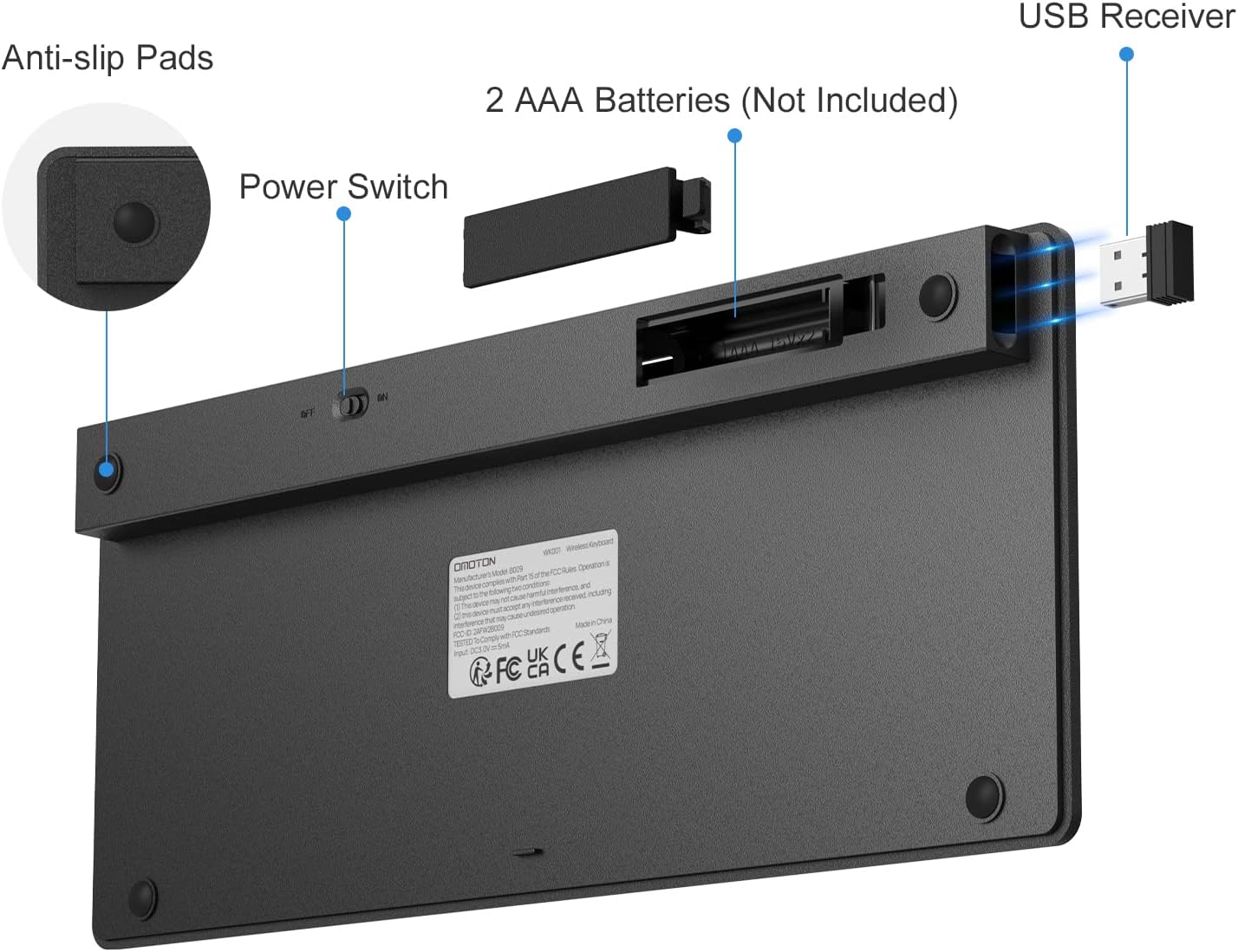
Figure 4.3: Multimedia Function Keys
4.4 Ergonomic Design
The keyboard features an optimal tilt angle to prevent wrist discomfort during long typing sessions. Four rubberized pads on the bottom ensure stability and prevent the keyboard from slipping on your desk.
4.5 Auto-Sleep Mode
To conserve battery life, the keyboard features an environmentally friendly auto-sleep mode. If inactive for a period, it will enter sleep mode. Press any key to wake it up.
4.6 Compatibility
This keyboard is designed for Windows XP/Vista/7/8/10 and is compatible with laptops, PCs, and desktop computers.
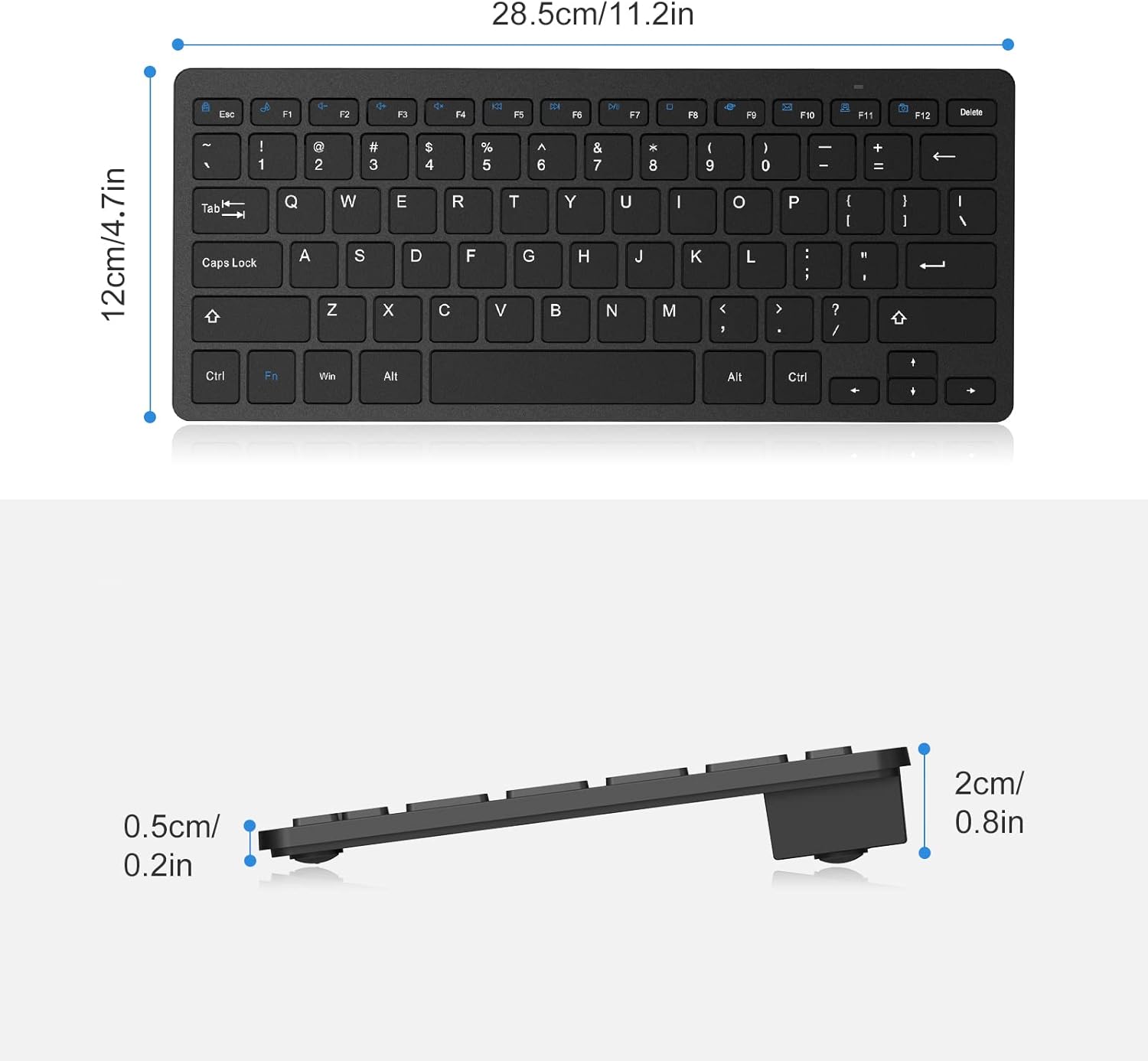
Figure 4.4: Designed for Windows Operating Systems
5. Maintenance
5.1 Battery Replacement
The keyboard's battery life can last up to 6 months depending on usage. When the keyboard's performance degrades or it stops responding, it's time to replace the batteries. Follow the steps in Section 3.1 to replace the 2 AAA batteries.
5.2 Cleaning
To clean your keyboard, gently wipe the surface with a soft, damp cloth. Avoid using harsh chemicals or abrasive materials that could damage the keyboard's finish or keys. Ensure the keyboard is turned off before cleaning.
6. Troubleshooting
If you encounter any issues with your OMOTON Wireless Keyboard, please refer to the following common problems and solutions:
- Keyboard not responding:
- Ensure the keyboard is turned ON using the switch on the back.
- Check if the batteries are correctly installed and have sufficient charge. Replace if necessary.
- Verify that the USB receiver is securely plugged into a working USB port on your device. Try a different USB port.
- Move the keyboard closer to the USB receiver to ensure it's within the 33ft (10m) operating range.
- Restart your computer or device.
- Keys are sticky or unresponsive:
- Gently clean around and under the affected keys to remove any debris.
- Ensure the keyboard is on a flat, stable surface.
- Intermittent connection:
- Ensure there are no large metal objects or other wireless devices causing interference between the keyboard and the receiver.
- Try plugging the USB receiver into a different USB port, preferably one directly on your computer rather than a hub.
7. Specifications
| Feature | Detail |
|---|---|
| Model Number | WK001 |
| Connectivity Technology | 2.4G Wireless (USB Receiver) |
| Compatible Devices | Laptop, PC (Windows XP/Vista/7/8/10) |
| Keyboard Description | Wireless, Compact, Quiet, Slim |
| Key Type | Scissor-switch |
| Number of Keys | 78 |
| Color | Black |
| Power Source | 2 x AAA Batteries (Not included) |
| Operating Range | Up to 33ft (10m) |
| Product Dimensions | 11.22 x 4.72 x 0.79 inches |
| Item Weight | 12.3 ounces |
| Country of Origin | China |
8. Warranty and Support
OMOTON products are designed for reliability and performance. For any questions or assistance with your OMOTON Wireless Keyboard, please contact our customer support. Refer to the contact information provided on the product packaging or the official OMOTON website for details.
Related documentsWK001


Ask a question about this manual
Ask about setup, troubleshooting, compatibility, parts, safety, or missing instructions. Manuals+ will review the question and use this page’s manual context to help answer it.