
1. Introduction
Thank you for choosing the Drsaec N919 Bluetooth Speaker. This manual provides essential information for setting up, operating, and maintaining your speaker. Please read it carefully to ensure proper use and to maximize your listening experience.
2. Product Overview
Familiarize yourself with the speaker's components and controls.

Figure 2.1: Speaker Ports and Controls
This image shows the various ports and control buttons on the Drsaec N919 Bluetooth Speaker. Key features include the Charging indicator light, Micro Input, AUX port, USB Output, and control buttons for volume, track navigation, power, and Bluetooth indicator.

Figure 2.2: Detailed Button Functions and Connectivity Options
This image highlights the multi-function buttons and connectivity options. It details functions such as Answer/End Call, Battery indicator, Previous Track/Volume Down, Play/Pause, Next Track/Volume Up, and the MIC Multi-function key. It also indicates support for Bluetooth, TF card, and AUX connections.
Controls and Ports:
- Power Button: Press and hold to turn ON/OFF. Short press for Play/Pause.
- Volume Down / Previous Track: Short press for previous track, long press for volume down.
- Volume Up / Next Track: Short press for next track, long press for volume up.
- Bluetooth Indicator: Shows Bluetooth connection status.
- Charging Indicator Light: Indicates charging status.
- Micro Input: For charging the speaker.
- AUX Port: For wired audio connection.
- USB Output: For charging external devices (power bank function).
- TF Card Slot: For playing music directly from a TF (MicroSD) card.
- NFC Area: For quick pairing with NFC-enabled devices.
- Hook: For attaching to bags or other objects.
3. Setup
3.1 Charging the Speaker
- Connect the provided charging cable to the Micro Input port on the speaker.
- Connect the other end of the cable to a USB power adapter (not included) or a computer's USB port.
- The Charging indicator light will illuminate during charging and turn off when fully charged.
3.2 Bluetooth Pairing
- Ensure the speaker is charged and powered ON. The Bluetooth indicator will flash, indicating it's in pairing mode.
- On your device (smartphone, tablet, etc.), enable Bluetooth and search for available devices.
- Select "Drsaec N919" from the list of devices.
- Once paired, the Bluetooth indicator will stop flashing and remain solid.
3.3 NFC Quick Connect
For devices with NFC functionality, you can quickly pair by touching your device to the speaker's NFC area.

Figure 3.1: NFC Quick Connect Process
This image illustrates the three steps for NFC quick connection: 1. Open NFC function/Bluetooth connection on your phone. 2. Touch the 'NFC' area on the speaker and click 'pair and connect'. 3. Connect successfully and play music.
- Ensure NFC is enabled on your smartphone and the speaker is powered ON.
- Gently tap your NFC-enabled device against the NFC logo on the speaker.
- Confirm the pairing request on your device. The speaker will connect automatically.
3.4 AUX and TF Card Connection
- AUX Mode: Connect a 3.5mm audio cable (not included) from your audio source to the speaker's AUX port. The speaker will automatically switch to AUX mode.
- TF Card Mode: Insert a TF (MicroSD) card with music files into the TF card slot. The speaker will automatically detect the card and begin playing music.
4. Operating Instructions
4.1 Power On/Off
- Power On: Press and hold the Power button (ON/OFF/Play/Pause/phone) for approximately 3 seconds until you hear an audible prompt.
- Power Off: Press and hold the Power button for approximately 3 seconds until you hear an audible prompt.
4.2 Music Playback
- Play/Pause: Short press the Power button.
- Next Track: Short press the Next/Volume up button.
- Previous Track: Short press the Pre/Volume down button.
- Volume Up: Long press the Next/Volume up button.
- Volume Down: Long press the Pre/Volume down button.
4.3 Call Management
When connected via Bluetooth, you can manage calls directly from the speaker.
- Answer Call: Short press the Power button.
- End Call: Short press the Power button during a call.
- Reject Call: Press and hold the Power button for 2 seconds.
4.4 True Wireless Stereo (TWS) Pairing
To achieve a 3D surround sound experience, you can pair two Drsaec N919 speakers together.
- Ensure both speakers are powered ON and not connected to any Bluetooth device.
- On one speaker (this will be the primary speaker), double-press the Power button. You will hear an indication that it is searching for another speaker.
- The two speakers will automatically connect to each other. Once connected, you will hear a confirmation sound.
- Now, connect your device to the primary speaker via Bluetooth as described in section 3.2. Audio will play through both speakers in stereo.
5. Maintenance
5.1 IPX5 Water Resistance
The Drsaec N919 speaker is IPX5 certified, meaning it is protected against low-pressure water jets from any direction. This makes it suitable for use in environments where it might encounter splashes, rain, or dust.

Figure 5.1: IPX5 Water Resistance
This image shows the Drsaec N919 speaker with water droplets, illustrating its IPX5 water-resistant design, suitable for outdoor and wet environments.
- Do not immerse the speaker in water.
- Ensure all port covers are securely closed before exposing the speaker to water.
- After exposure to water, wipe the speaker dry with a soft cloth.
5.2 Cleaning and Storage
- Clean the speaker with a soft, dry cloth. Do not use abrasive cleaners or solvents.
- Store the speaker in a cool, dry place away from direct sunlight and extreme temperatures.
- If storing for an extended period, charge the battery periodically to maintain its lifespan.
6. Troubleshooting
If you encounter issues with your Drsaec N919 speaker, refer to the following common problems and solutions:
| Problem | Possible Cause | Solution |
|---|---|---|
| Speaker does not power on | Low battery; Power button not pressed long enough | Charge the speaker; Press and hold the Power button for 3 seconds |
| No sound | Volume too low; Not properly connected; Incorrect mode | Increase volume on speaker and device; Re-pair Bluetooth or check AUX/TF card connection; Ensure correct input mode is selected |
| Bluetooth pairing fails | Speaker not in pairing mode; Device Bluetooth off; Too far from device | Ensure speaker is flashing Bluetooth indicator; Turn device Bluetooth ON; Move speaker closer to device (within 20m) |
| Poor sound quality | Low battery; Obstructions; Source audio quality | Charge the speaker; Remove obstructions between speaker and device; Try a different audio source |
| TWS pairing fails | Speakers already connected to a device; Incorrect pairing steps | Ensure both speakers are disconnected from other devices; Follow TWS pairing steps carefully (Section 4.4) |
7. Specifications
Detailed technical specifications for the Drsaec N919 Bluetooth Speaker.

Figure 7.1: 24-Hour Battery Life
This image illustrates the Drsaec N919 speaker's impressive 24-hour battery capacity, ensuring extended playtime.
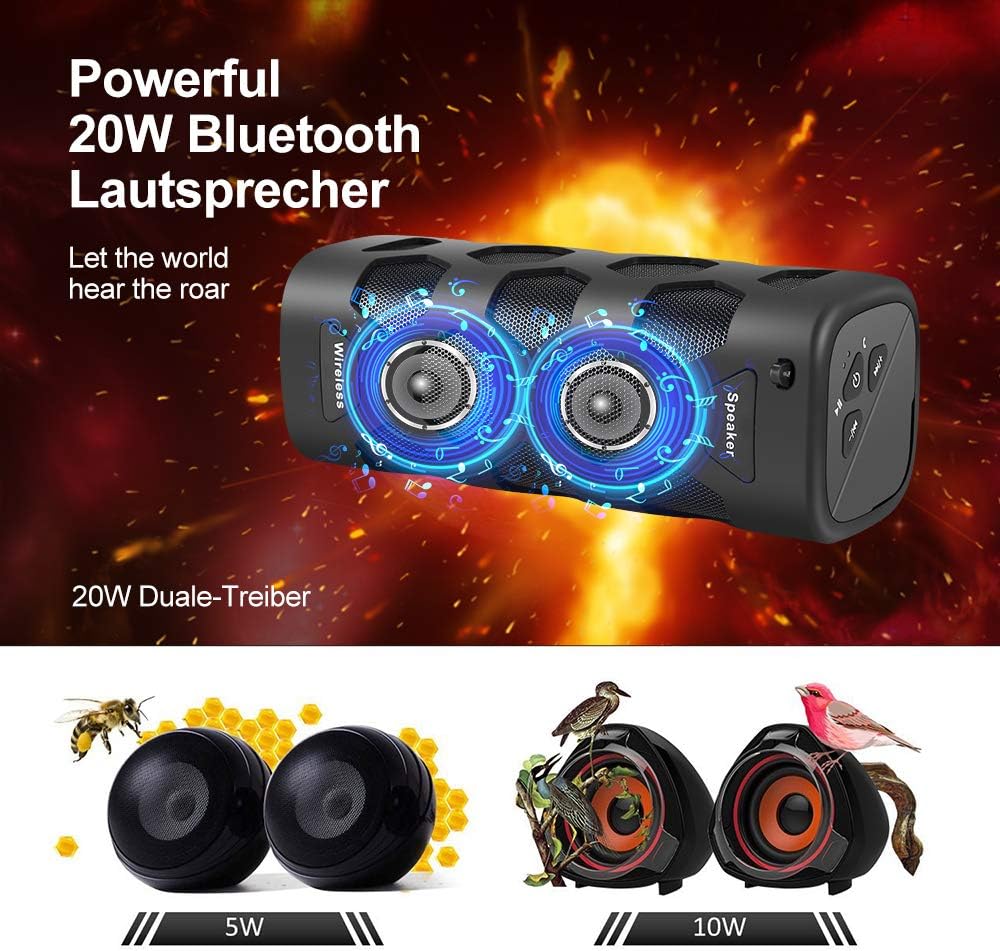
Figure 7.2: Bluetooth 5.3 Chip
This diagram shows the advanced Bluetooth 5.3 chip integrated into the speaker, providing stable and efficient wireless connectivity.
Figure 7.3: Audio Frequency Response
This graphic illustrates the speaker's audio profile, emphasizing its capability to deliver clear Bass, Mids, and Treble for a balanced sound experience.
- Model Number: N919
- Brand: Drsaec
- Connectivity Technology: Bluetooth 5.3
- Special Features: Portable, Wireless, IPX5 Waterproof, NFC
- Maximum Speaker Output Power: 20 Watts
- Speaker Type: Subwoofer
- Connections: Bluetooth, AUX, TF Card, USB Output (for charging external devices)
- Battery: 1 Lithium-polymer (rechargeable)
- Battery Life: Up to 24 hours (actual battery life may vary based on volume and content)
- Dimensions (L x W x H): 4 x 5 x 4 cm
- Item Weight: 20 Grams
- Mounting Type: Table Mount
- Included Components: Bluetooth Speaker, Charging Cable (specific type not detailed in source)
8. Warranty and Support
For warranty information and customer support, please refer to the documentation included with your purchase or contact Drsaec customer service through the retailer where the product was purchased. Keep your proof of purchase for warranty claims.