
TMICE TKM01A
TMICE Wireless Bluetooth Mouse Instruction Manual
Model: TKM01A
1. Product Overview
The TMICE Wireless Bluetooth Mouse offers versatile connectivity with both Bluetooth 5.0 and 2.4GHz wireless modes, ensuring stable and reliable transmission across multiple devices. It features a built-in 500mAh rechargeable battery for extended use, adjustable DPI settings for precision, and a silent click design for quiet operation. Beyond standard mouse functions, it includes a dual-core Bluetooth chip that allows it to act as a short video controller.

Image: The TMICE Wireless Bluetooth Mouse in white, showcasing its ergonomic design, scroll wheel, and main buttons.
2. Setup Guide
2.1 Package Contents
- TMICE Wireless Bluetooth Mouse
- 1 Lithium Polymer battery (pre-installed)
- USB-C to USB-A Charging Cable
- 2.4GHz USB Receiver (stored in the mouse's battery compartment)
2.2 Charging the Mouse
Before first use, or when the battery is low, connect the mouse to a power source using the provided USB-C charging cable. The charging port is located at the front of the mouse. A full charge takes approximately 2 hours and provides up to 60 hours of continuous use.

Image: The TMICE mouse connected to a USB-C charging cable, illustrating its long endurance capability.
2.3 Connecting the Mouse
The TMICE mouse supports two connection modes: 2.4GHz Wireless and Bluetooth 5.0. You can switch between modes using the button on the bottom of the mouse.
2.3.1 2.4GHz Wireless Connection
- Remove the USB receiver from the mouse's battery compartment.
- Insert the USB receiver into an available USB-A port on your computer.
- Turn on the mouse. The mouse should automatically connect to your computer.
2.3.2 Bluetooth 5.0 Connection
Note: Bluetooth 5.0 connection requires Windows 8 or above for optimal compatibility.
- Turn on the mouse and switch it to Bluetooth mode (usually indicated by a blue light or specific switch position).
- On your device (computer, tablet, or smartphone), go to Bluetooth settings.
- Search for new devices. The mouse should appear as "TMICE Mouse" or similar.
- Select the mouse to pair. Once paired, the connection indicator on the mouse will stabilize.
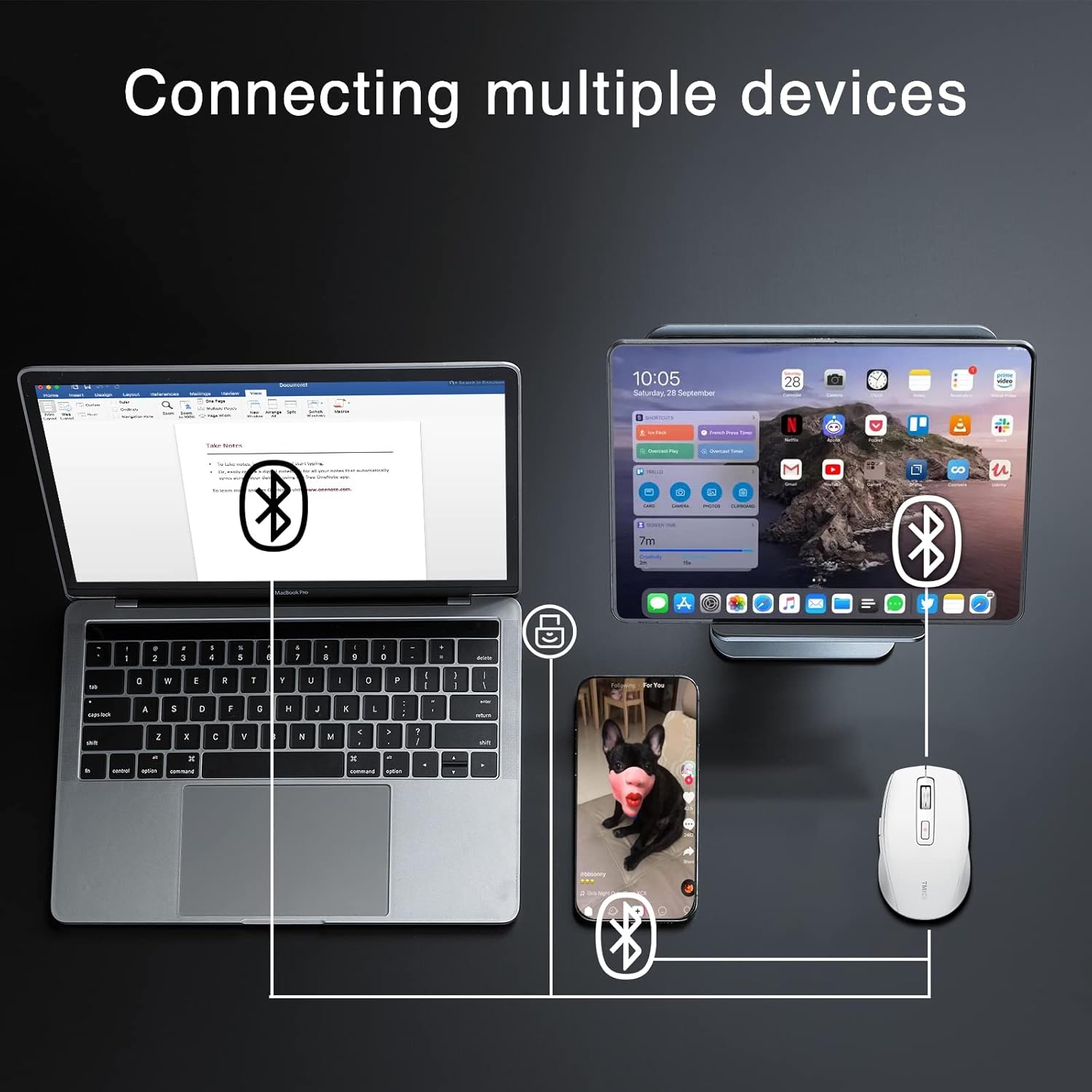
Image: Illustration of the TMICE mouse's ability to connect to multiple devices simultaneously, including laptops, tablets, and smartphones.
3. Operating Instructions
3.1 Basic Mouse Functions
- Left Click: Primary selection and activation.
- Right Click: Accesses contextual menus.
- Scroll Wheel: Scrolls content vertically.
3.2 DPI Adjustment
The mouse supports 5 levels of DPI (Dots Per Inch) sensitivity adjustment: 800, 1200, 1600, 2400, and 3200 DPI. Press the DPI button (usually located behind the scroll wheel) to cycle through the sensitivity settings. Higher DPI provides faster cursor movement, suitable for large screens or gaming, while lower DPI offers more precise control for tasks like graphic design.

Image: The mouse in various usage scenarios (work, design, entertainment), demonstrating the versatility of its 5-level DPI adjustment.
3.3 Silent Clicking
The TMICE mouse features a silent clicking design, reducing noise during use. This is particularly beneficial in quiet environments or for extended work sessions.

Image: A close-up view emphasizing the mute button design, signifying the mouse's silent click capability.
3.4 Short Video Controller Function
The built-in dual-core Bluetooth chip allows the mouse to function as a controller for short video applications (e.g., TikTok) on compatible mobile devices.
- Arrow Keys (Side Buttons): Short press to toggle videos; long press to adjust volume.
- Play Button (Top Button): Short press to pause; long press to return to the desktop.
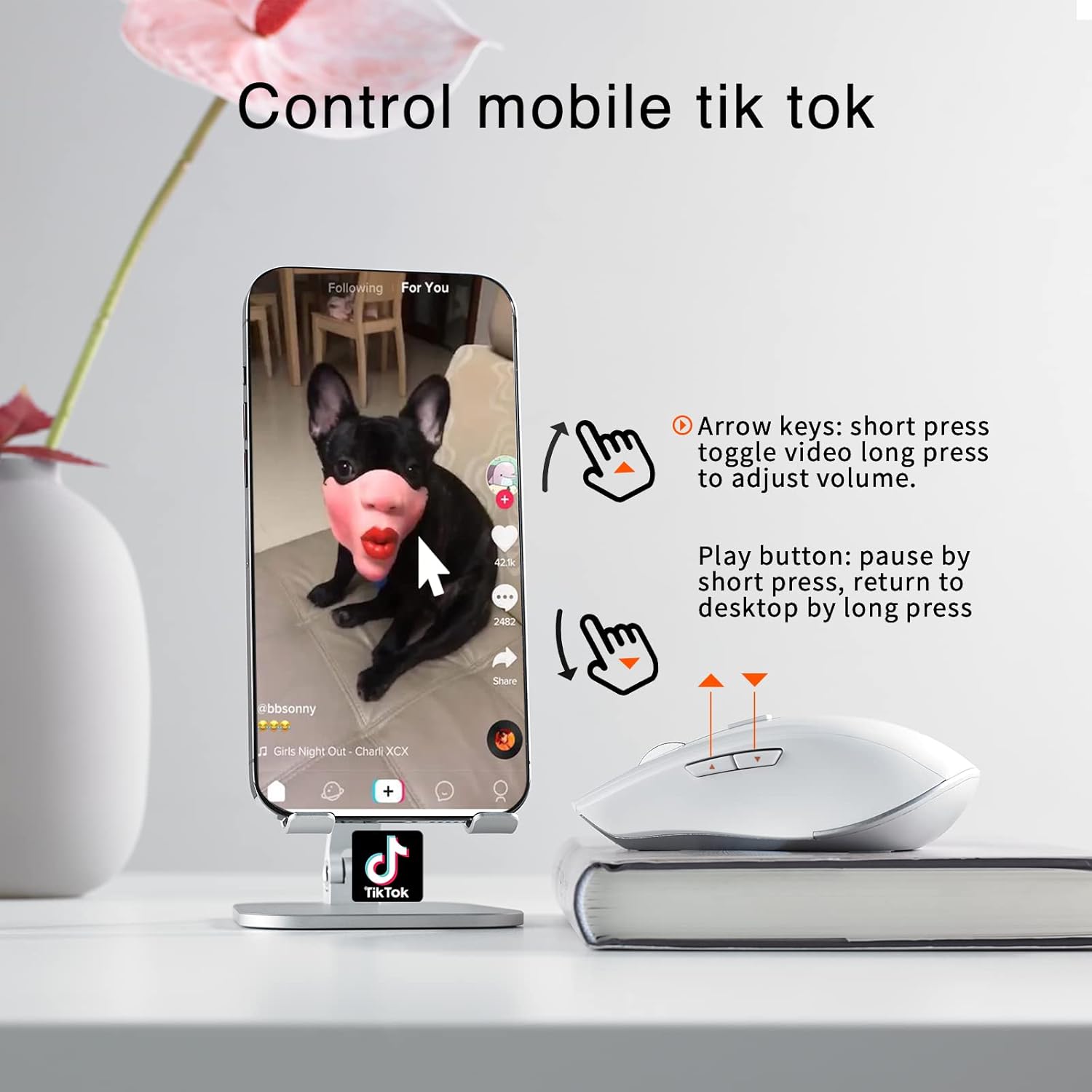
Image: The TMICE mouse positioned next to a smartphone, illustrating its functionality as a controller for mobile short video applications like TikTok.
4. Maintenance
4.1 Cleaning
To maintain optimal performance and appearance, regularly clean the mouse with a soft, dry cloth. For stubborn dirt, a slightly damp cloth can be used, but ensure no moisture enters the device. Avoid using harsh chemicals or abrasive materials.
4.2 Battery Care
- Charge the mouse fully before first use.
- Avoid completely draining the battery frequently, as this can reduce its lifespan.
- If storing the mouse for an extended period, charge it to about 50% and store in a cool, dry place.
5. Troubleshooting
5.1 Mouse Not Responding
- Check Power: Ensure the mouse is turned on and has sufficient battery charge. Recharge if necessary.
- Check Connection:
- For 2.4GHz: Ensure the USB receiver is securely plugged into a working USB port. Try a different USB port.
- For Bluetooth: Ensure Bluetooth is enabled on your device and the mouse is in pairing mode. Re-pair the mouse if the connection is lost.
- Switch Modes: If using dual-mode, ensure the mouse is set to the correct mode (2.4GHz or Bluetooth) for your connection type.
- Restart Devices: Restart your computer or mobile device and the mouse.
5.2 Side Buttons Not Working on PC
The side buttons on this mouse are primarily designed for controlling short video applications on mobile devices (e.g., TikTok). They may not function as standard "forward/back" buttons in all PC operating systems or applications. This is by design for its multi-functionality as a video controller.
5.3 Cursor Jumps or is Erratic
- Clean Sensor: Ensure the optical sensor on the bottom of the mouse is clean and free of debris.
- Surface: Use the mouse on a clean, non-reflective, and uniform surface. Avoid glass or highly reflective surfaces.
- Interference: Move the mouse closer to the receiver (for 2.4GHz) or your Bluetooth device to minimize interference.
6. Specifications
| Product Dimensions | 5.31 x 3.23 x 1.65 inches |
| Item Weight | 3.52 ounces |
| Batteries | 1 Lithium Polymer battery (included) |
| Connectivity Technology | Wireless (2.4GHz), Bluetooth 5.0 |
| Special Feature | Dual-Mode, Rechargeable, Silent Click, Short Video Controller |
| Movement Detection Technology | Optical |
| DPI Adjustment | 800/1200/1600/2400/3200 DPI |
| Working Distance | Up to 10 meters (33 feet) |
7. Warranty and Support
7.1 Warranty Information
The TMICE Wireless Bluetooth Mouse comes with a one-year warranty from the date of purchase. This warranty covers manufacturing defects and malfunctions under normal use. It does not cover damage caused by misuse, accidents, unauthorized modifications, or normal wear and tear.
7.2 Customer Support
For any questions, technical support, or warranty claims, please contact TMICE customer service. Refer to the contact information provided with your product packaging or visit the official TMICE website for the most up-to-date support details.
Ask a question about this manual
Ask about setup, troubleshooting, compatibility, parts, safety, or missing instructions. Manuals+ will review the question and use this page’s manual context to help answer it.