
1. Introduction
This manual provides essential information for the installation, operation, and maintenance of your XFX Radeon RX 7900 XT Gaming Graphics Card. Please read these instructions carefully before proceeding with installation to ensure proper functionality and to prevent damage to your system components.
2. Product Overview
The XFX Radeon RX 7900 XT Gaming Graphics Card is designed for high-performance computing and gaming. It features the AMD RDNA 3 architecture, 20GB GDDR6 memory, and an AMD Triple Fan Cooling Solution to deliver efficient and powerful graphics processing.

Figure 1: XFX Radeon RX 7900 XT Graphics Card and Retail Packaging.

Figure 2: Angled view of the graphics card, showcasing its triple fan design.
3. Installation and Setup
3.1 System Requirements
- PCI Express-compliant motherboard with one x16 graphics slot.
- Minimum 750W power supply unit (PSU) recommended.
- Operating System: Windows 10/11 64-bit or Linux 64-bit.
- At least 8GB of system memory (16GB recommended).
- Internet connection for driver download.
3.2 Physical Installation
- Prepare Your System: Power off your computer and disconnect all cables. Open your computer case.
- Locate PCIe Slot: Identify an available PCI Express x16 slot on your motherboard. Remove any expansion slot covers that may be blocking the slot.
- Insert Graphics Card: Carefully align the graphics card with the PCIe slot. Press down firmly and evenly until the card is fully seated in the slot. Secure the card with the screw or latch mechanism on your case.
- Connect Power Cables: Connect the required PCIe power connectors from your power supply to the graphics card. The XFX Radeon RX 7900 XT typically requires two 8-pin PCIe power connectors. Ensure they are securely connected.

Figure 3: Top view of the graphics card, highlighting the power input connectors.
- Close Case and Reconnect: Close your computer case and reconnect all external cables (monitor, keyboard, mouse, power).
3.3 Driver Installation
- Power On: Turn on your computer.
- Download Drivers: Navigate to the official AMD website (www.amd.com/en/support) and download the latest drivers for your Radeon RX 7900 XT graphics card.
- Install Drivers: Run the downloaded driver installer and follow the on-screen prompts. A system restart may be required after installation.
4. Operation
4.1 Connecting Displays
The XFX Radeon RX 7900 XT supports multiple display outputs. Connect your monitor(s) to the available DisplayPort or HDMI ports on the graphics card. Ensure your display cables are securely connected to both the graphics card and your monitor.
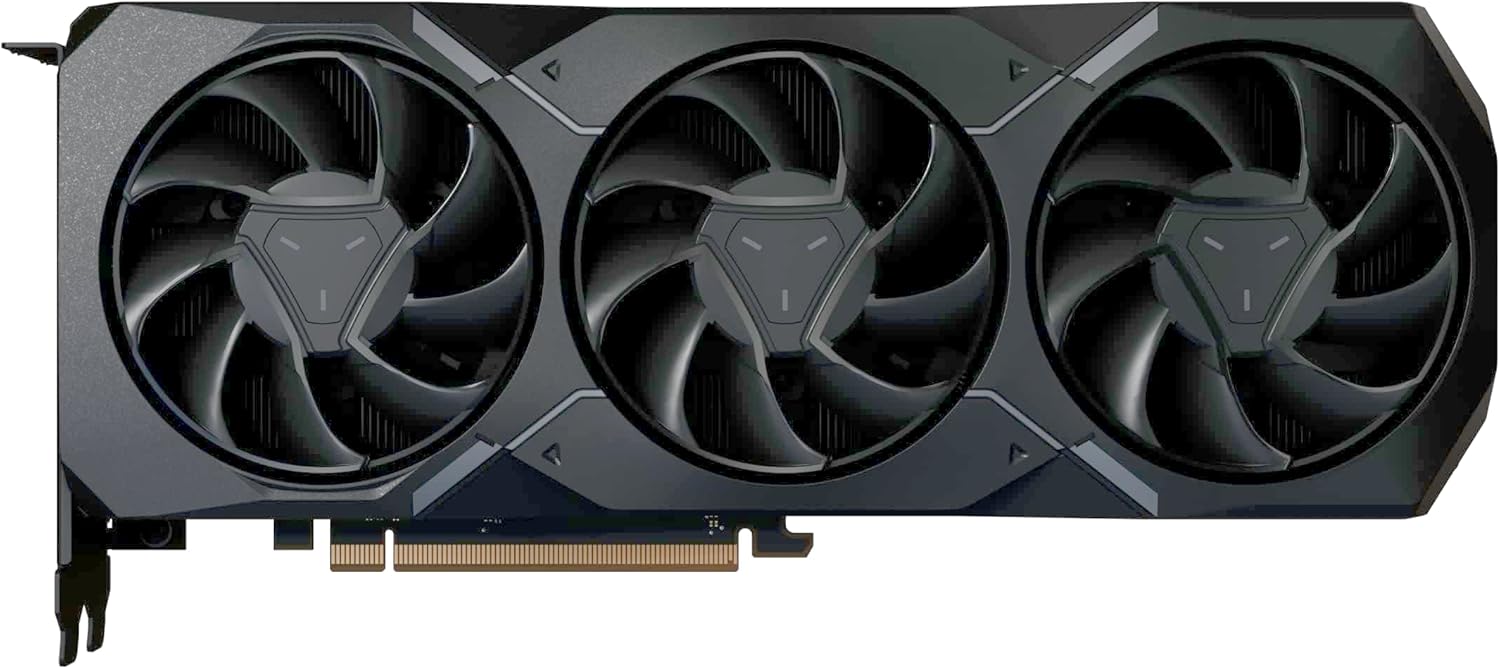
Figure 4: Side view of the graphics card, illustrating the various display output ports.
4.2 Software Configuration
After driver installation, you can access the AMD Software: Adrenalin Edition. This software allows you to optimize game settings, monitor performance, update drivers, and customize various graphics card features for an enhanced user experience.
5. Maintenance
Regular maintenance helps ensure the longevity and optimal performance of your graphics card.
- Dust Removal: Periodically clean dust from the graphics card's fans and heatsink using compressed air. Ensure the system is powered off and unplugged before cleaning.
- Fan Care: The AMD Triple Fan Cooling Solution is designed for efficient heat dissipation. Avoid obstructing the airflow around the card.
- Driver Updates: Keep your graphics drivers updated by regularly checking the AMD support website for the latest versions.
6. Troubleshooting
If you encounter issues with your graphics card, refer to the following common troubleshooting steps:
- No Display Output:
- Ensure all power cables are securely connected to the graphics card.
- Verify that the monitor cable is properly connected to both the graphics card and the monitor.
- Check if the monitor is set to the correct input source.
- Try connecting to a different display port or using a different cable.
- Performance Issues/Low Frame Rates:
- Ensure you have the latest graphics drivers installed.
- Check in-game graphics settings; reduce settings if necessary.
- Monitor GPU temperatures to ensure it's not overheating.
- Verify that your power supply unit meets the minimum wattage requirement.
- System Instability/Crashes:
- Ensure your operating system is up to date.
- Check for any conflicting software or background applications.
- If overclocking, revert to default settings.
For further assistance, please refer to the XFX support website or contact their customer service.
7. Technical Specifications
| Feature | Specification |
|---|---|
| Chipset | AMD Radeon RX 7900 XT |
| Memory | 20GB GDDR6 |
| Memory Speed | 20 GHz |
| Boost Clock | Up to 2400 MHz |
| Game Clock | Up to 2000 MHz |
| Compute Units | 84 |
| Stream Processors | 5376 |
| Cooling Solution | AMD Triple Fan |
| Product Dimensions (LxWxH) | 10.88 x 4.43 x 2.02 inches |
| Item Weight | 4.18 pounds |
| Video Output Interface | DisplayPort, HDMI |
8. Warranty and Support
XFX products are covered by a limited warranty. For detailed warranty information, product registration, and technical support, please visit the official XFX website or contact their customer service department. Keep your proof of purchase for warranty claims.
XFX Support: www.xfxforce.com/support


