
Introduction
This manual provides detailed instructions for the setup, operation, and maintenance of your TIBURN R2 75" 4K UHD Smart Board. Please read this manual thoroughly before using the product to ensure proper functionality and safety.
What's Included
The following components are included with your TIBURN R2 75" Smart Board:
- TIBURN R2 75" 4K UHD Smart Board
- Movable Stand
- Wall Mount Bracket

Image: Diagram showing the TIBURN R2 75" Smart Board, a wall mount bracket, and a movable stand.
Setup and Installation
The TIBURN R2 75" Smart Board offers flexible installation options: a movable stand or a wall mount.
1. Movable Stand Installation
Follow the instructions provided with the movable stand to assemble it. Ensure all screws are securely tightened. Once assembled, carefully attach the TIBURN Smart Board to the stand using the designated mounting points. Ensure the board is stable before use.
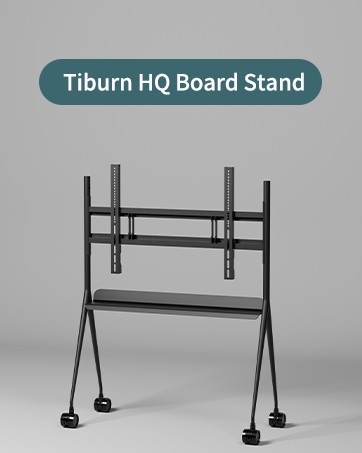
Image: The TIBURN Smart Board mounted on its movable stand, ready for use.
2. Wall Mount Installation
For wall mounting, use the included wall mount bracket. Identify a suitable wall location that can support the weight of the Smart Board. Mark and drill holes according to the bracket's specifications. Securely attach the bracket to the wall, then carefully mount the TIBURN Smart Board onto the bracket. It is recommended to have at least two people for wall mounting to prevent injury or damage.

Image: Close-up of the wall mount bracket for the TIBURN Smart Board.
Operating Instructions
Powering On and Initial Setup
Connect the power cable to the Smart Board and a power outlet. Press the power button, usually located on the side or bottom of the display. The board will boot up, displaying the Android 13.0 operating system interface.

Image: The TIBURN Smart Board's main interface, showing various application icons.
Touchscreen and Writing Features
The 4K UHD touchscreen utilizes advanced infrared induction technology for precise interaction. It supports 20-point multi-touch, allowing multiple users to write simultaneously. The response time is 8ms, providing a fluid writing experience.
- Precision Writing: Use a stylus or your finger for accurate input.
- Multi-Touch: Engage with the screen using multiple fingers or hands for gestures like zooming and panning.
Video: Demonstration of screen mirroring operation on the TIBURN Smart Board.
Open App Ecosystem and Google Play Store
The TIBURN Smart Board runs on Android 13.0 and supports an open app ecosystem. You can install applications from the Google Play Store to expand functionality.
- Navigate to the "Applications" section on the main interface.
- Locate and open the "Google Play Store" app.
- Sign in with your Google account to download and install apps.
Video: Instructions on how to access and open the Google Play Store on the TIBURN Smart Board.
Collaboration and Screen Mirroring
The Smart Board facilitates seamless collaboration through multi-person writing, cloud uploading, and scanning features. It supports various wireless display standards for screen mirroring.
- Wireless Connectivity: Supports Wi-Fi 6G for faster data transfers and stable connections.
- Screen Mirroring: Connect devices via Miracast, Airplay, or DLNA.
- Video Conferencing: Compatible with popular platforms like Zoom, Google Meet, Microsoft Teams, and Webex.

Image: The TIBURN Smart Board displaying content mirrored from a laptop, tablet, and smartphone, illustrating multi-device connectivity.
Video: A detailed description of the TIBURN HQ Board 75" R2 interface and its various functions.
Maintenance
Regular maintenance ensures the longevity and optimal performance of your TIBURN Smart Board.
- Screen Cleaning: Use a soft, lint-free cloth slightly dampened with a non-abrasive screen cleaner. Avoid harsh chemicals or abrasive materials that could damage the screen surface.
- Dust Removal: Periodically wipe down the frame and back of the board to prevent dust buildup, which can affect ventilation.
- Software Updates: Ensure the operating system and applications are kept up-to-date. Check for updates regularly through the system settings.
- Cable Management: Keep all cables organized and free from kinks or damage to prevent connectivity issues.
Troubleshooting
If you encounter issues with your TIBURN Smart Board, refer to the following common troubleshooting steps:
| Problem | Possible Cause | Solution |
|---|---|---|
| No Power | Power cable disconnected; Power outlet issue. | Check power cable connection. Try a different power outlet. |
| Touchscreen Unresponsive | Software glitch; Obstruction on screen. | Restart the board. Ensure the screen is clean and free of obstructions. |
| No Wi-Fi Connection | Wi-Fi disabled; Router issue; Incorrect password. | Check Wi-Fi settings. Restart router. Verify password. |
| Screen Mirroring Fails | Device compatibility; Network issues. | Ensure devices support Miracast/Airplay/DLNA. Check network stability. |
If the problem persists after attempting these solutions, please contact TIBURN customer support.
Specifications
| Feature | Detail |
|---|---|
| Model Number | TE-QS1M-75 |
| Display Size | 75 inches |
| Resolution | 4K UHD |
| Operating System | Android 13.0 |
| CPU | A7 |
| Storage | 128GB SSD |
| Touch Technology | Infrared Induction |
| Touch Points | 20-point touch |
| Response Time | 8ms |
| Wireless Connectivity | Wi-Fi 6G, Bluetooth |
| Mounting Options | Movable Stand, Wall Mount |
| Material | Metal (Frame: Aluminum) |
| Dimensions (W x H) | 75"W x 4"H (Item) |
Warranty and Support
The TIBURN R2 75" Smart Board comes with a 1-year warranty. For technical support, troubleshooting assistance, or warranty claims, please contact TIBURN customer service. You can find contact information on the official TIBURN website or through your purchase platform.
For additional resources and product information, visit the official TIBURN store: TIBURN Store on Amazon