
1. Introduction
Thank you for choosing the SURFOU Smart WiFi Plug. This device allows you to control your electrical appliances remotely, set schedules, monitor energy consumption, and integrate with smart home systems like Amazon Alexa and Google Home. Please read this manual carefully before use to ensure proper operation and safety.
2. Important Safety Information
- Do not exceed the maximum load of 16A / 3680W.
- For indoor use only.
- Do not disassemble or modify the device.
- Keep away from water and high humidity environments.
- Ensure the plug is fully inserted into the wall socket.
- Unplug the device from the power outlet before cleaning.
- This device is not a toy. Keep out of reach of children.
3. Package Contents
- SURFOU Smart WiFi Plug (2 units)
- Instruction Manual
4. Product Overview
The SURFOU Smart WiFi Plug is designed for convenience and energy efficiency. It features an Italian Type L socket, a physical power button, and an LED indicator. Its compact design allows it to fit into standard wall outlets without obstructing adjacent sockets.

Image: Front view of the SURFOU Smart WiFi Plug, showing the Italian Type L socket and power button.
5. Specifications
| Parameter | Value |
|---|---|
| Model Number | BSD60 |
| Brand | SURFOU |
| Operating Voltage | 230 Volts |
| Current Rating | 16 A |
| Power | 3680 Watts |
| Connectivity Protocol | 2.4 GHz WiFi (not 5 GHz) |
| Control Method | Application, Voice Control |
| Compatibility | Amazon Alexa, Google Assistant, SmartThings |
| Material | Acrylonitrile Butadiene Styrene (ABS), Stainless Steel (contact) |
| Dimensions (L x W x H) | 36 x 34 x 36 millimeters (approx. 3.6 x 3.4 x 3.6 cm) |
| IP Rating | IP55 |
| Certifications | CE, RoHS, TÜV |

Image: Diagram showing the dimensions of the smart plug.
6. Setup Instructions
6.1. Download the App
The SURFOU Smart WiFi Plug works with the Smart Life or Tuya Smart app. Download the app from the App Store (iOS) or Google Play Store (Android).
6.2. Register and Log In
Open the app and register a new account or log in with an existing one.
6.3. Connect to 2.4 GHz WiFi Network
Ensure your smartphone is connected to a 2.4 GHz WiFi network. The smart plug does not support 5 GHz WiFi networks.

Image: Illustration of the smart plug connecting to a 2.4 GHz WiFi router.
6.4. Add Device
- Plug the SURFOU Smart WiFi Plug into a wall socket.
- Press and hold the power button on the plug for 5-10 seconds until the LED indicator blinks rapidly. This indicates it's in pairing mode.
- Open the Smart Life/Tuya Smart app, tap the "+" icon in the top right corner to add a device.
- Select "Electrical Outlet" or "Socket (WiFi)" from the device list.
- Confirm that the indicator light is blinking rapidly in the app.
- Enter your 2.4 GHz WiFi network password.
- Wait for the app to connect to the device. Once connected, you can rename the plug.
7. Operating Instructions
7.1. Manual Control
Press the physical power button on the smart plug to manually turn the connected appliance on or off.
7.2. App Remote Control
Once connected to the app, you can remotely control the plug from anywhere with an internet connection. Tap the device icon in the app to turn it on or off.
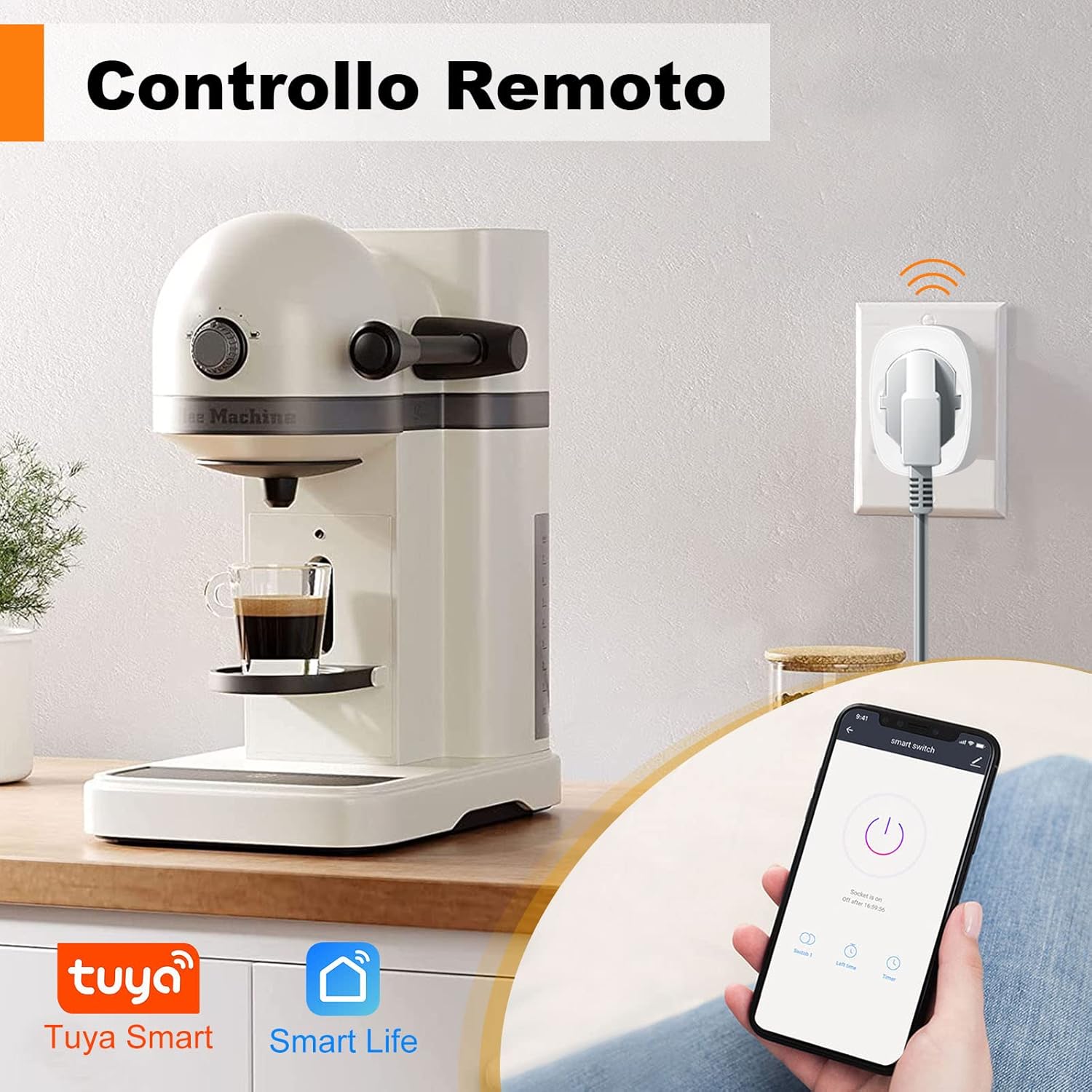
Image: A smartphone displaying the Smart Life app, used to remotely control a coffee machine connected to the smart plug.
7.3. Timer Function
Set schedules or timers to automatically turn appliances on or off at specific times. This is useful for lights, coffee makers, or other devices.

Image: A kitchen scene with various appliances and a smartphone displaying the app's scheduling interface, showing set times for power on/off.
7.4. Energy Monitoring
The smart plug can track the power consumption of connected devices, displaying total energy (kWh), voltage, and current. This feature helps in understanding and managing energy usage.

Image: A bedroom scene with a lamp connected to the smart plug, and a graph illustrating daily energy consumption (kWh) over several days.
7.5. Voice Control (Alexa & Google Home)
Integrate the smart plug with Amazon Alexa or Google Home for convenient voice control. Follow the instructions in your Alexa or Google Home app to link your Smart Life/Tuya Smart account.
- Example commands: "Alexa, turn on the lamp." or "Hey Google, turn off the fan."
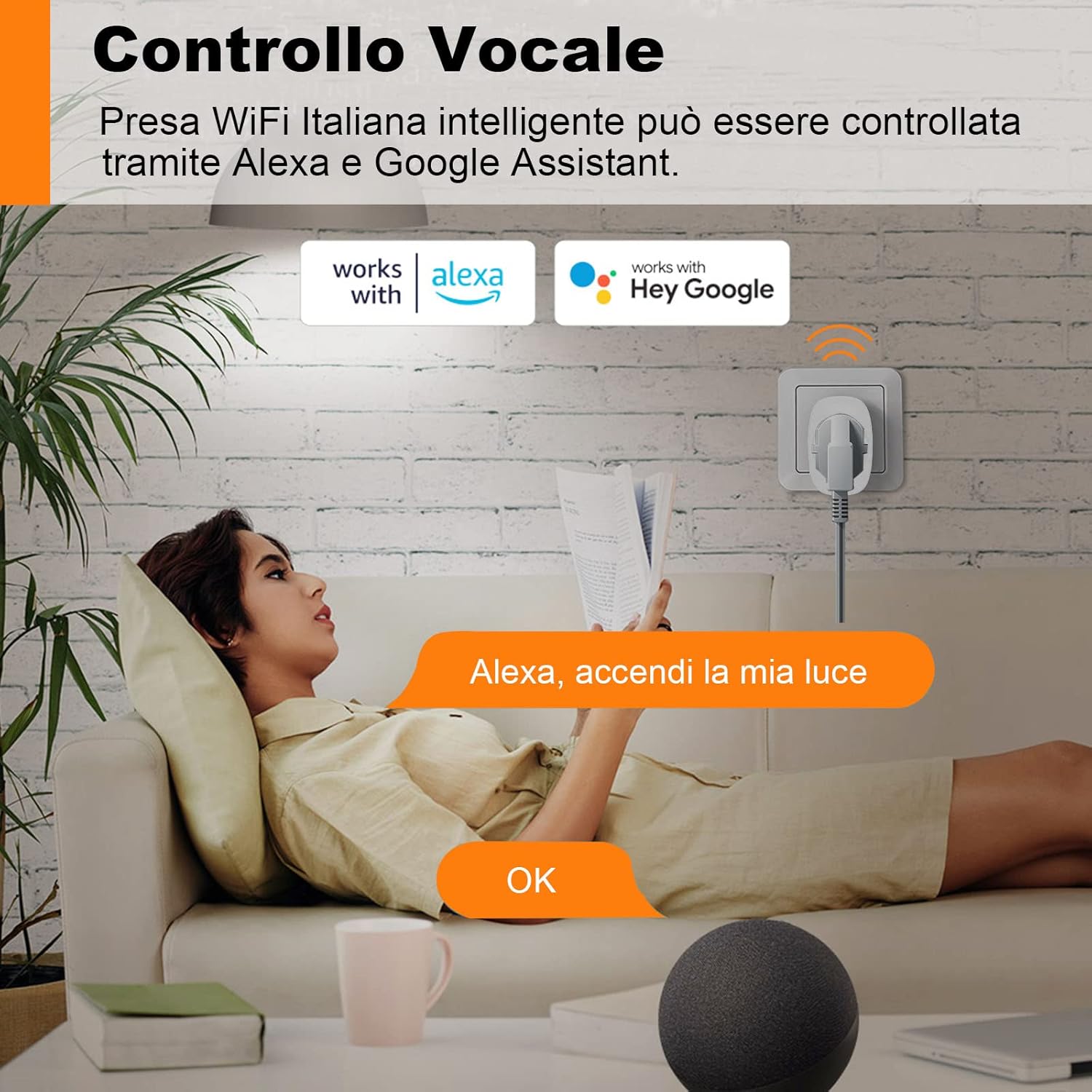
Image: A person relaxing on a sofa, using an Amazon Echo device to control a lamp connected to the smart plug via voice command.
7.6. Device Sharing
Share control of your smart plug with family members. They can access the same account on their phones to manage smart devices.

Image: A family looking at a smartphone screen showing the device sharing feature within the app, allowing multiple users to control smart devices.
7.7. Child Protection
The smart plug is designed with child protection features to prevent accidental contact with live parts.

Image: A baby reaching towards a smart plug, illustrating the child protection design. Icons indicate protection against short circuits, overvoltage, overheating, and lightning.
8. Maintenance
- Clean the smart plug with a dry, soft cloth. Do not use liquid cleaners.
- Store the device in a cool, dry place when not in use.
- Avoid exposing the device to direct sunlight or extreme temperatures.
9. Troubleshooting
- Device not connecting to WiFi: Ensure your router is broadcasting a 2.4 GHz network. Check your WiFi password. Move the plug closer to the router. Reset the plug by holding the power button until it blinks rapidly and try pairing again.
- Appliance not turning on/off: Check if the smart plug is receiving power. Verify the appliance is properly plugged into the smart plug and is functional.
- Voice control not working: Ensure your smart home assistant (Alexa/Google Home) is properly linked to your Smart Life/Tuya Smart account. Check your internet connection.
- Energy monitoring inaccurate: Ensure the connected appliance is within the specified power limits of the smart plug.
10. Warranty and Support
SURFOU products are designed for reliability and performance. For warranty information or technical support, please refer to the purchase platform or contact SURFOU customer service directly. Keep your proof of purchase for warranty claims.


