
Introduction
This manual provides comprehensive instructions for the assembly, operation, and maintenance of your GreenForest 47-inch Gaming/Office Desk. Designed for versatility and comfort, this desk features integrated power outlets, an ergonomic monitor stand, and reversible storage shelves to optimize your workspace. Please read this manual thoroughly before beginning assembly or use to ensure proper setup and safe operation.
Key Features
- Convenient Power Outlets: Equipped with 3 AC power outlets and 2 USB charging ports for easy device charging and cable management.
- Built-in Monitor Stand: An ergonomic monitor stand designed to accommodate two monitors or laptops, promoting better posture and reducing neck strain.
- Reversible Storage Shelves: Two-tier storage shelves that are adjustable and can be installed on either the left or right side of the desk to suit your space and organizational needs.
- Space-Saving Design: Includes a dedicated cup holder and a headphone hook for convenient access and a clutter-free workspace.
- Sturdy Construction: Built with a 40mm premium metal frame and thick particleboard for stability and durability.
Safety Information
Important: Do not exceed the maximum weight recommendation of 330 pounds (150 kg) on the desk surface. Ensure all components are securely fastened during assembly to prevent tipping or instability. Keep liquids away from electrical outlets and connections.
Setup and Assembly
Assembly is required for this product. It is recommended that 1 person performs the assembly. Please ensure all parts are present before beginning. Refer to the included hardware pack for specific fasteners.
Component Identification
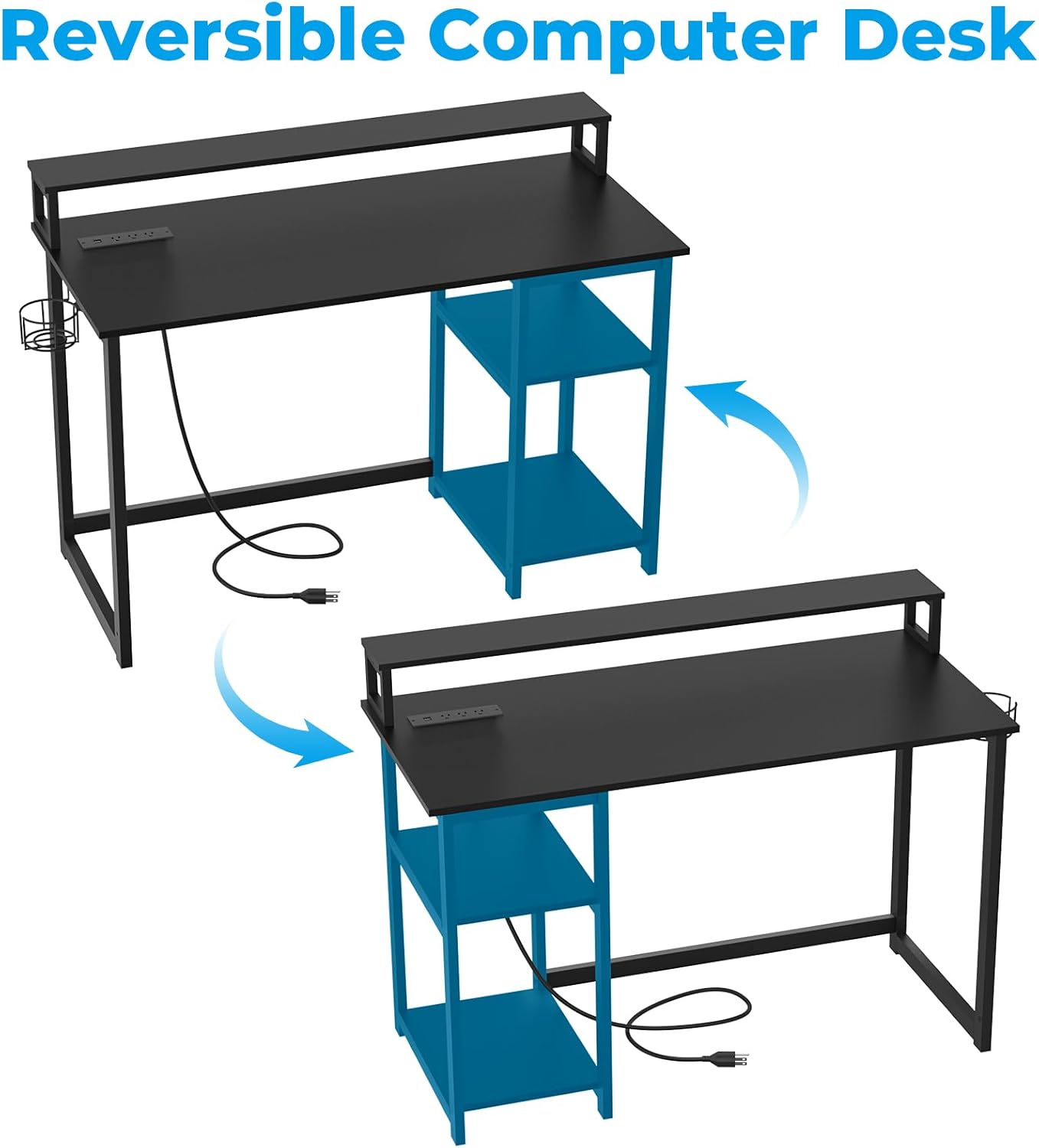
Figure 1: Desk Dimensions and Key Components. This image illustrates the overall dimensions of the desk (47.24 inches W x 21.65 inches D x 29.52 inches H) and highlights features like the monitor stand, adjustable shelves, and power outlet location. Adjustable holes for shelves are also shown.
Assembly Steps
- Unpack and Verify: Carefully unpack all components and compare them against the parts list in your separate assembly guide.
- Assemble Frame: Attach the metal frame components (legs, crossbars) using the provided screws. Ensure all connections are finger-tight before final tightening.
- Install Desktop: Secure the main desktop surface to the assembled frame.
- Attach Monitor Stand: Fasten the monitor stand to the designated area on the desktop.
- Install Storage Shelves: The two-tier storage shelves can be installed on either the left or right side of the desk. Determine your preferred orientation and secure the shelves to the frame. The shelves are adjustable; select the desired height using the pre-drilled holes.
- Mount Accessories: Attach the cup holder and headphone hook to the side of the desk as desired. These can be installed on either the left or right side.
- Connect Power Outlets: Ensure the built-in power outlet unit is securely seated and its power cord is accessible for connection to a wall outlet.
- Final Tightening: Once all components are in place, carefully tighten all screws with the provided tools, ensuring the desk is stable and level. Avoid over-tightening screws into wood components to prevent damage.

Figure 2: Reversible Storage Shelves. This image demonstrates how the two-tier storage shelves can be configured on either the left or right side of the desk, offering flexible setup options.
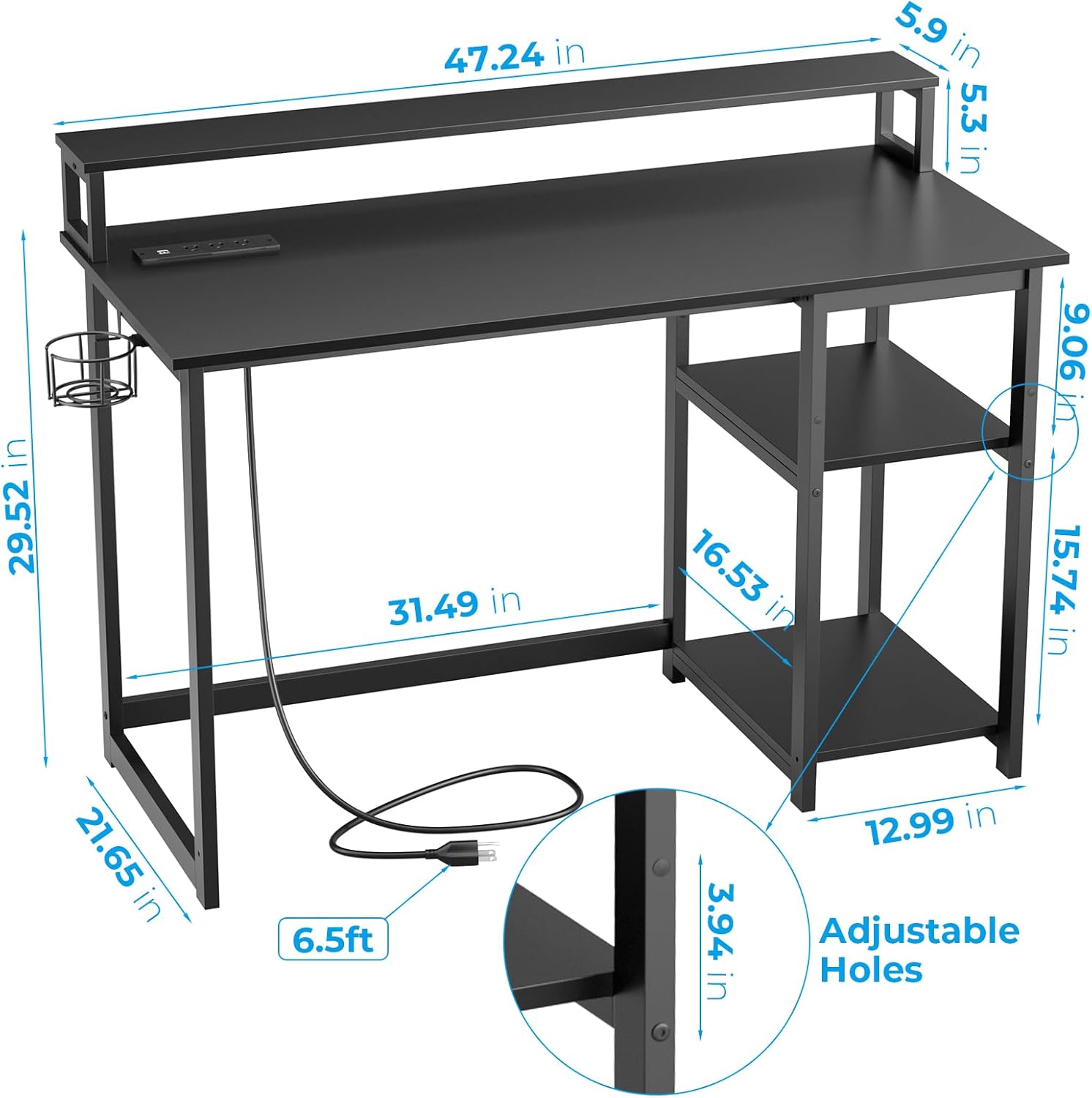
Figure 3: Cup Holder and Headphone Hook. A detailed view of the removable cup holder and headphone hook, which can be attached to either side of the desk for convenience.
Operating Instructions
Using the Power Outlets and USB Ports
The desk is equipped with a built-in power strip featuring 3 standard AC outlets (125V/12A) and 2 USB charging ports (5V/2A). To use, simply plug the desk's 6.5-foot power cord into a wall outlet. You can then plug your devices directly into the integrated outlets and USB ports for convenient charging.

Figure 4: Built-in Power Outlets. This image shows the integrated power strip with three AC outlets and two USB ports, allowing for easy charging of electronic devices directly on the desk surface.
Utilizing the Monitor Stand
The elevated monitor stand provides an ergonomic viewing height for your monitor(s) or laptop, helping to reduce neck and eye strain. Place your display devices directly on the stand. The stand is designed to accommodate up to two monitors.
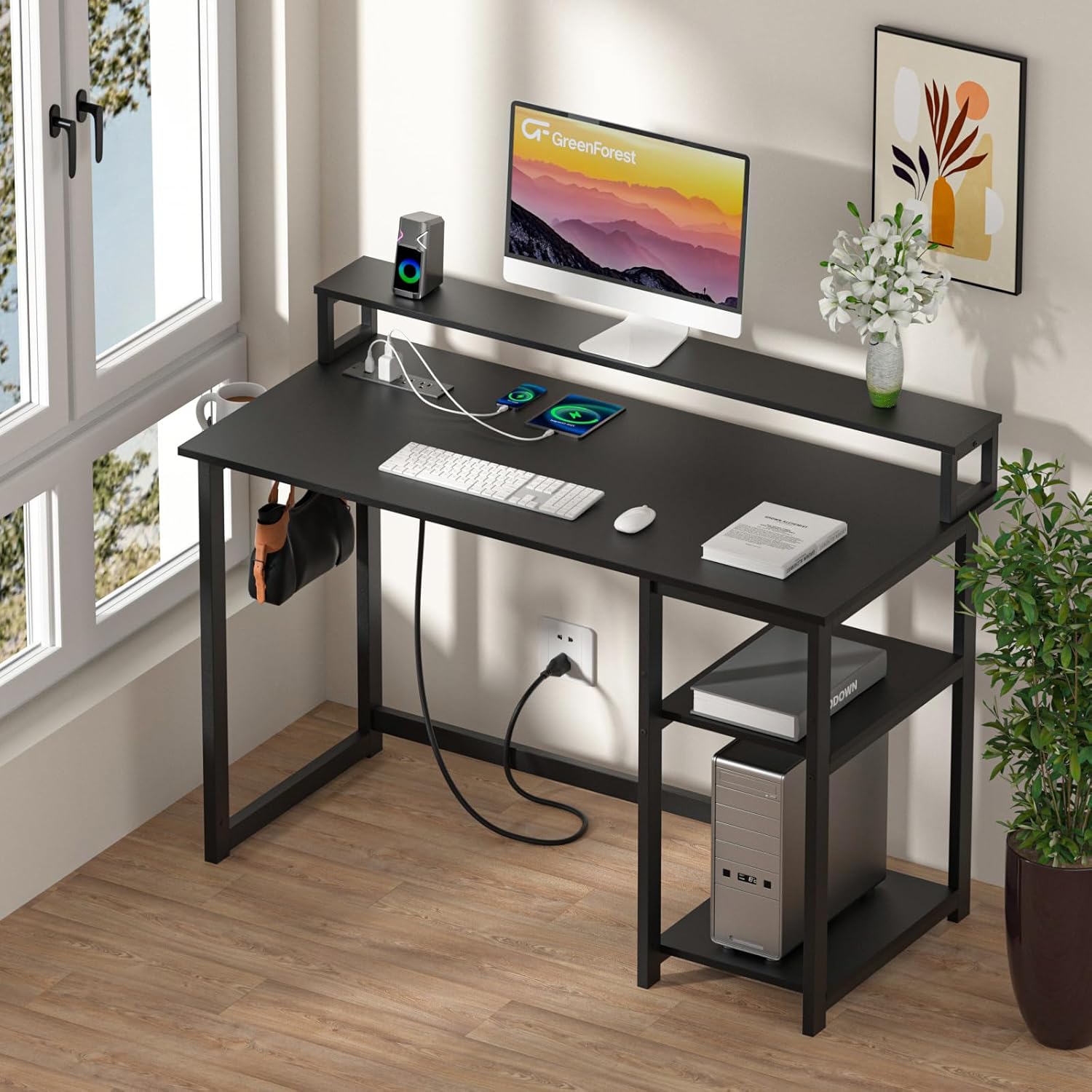
Figure 5: Ergonomic Monitor Stand. This visual comparison highlights how the monitor stand elevates your screen to an optimal viewing height, promoting better posture and reducing discomfort during long periods of use.
Adjusting Storage Shelves
The two-tier storage shelves can be adjusted in height to fit various items, such as books, computer towers, or storage boxes. To adjust, remove the shelves, reposition the support pins into the desired pre-drilled holes, and then re-insert the shelves securely.
Maintenance
- Cleaning: Wipe the desk surfaces with a dry, soft cloth. Avoid using harsh chemicals or abrasive cleaners, which may damage the finish.
- Regular Checks: Periodically check all screws and connections to ensure they remain tight. Re-tighten if necessary to maintain stability.
- Weight Distribution: Distribute weight evenly across the desk surface and shelves to prevent strain on any single point.
Troubleshooting
| Problem | Possible Cause | Solution |
|---|---|---|
| Desk is wobbly or unstable. | Loose screws or uneven floor. | Ensure all screws are fully tightened. Adjust leveling feet if present, or place shims under legs on uneven surfaces. |
| Parts do not align during assembly. | Screws tightened prematurely; slight manufacturing tolerance. | Loosen all screws slightly, align the problematic part, insert screws, then gradually tighten all screws. Do not over-torque screws into wood. |
| Power outlets/USB ports not working. | Desk power cord not plugged in; faulty wall outlet. | Verify the desk's power cord is securely plugged into a functioning wall outlet. Test the wall outlet with another device. |
If you encounter issues not listed here or require further assistance, please contact GreenForest customer support.
Specifications
| Attribute | Detail |
|---|---|
| Brand | GreenForest |
| Product Dimensions | 21.65"D x 47.24"W x 29.5"H |
| Color | Black |
| Style | Modern |
| Base Material | Metal |
| Top Material Type | Engineered Wood |
| Finish Type | Laminated |
| Special Feature | Monitor Stand |
| Room Type | Bedroom, Classroom, Dormitory, Living Room, Office |
| Recommended Uses For Product | Drafting, Gaming, Working, Writing |
| Model Number | DESK |
| Included Components | Monitor Stand |
| Item Weight | 40 Pounds (18.14 kg) |
| Required Assembly | Yes |
| Maximum Weight Recommendation | 330 Pounds (150 kg) |
| Recommended Number of People for Assembly | 1 |
Warranty and Support
This GreenForest desk comes with a Limited Warranty. For specific warranty terms and conditions, please refer to the documentation included with your purchase or contact GreenForest customer support directly.
For any questions, technical support, or warranty claims, please visit the official GreenForest website or contact their customer service department. Contact information can typically be found on the product packaging or the brand's official online presence.
Product Overview
Below are additional images providing a visual overview of the GreenForest 47-inch Gaming/Office Desk in various settings and configurations.

Figure 6: Complete Desk Setup. A full view of the GreenForest 47-inch desk showcasing a typical setup with a monitor, laptop, and various accessories, highlighting its spacious design.

Figure 7: Home Office Integration. The desk integrated into a modern home office setting, demonstrating its suitability for both work and study environments.

Figure 8: Gaming Setup. An example of the desk configured for a gaming setup, complete with a gaming PC, keyboard, and ambient LED lighting, showcasing its appeal to gamers.

Figure 9: Minimalist Setup. The desk presented in a clean, minimalist room, emphasizing its sleek black design and how it can complement various interior styles.
Official Product Videos
There are no official product videos from the seller available for this model at this time. Please refer to the images and text descriptions for product details.


