
1. Introduction and Overview
Thank you for choosing the COO 506K Stylus Pen. This active stylus is designed to enhance your interaction with iOS and Android touchscreen devices, providing a precise and smooth experience for various tasks such as drawing, writing, note-taking, and general navigation. Its fine tip and responsive design make it an ideal tool for both creative and productivity applications.

Image: The COO 506K Stylus Pen in black, accompanied by its charging cable and replacement tips, set against a colorful background.
Key Features:
- Wide Compatibility: Compatible with iOS and Android touchscreens, including various tablets (Lenovo, Samsung, Huawei, Vivo, Mi) and smartphones (iPhone, Samsung, Google Pixel, Harmony OS). Note: Not compatible with iPad, Microsoft tablets, or Windows systems.
- No Bluetooth Pairing Required: Simply turn on the stylus, and it will connect automatically to your device.
- 1.5mm Fine Tip: Provides precise and smooth input with no lagging, skips, or scratches.
- Fast Charging & Long Standby: Offers up to 12 hours of continuous use on a 1.5-hour charge, with a standby time of 180 days.
- Smart Touch Switch: Easy power on/off functionality.
2. Setup
2.1 Unboxing and Components
Upon opening the package, ensure all components are present:
- COO 506K Stylus Pen
- USB Type-C Charging Cable
- Replacement Tips (typically 2-3)

Image: The COO 506K Stylus Pen, its USB-C charging cable, and two spare pen tips, laid out on a white surface.
2.2 Charging the Stylus Pen
Before first use, it is recommended to fully charge the stylus pen.
- Locate the Type-C charging port on the side of the stylus pen.
- Connect the provided USB Type-C cable to the stylus charging port.
- Connect the other end of the USB cable to a standard USB power adapter (e.g., phone charger, computer USB port, power bank).
- The indicator light will illuminate during charging. It typically takes about 1.5 hours for a full charge.
- The indicator light will change color or turn off once fully charged.

Image: The stylus pen connected to a laptop via its USB-C charging cable, illustrating the charging process. Text indicates 1.5 hours charging for 12 hours continuous use and 180 days standby.
2.3 Powering On and Initial Connection
The COO 506K Stylus Pen features a smart touch switch for easy operation.
- To turn on the stylus, gently double-tap the top end of the pen. The indicator light will turn blue, signifying it is active.
- No Bluetooth pairing or app installation is required. The stylus will automatically connect to your iOS or Android touchscreen device.
- You can freely switch between different compatible devices without re-pairing.

Image: A hand using the stylus pen on a tablet screen, with text stating "NO NEED TO SET BLUETOOTH. Just turn on the stylus pen, it will auto-connect with your devices."
3. Operating Instructions
3.1 Basic Usage
Once powered on, the stylus is ready for immediate use on your compatible touchscreen device.
- Navigation: Use the stylus to tap, swipe, and scroll through menus and applications just as you would with your finger.
- Writing and Drawing: The 1.5mm fine tip provides a precise point for detailed writing, sketching, and drawing. Apply light pressure for optimal results.
- App Compatibility: The stylus supports a wide range of applications, including GoodNotes, Notability, Noteshelf, Notepad+, Procreate, ArtFlow, Painter, Design, and many others.

Image: A close-up view of the stylus tip on a screen, illustrating its 1.5mm fine tip and highlighting features like "No Lag," "No Slip," and "Continues Line" for a smooth writing experience.
3.2 Multiple Applications
The versatility of the COO 506K Stylus Pen allows for various uses across different activities:
- Drawing: Create digital art and illustrations with precision.
- Note-taking: Jot down notes, annotate documents, and highlight text with ease.
- Gaming: Enhance your gaming experience on touch-based games.
- Web Browsing: Navigate websites and interact with content more accurately.
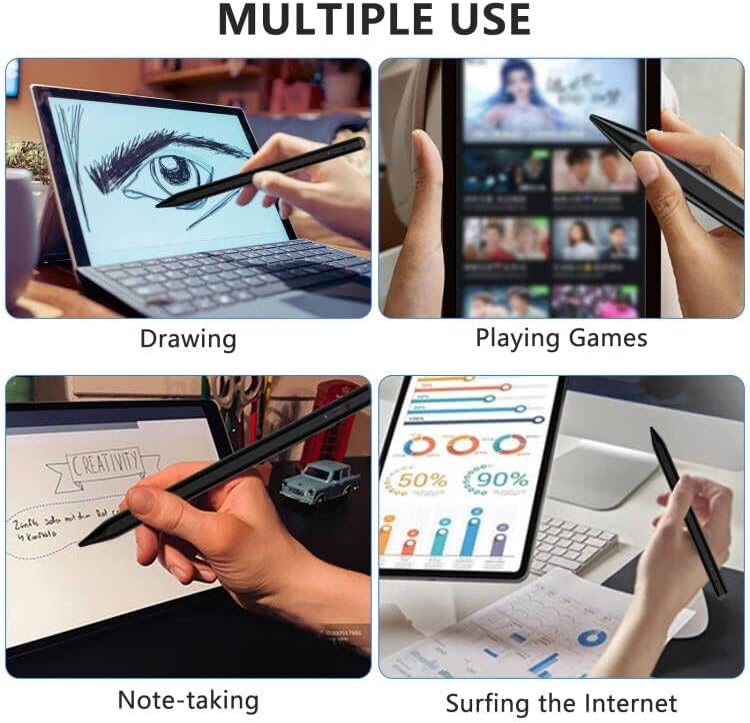
Image: A collage of four images demonstrating the stylus pen's multiple uses: drawing on a laptop, playing games on a tablet, taking notes, and surfing the internet.
3.3 Power Saving Feature
To conserve battery life, the stylus pen will automatically enter sleep mode after 5 minutes of inactivity. To reactivate, simply double-tap the top end of the pen again.
4. Maintenance
4.1 Cleaning the Stylus
To maintain optimal performance and appearance, clean the stylus regularly:
- Wipe the body of the stylus with a soft, dry, lint-free cloth.
- For the tip, use a slightly damp cloth if necessary, ensuring no moisture enters the pen's internal components.
- Avoid using harsh chemicals or abrasive materials.
4.2 Replacing the Pen Tip
The 1.5mm fine tip is durable, but may require replacement over time due to wear. Replacement tips are included with your purchase.
- Gently twist the existing tip counter-clockwise to unscrew it from the stylus body.
- Align a new replacement tip with the threaded opening.
- Carefully twist the new tip clockwise until it is securely fastened. Do not overtighten.

Image: A detailed diagram of the stylus pen, highlighting its ON/OFF button, Type-C charging port, indicator light, 1.5mm fine tip, and illustrating the process for replacing the tips.
5. Troubleshooting
| Problem | Possible Cause | Solution |
|---|---|---|
| Stylus does not turn on. | Low battery; Incorrect power-on method. | Charge the stylus for 1.5 hours. Ensure you double-tap the top end of the pen to turn it on. |
| Stylus does not respond on screen. | Stylus is off; Device incompatibility; Screen protector interference. | Ensure the stylus is turned on (blue indicator light). Verify your device is compatible (iOS/Android touchscreens, not iPad/Microsoft/Windows). Try removing thick screen protectors. |
| Lagging or inaccurate input. | Low battery; Worn tip; Device performance issues. | Recharge the stylus. Replace the pen tip if it appears worn. Restart your device. |
| Stylus turns off unexpectedly. | Low battery; Automatic sleep mode. | Charge the stylus. The stylus enters sleep mode after 5 minutes of inactivity; double-tap to reactivate. |
6. Specifications
| Feature | Detail |
|---|---|
| Model Number | 506K Stylus Pen for iOS&Android |
| Dimensions (L x W x H) | 6.69 x 0.39 x 0.39 inches (17 x 1 x 1 cm) |
| Item Weight | 2.89 ounces (0.08 kg) |
| Material | Copper, Metal |
| Color | Black |
| Battery Type | 1 Lithium Ion battery (included) |
| Charging Time | Approx. 1.5 hours |
| Continuous Use Time | Up to 12 hours |
| Standby Time | Up to 180 days |
| Tip Size | 1.5mm Fine Tip |
| Compatibility | iOS/Android Touchscreens (Lenovo/HUAWEI/Vivo/Mi/Samsung Tablets; iPhone, Android, HarmonyOS, and other system phones). Not compatible with iPad & Microsoft tablets and Windows systems. |

Image: A display of various tablets and smartphones, indicating the wide compatibility of the stylus pen with iOS and Android touchscreens.
7. Warranty and Support
For warranty information or technical support, please refer to the product packaging or contact COO customer service directly. Details for contacting support are typically available on the manufacturer's official website or through the retailer where the product was purchased.
Please retain your proof of purchase for any warranty claims.


