
1. Introduction
This manual provides comprehensive instructions for the installation, operation, and maintenance of your SURFOU Smart WiFi Socket, Model BSD60. This smart plug is designed to integrate seamlessly into your smart home ecosystem, offering remote control, energy monitoring, and scheduling capabilities. It is compatible with popular voice assistants like Amazon Alexa, Google Home, and SmartThings.
2. Product Overview
The SURFOU Smart WiFi Socket (Model BSD60) is an Italian Type L smart plug that allows you to control connected appliances remotely and monitor their energy consumption. Its compact design ensures it fits well in various settings.
2.1 Key Features
- Voice Control: Compatible with Amazon Alexa, Google Home, and SmartThings for hands-free operation.
- Remote Control: Manage connected devices from anywhere using the Smart Life or Tuya app.
- Timing Function: Set schedules and timers for automatic power on/off.
- Energy Monitoring: Track real-time power consumption of connected appliances.
- Safety Features: Includes protection against overcharge, overheating, short circuits, and surges.
- Compact Design: Space-saving form factor (6 x 6 x 8.5 cm).
- High Power Rating: Supports up to 16A / 3680W.
2.2 Product Diagram and Dimensions

Figure 1: SURFOU Smart WiFi Socket with dimensions and feature icons.
This image displays the physical dimensions of the smart socket, measuring approximately 7.7 cm in height, 7.5 cm in depth, and 5 cm in width. It also highlights key functionalities such as energy monitoring, remote control, timer function, 16A current rating, 2.4 GHz WLAN connectivity, and voice control compatibility.
3. Safety Information
Please read all safety warnings and instructions carefully before using this product to prevent injury or damage. Keep this manual for future reference.
- Indoor Use Only: This device is designed for indoor use in dry locations. Do not expose to water or moisture.
- Electrical Rating: Do not exceed the maximum load of 16A / 3680W. Overloading can cause overheating, fire, or electric shock.
- Voltage: Operate only within the specified voltage range of 230 Volts.
- Children Safety: Keep out of reach of children. The smart plug features hidden contacts to prevent accidental shock.
- Disassembly: Do not attempt to disassemble or modify the device. This will void the warranty and may cause safety hazards.
- Cleaning: Unplug the device before cleaning. Use a dry cloth; do not use liquid cleaners.
- Overheating Protection: The smart plug is equipped with automatic shut-off in case of overcharge or overheating.

Figure 2: Child safety and protection features of the smart socket.
This image displays a child reaching towards a wall socket, with an overlay highlighting the safety features of the SURFOU Smart WiFi Socket, such as protection from short circuits, overvoltages, overheating, and lightning, emphasizing child safety.
4. Setup Guide
4.1 What's in the Box
- 1 x SURFOU Smart WiFi Socket (Model BSD60)
- 1 x User Manual (this document)
4.2 App Download and Installation
To control your smart socket, you need to download the companion app:
- Scan the QR code provided in the packaging or search for "Smart Life" or "Tuya Smart" in your smartphone's app store (Google Play for Android, App Store for iOS).
- Download and install the app.
- Register a new account or log in if you already have one.
4.3 Connecting to Wi-Fi
Ensure your Wi-Fi network is 2.4GHz. The smart socket does not support 5GHz Wi-Fi networks.
- Plug the SURFOU Smart WiFi Socket into a wall outlet.
- Open the Smart Life or Tuya Smart app.
- Tap the "+" icon in the top right corner to add a device.
- Select "Electrical Outlet" or "Socket (Wi-Fi)".
- Follow the on-screen instructions to put the device into pairing mode (usually by pressing and holding the power button on the socket until the indicator light blinks rapidly).
- Enter your 2.4GHz Wi-Fi network name and password.
- Wait for the app to connect to the device. Once connected, you can rename the socket for easier identification.
5. Operating Instructions
5.1 Basic On/Off Control
Once connected, you can turn the smart socket on or off directly from the app by tapping the device icon. You can also manually press the power button on the socket to toggle its state.
5.2 Remote Control
Control your appliances from anywhere with an internet connection. Open the Smart Life or Tuya Smart app on your smartphone to manage the smart socket's power state, even when you are away from home.
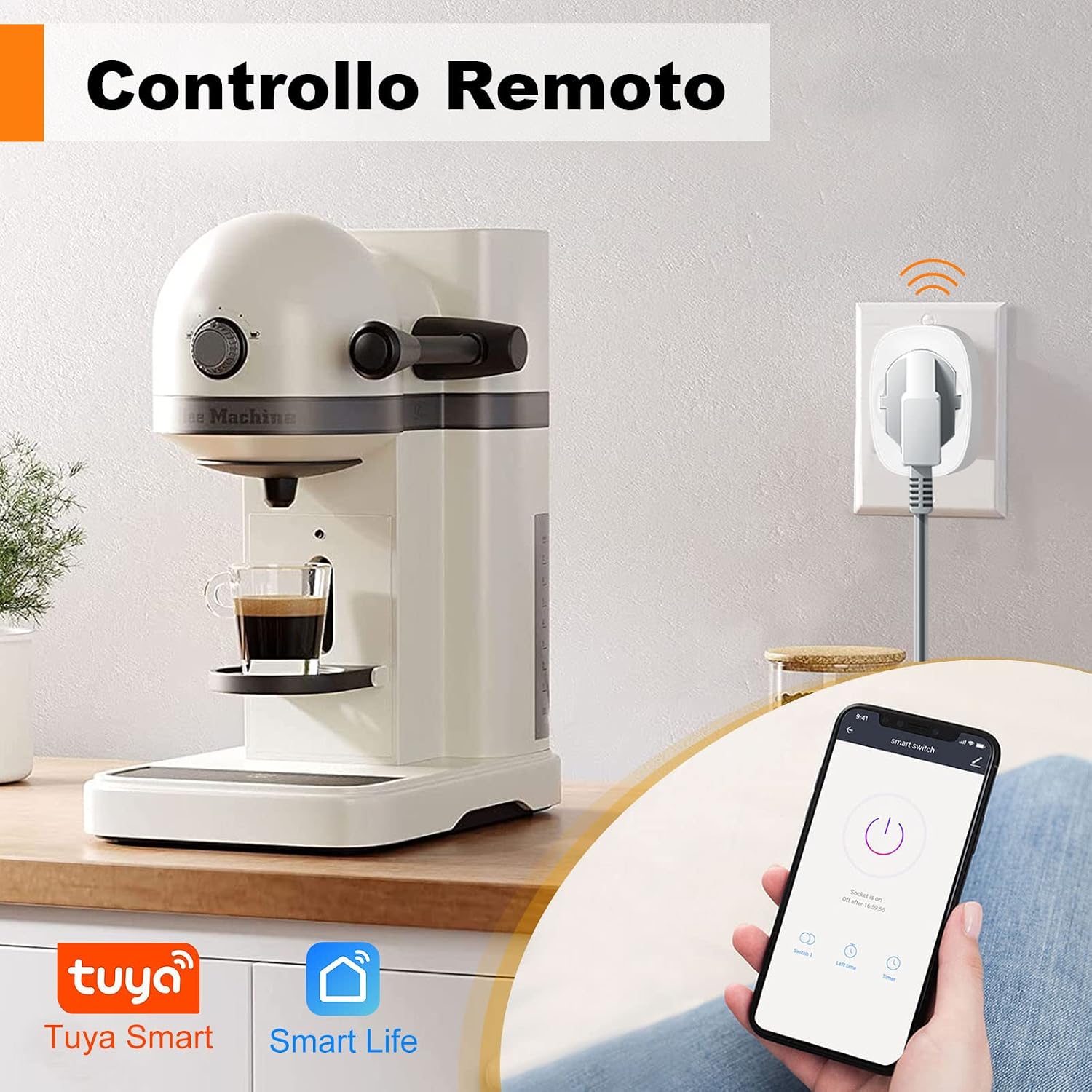
Figure 3: Remote control functionality via smartphone app.
This image demonstrates how to remotely control an appliance, such as a coffee machine, connected to the smart socket using the Smart Life or Tuya Smart mobile application.
5.3 Timing Function (Schedules and Timers)
Automate your devices by setting schedules or countdown timers:
- In the app, select your smart socket.
- Tap on the "Timer" or "Schedule" option.
- Set specific times for the socket to turn on or off, and choose the days of the week for repetition.
- You can also set a countdown timer for a one-time event.

Figure 4: Setting schedules for automatic operation.
This image illustrates the timer function within the smart plug application, showing how users can program specific on/off times for appliances, such as a microwave or oven, in a kitchen environment.
5.4 Voice Control Integration
Integrate your SURFOU Smart WiFi Socket with Amazon Alexa, Google Home, or SmartThings for voice-activated control:
- Ensure your smart socket is successfully added to the Smart Life or Tuya Smart app.
- Open your Alexa, Google Home, or SmartThings app.
- Go to the "Skills" or "Works with" section and search for "Smart Life" or "Tuya Smart".
- Enable the skill/service and link your Smart Life/Tuya account.
- Discover devices. Once discovered, you can use voice commands like:
- "Alexa, turn on [Device Name]"
- "Hey Google, turn off [Device Name]"

Figure 5: Voice control with Alexa and Google Assistant.
This image demonstrates the convenience of controlling a lamp connected to the smart socket using voice commands through an Alexa device, showcasing the product's compatibility with major voice assistants.
5.5 Energy Monitoring
The SURFOU Smart WiFi Socket features a built-in energy meter to track power consumption:
- In the Smart Life or Tuya Smart app, select your smart socket.
- Look for the "Power Statistics" or "Energy Monitoring" section.
- View real-time power usage, daily, weekly, or monthly consumption reports.

Figure 6: Energy consumption monitoring.
This image displays a graphical representation of energy consumption data, showing how the smart socket tracks and reports power usage over time, helping users monitor and manage their electricity consumption.
6. Maintenance
- Cleaning: Disconnect the smart socket from the power outlet before cleaning. Use a soft, dry cloth to wipe the surface. Do not use liquid or aerosol cleaners.
- Storage: When not in use for extended periods, store the device in a cool, dry place away from direct sunlight and moisture.
- Inspection: Periodically check the smart socket and connected appliance cords for any signs of damage.
7. Troubleshooting
| Problem | Possible Cause | Solution |
|---|---|---|
| Device cannot connect to Wi-Fi. | Incorrect Wi-Fi band (5GHz), wrong password, weak signal, or device not in pairing mode. |
|
| Remote control not working. | No internet connection on phone or smart socket, or app is not logged in. |
|
| Voice control not responding. | Incorrect device name, voice assistant skill not enabled, or account not linked. |
|
| Energy monitoring data is inaccurate or not updating. | Temporary app glitch or connectivity issue. |
|
8. Specifications
| Brand | SURFOU |
| Model Number | BSD60 |
| Current Rating | 16 Amps |
| Operating Voltage | 230 Volts |
| Wattage | 3680 Watts |
| Connectivity Protocol | 2.4GHz Wi-Fi (IEEE 802.11 b/g/n) |
| Controller Type | Compatible with Amazon Alexa, Google Assistant, SmartThings |
| Control Method | App (Smart Life / Tuya Smart) |
| Item Dimensions (L x W x H) | 6 x 6 x 8.5 Centimeters |
| Item Weight | 58 Grams |
| Material Type | Acrylonitrile Butadiene Styrene (ABS) |
| Contact Material | Aluminium |
| International Protection Rating | IP68 |
| Certifications | CE, RoHS, TUV |
| Operation Mode | ON-NONE-OFF |
| Switch Type | DIAC |
| Mounting Type | Wall Mount |
9. Warranty and Support
SURFOU products are manufactured to high quality standards. For information regarding warranty coverage, technical support, or service, please refer to the contact information provided with your purchase or visit the official SURFOU website. Please retain your proof of purchase for warranty claims.

