
1. Introduction
This manual provides detailed instructions for the installation, operation, and maintenance of your CUSP 12.1-inch Android Car Stereo Radio GPS. Please read this manual thoroughly before installation and use to ensure proper function and safety. Keep this manual for future reference.
2. Product Overview
The CUSP Android Car Stereo is an advanced multimedia navigation system designed to enhance your driving experience. It features a large 12.1-inch touchscreen display, Android operating system, GPS navigation, and various connectivity options.
Key Features:
- 12.1-inch HD Touchscreen Display
- Android Operating System (PX6, 4G RAM + 64G ROM)
- Integrated GPS Navigation
- Wireless Apple CarPlay & Android Auto Support
- Digital Sound Processor (DSP) for enhanced audio
- Bluetooth for hands-free calling and audio streaming
- FM/AM Radio with RDS
- Rear Camera Input
- Steering Wheel Control Compatibility

Figure 1: CUSP 12.1-inch Android Car Stereo installed in a Ford F150 dashboard, displaying the main user interface with various applications.
3. Package Contents
Verify that all items are present in the package before proceeding with installation:
- Radio Unit (1)
- Power Cable (1)
- A/V Cable (1)
- Rear Camera Cable (1)
- USB Cable (2)
- GPS Antenna (1)
- Radio Antenna (1)
- External Microphone (1)
- Rear Camera (1)
- User Manual (1)

Figure 2: The CUSP 12.1-inch Android Car Stereo unit with all included cables and accessories.
4. Compatibility
This CUSP Android Car Stereo is specifically designed for Ford F150 models manufactured between 2009 and 2014. It supports both automatic A/C and manual A/C configurations. Please ensure your vehicle's dashboard matches the compatible types shown below.

Figure 3: Compatible and incompatible Ford F150 dashboard types for the CUSP car stereo.
5. Installation Guide
Professional installation is recommended. Disconnect the vehicle's battery before starting any electrical work.
5.1. Removing the Factory Unit
- Remove screws from the storage box: Locate and remove the screws securing the storage box on the passenger side.
- Pry open the panel: Carefully use a pry tool to open the panel covering the airbag base and tug it out.
- Remove screws from the airbag base: Unscrew the screws from the airbag base.
- Unscrew screws above the left dashboard: Remove the screws located above the left dashboard, near the instrument cluster.
- Remove the dashboard frame kit: Carefully pry and remove the dashboard frame kit around the factory radio.
- Unscrew screws on both sides of the air vent: Remove the screws on both sides of the air vents adjacent to the factory radio.
- Open the storage box: Open the storage box located below the factory radio.
- Remove the screw: Locate and remove the screw inside the storage box.
- Unscrew the screw on the car stereo: Remove the screw securing the factory car stereo.
- Disassemble the original car radio interface: Carefully pull out the factory radio interface and disconnect all cables.
5.2. Connecting the New Unit
Refer to the provided wiring diagram and the following videos for detailed connection steps.
Video 1: Detailed guide on connecting the cables for the CUSP 12.1-inch Ford F150 Raptor Car Stereo Radio.
Video 2: Comprehensive installation video for the Ford F150 2013-2014 T-style screen, covering removal and installation.
- Connect Canbus Box: Connect the Canbus box to the main power harness.
- Connect Power Harness: Plug the new unit's power harness into the vehicle's wiring.
- Connect USB Cables: Attach the provided USB cables to the designated ports on the unit.
- Connect GPS Antenna: Securely connect the GPS antenna. Place the GPS antenna in the glove box instead of behind the dashboard for better signal reception. Use the new supplied GPS antenna, not the original stereo's.
- Connect Radio Antenna: Attach the radio antenna.
- Connect External Mic: Plug in the external microphone for improved call quality.
- Connect Rear Camera: If installing a rear camera, connect its cable to the unit.
- Plug-in Connectors: Connect all remaining necessary connectors for audio, video, and other functions.
5.3. Testing the New Unit
Before fully reassembling the dashboard, perform the following tests:
Video 3: Guide on how to test the new unit in-dash for Ford F150 2013-2014.
- Power On: Turn on your car. The new unit should power on, and the screen should light up.
- GPS Signal: Check if the GPS can receive a signal.
- Steering Wheel Controls: Test volume control and song switching using the steering wheel controls.
- Air Conditioning: Test the air conditioning functions.
- Backup Camera: Test the backup camera. It should display a reverse image automatically when the car is in reverse.
- Radio: Test if the radio can receive channels.
- Audio Output: Test if the sound is normal when playing music. This unit supports SONY amplifiers. If your car has another brand amplifier and you get no sound after installation, refer to troubleshooting or contact support.
5.4. Reinstallation
After successful testing, reinstall the previously removed components in reverse order of removal.
6. Operating Instructions
Your CUSP Android Car Stereo offers a user-friendly interface with various functions. Below are some common operations:
6.1. Basic Navigation
- Home Screen: Access main applications and widgets.
- App Drawer: Swipe up or tap the app icon to view all installed applications.
- Settings: Access system settings for customization.
6.2. Multimedia Functions
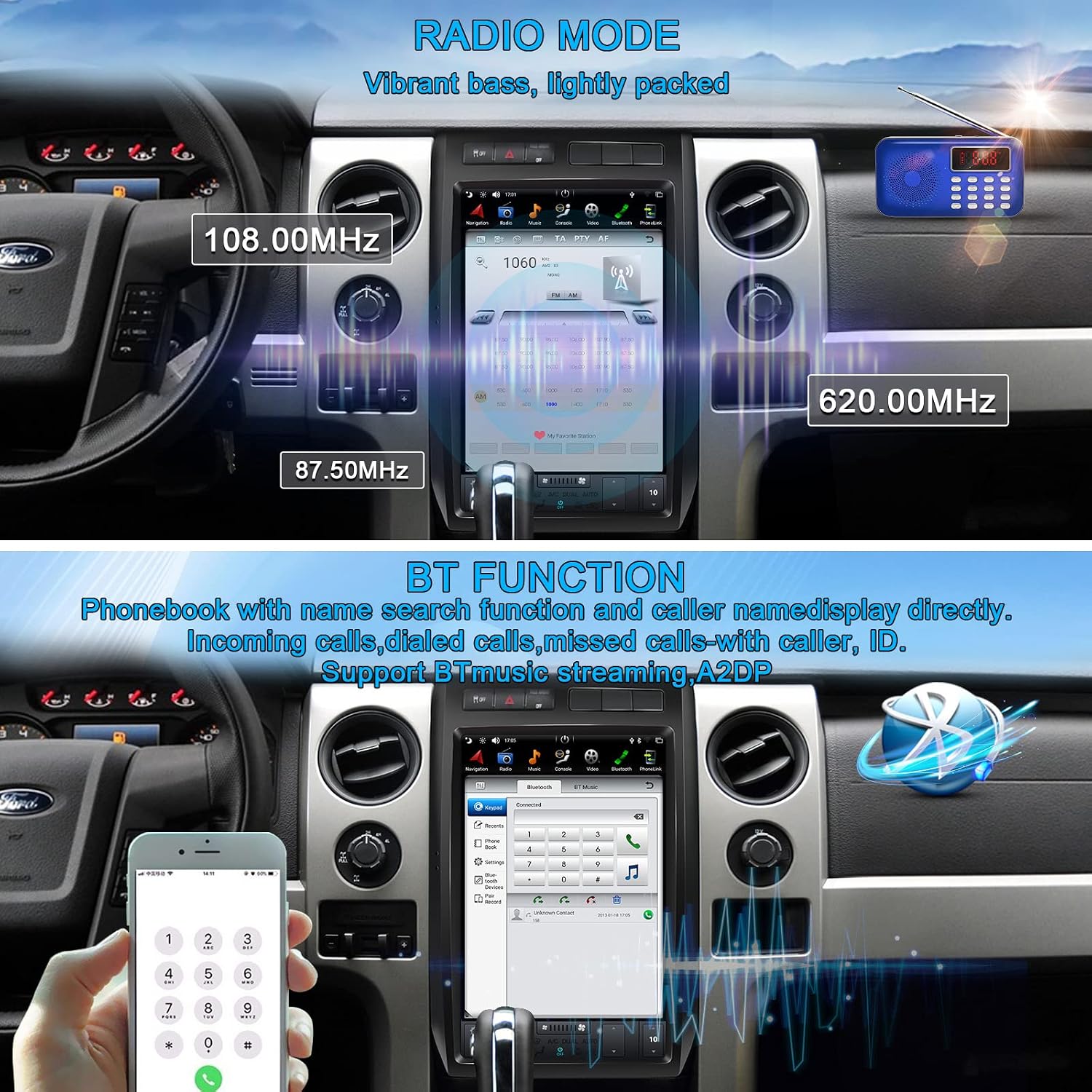
Figure 4: Radio and Bluetooth functions on the CUSP car stereo.
- FM/AM Radio: Tune into your favorite radio stations. The unit supports RDS.
- Bluetooth: Pair your smartphone for hands-free calling, contact synchronization, and audio streaming (A2DP).
- Music Player: Play audio files from internal storage or connected USB devices.
- Video Player: Play video files (MKV, MP4, 3GP, AVI, etc.) from internal storage or USB.
6.3. Navigation and Connectivity

Figure 5: Overview of various functions including navigation, app downloads, and video output.
- GPS Navigation: Utilize pre-installed maps or download your preferred navigation apps. Supports various map types including Central America, North America, South America, and Worldwide.
- Wi-Fi: Connect to a Wi-Fi hotspot for internet access, app downloads, and online services.
- Apple CarPlay & Android Auto: Connect your smartphone wirelessly for seamless integration of phone features, navigation, music, and voice commands.

Figure 6: Apple CarPlay and Android Auto interfaces on the CUSP car stereo.
7. Specifications
| Feature | Description |
|---|---|
| Model Name | CV-F661B |
| Display Size | 12.1 Inches |
| Operating System | Android (PX6, 4G RAM + 64G ROM) |
| Connectivity Technology | Bluetooth, USB, Wi-Fi |
| Special Features | Android, Bluetooth, Radio, Touchscreen, Video, Car Play, DSP |
| Map Type | Central America, North America, South America, Worldwide |
| Audio Output Mode | Stereo |
| Mounting Type | Dashboard Mount |
| Item Weight | 8.48 pounds |
| Package Dimensions | 17 x 12 x 7.6 inches |
8. Troubleshooting
If you encounter issues with your CUSP Android Car Stereo, please refer to the following common solutions:
- No Power: Ensure all power cables are securely connected and the vehicle's battery is charged. Check the unit's fuse.
- No Sound: Verify speaker connections. If your vehicle has a factory amplifier, ensure compatibility. This unit supports SONY amplifiers. If you have a different brand, contact support. Check audio settings and volume levels.
- GPS Signal Issues: Ensure the GPS antenna is correctly installed and placed in an optimal location (e.g., glove box, not behind the dashboard).
- Touchscreen Unresponsive: Try restarting the unit. If the issue persists, perform a factory reset (note: this will erase all user data).
- Bluetooth Connection Problems: Ensure Bluetooth is enabled on both the stereo and your device. Try unpairing and re-pairing the devices.
- Air Conditioning Malfunction: Verify all A/C related wiring connections. Some users have reported issues with A/C control after installation; ensure all Canbus settings are correctly configured for your specific Ford F150 model.
For further assistance, please contact CUSP customer support.
9. Warranty and Support
Your CUSP Android Car Stereo comes with a 1-year warranty from the date of purchase. This warranty covers manufacturing defects and malfunctions under normal use. It does not cover damage caused by improper installation, misuse, accidents, or unauthorized modifications.
For warranty claims, technical support, or any questions regarding your product, please contact CUSP customer service through the retailer where you purchased the unit or visit the official CUSP website.