
TMEZON TMEZON 7-Inch Wireless/WiFi Smart IP Video Door Phone Intercom System
TMEZON 7-Inch Wireless/WiFi Smart IP Video Door Phone Intercom System User Manual
Model: TMEZON 7-Inch Wireless/WiFi Smart IP Video Door Phone Intercom System
Introduction
This user manual provides comprehensive instructions for the installation, operation, and maintenance of your TMEZON 7-Inch Wireless/WiFi Smart IP Video Door Phone Intercom System. This system is designed to enhance your home security and communication by allowing you to see, hear, and speak to visitors at your door, and even remotely unlock it, all from your indoor monitor or smartphone.
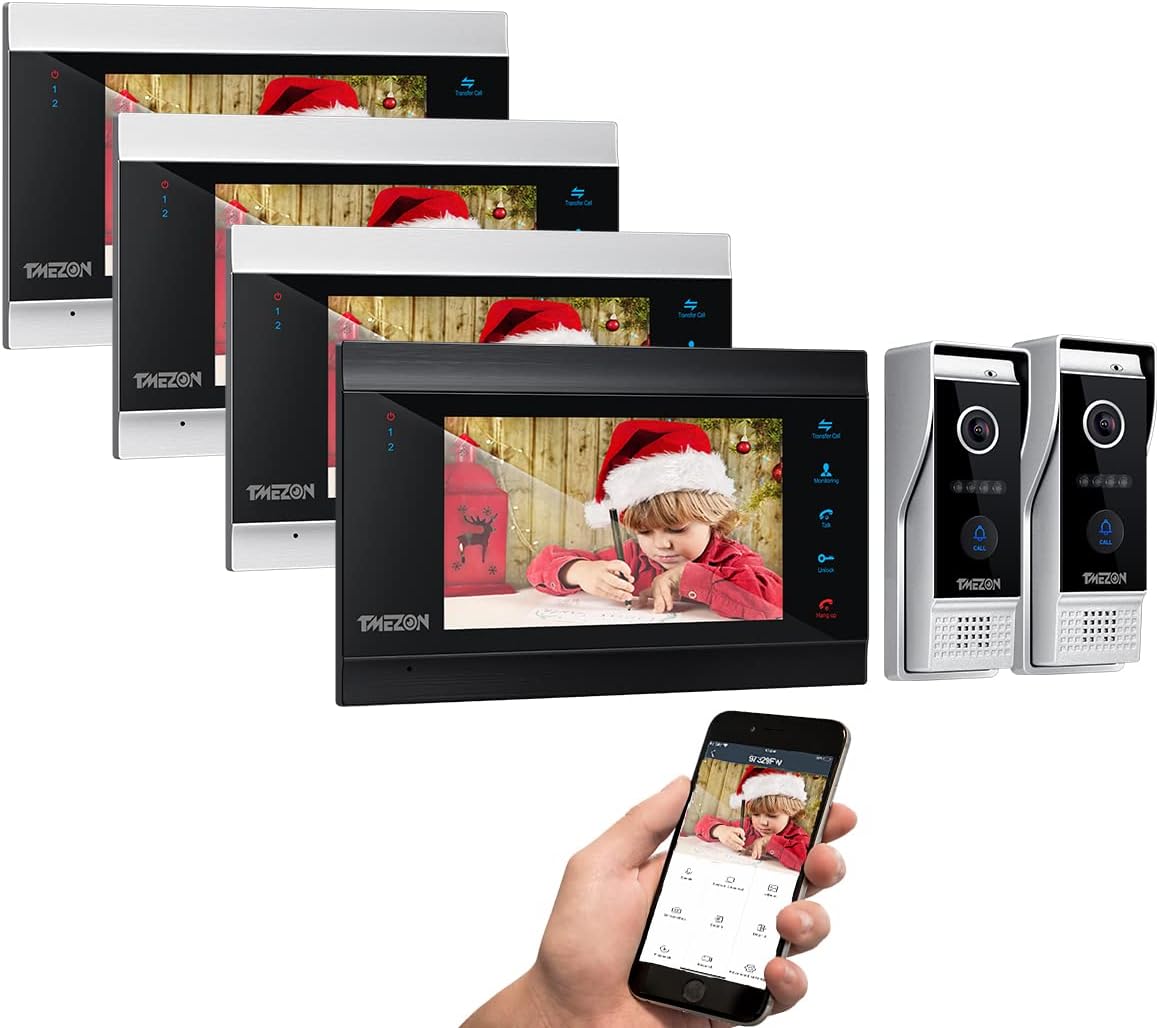
Image: Overview of the TMEZON 7-Inch Wireless/WiFi Smart IP Video Door Phone Intercom System, showing multiple indoor monitors, two outdoor doorbell cameras, and a smartphone displaying the mobile application interface.
Setup and Installation
Package Contents
Before beginning installation, please verify that all components are present:
- 7-Inch Indoor Monitor(s)
- 1080P Wired Doorbell Camera(s)
- Mounting Brackets
- Power Adapters
- Wiring Cables (4-core)
- Screws and Wall Plugs
- User Manual (this document)
System Overview and Wiring Diagram
The TMEZON system supports multiple indoor monitors and outdoor doorbell cameras, allowing for comprehensive coverage and communication within your property. The system primarily uses wired connections for stability, with Wi-Fi support for the indoor monitor to connect to your home network for smartphone integration.

Image: Detailed wiring diagram illustrating the connections between the door phone, indoor monitor, optional electronic lock, and network router (via Wi-Fi or LAN cable). It shows 4-core cable connections for power and video stability.
Note: The indoor monitor supports Wi-Fi for network connectivity, but the connection between the indoor monitor and the doorbell camera is wired to ensure stable power and video transmission. An optional electronic lock can be integrated for remote unlocking functionality.
Installation Steps
- Mount the Outdoor Doorbell Camera: Choose a suitable location near your entrance, typically at eye level. Secure the mounting bracket to the wall using the provided screws and wall plugs. Attach the doorbell camera to the bracket. Ensure it is protected from direct heavy rain if possible, although it is rated IP65 for dust and water resistance.
- Mount the Indoor Monitor: Select a central location inside your home where the monitor is easily accessible. Secure the monitor's mounting bracket to the wall.
- Connect Wiring:
- Connect the 4-core cable from the outdoor doorbell camera to the indoor monitor.
- If installing multiple monitors, connect them in series using 4-core cables.
- If integrating an electronic lock, connect it to the designated terminals on the indoor monitor or doorbell camera as per the wiring diagram.

Image: Close-up view of the 4-core wiring connection points on the back of the indoor monitor and the doorbell unit, highlighting the necessary cable for stable operation.
- Power On: Connect the power adapter to the indoor monitor and plug it into a power outlet. The system will power on.
- Network Connection (Wi-Fi/RJ45):
- For Wi-Fi connection: On the indoor monitor, navigate to network settings and connect to your 2.4GHz Wi-Fi network.
- For wired connection: Connect an RJ45 Ethernet cable from your router to the indoor monitor's LAN port.
Smartphone App Installation (TuyaSmart)
To enable remote access and control, download and install the "TuyaSmart" application on your smartphone. This app is available for both Android and iOS devices.
- Download the App: Search for "TuyaSmart" in your device's app store (Google Play Store for Android or Apple App Store for iOS).
- Install and Register: Follow the on-screen prompts to install the app. Create an account or log in if you already have one.
- Add Device: In the TuyaSmart app, tap the "+" icon to add a new device. Select "Security & Video Surveillance" and then "Smart Doorbell" or similar. Follow the app's instructions to pair your TMEZON intercom system with your smartphone. This typically involves scanning a QR code displayed on the indoor monitor or entering network details.


Image: The TuyaSmart app logo alongside a smartphone screen showing the live video feed from the doorbell camera, demonstrating the mobile app's interface for monitoring and control.
Operating Instructions
Answering Calls and Two-Way Communication
When a visitor presses the doorbell button, the indoor monitor will ring, and your smartphone (if connected) will receive a notification via the TuyaSmart app.
- From Indoor Monitor: Tap the "Answer" button on the monitor screen to establish two-way audio and video communication with the visitor.
- From Smartphone App: Tap the notification on your phone to open the app and view the live feed. You can then use the microphone icon to speak to the visitor.

Image: A split image showing a person at the door speaking into the TMEZON doorbell, and another person inside viewing and responding via the indoor monitor, illustrating the two-way communication feature.
Remote Unlock Function
If an electronic lock is connected to your system, you can remotely unlock the door for visitors.
- From Indoor Monitor: During a call, tap the "Unlock" icon on the monitor screen.
- From Smartphone App: During a call or while viewing the live feed, tap the "Unlock" icon within the TuyaSmart app.

Image: A composite image showing a finger pressing the TMEZON doorbell, the live view on the indoor monitor, and the smartphone app displaying the live feed with a prominent unlock icon, demonstrating the remote unlock capability.
Automatic Snapshot or Recording
The system can automatically capture snapshots or record video when the doorbell is pressed or motion is detected. These files are saved to a Micro SD card (not included, purchased separately) inserted into the indoor monitor.
- Accessing Recordings: You can review recorded videos and snapshots directly from the indoor monitor's menu or remotely via the TuyaSmart app.

Image: A man smiling, with red recording and snapshot icons overlaid, indicating the system's ability to automatically record video and capture images of visitors.
Motion Detection
The doorbell camera features motion detection. When motion is detected within its field of view, the system can trigger an automatic snapshot or video recording and send a notification to your smartphone.
- Configuring Motion Detection: Adjust motion detection sensitivity and areas through the indoor monitor's settings or the TuyaSmart app.
- Notifications: Ensure app notifications are enabled on your smartphone to receive real-time alerts.

Image: A scene depicting a person in a balaclava with a bag, overlaid with a red grid indicating motion detection zones, and a smartphone displaying a motion detection alert from the TMEZON system.
Call Transfer Among Monitors
If you have multiple indoor monitors, you can transfer calls between them, allowing you to answer the door from any connected monitor in your home.
- Initiating Transfer: During an active call on one monitor, select the "Transfer" option and choose the target monitor.

Image: A collage showing TMEZON indoor monitors installed in various rooms (living room, bedroom, kitchen, balcony), illustrating the system's call transfer feature, allowing users to answer calls from any connected monitor.
Maintenance
- Cleaning: Use a soft, dry cloth to clean the indoor monitor screen and the outdoor doorbell camera lens. Avoid abrasive cleaners or solvents.
- Software Updates: Periodically check for firmware updates through the indoor monitor's settings or the TuyaSmart app to ensure optimal performance and access to new features.
- SD Card Management: Regularly back up important recordings from the Micro SD card and format it to maintain recording efficiency.
Troubleshooting
- No Video/Audio from Doorbell:
- Check all wired connections between the doorbell and the monitor. Ensure they are secure and correctly aligned (4-core cable).
- Verify the power supply to the indoor monitor.
- Ensure the doorbell camera lens is clean and unobstructed.
- Indoor Monitor Not Connecting to Wi-Fi:
- Confirm your Wi-Fi network is 2.4GHz. The system does not support 5GHz networks.
- Check your Wi-Fi password for accuracy.
- Ensure the monitor is within range of your Wi-Fi router. Try moving the monitor closer or using a Wi-Fi extender.
- Restart your router and the indoor monitor.
- No Smartphone Notifications:
- Verify that the TuyaSmart app is properly paired with your intercom system.
- Check notification settings within the TuyaSmart app and on your smartphone's operating system.
- Ensure your smartphone has a stable internet connection (Wi-Fi or mobile data).
- Confirm the indoor monitor is connected to the internet.
- Remote Unlock Not Working:
- Ensure the electronic lock is correctly wired and powered.
- Verify the lock type is compatible with the system.
- Test the lock manually to ensure it is functional.
- Poor Night Vision Quality:
- Ensure the infrared sensors on the doorbell camera are not obstructed or dirty.
- Check for any reflective surfaces close to the camera that might be causing glare.
Specifications
| Feature | Specification |
|---|---|
| Monitor Size | 7 Inch TFT Display |
| Doorbell Camera Resolution | 1080P |
| Connectivity | Wired (Monitor to Doorbell), Wireless (Monitor to Router via 2.4GHz Wi-Fi) |
| App Support | TuyaSmart (Android/iOS) |
| Storage | Micro SD Card (up to 64GB, not included) for recording/snapshots |
| Night Vision | Built-in Infrared Sensor |
| Viewing Angle | 115° Wide Angle |
| Weather Resistance | IP65 (Rainproof, Dustproof, Anti-vandal) |
| Motion Detection | Supported |
| Max Monitors Supported | Up to 4 indoor monitors |
| Max Doorbells Supported | Up to 2 doorbell cameras |
Warranty and Support
TMEZON products are designed for reliability and performance. This product comes with a standard manufacturer's warranty. Please refer to the warranty card included in your package for specific terms and conditions, or visit the official TMEZON website for the most up-to-date warranty information.
For technical support, troubleshooting assistance, or warranty claims, please contact TMEZON customer service through the contact information provided on their official website or through your purchase platform. When contacting support, please have your product model number and purchase details ready.
Related documentsTMEZON 7-Inch Wireless/WiFi Smart IP Video Door Phone Intercom System


Ask a question about this manual
Ask about setup, troubleshooting, compatibility, parts, safety, or missing instructions. Manuals+ will review the question and use this page’s manual context to help answer it.