
Introduction
This user manual provides comprehensive instructions for the setup, operation, maintenance, and troubleshooting of your MOFII Wireless Keyboard + Mouse Set Candy XR 2.4G (Green). Please read this manual carefully before using the product to ensure optimal performance and longevity.
Package Contents
Please check the package contents to ensure all items are present:
- 1x MOFII Wireless Keyboard (Green)
- 1x MOFII Wireless Mouse (Green)
- 1x USB 2.4G Receiver
- 1x User Manual
Product Overview
The MOFII Candy XR set features a stylish, compact design with a full-size keyboard and a comfortable, ergonomic mouse, both operating on 2.4G wireless technology.

Image: The MOFII Wireless Keyboard and Mouse Set in a vibrant green color, showcasing the round keycaps and compact mouse design.

Image: An angled perspective of the MOFII green wireless keyboard and mouse, highlighting the texture and layout of the keys.
Setup
Follow these steps to set up your MOFII Wireless Keyboard and Mouse:
- Install Batteries:
- Open the battery compartment on the back of the keyboard and mouse.
- Insert 2x AAA batteries into the keyboard and 1x AA battery into the mouse, ensuring correct polarity (+/-).
- Close the battery compartments securely.
- Connect the USB Receiver:
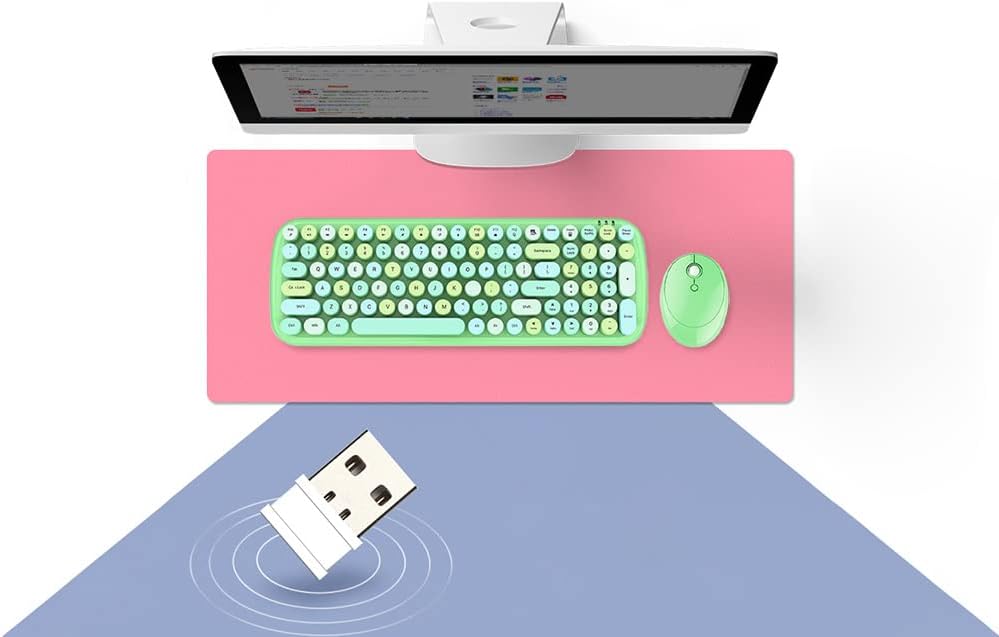
Image: The USB 2.4G receiver, which connects the wireless keyboard and mouse to a computer, shown near a monitor and the green keyboard and mouse set.
Locate the USB 2.4G receiver (often stored in the mouse's battery compartment for transport). Plug the receiver into an available USB port on your computer. Your operating system should automatically detect and install the necessary drivers.
- Power On:
Turn on the keyboard and mouse using their respective power switches (usually located on the underside of each device). The devices should connect automatically to the receiver.
Operating Instructions
Keyboard Usage
- Typing: The keyboard features a standard QWERTY layout with round keycaps for comfortable typing.
- Function Keys: Utilize the 'Fn' key in combination with the F1-F12 keys for multimedia controls or other special functions, if applicable to your specific model. Refer to the keycap legends for specific functions.
Mouse Usage
- Left/Right Click: Standard left and right click functionality.
- Scroll Wheel: Use the scroll wheel for vertical scrolling in documents and web pages.
- DPI Adjustment: Some MOFII mice include a DPI button (often located near the scroll wheel) to adjust cursor sensitivity. Press this button to cycle through available DPI settings.

Image: A top-down view of the MOFII green wireless keyboard and mouse positioned on a desk, with a computer monitor visible in the background, illustrating a typical workspace setup.
Maintenance
- Cleaning:
To clean your keyboard and mouse, gently wipe surfaces with a soft, damp cloth. Avoid using harsh chemicals or abrasive cleaners. For keycaps, a soft brush or compressed air can remove dust and debris.
- Battery Replacement:
When the devices stop responding or exhibit intermittent connectivity, it may be time to replace the batteries. Follow the battery installation steps in the 'Setup' section.
- Storage:
When not in use for extended periods, turn off the keyboard and mouse to conserve battery life. Store them in a cool, dry place away from direct sunlight and extreme temperatures.
Troubleshooting
- Device Not Responding:
- Ensure batteries are correctly installed and not depleted. Replace if necessary.
- Check if the power switches on both the keyboard and mouse are in the 'ON' position.
- Verify that the USB receiver is securely plugged into a working USB port on your computer. Try a different USB port.
- Restart your computer.
- Intermittent Connection:
- Move the keyboard and mouse closer to the USB receiver.
- Avoid placing the receiver near other wireless devices or large metal objects that might cause interference.
- Ensure there are no other 2.4G devices operating on the same frequency nearby.
- Keys Not Working / Mouse Not Tracking:
- Clean the keyboard keys or mouse sensor for any obstructions.
- Replace batteries.
Specifications
| Feature | Detail |
|---|---|
| Brand | MOFII |
| Model Number | SMK-646390AG Green |
| ASIN | B0BN8RCZDC |
| Connectivity | 2.4G Wireless |
| Color | Green |
| Keyboard Layout | Full-size (approximate, based on image) |
| Battery (Keyboard) | 2x AAA (typical, not specified) |
| Battery (Mouse) | 1x AA (typical, not specified) |
Warranty and Support
MOFII products are designed for reliability and performance. This product comes with a standard manufacturer's warranty against defects in materials and workmanship. For specific warranty terms and conditions, please refer to the warranty card included in your package or visit the official MOFII website.
If you encounter any issues that cannot be resolved using the troubleshooting guide, or for further assistance, please contact MOFII customer support through their official channels. Please have your product model number (SMK-646390AG Green) and purchase information ready when contacting support.