
1. Product Overview
The Tenveo TEVO-VHD20H is a professional-grade PTZ (Pan-Tilt-Zoom) camera designed for high-quality video conferencing, live streaming, and online meetings. It features a 20X optical zoom lens, delivering Full HD 1080P video at 60 frames per second. Equipped with a 1/2.8" CMOS sensor and advanced image processing technology, it ensures clear, sharp, and true-color video output across various environments.
This camera offers versatile connectivity options including USB3.0, HDMI, and LAN (with PoE support), making it suitable for a wide range of applications from church services and educational lectures to live concerts and corporate broadcasts. Its smooth and silent pan/tilt movements, coupled with extensive preset capabilities, provide precise control for dynamic video capture.

Figure 1.1: Front view of the Tenveo TEVO-VHD20H PTZ Camera, showcasing its sleek design and prominent lens.

Figure 1.2: Diagram highlighting key features including 20X Optical Zoom, 1080P 60FPS, PoE Support, USB3.0/HDMI/LAN outputs, CMOS Sensor, and 61° Wide FOV.
2. Setup
2.1. What's in the Box
Upon unboxing your Tenveo TEVO-VHD20H PTZ Camera, verify that all components are present:
- Tenveo FHD 1080P 60FPS PTZ Live Streaming Camera (TEVO-VHD20H)
- IR Remote Control
- DC12V Power Adapter
- USB3.0 Cable
- Wall mount
- Mounting screws
- User Manual

Figure 2.1: Visual representation of the package contents, including the camera, remote, cables, power adapter, wall mount, and user manual.
2.2. Physical Connections
The TEVO-VHD20H camera supports multiple video output channels for flexible integration:
- USB3.0: Connect the provided USB3.0 cable from the camera to your computer (Windows/Mac) for plug-and-play video conferencing. Recommended distance: up to 15m (49.21ft).
- HDMI: Connect an HDMI cable for high-definition video output to a display, video mixer, or capture card. Recommended distance: up to 30m (98.42ft).
- LAN (Ethernet/PoE): Connect an Ethernet cable for IP streaming and control. Power over Ethernet (PoE 802.3af) is supported, requiring a PoE switch for power and data transmission over a single cable. This allows for flexible placement without proximity to power outlets.
- RS232/RS485: For professional control and integration with joystick controllers or control systems, use the RS232 and RS485 interfaces.

Figure 2.2: Rear view of the camera illustrating the various input/output ports for power, control, and video/audio connections.
2.3. Installation Options
The camera offers versatile installation methods to suit different environments:
- Desktop: Place the camera on a flat surface.
- Monitor: Securely mount on top of a monitor.
- Wall Mount: Use the included wall mount bracket and screws to fix the camera to a wall. Ensure the wall material can support the camera's weight.
- Ceiling Mount: Utilize the included wall mount (which can also be used for ceiling mounting) and screws to install the camera on the ceiling. The camera features an image flip function for inverted mounting.
3. Operating Instructions
3.1. Camera Controls
The camera can be controlled remotely using the included IR remote control or via RS232/RS485 interfaces for professional setups.
- Pan/Tilt Movement: The camera supports 350° (±175°) horizontal rotation and 180° (±90°) vertical rotation. Movements are designed to be smooth and silent.
- Optical Zoom: Utilize the 20X optical zoom for detailed close-ups without loss of quality. The zoom is smooth and precise.
- Presets: Store up to 10 preset positions via the IR remote control for quick recall of specific camera angles. Up to 255 presets can be configured via RS232/RS485.

Figure 3.1: Demonstration of the 20X optical zoom capability, showing a wide shot and a zoomed-in view of a subject.
3.2. Image Settings
Adjust various image parameters for optimal video quality:
- Brightness: Control the overall brightness of the image.
- Image Mode: Select different image modes (e.g., normal, mirror) to suit your streaming or recording needs.
- Auto/Manual Focus: The camera features reliable autofocus, but manual focus is also available for precise control.
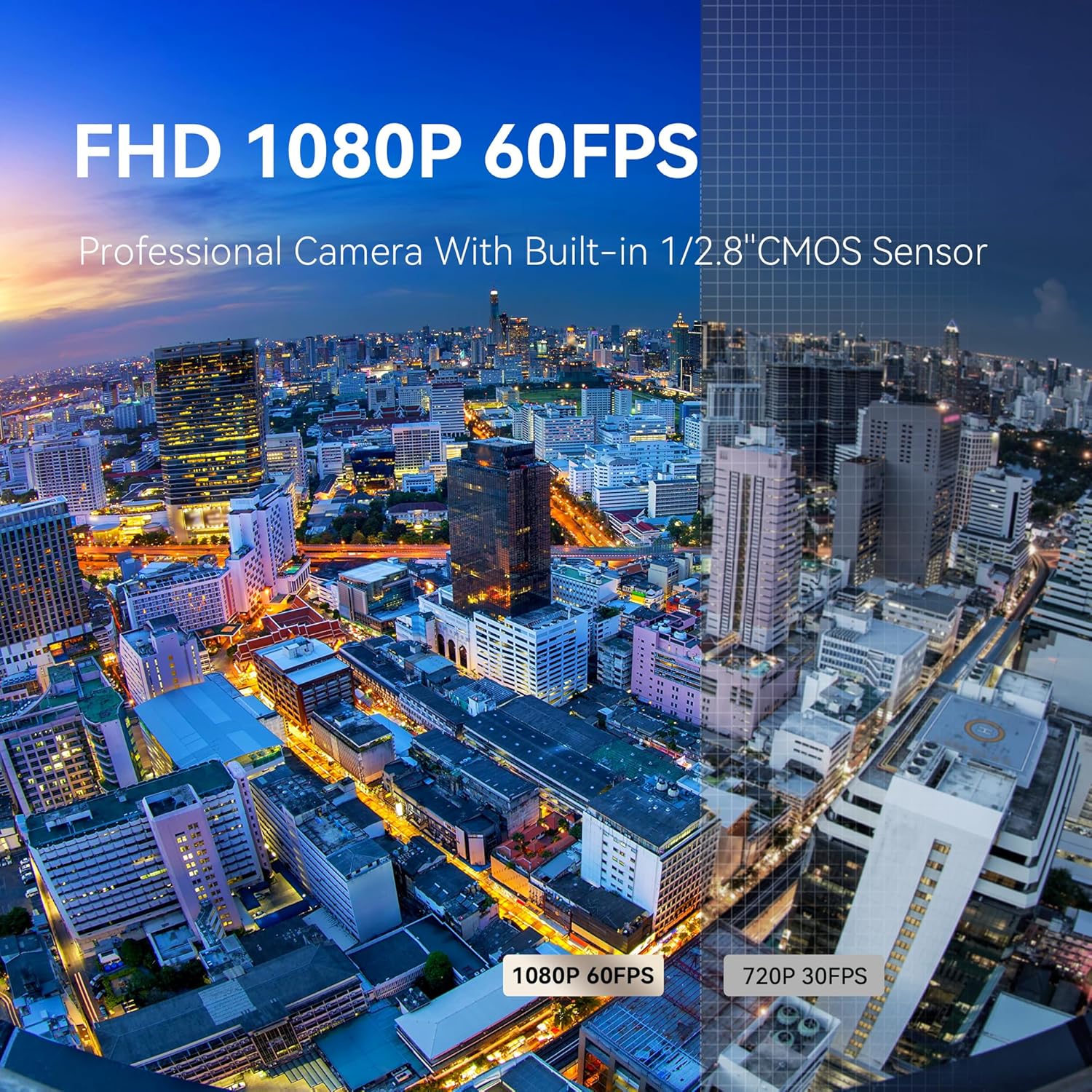
Figure 3.2: Visual comparison demonstrating the clarity and smoothness of FHD 1080P 60FPS video output compared to lower resolutions.
3.3. Software Compatibility
The TEVO-VHD20H camera is universally compatible with popular video conferencing and live streaming software and platforms, including:
- Zoom
- YouTube
- Facebook Messenger
- Microsoft Teams
- Facetime
- Google Hangout / Google Meet
- OBS (Open Broadcaster Software)
- vMix
- Cisco Webex
It supports Windows 7/8.1/10/11, Mac OS 10.10 or higher, Linux, and Android operating systems.

Figure 3.3: Logos of various compatible software and platforms, illustrating the camera's broad usability.
4. Maintenance
To ensure the longevity and optimal performance of your Tenveo TEVO-VHD20H PTZ Camera, follow these general maintenance guidelines:
- Cleaning: Use a soft, dry cloth to clean the camera body. For the lens, use a specialized lens cleaning cloth and solution. Avoid abrasive cleaners or solvents.
- Storage: When not in use for extended periods, store the camera in a cool, dry place, away from direct sunlight and extreme temperatures.
- Handling: Handle the camera with care. Avoid dropping it or subjecting it to strong vibrations, which can damage internal components.
- Ventilation: Ensure proper ventilation around the camera to prevent overheating, especially during prolonged operation.
5. Troubleshooting
If you encounter issues with your Tenveo TEVO-VHD20H PTZ Camera, consider the following common troubleshooting steps:
- No Power: Ensure the DC12V power adapter is securely connected to both the camera and a working power outlet. If using PoE, confirm the PoE switch is active and providing power.
- No Video Output:
- Check all cable connections (USB, HDMI, LAN) for looseness or damage.
- Verify that the correct input source is selected on your display or video mixer.
- Ensure the camera is recognized by your computer's operating system or streaming software. Try restarting the software or computer.
- Image Quality Issues (Blurry, Dark, etc.):
- Clean the camera lens with a soft, dry cloth.
- Adjust lighting conditions in the environment.
- Check camera settings (brightness, exposure, focus) via the remote control or software interface.
- Remote Control Not Responding:
- Ensure there are no obstructions between the remote and the camera's IR receiver.
- Replace the batteries in the remote control.
- PTZ Movement Issues:
- Verify that the camera is placed on a stable surface or securely mounted.
- Check for any physical obstructions preventing movement.
For persistent issues, refer to the detailed troubleshooting section in the included User Manual or contact Tenveo customer support.
6. Specifications
| Feature | Specification |
|---|---|
| Product Dimensions | 6.5 x 9.72 x 6.73 inches |
| Item Weight | 3.01 pounds |
| Model Number | TEVO-VHD20H |
| Photo Sensor Technology | CMOS (1/2.8" with 2.07 megapixels) |
| Video Capture Resolution | 1080p (FHD 60FPS) |
| Optical Zoom | 20X |
| Maximum Focal Length | 110 Millimeters |
| Maximum Aperture | 1.6 f |
| Video Capture Format | MJPG/YUY2/H.264/H.265 |
| Supported Audio Format | AAC, MP3, PCM, FLAC, Dolby Digital/AC-3 |
| Connectivity Technology | Ethernet, HDMI, Infrared, USB (USB3.0) |
| PoE Support | Yes (802.3af) |
7. Warranty and Support
Tenveo is committed to providing excellent customer service and support for your TEVO-VHD20H PTZ Camera:
- Warranty: The product comes with a 3-year standard warranty.
- Technical Support: Lifetime technical support service is available. If needed, remote assistance can be provided for setup and configuration.
- Money-Back Guarantee: Enjoy a 30-day no-questions-asked money-back guarantee for a risk-free purchase.
- Contact: For any questions or support needs, please contact Tenveo customer service. Responses are typically provided within 12 hours, ensuring a satisfactory solution.


