
1. Introduction
Thank you for choosing the Rii RK908 Mechanical Gaming Keyboard. This manual provides detailed instructions on how to set up, operate, maintain, and troubleshoot your new keyboard. Please read this manual thoroughly to ensure optimal performance and longevity of your device.
The Rii RK908 is a high-performance mechanical keyboard designed for gaming and everyday use, featuring durable BlueSwitch switches, customizable RGB backlighting, and anti-ghosting capabilities for a superior typing and gaming experience.
2. Product Features
- BlueSwitch Mechanical Switches: Provides tactile feedback and an audible click, with a service life of up to 60 million clicks.
- Compact 88-Key Tenkeyless Design: Space-saving layout without sacrificing essential functionality.
- Full Anti-Ghosting: Ensures all 88 keys are conflict-free, allowing for simultaneous key presses without missed commands.
- 22 RGB Backlight Modes: Customizable lighting effects to enhance your gaming setup and personal preference.
- Macro Recording Function: Customize up to 5 keyboard shortcuts for frequently used commands or complex sequences.
- Spill-Resistant Performance: Designed with drain holes to protect against accidental liquid spills.
- Ergonomic Design: Helps reduce fatigue during long periods of use.
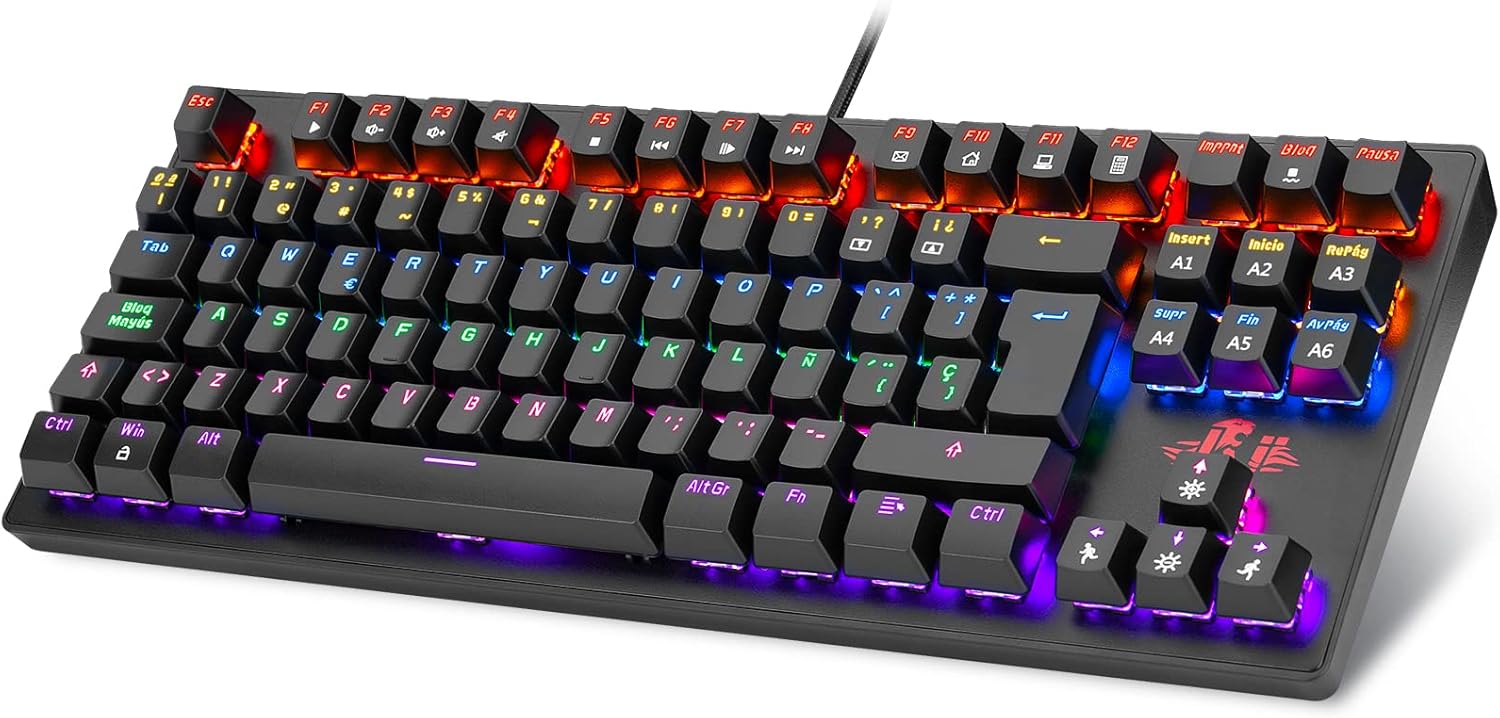
Figure 2.1: Overview of the Rii RK908 Mechanical Gaming Keyboard.

Figure 2.2: Close-up view of the BlueSwitch mechanical key switches, known for their tactile and audible feedback.

Figure 2.3: Illustration of the compact 88-key tenkeyless design, optimizing desk space.

Figure 2.4: Visual representation of the full anti-ghosting feature, ensuring all key presses are registered accurately.

Figure 2.5: The keyboard demonstrating its spill-resistant design with integrated drain holes.

Figure 2.6: Side profile of the keyboard highlighting its ergonomic curve for comfortable use.
3. Setup
3.1 Connecting the Keyboard
- Unpack the Rii RK908 keyboard from its packaging.
- Locate an available USB port on your computer (PC, Mac, Linux) or gaming console (PS4, Xbox).
- Plug the USB connector of the keyboard firmly into the USB port.
- The operating system will automatically detect and install the necessary drivers. This process may take a few moments.
- Once installed, the keyboard's backlight will illuminate, indicating it is ready for use.
3.2 System Requirements
- Operating System: Windows 98/XP/2000/ME/Vista/Win7/Win8/Win10, Linux, Mac OS.
- Available USB 2.0 or 3.0 port.
4. Operating Instructions
4.1 Backlight Modes
The Rii RK908 keyboard features 22 different RGB backlight modes. Use the following key combinations to control the backlighting:
- Fn + INS: Cycle through different backlight modes.
- Fn + HOME: Activate specific backlight effects.
- Fn + PGUP: Adjust backlight brightness (5 levels).
- Fn + PGDN: Adjust backlight speed (5 levels).
- Fn + DEL: Change backlight color in certain modes.
- Fn + END: Turn backlight on/off.

Figure 4.1: The keyboard displaying multiple rainbow LED backlight effects.
4.2 Macro Recording Function
The keyboard allows you to record up to 5 custom macros (M1-M5) to automate frequently used key sequences.
- Enter Recording Mode: Press Fn + M1 (or M2, M3, M4, M5) to select the macro key you wish to program. The backlight of the selected macro key will start blinking to indicate recording mode.
- Record Sequence: Type the desired key sequence. You can record up to 32 characters.
- Save Macro: Press Fn + M1 (or the same M key you started with) again to save the macro. The backlight of the macro key will stop blinking and return to its normal state.
- Execute Macro: To execute a recorded macro, simply press the corresponding macro key (M1-M5).
Note: Macros are stored in the keyboard's memory and will persist even after disconnecting the keyboard.

Figure 4.2: Keys involved in the macro recording function, allowing for custom shortcuts.
5. Maintenance
5.1 Cleaning the Keyboard
- Disconnect the keyboard from your computer before cleaning.
- Use a soft, lint-free cloth slightly dampened with water or a mild cleaning solution to wipe the surface of the keyboard.
- For dust and debris between keys, use compressed air.
- Do not use harsh chemicals, abrasive cleaners, or immerse the keyboard in water.
- Ensure the keyboard is completely dry before reconnecting it.
5.2 Storage
When not in use for extended periods, store the keyboard in a cool, dry place away from direct sunlight and extreme temperatures.
6. Troubleshooting
- Keyboard not responding:
- Ensure the USB cable is securely plugged into both the keyboard and the computer/console.
- Try plugging the keyboard into a different USB port.
- Restart your computer/console.
- Test the keyboard on another computer to rule out system-specific issues.
- Backlight not working or stuck:
- Press Fn + END to ensure the backlight is not turned off.
- Adjust brightness using Fn + PGUP.
- Cycle through modes using Fn + INS to see if it responds.
- Keys not registering or ghosting:
- Ensure the keyboard is clean and free of debris that might obstruct key presses.
- The keyboard has full anti-ghosting; if issues persist, try restarting your system.
7. Specifications
| Product Dimensions | 14.57 x 6.69 x 0.98 inches |
| Item Weight | 2.46 ounces |
| Manufacturer | Rii |
| Model Number | RK908 |
| Number of Keys | 88 |
| Switch Type | BlueSwitch Mechanical |
| Backlight | RGB (22 Modes) |
| Material | Steel |
| Color | Black/White |
| Compatible Devices | PC, Windows, Linux, Mac OS, PS4, Xbox |
8. Warranty and Support
Rii offers a professional after-sales service, referred to as "Carefree" (Worry-free), for this product. For any issues, questions, or support needs, please refer to the contact information provided with your purchase or visit the official Rii website for assistance.
Please retain your proof of purchase for warranty claims.