
1. Introduction
This manual provides detailed instructions for the installation, operation, and maintenance of your Trueview Smart Wi-Fi 3MP Dome Security Camera. Please read this manual thoroughly before using the product to ensure proper functionality and safety. Keep this manual for future reference.

Image 1.1: Trueview Smart Wi-Fi 3MP Dome Security Camera. This image displays the front and side view of the white dome-shaped camera with its lenses and infrared lights visible.
2. Safety Information
- Ensure the power adapter used is the one supplied with the camera or a compatible alternative with the correct voltage and current ratings.
- Do not expose the camera to water or moisture. This product is not water resistant.
- Avoid placing the camera near heat sources or in direct sunlight for extended periods.
- Do not attempt to disassemble or modify the camera. This may void the warranty and cause damage.
- Keep the camera and its accessories out of reach of children.
- Ensure the mounting surface is strong enough to support the camera's weight.
3. Package Contents
Verify that all items are present in the package:
- Trueview Smart Wi-Fi 3MP Dome Security Camera Unit
- Power Adapter
- Mounting Screws
- User Manual (this document)
4. Product Features
The Trueview Smart Wi-Fi 3MP Dome Security Camera offers a range of features for effective surveillance:
- 3MP Resolution: Captures clear video at 2048x1536 pixels.
- Wi-Fi Connectivity: Connects wirelessly to your home or office network.
- Two-Way Audio: Built-in microphone and speaker for communication.
- Intelligent Human Detection: Advanced algorithm for effective motion alerts.
- Night Vision: Infrared light source for monitoring in low-light conditions.
- Micro SD Card Support: Supports up to 256 GB for local storage.
- Mobile App & PC Client: Remote monitoring and control via dedicated software.
- Alexa Compatibility: Integrates with Alexa-enabled devices for voice control and live view.

Image 4.1: Overview of camera features. Icons represent audio/video recording, full-duplex audio intercom, night vision, intelligent detection, mobile app access, and SD card storage.
5. Setup
5.1 Physical Installation
- Choose a Location: Select an indoor location with a clear view of the area you wish to monitor. Ensure it is within range of your Wi-Fi network.
- Mounting: Use the provided mounting screws to securely attach the camera to a ceiling or wall. Refer to the camera's dimensions for planning.
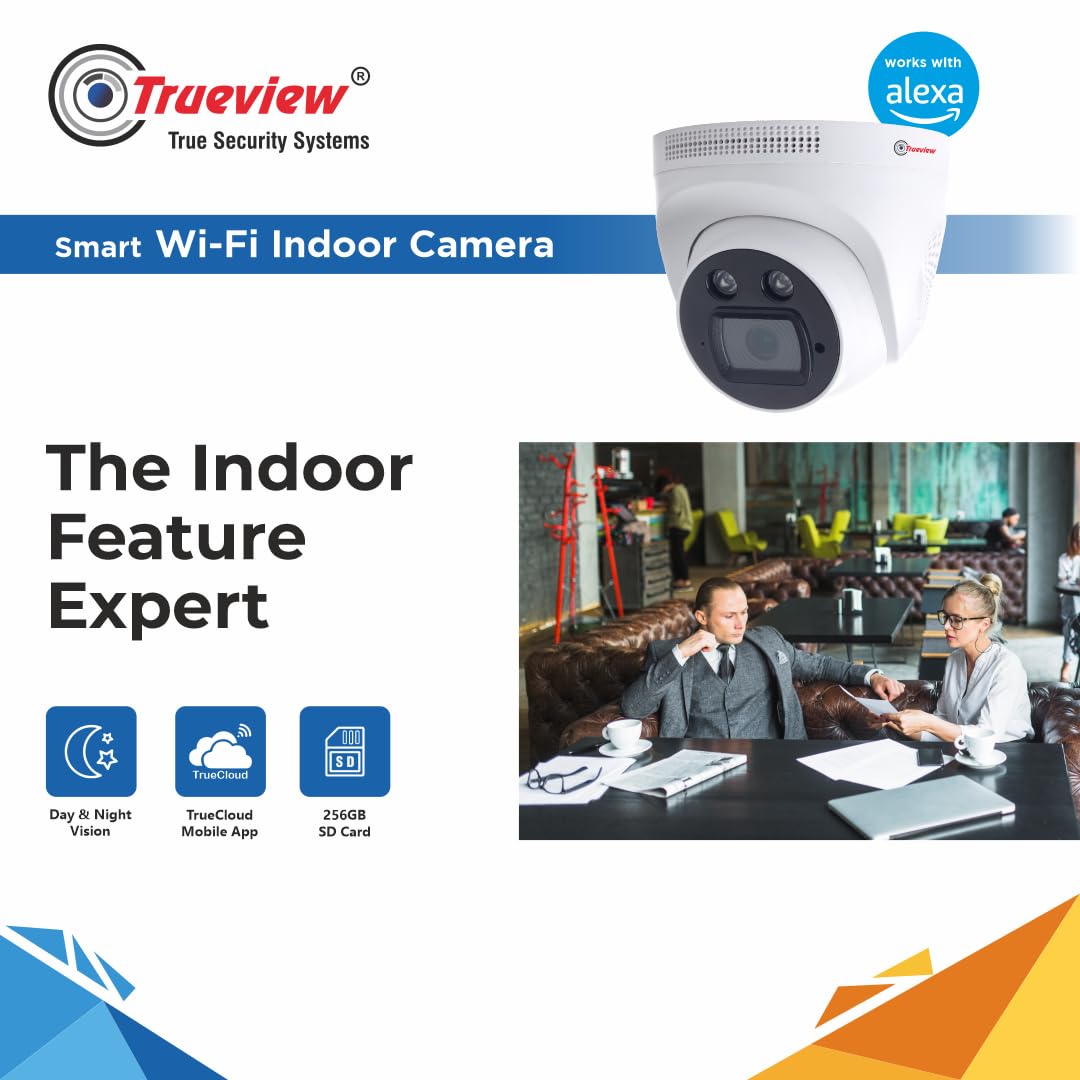
Image 5.1: Camera dimensions. The image shows the camera with measurements: 100 mm height and 117 mm width.
5.2 Power Connection
Connect the supplied power adapter to the camera's power input port and then plug it into a standard electrical outlet. The camera will power on and initiate its startup sequence.
5.3 App Download and Account Creation
- Download the official Trueview mobile application from your device's app store (iOS or Android).
- Open the app and follow the on-screen instructions to create a new user account or log in if you already have one.
5.4 Wi-Fi Connection and Initial Configuration
- In the Trueview app, select 'Add Device' or the '+' icon.
- Choose your camera model from the list.
- Follow the app's instructions to connect the camera to your Wi-Fi network. This typically involves scanning a QR code displayed on your phone with the camera or entering Wi-Fi credentials.
- Once connected, you can set a device name, password, and other initial settings.
6. Operating Instructions
6.1 Live View
Open the Trueview app and select your camera from the device list to access the live video feed. You can view the monitored area in real-time.
6.2 Recording and Storage
- Micro SD Card: Insert a Micro SD card (up to 256 GB) into the designated slot on the camera for local video storage. Recordings can be accessed via the app.
- Cloud Storage: Optional cloud storage services may be available through the Trueview app for remote backup of recordings.
6.3 Two-Way Audio
While in live view, tap the microphone icon in the app to speak through the camera's speaker. The camera's built-in microphone will capture audio from the monitored area.
6.4 Motion Detection Alerts
Enable motion detection in the app settings to receive real-time push notifications on your mobile device when movement is detected in the camera's field of view. The intelligent human detection algorithm helps reduce false alarms.
6.5 Night Vision
The camera automatically switches to night vision mode in low-light conditions, utilizing infrared illumination to provide clear black and white video footage.
6.6 Alexa Integration
To integrate with Alexa, enable the Trueview skill in the Alexa app. You can then use voice commands such as "Alexa, show me the [camera name]" to view the live feed on compatible Alexa-enabled screens.
7. Maintenance
- Cleaning: Use a soft, dry cloth to clean the camera lens and body. Do not use harsh chemicals or abrasive cleaners.
- Firmware Updates: Regularly check the Trueview app for available firmware updates to ensure optimal performance and security. Follow the app's instructions for updating.
- Storage Management: Periodically review and manage recordings on your Micro SD card or cloud storage to ensure sufficient space.
8. Troubleshooting
| Problem | Possible Cause | Solution |
|---|---|---|
| Camera not powering on | Power adapter not connected; power outlet faulty | Ensure adapter is securely plugged in; try a different outlet. |
| Cannot connect to Wi-Fi | Incorrect Wi-Fi password; camera too far from router; router issues | Verify password; move camera closer to router; restart router. |
| No video feed in app | Camera offline; network issue; app glitch | Check camera power and Wi-Fi connection; restart app; restart camera. |
| Motion alerts not received | Motion detection disabled; app notifications off; network issue | Enable motion detection in app; check phone notification settings; ensure stable network. |
| Poor image quality | Dirty lens; low bandwidth; insufficient lighting | Clean lens; ensure stable Wi-Fi; check lighting conditions. |
If the problem persists after attempting these solutions, please contact Trueview technical support.
9. Specifications
| Feature | Detail |
|---|---|
| Model Number | Trueview wi fi Dome |
| Effective Still Resolution | 3 MP (2048x1536p) |
| Video Capture Resolution | 1080p |
| Connectivity Technology | Wi-Fi (Wireless) |
| Storage | Micro SD Card (up to 256 GB) |
| Audio | Two-way audio (Built-in mic and speaker) |
| Motion Detection | Intelligent Human Detection Algorithm |
| Night Vision | Infrared Light Source |
| Control Method | App (Android/iOS) |
| Power Source | Corded Electric |
| Form Factor | Dome |
| Installation Type | Ceiling Mount |
| Item Dimensions (LxWxH) | 10 x 11.7 x 11.7 Centimeters |
| Item Weight | 450 Grams |
| Water Resistance Level | Not Water Resistant |
10. Warranty and Support
10.1 Warranty Information
This Trueview Smart Wi-Fi 3MP Dome Security Camera comes with a 2-year warranty from the date of purchase. Please retain your proof of purchase for warranty claims. The warranty covers manufacturing defects and malfunctions under normal use conditions.
10.2 Technical Support
For technical assistance, troubleshooting, or any product-related inquiries, please contact Trueview technical support:
- Phone: 8686 5858 35, 7507407111


