
Introduction
This manual provides essential instructions for the proper setup, operation, and maintenance of your Mobifice K101B USB Adapter. Please read this guide thoroughly before using the product to ensure optimal performance and longevity.
Setup
Package Contents
Verify that your package contains the following item:
- 1 x Mobifice K101B USB Adapter
Connecting the Adapter
The Mobifice K101B USB Adapter is designed for simple plug-and-play functionality with compatible devices, primarily PCs.
- Identify the USB Port: Locate an available USB Type-A port on your PC or compatible device.
- Insert the Adapter: Gently insert the Mobifice K101B USB Adapter into the identified USB port. Ensure it is fully seated.
- Driver Installation (Automatic): In most cases, your operating system will automatically detect the adapter and install the necessary drivers. No manual driver installation is typically required.
- Confirmation: Once connected, your PC should recognize the adapter. You may see a notification indicating that a new device has been detected and is ready for use.
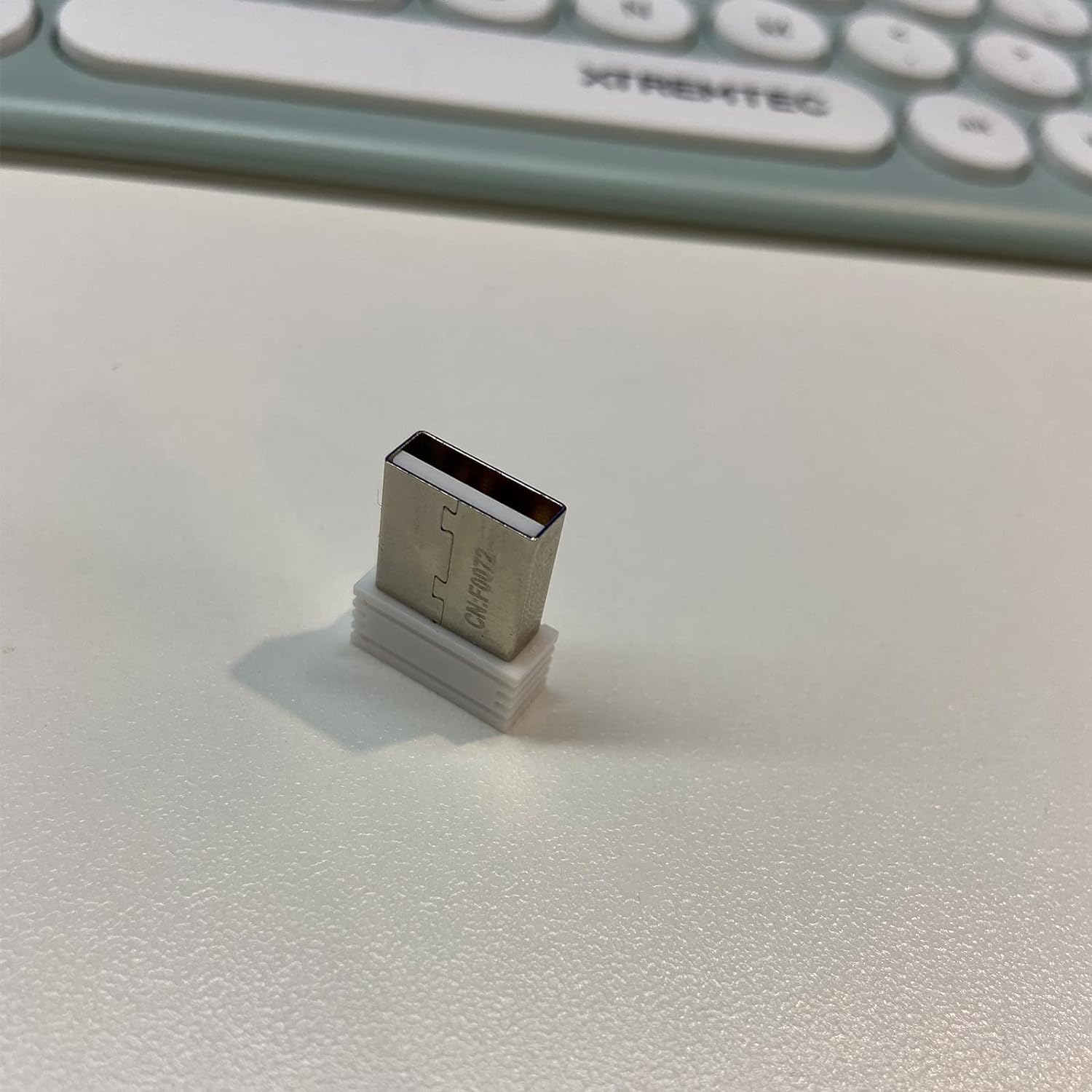
Image: The Mobifice K101B USB Adapter, a compact device with a USB Type-A connector, shown ready for connection to a computer. This adapter facilitates USB connectivity for compatible keyboards.
Operating Instructions
The Mobifice K101B USB Adapter functions as a bridge for specific Mobifice keyboards to connect to a PC via a standard USB Type-A port. Once connected, the adapter enables communication between the keyboard and the computer.
- Keyboard Compatibility: This adapter is specifically designed for use with the Mobifice K101B keyboard. Ensure your keyboard is compatible with this adapter.
- Functionality: After successful connection, the keyboard connected via the K101B adapter should operate as a standard USB keyboard.
- No Additional Software: Typically, no additional software or configuration is required for basic keyboard functionality.
Maintenance
To ensure the longevity and proper functioning of your Mobifice K101B USB Adapter, follow these simple maintenance guidelines:
- Cleaning: Use a soft, dry cloth to gently wipe the adapter. Avoid using liquid cleaners, solvents, or abrasive materials, as these can damage the device.
- Storage: When not in use, store the adapter in a cool, dry place away from direct sunlight and extreme temperatures.
- Handling: Avoid dropping the adapter or subjecting it to strong impacts. Do not force the adapter into ports.
Troubleshooting
If you encounter issues with your Mobifice K101B USB Adapter, try the following troubleshooting steps:
- Adapter Not Recognized:
- Try plugging the adapter into a different USB port on your PC.
- Restart your computer.
- Ensure the adapter is fully inserted into the USB port.
- Keyboard Not Responding:
- Verify that the keyboard itself is properly connected to the adapter (if applicable) and is powered on.
- Test the keyboard directly with another USB port if possible, to rule out a keyboard issue.
- Ensure the adapter is firmly connected to the PC.
- Intermittent Connection:
- Ensure there are no loose connections.
- Avoid placing the adapter near sources of strong electromagnetic interference.
Specifications
| Feature | Detail |
|---|---|
| Brand | Mobifice |
| Model Number | K101B |
| Item Weight | 0.352 ounces |
| Compatible Devices | PC |
| Connector Type | USB Type A |
| Number of Ports | 1 |
| Manufacturer | MOBIFICE Direct |
Warranty and Support
Mobifice products are manufactured with quality and reliability in mind. For specific warranty information regarding your K101B USB Adapter, please refer to the documentation included with your purchase or visit the official Mobifice website.
If you require technical assistance or have questions not covered in this manual, please contact Mobifice customer support. Contact details can typically be found on the product packaging or the manufacturer's website.