
Introduction
This manual provides detailed instructions for the setup, operation, maintenance, and troubleshooting of your TECURS Wireless Gaming Keyboard. Please read this manual thoroughly before using the product to ensure proper function and longevity.
Package Contents
Upon opening the package, verify that all items listed below are present and in good condition:
- TECURS Wireless Gaming Keyboard
- USB Receiver (2.4 GHz)
- USB Charging Cable (Micro USB)
- User Manual
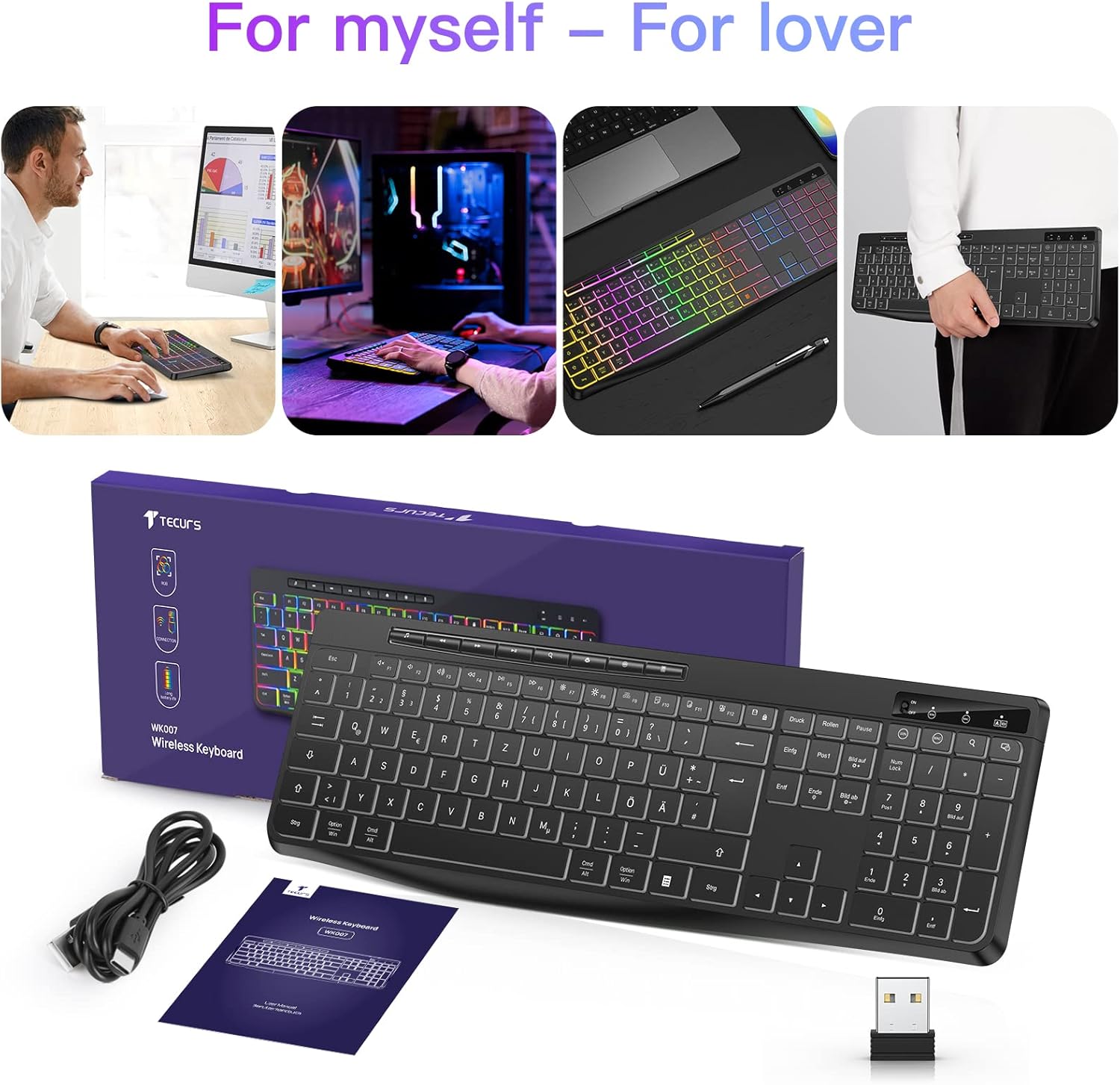
Image: The TECURS Wireless Gaming Keyboard, its USB receiver, USB charging cable, and user manual laid out on a surface.
Setup
1. Connecting the Keyboard
- Locate the USB receiver. It is typically stored in a compartment on the keyboard or included separately in the packaging.
- Insert the USB receiver into an available USB port on your computer, laptop, or compatible gaming console (PS4, PS5).
- Turn on the keyboard using the power switch, usually located on the top edge or underside of the keyboard. The keyboard should automatically connect to the receiver.

Image: The TECURS Wireless Gaming Keyboard shown with its compact USB receiver, illustrating the wireless connection method.
2. Initial Charging
The keyboard comes with a built-in rechargeable Lithium-ion battery. For optimal performance, it is recommended to fully charge the keyboard before first use.
- Connect the Micro USB charging cable to the keyboard's charging port and the other end to a USB power source (e.g., computer USB port, USB wall adapter).
- An indicator light will typically show the charging status. Refer to the keyboard's specific indicator behavior for details.
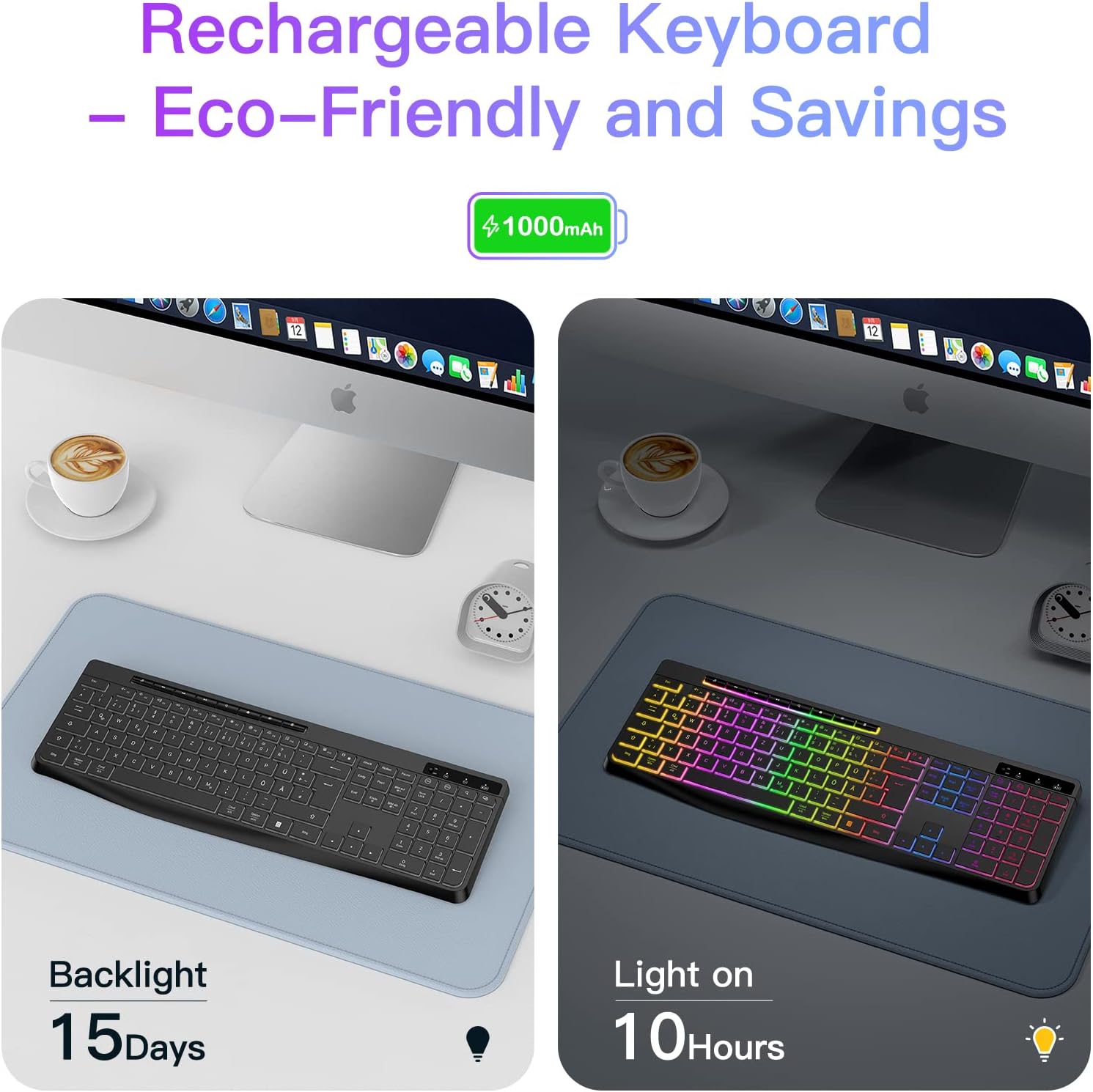
Image: An illustration demonstrating the battery life of the keyboard: up to 15 days with backlight off and 10 hours with backlight on, based on a 1000mAh battery.
3. Wireless Range
The keyboard operates wirelessly with a receiving distance of 8-10 meters, providing flexibility in your workspace or gaming setup.

Image: A visual representation of the wireless keyboard's effective receiving distance, typically 8-10 meters, highlighting freedom from cables.
Operating Instructions
1. Basic Typing
The keyboard features a QWERTZ layout (German layout) with standard key functions. Simply begin typing after successful connection.
2. Backlight Control
The keyboard includes an RGB backlight feature. Use the dedicated backlight control keys (often located near the function keys or as a combination with the Fn key) to:
- Turn the backlight on/off.
- Adjust brightness levels.
- Cycle through different color modes or effects.
Refer to the keyboard's specific key legends for exact backlight control combinations.
3. Multimedia Keys
Dedicated multimedia keys are provided for quick access to functions such as volume control, play/pause, and track skipping. These keys are typically located above the function key row.
4. System Compatibility
The keyboard is compatible with various operating systems and devices:
- Operating Systems: Windows, Mac, Linux
- Compatible Devices: PC, Laptops, PS4, PS5, Game Consoles
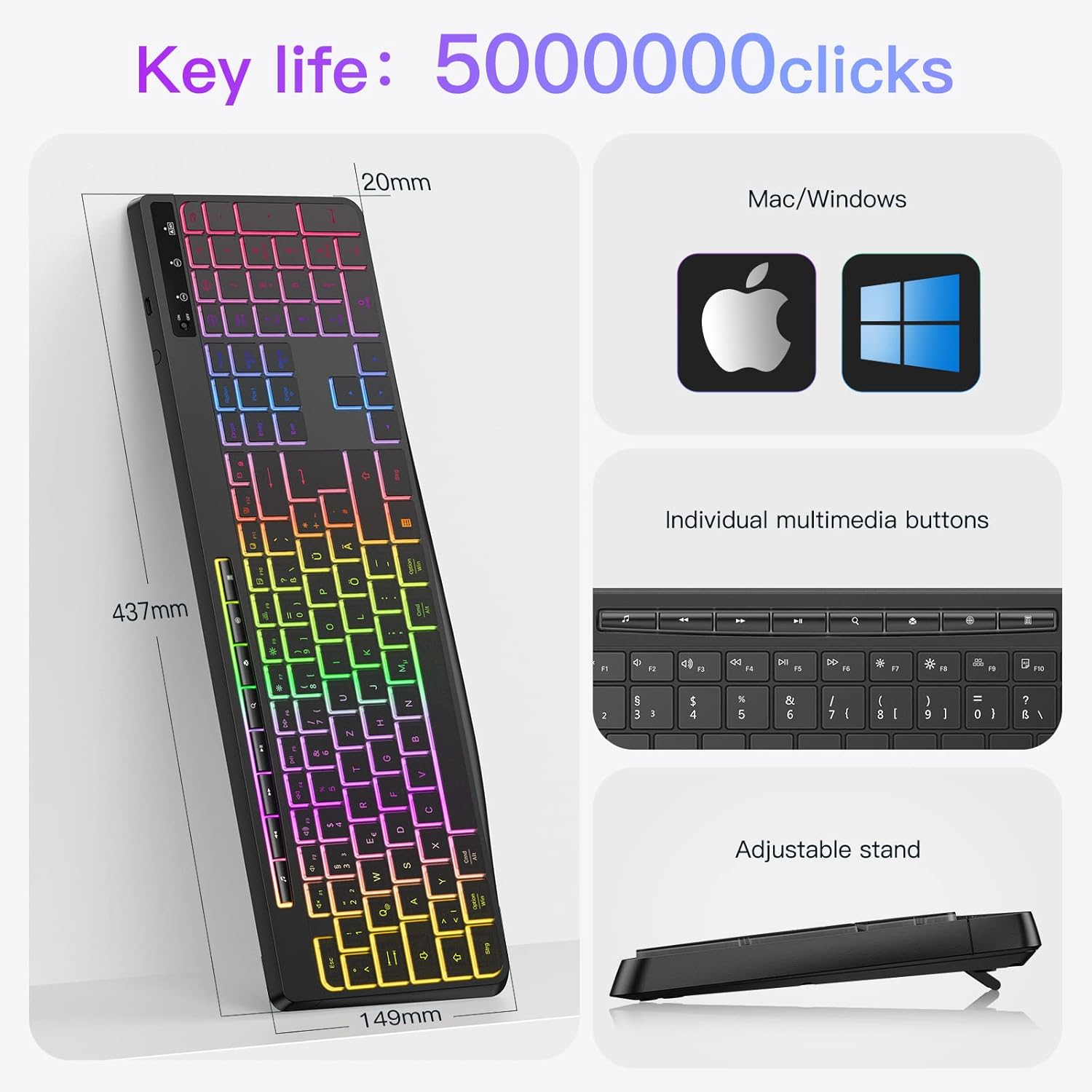
Image: An infographic detailing the keyboard's dimensions (437mm length, 149mm width, 20mm thickness), key life of 50 million clicks, compatibility with Mac/Windows, individual multimedia buttons, and an adjustable stand.
5. Quiet Operation
The keyboard features silent keys designed to minimize typing noise, making it suitable for quiet environments.

Image: A person typing on the backlit keyboard in a dimly lit room, with a sleeping child in the background, emphasizing the low noise operation.
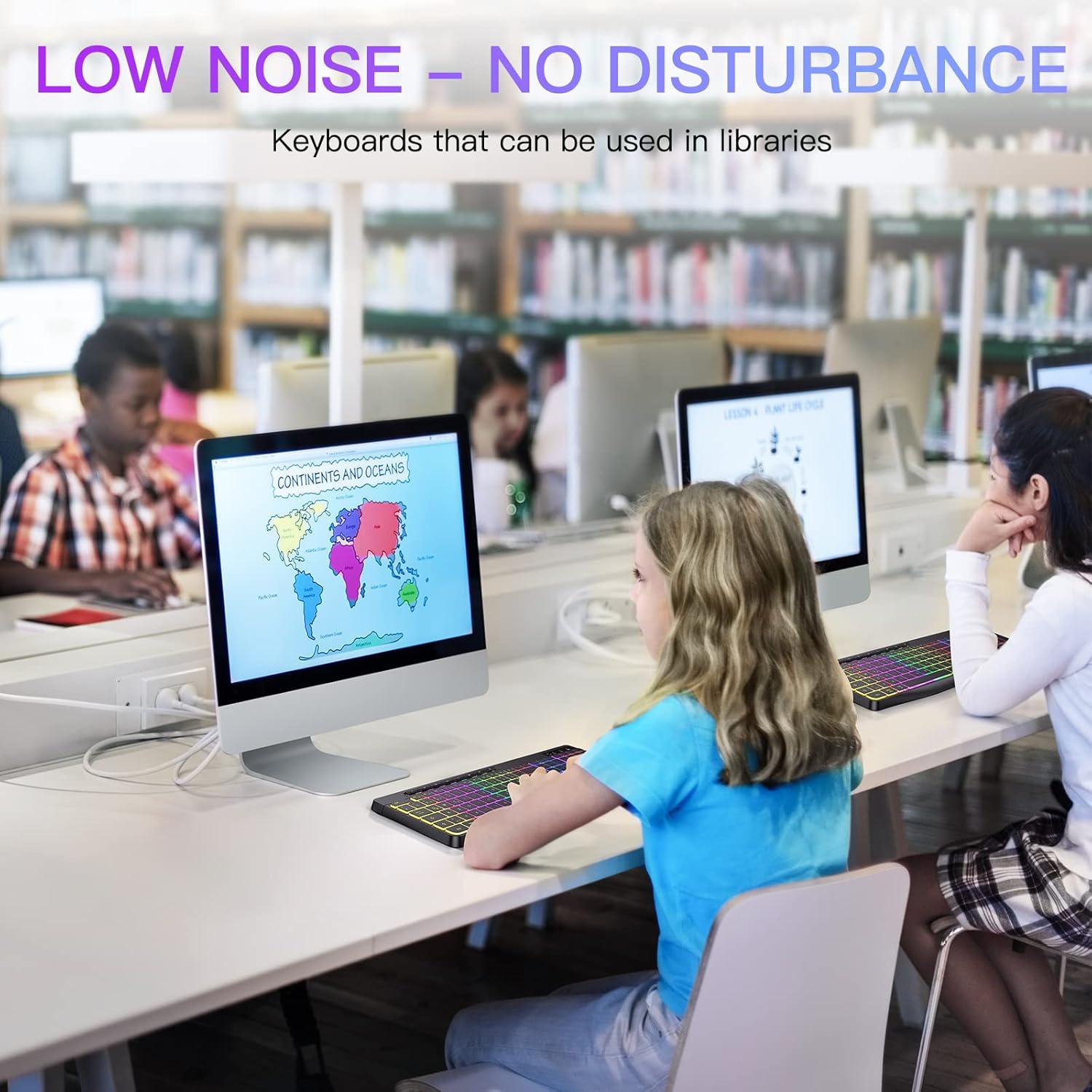
Image: Children using the keyboard in a library setting, illustrating its suitability for environments where low noise is preferred.
Maintenance
1. Cleaning
To clean your keyboard:
- Turn off the keyboard and disconnect it from any power source.
- Use a soft, lint-free cloth lightly dampened with water or a mild cleaning solution.
- Wipe the keycaps and surface gently. Avoid excessive moisture.
- For dust and debris between keys, use compressed air.
Note: The keyboard is designed to be waterproof, offering protection against accidental spills. However, it is not designed for immersion in water.
2. Battery Care
To prolong battery life:
- Avoid fully discharging the battery frequently.
- Charge the keyboard regularly, especially if it will be stored for an extended period.
- Store the keyboard in a cool, dry place.
Troubleshooting
| Problem | Possible Cause | Solution |
|---|---|---|
| Keyboard not responding | Low battery; USB receiver not connected; Keyboard not powered on; Driver issue. | Charge the keyboard; Ensure USB receiver is securely plugged in; Turn on the keyboard; Try a different USB port; Restart your device. |
| Backlight not working | Backlight turned off; Low battery. | Press the backlight control key(s) to turn it on or adjust brightness; Charge the keyboard. |
| Keys are sticky or unresponsive | Debris under keys; Liquid spill. | Clean the keyboard using compressed air or a damp cloth; If liquid spill, turn off immediately, clean, and allow to dry completely before use. |
| Short battery life | Frequent backlight use; Battery degradation over time. | Reduce backlight brightness or turn it off when not needed; Ensure full charge cycles; If battery life significantly degrades, consider contacting support. |
Specifications
| Feature | Detail |
|---|---|
| Brand | TECURS |
| Model Number | SPT-WK007 |
| Connectivity Technology | 2.4 GHz Wireless (USB Receiver) |
| Keyboard Layout | QWERTZ (German Layout) |
| Backlight | RGB, Adjustable |
| Special Features | Ergonomic, Rechargeable, Backlit, Integrated Stand, Waterproof |
| Compatible Operating Systems | Windows, Mac, Linux, PS4, PS5 |
| Compatible Devices | PC, Laptop, Game Console |
| Battery Type | Lithium-ion (1 included) |
| Charging Port | Micro USB |
| Dimensions (L x W x H) | 43.7 cm x 14.9 cm x 2 cm |
| Recommended Use | Business, Gaming |
Warranty and Support
For warranty information and technical support, please refer to the documentation provided with your purchase or visit the official TECURS website. Keep your proof of purchase for warranty claims.


