
1. Introduction
Thank you for purchasing the Silverlit Ycoo Robo DR7 Robot. This remote-controlled robot is designed to provide an engaging and educational experience with its programmable actions, storytelling, and quiz game features. Please read this manual carefully before operating the robot to ensure proper use and to maximize your enjoyment.
2. Safety Information
- Not suitable for children under 3 years due to small parts.
- Adult supervision is recommended during operation.
- Do not operate the robot near water or in wet conditions.
- Avoid dropping or subjecting the robot to strong impacts.
- Use only the recommended battery types.
- Do not mix old and new batteries, or different types of batteries.
- Remove batteries if the robot will not be used for an extended period.
3. Package Contents
Please check that all items are present in the package:
- 1 x Ycoo Robo DR7 Robot
- 1 x Remote Control
- 1 x Instruction Manual (this document)

Image: The Ycoo Robo DR7 Robot and its remote control displayed in the retail box.
4. Setup
4.1. Battery Installation (Robot)
- Locate the battery compartment on the back or bottom of the Robo DR7.
- Use a screwdriver to open the battery compartment cover.
- Insert the required batteries (refer to the battery type and quantity indicated inside the compartment), ensuring correct polarity (+/-).
- Replace the battery compartment cover and secure it with the screw.

Image: Side view of the Robo DR7, showing its wheels and general structure, where battery compartment might be located.
4.2. Battery Installation (Remote Control)
- Locate the battery compartment on the back of the remote control.
- Use a screwdriver to open the battery compartment cover.
- Insert the required batteries (refer to the battery type and quantity indicated inside the compartment), ensuring correct polarity (+/-).
- Replace the battery compartment cover and secure it with the screw.
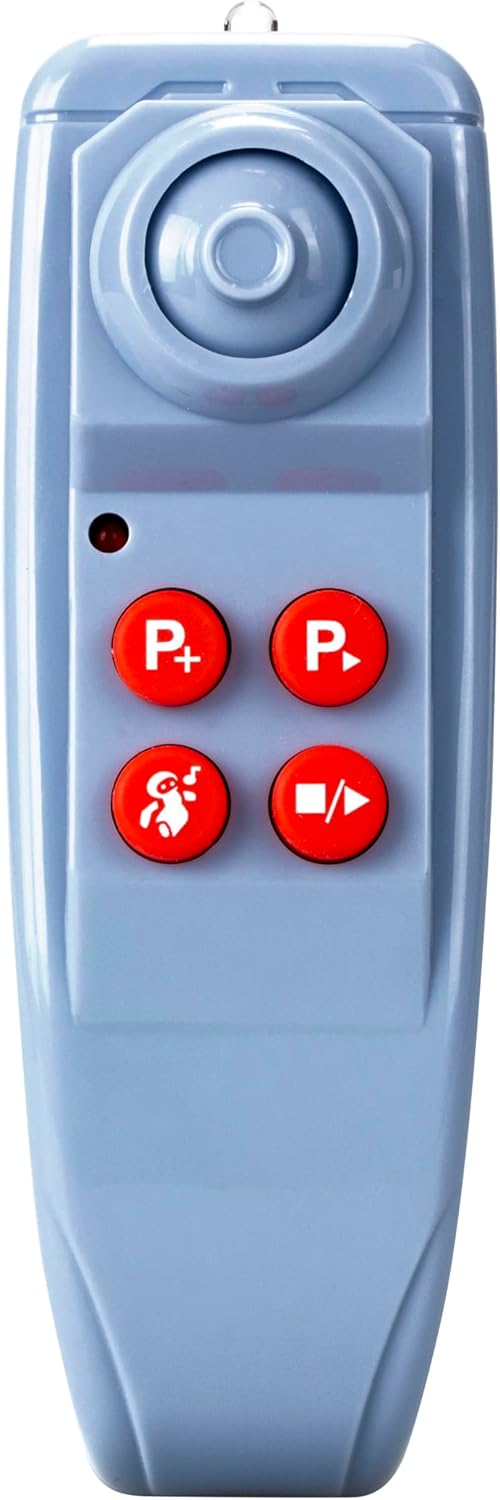
Image: Close-up of the remote control, highlighting its buttons and design, where the battery compartment is typically found.
4.3. Powering On
After installing batteries in both the robot and the remote control, locate the power switch on the robot (usually on the back or bottom) and switch it to the 'ON' position. The robot will typically emit a sound or light up to indicate it is powered on and ready for connection.
5. Operating the Robo DR7
The Robo DR7 offers multiple interactive functions controlled via the remote.

Image: The Robo DR7 robot interacting with its remote control, illustrating the range of functions available.
5.1. Basic Movement
Use the directional buttons on the remote control to move the robot:
- Forward: Press the 'Up' arrow button.
- Backward: Press the 'Down' arrow button.
- Turn Left: Press the 'Left' arrow button.
- Turn Right: Press the 'Right' arrow button.
5.2. Programmable Actions
The Robo DR7 can be programmed with up to 60 steps. This allows you to create custom sequences of movements and actions.
- Press the 'P+' button on the remote to enter programming mode.
- Input your desired sequence of movements (forward, backward, turn left, turn right) and actions (e.g., sound effects) using the remote control buttons. Each button press counts as one step.
- Press the 'P-' button to save the program and exit programming mode.
- Press the 'Play' button (often indicated by a triangle icon) to execute the programmed sequence.
5.3. Storytelling Function
The robot comes pre-loaded with 10 stories. To activate this feature:
- Press the 'Story' button (often indicated by a book or speech bubble icon) on the remote control.
- The robot will begin to tell a story. Press the button again to cycle through the available stories.
5.4. Quiz Game
Engage in 20 math and logic questions with the Robo DR7.

Image: Two children engaging with the Robo DR7 robot, which displays a math question, demonstrating the interactive quiz feature.
- Press the 'Quiz' button (often indicated by a question mark or brain icon) on the remote control.
- The robot will ask a question.
- Use the number pad on the robot's chest to input your answer.
- Press the 'Enter' or 'Confirm' button (often a checkmark or similar icon) to submit your answer. The robot will provide feedback.
5.5. Sound and Light Effects
The Robo DR7 features various sound and light effects to enhance interaction.
- Press the 'Music' button (note icon) to play different melodies.
- Press the 'Sound Effect' button (speaker icon) for various robot sounds.
- The robot's eyes and chest panel will light up during operation and interaction.
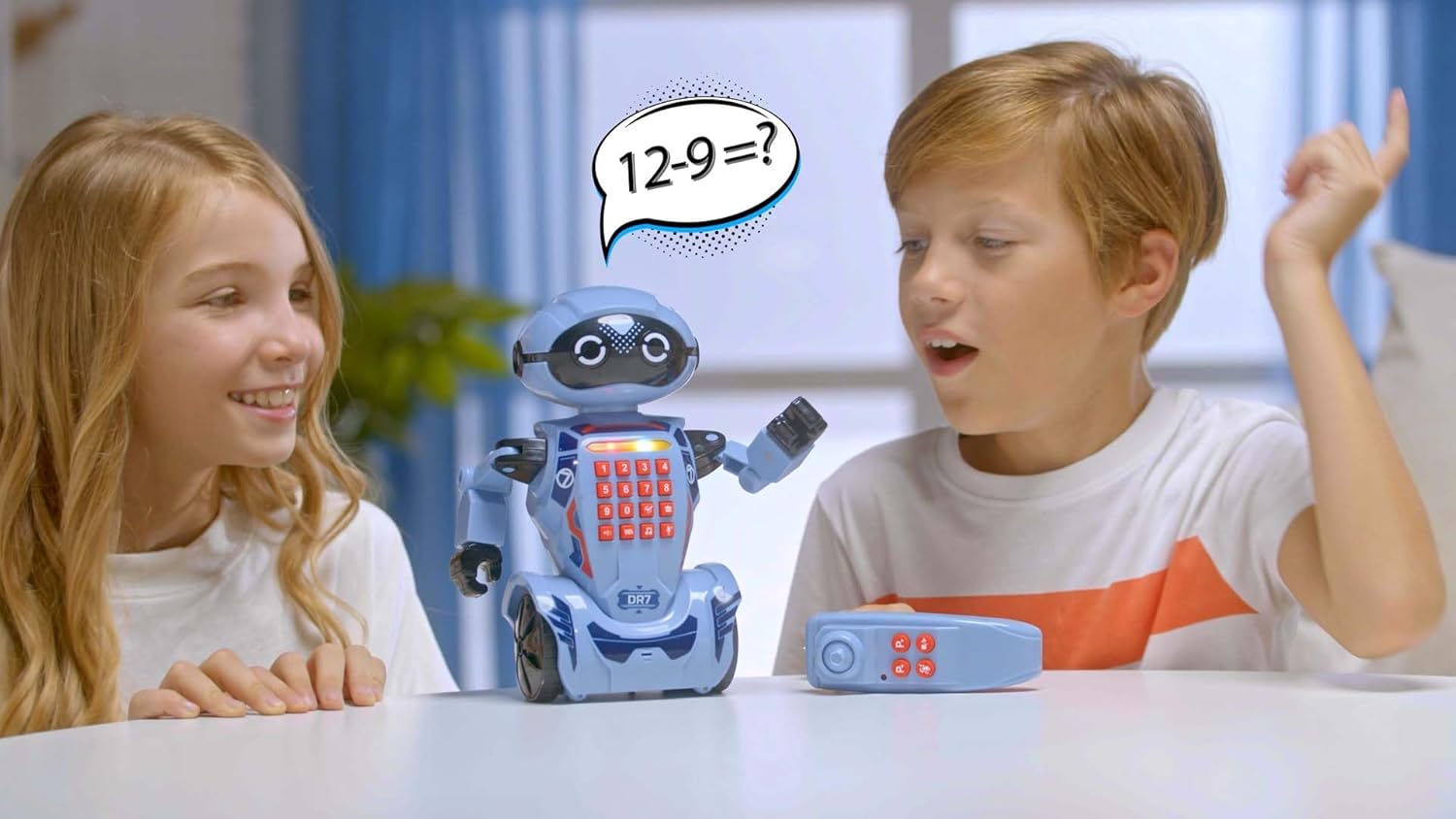
Image: A person's hands gently interacting with the Robo DR7 robot on a wooden surface, showcasing its size and design during play.
6. Maintenance
6.1. Cleaning
To clean the robot, wipe it gently with a dry, soft cloth. Do not use water, solvents, or chemical cleaners, as these can damage the electronic components.
6.2. Battery Care
- Always remove exhausted batteries promptly.
- Dispose of batteries responsibly according to local regulations.
- If the robot will not be used for an extended period, remove all batteries to prevent leakage.
6.3. Storage
Store the robot in a cool, dry place away from direct sunlight and extreme temperatures. Keep it in its original packaging or a protective container to prevent dust accumulation and damage.
7. Troubleshooting
| Problem | Possible Cause | Solution |
|---|---|---|
| Robot does not power on. | Batteries are dead or incorrectly installed. | Check battery polarity and replace with fresh batteries. |
| Remote control does not respond. | Remote control batteries are dead or incorrectly installed. Robot is out of range. | Check remote battery polarity and replace. Ensure robot is within operating range (typically 5-10 meters). |
| Robot moves erratically or stops. | Low robot batteries. Obstruction in wheels. | Replace robot batteries. Check wheels for hair or debris and clear them. |
| Sound or light effects are not working. | Low robot batteries. Software glitch. | Replace robot batteries. Try turning the robot off and on again. |
8. Specifications
- Brand: Silverlit
- Model Name: DR7
- Model Number: 88046
- Material: Plastic
- Item Weight: 0.4 Kilograms
- Item Dimensions: 14.17 x 10.43 x 4.92 inches
- Language: English
- Features: Programmable (up to 60 steps), Storytelling (10 stories), Quiz Game (20 math & logic questions), Sound and Light Effects, Remote Control
- Assembly Required: No
9. Warranty and Support
9.1. Warranty Information
Silverlit products are manufactured to high-quality standards. For specific warranty details, please refer to the warranty card included with your product or contact your local distributor. Keep your purchase receipt as proof of purchase.
9.2. Customer Support
If you encounter any issues not covered in the troubleshooting section or require further assistance, please contact Silverlit customer support. Contact information can typically be found on the product packaging or the official Silverlit website.