
1. Introduction
Thank you for choosing the YICOSUN B3 Adjustable Laptop Cooling Stand. This stand is designed to enhance your computing experience by providing ergonomic height adjustment and efficient cooling for your laptop. Its durable aluminum alloy construction and foldable design make it suitable for various environments, including home, office, and travel. Please read this manual carefully to ensure proper setup and operation.
2. Safety Information
- Always remove your laptop or tablet from the stand before adjusting its height or angle to prevent accidental drops or damage.
- Ensure the stand is placed on a stable, flat surface to prevent tipping.
- Do not expose the stand to water or other liquids.
- Keep the stand away from heat sources and direct sunlight.
- Do not attempt to disassemble or repair the stand yourself. Contact customer support if service is required.
3. Package Contents
Verify that all items are present in your package:
- YICOSUN B3 Adjustable Laptop Cooling Stand
- USB-A to USB-C cable (for fan power)
- Allen wrench (for adjusting joint tension)
4. Product Overview
The YICOSUN B3 stand features a robust aluminum alloy construction with an ergonomic design. It includes two quiet cooling fans with RGB lighting and adjustable speed settings to prevent laptop overheating. The stand is foldable for portability and equipped with anti-slip silicone pads for stability.

Image: The YICOSUN B3 Laptop Cooling Stand showcasing its two RGB-lit fans and adjustable design.
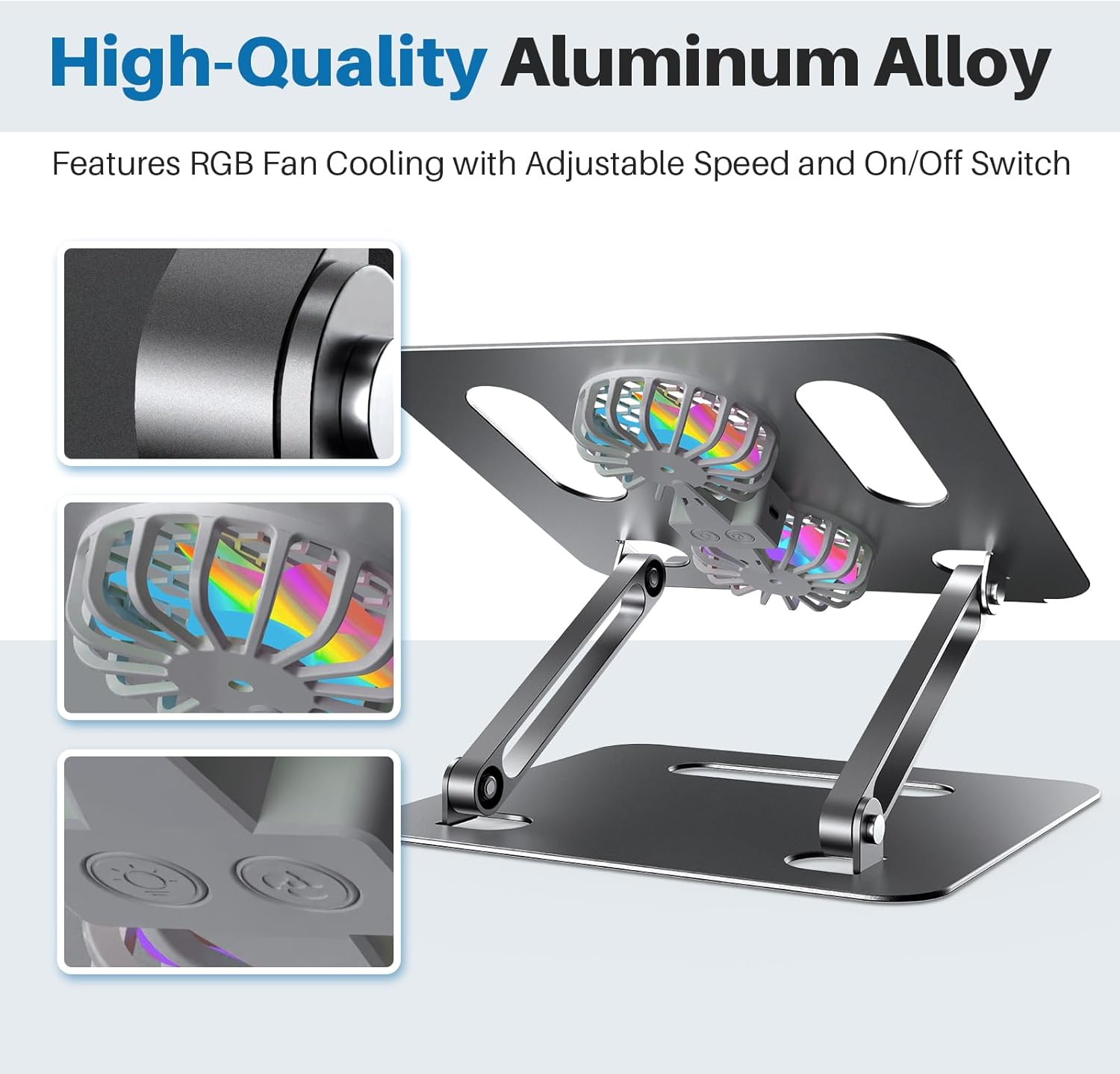
Image: Detailed view of the high-quality aluminum alloy construction, fan design, and anti-slip pads of the YICOSUN B3 stand.
5. Setup
- Unfold the Stand: Gently unfold the stand to your desired height and angle. The arms are designed to hold their position once set.
- Adjust Tension (if needed): If the stand feels too loose or too stiff, use the provided Allen wrench to adjust the tension of the joints. Turn clockwise to tighten, counter-clockwise to loosen.
- Place Your Laptop: Carefully place your laptop (10-16 inches) onto the stand, ensuring it rests securely against the front lip and on the anti-slip pads.
- Connect Power: Plug the USB-C end of the provided cable into the port on the stand (located near the fans) and the USB-A end into an available USB port on your laptop or a power adapter. The fans and RGB lights will activate automatically.
Video: This video demonstrates the unfolding and setup of the YICOSUN Laptop Stand, including placing a laptop and connecting the power cable for the cooling fans.

Image: A user demonstrating the ergonomic benefits of the YICOSUN B3 stand, showing improved posture and screen height.
6. Operating Instructions
- Fan Operation: Once connected to a power source, the dual cooling fans will begin operating.
- Adjust Fan Speed and RGB Lighting: The stand features a control button located between the two fans. Press this button to cycle through three fan speed settings and to change the RGB lighting modes.
- Ergonomic Positioning: Adjust the stand's height and angle to achieve a comfortable viewing position that reduces strain on your neck, shoulders, and back.
Video: This video illustrates the operation of the cooling fans and the dynamic RGB lighting, demonstrating the adjustable fan speeds and light effects.

Image: A graphic illustrating the low noise level of the YICOSUN B3's RGB cooling fans, comparing it to ambient sounds.
7. Maintenance
- Cleaning: Use a soft, dry cloth to wipe down the aluminum surfaces. For the fan grilles, use a soft brush or compressed air to remove dust. Ensure the stand is unplugged before cleaning.
- Storage: When not in use, fold the stand flat for compact storage. This protects the moving parts and saves space.
- Joint Care: Periodically check the tension of the adjustable joints. If they become too loose, use the provided Allen wrench to tighten them.

Image: The YICOSUN B3 Laptop Cooling Stand shown in its folded, portable configuration, ideal for travel or storage.
8. Troubleshooting
- Fans not spinning or RGB lights not working: Ensure the USB cable is securely connected to both the stand and a powered USB port on your laptop or power adapter. Try a different USB port or power source.
- Stand feels unstable or sags: Use the provided Allen wrench to tighten the screws on the adjustable joints.
- Laptop still overheating: Ensure the fans are clear of obstructions and that your laptop's vents are not blocked. Adjust the stand's angle to optimize airflow.
9. Specifications
| Feature | Specification |
|---|---|
| Brand | YICOSUN |
| Series | B3 Laptop stand |
| Item Model Number | B3 |
| Item Weight | 1.88 pounds |
| Product Dimensions | 9.8 x 8.7 x 1.2 inches |
| Color | Gray |
| Manufacturer | YICOSUN |
| ASIN | B0BN434Q85 |
| Date First Available | January 3, 2023 |
| Form Factor | Portable Electronic Device Stand |
| Compatible Devices | ASUS, Dell, Lenovo, MacBook, Smartphones, Tablets, E-reader, All 10-16" Laptops. Apple MacBook, MacBook Air 13.3"/13.6", MacBook Pro 13.3"/14.2"/16.2" (2022/2021/2020/2019/2018), Sony, Dell XPS (2022), HP Spectre x360 (2022), HP Elite Dragonfly, HP Envy, Google Pixelbook Go, Microsoft Surface Laptop 3, Powerbook, Samsung and other Laptops. |
10. Warranty & Support
YICOSUN products are designed for quality and reliability. For warranty information or technical support, please refer to the product packaging or contact YICOSUN customer service through the retailer where you purchased the product. Keep your purchase receipt for warranty claims.