
1. Introduction
Thank you for choosing the Veidoo Kids 7-inch Android Tablet PC, Model T8. This tablet is designed to provide a safe and engaging digital experience for children, featuring parental controls, eye protection, and a durable silicone case. This manual provides essential information for setting up, operating, maintaining, and troubleshooting your device.

Figure 1: Veidoo Kids 7-inch Android Tablet PC (Pink)
2. What's in the Box
Upon opening your Veidoo Kids Tablet package, please verify that all the following items are included:
- 1 x Veidoo Kids 7-inch Android Tablet PC with Protective Silicone Case
- 1 x 5V/2A Charger
- 1 x OTG Cable
- 1 x Data Cable
- 1 x User Manual & Warranty Card

Figure 2: Unboxing the Veidoo Kids Tablet. This video demonstrates the contents of the product packaging, including the tablet, charger, and cables.
3. Setup
3.1 Initial Charge
Before first use, fully charge the tablet using the provided 5V/2A charger and data cable. The charging port is typically located on the side of the tablet.
3.2 Power On/Off
Press and hold the power button (located on the side) for a few seconds to turn the tablet on or off.
3.3 Connecting to Wi-Fi
To connect to Wi-Fi, exit the child interface (if active) by entering the parental password. Then, navigate to the tablet's main settings, select 'Network & Internet', choose 'Wi-Fi', and select your desired network. Enter the password if prompted.

Figure 3: Tablet Ports and Buttons Overview
4. Operating Instructions
4.1 Basic Navigation
The tablet runs on the Android operating system. Use touch gestures (tap, swipe, pinch) to navigate through menus, open applications, and interact with content.
4.2 Parental Control (iWawa App)
The Veidoo Kids Tablet comes pre-installed with the iWawa app, designed for a child-safe environment. This app allows parents to:
- Create and customize profiles for children's accounts.
- Hand-pick content and applications accessible to children.
- Control screen time limits.
- Ensure browsing of safe websites.
- Set passwords to prevent children from exiting the iWawa interface without permission.
To access parental settings within iWawa, you will need to enter the parental password. The default password is 0000. It is recommended to change this to a secure, personalized password.

Figure 4: Parental Control Interface

Figure 5: Overview of Parental Control Features
4.3 Installing Apps
Beyond the pre-installed iWawa content, you can download additional applications from the Google Play Store. To do this, exit the iWawa app using the parental password and access the main Android interface. Open the Google Play Store app, sign in with a Google account, and search for desired apps.
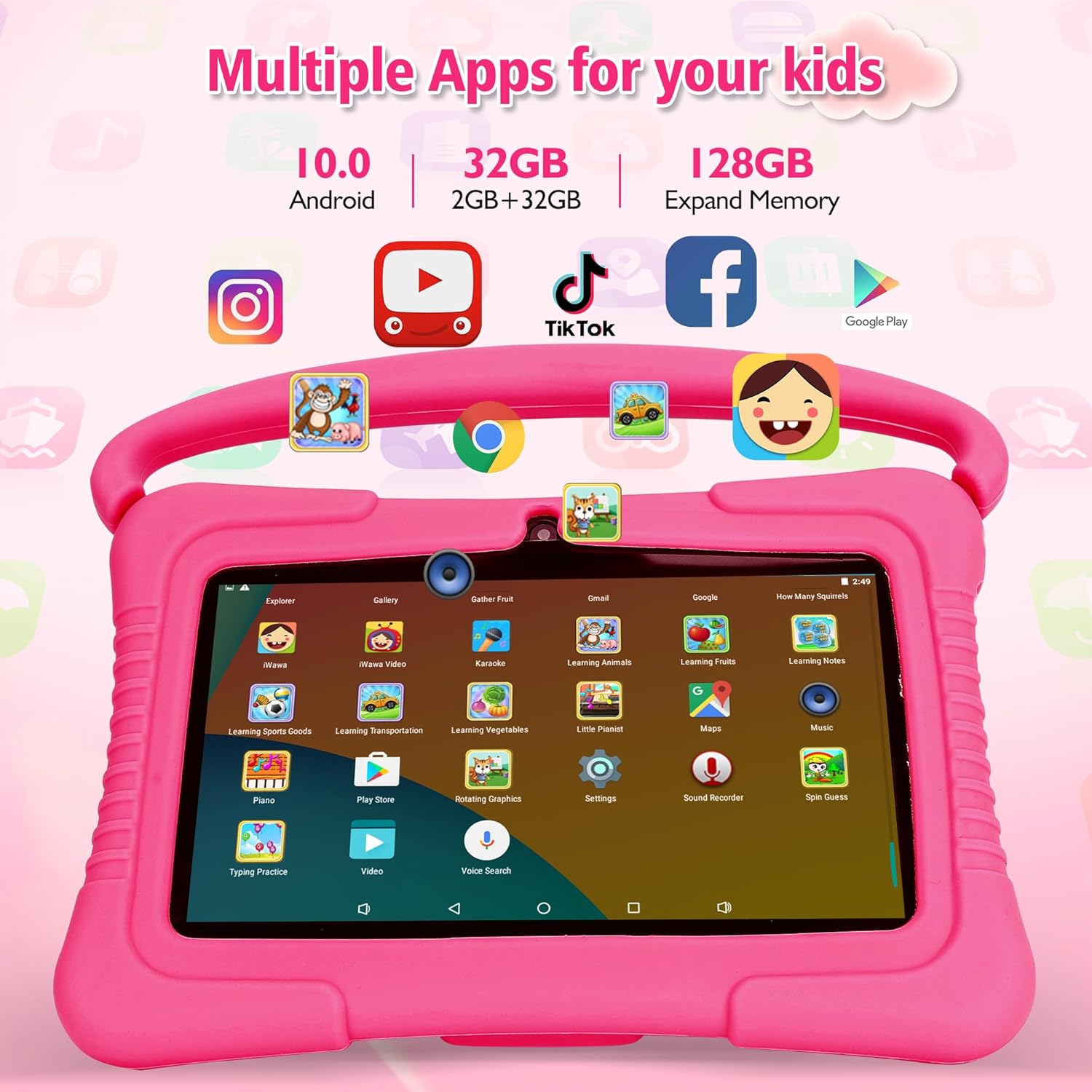
Figure 6: Multiple Apps for Kids
4.4 Camera Usage
The tablet features a dual camera setup, including a 2MP rear camera. To use the camera, open the 'Camera' app from the main interface or within the iWawa app (if enabled). You can switch between photo and video modes.
5. Maintenance
- Cleaning: Use a soft, lint-free cloth to clean the screen and tablet body. Avoid harsh chemicals.
- Storage: Store the tablet in a cool, dry place away from direct sunlight and extreme temperatures.
- Battery Care: To prolong battery life, avoid fully discharging the battery frequently. Charge the tablet when the battery level is low.
- Software Updates: Periodically check for system updates in the tablet's settings to ensure optimal performance and security.
6. Troubleshooting
- Tablet not turning on: Ensure the tablet is charged. Connect it to the charger and wait a few minutes before attempting to power it on again.
- Wi-Fi connection issues: Verify that the Wi-Fi is enabled and you have entered the correct password. Try restarting your router and the tablet.
- Apps crashing or freezing: Close and reopen the app. If the issue persists, clear the app's cache or reinstall it. Ensure the tablet's software is up to date.
- Slow performance: Close unnecessary background applications. Clear cache and temporary files. Consider expanding storage with a Micro SD card if the internal storage is full.
- Cannot exit iWawa app: Ensure you are entering the correct parental password. The default password is 0000.
7. Specifications
| Feature | Specification |
|---|---|
| Model | T8 |
| Screen Size | 7 Inches |
| Screen Resolution | 1024x600 Pixels (HD IPS Display) |
| Processor | Quad-core (Allwinner) |
| RAM | 2 GB |
| Internal Storage (ROM) | 32 GB |
| Expandable Storage | Up to 64 GB via Micro SD Card |
| Operating System | Android |
| Wireless Connectivity | 2.4 GHz Wi-Fi, Bluetooth, GPS |
| Cameras | Dual Camera (2 MP Rear Webcam) |
| Average Battery Life | 5 Hours |
| Dimensions (LxWxH) | 7.13 x 4.76 x 0.43 inches |
| Item Weight | 1.21 pounds |
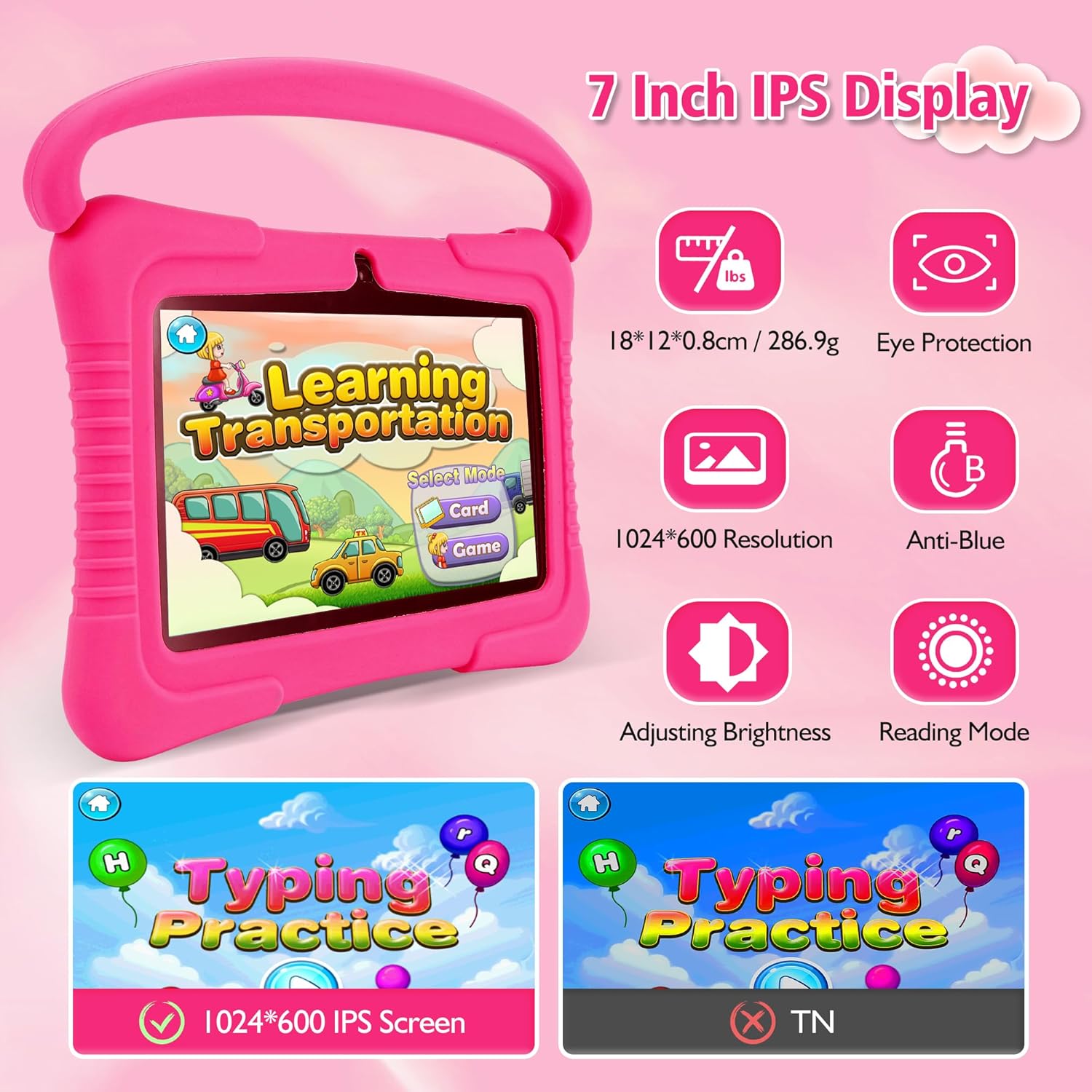
Figure 7: Display Features
8. Warranty and Support
Your Veidoo Kids 7-inch Android Tablet PC comes with a warranty as detailed in the included Warranty Card. For technical support, troubleshooting assistance, or warranty claims, please refer to the contact information provided on your Warranty Card or visit the official Veidoo support website.

Figure 8: Veidoo Kids Tablet Product Overview. This video provides a general overview of the tablet's features and benefits for children.
