
1. Introduction and Overview
Thank you for choosing the Aigostar Smart Ross Tower Fan. This intelligent tower fan is designed to provide powerful and efficient cooling for spaces up to 20 m², featuring smart connectivity options, multiple speed and mode settings, and a user-friendly interface. Please read this manual thoroughly before operation to ensure safe and correct use.

2. Safety Instructions
To reduce the risk of fire, electric shock, or injury, always follow these basic safety precautions:
- Ensure the power supply matches the voltage specified on the fan's rating label.
- Do not operate the fan with a damaged cord or plug. If damaged, contact qualified service personnel.
- Keep fingers, hair, and loose clothing away from the fan's grilles during operation.
- Do not immerse the fan in water or other liquids.
- Always unplug the fan before cleaning or performing any maintenance.
- Place the fan on a stable, level surface to prevent tipping.
- This appliance is not intended for use by persons (including children) with reduced physical, sensory or mental capabilities, or lack of experience and knowledge, unless they have been given supervision or instruction concerning use of the appliance by a person responsible for their safety.
- The bladeless design enhances safety, making it suitable for homes with children and pets. However, always supervise children around the appliance.

3. Package Contents
Please check the package for the following items:
- Aigostar Smart Ross Tower Fan Unit
- Base Assembly
- Remote Control
- Instruction Manual
4. Setup and Assembly
The Aigostar Smart Ross Tower Fan requires minimal assembly, primarily attaching the base.
- Carefully remove all components from the packaging.
- Align the two halves of the base assembly and snap them together.
- Place the fan unit onto the assembled base, ensuring the alignment tabs fit correctly.
- Secure the base to the fan unit using the provided screws (if any) from the bottom. Ensure the base is firmly attached before standing the fan upright.
- Position the fan on a flat, stable surface.
5. Operating Instructions
5.1 Control Panel
The fan features an intuitive control panel located on the top of the unit and a large LED display on the front.


- Power Button: Press to turn the fan ON or OFF.
- Mode Button: Cycle through Normal, Natural, and Night modes.
- Speed Button: Adjust fan speed (Low, Medium, High).
- Timer Button: Set the auto-off timer (up to 24 hours).
- Oscillation Button: Activate or deactivate the 70° oscillation function.
5.2 Remote Control
The fan comes with a remote control for convenient operation from a distance.

- The buttons on the remote control correspond to the functions on the fan's control panel.
- Ensure the remote control is pointed towards the fan's receiver for optimal response.
5.3 App Control (AigoSmart)
Control your fan from anywhere using the AigoSmart app on your mobile device. The fan supports WiFi (2.4G only) and Bluetooth connectivity.

- Download the "AigoSmart" app from your device's app store.
- Register or log in to your AigoSmart account.
- Ensure your phone's Bluetooth is enabled and the fan is powered on.
- Follow the in-app instructions to add your device. The app will guide you through connecting the fan to your 2.4G WiFi network.
- Once connected, you can control all fan functions, including setting the 24-hour timer, from the app.
5.4 Voice Control (Alexa & Google Home)
The Aigostar Smart Ross Tower Fan is compatible with Amazon Alexa and Google Home for convenient voice control.
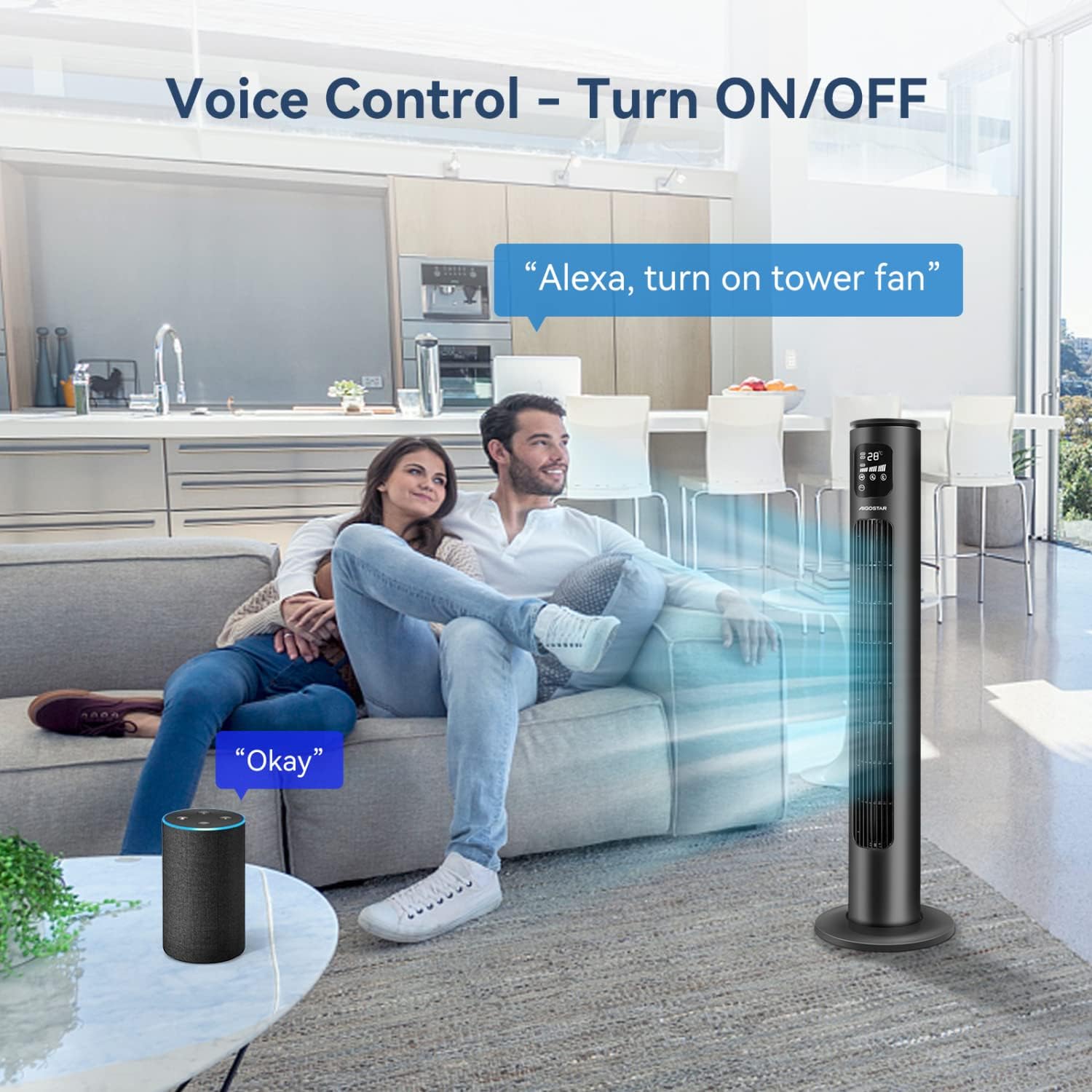
- Ensure your fan is connected to the AigoSmart app and your smart home assistant (Alexa or Google Home) is set up.
- Enable the AigoSmart skill/action in your Alexa or Google Home app.
- Discover devices. Your fan should appear in your smart home device list.
- You can now use voice commands such as:
- "Alexa, turn on the tower fan."
- "Hey Google, set tower fan speed to medium."
- "Alexa, turn off the tower fan."
6. Modes and Speeds
The fan offers three speed settings and three operating modes to customize your cooling experience:

6.1 Speed Settings
- Low: Gentle airflow for quiet environments.
- Medium: Moderate airflow for general cooling.
- High: Powerful airflow for rapid cooling of larger areas.
6.2 Operating Modes
- Normal Mode: Provides continuous airflow at your selected speed.
- Natural Mode: Simulates natural breeze by varying fan speed at intervals.
- Night Mode (Sleep Mode): Designed for comfortable sleep. If started at high speed, it will reduce to medium, then low. If started at medium, it will reduce to minimum after half an hour. If started at low speed, no changes will occur. Note: This mode is not necessarily quieter than others, but adjusts airflow for sleep comfort. The LED display will automatically turn off after 1 minute of inactivity in this mode.
7. Maintenance and Cleaning
Regular cleaning helps maintain the fan's performance and extends its lifespan.
- Always unplug the fan from the power outlet before cleaning.
- Use a soft, damp cloth to wipe the exterior surfaces of the fan. Do not use abrasive cleaners or solvents.
- For dust accumulation on the air intake/outlet grilles, use a vacuum cleaner with a brush attachment or compressed air to gently remove dust.
- Ensure the fan is completely dry before plugging it back in and operating.
- Store the fan in a cool, dry place when not in use, preferably in its original packaging.
8. Troubleshooting
If you encounter issues with your Aigostar Smart Ross Tower Fan, please refer to the following common problems and solutions:
| Problem | Possible Cause | Solution |
|---|---|---|
| Fan does not turn on. | No power supply; Power button issue. | Check if the fan is properly plugged into a working outlet. Try using the remote control to turn it on. If the physical power button is unresponsive, contact customer support. |
| Remote control not working. | Batteries are dead or incorrectly inserted; Obstruction between remote and fan. | Replace the batteries in the remote control. Ensure there are no obstacles blocking the signal path. |
| Cannot connect to AigoSmart app. | Incorrect WiFi band (only 2.4G supported); Incorrect password; Bluetooth not enabled. | Ensure your router is broadcasting a 2.4GHz WiFi signal and your phone is connected to it. Double-check your WiFi password. Make sure Bluetooth is enabled on your phone during the pairing process. Restart the fan and try again. |
| Fan is noisy. | Fan is on a high speed setting; Obstruction in the air intake/outlet. | Reduce the fan speed. Check for and remove any dust or debris from the grilles. Ensure the fan is on a stable, level surface. |
| Oscillation not working. | Obstruction; Motor issue. | Ensure the fan is not obstructed. If the issue persists, contact customer support. |
If the problem persists after trying these solutions, please contact Aigostar customer support for assistance.
9. Specifications
| Feature | Specification |
|---|---|
| Brand | Aigostar |
| Model | Smart Ross |
| Power | 50 W |
| Dimensions (L x W x H) | 31 x 31 x 97.2 cm |
| Weight | 4.38 kg |
| Color | Black |
| Material | Plastic |
| Speeds | 3 (Low, Medium, High) |
| Modes | 3 (Normal, Natural, Night) |
| Oscillation Angle | 70° |
| Timer | Up to 24 hours |
| Noise Level (Max) | 55 dB |
| Connectivity | WiFi (2.4G) + Bluetooth |
| Voice Control Compatibility | Amazon Alexa, Google Home |
10. Warranty and Support
Aigostar products are manufactured to the highest quality standards. For information regarding warranty coverage, returns, or technical support, please refer to the warranty card included with your product or visit the official Aigostar website. Please retain your proof of purchase for any warranty claims.


