
AMROOLOO p8
AMROOLOO Car Head-Up Display User Manual
Model: P8
1. Product Overview
The AMROOLOO Car Head-Up Display (HUD) is an advanced in-car device designed to project essential driving information directly into your line of sight. Featuring a rotatable screen, it provides real-time data updates based on your vehicle's signals and current driving conditions, ensuring accurate and convenient access to information without diverting your attention from the road.

Figure 1.1: Front view of the AMROOLOO Car Head-Up Display.
2. Safety Information
- Ensure the device is securely installed and does not obstruct your view of the road or any vehicle controls.
- Do not attempt to disassemble or modify the device. This may void the warranty and pose a safety risk.
- Keep the device away from extreme temperatures, direct sunlight for prolonged periods, and moisture.
- Clean the screen with a soft, dry cloth. Do not use abrasive cleaners or solvents.
- Always prioritize safe driving. Do not operate the device in a way that distracts you from driving.
3. Package Contents
Please check the package contents upon unboxing to ensure all items are present:
- 1 x AMROOLOO Head-Up Display Unit
- 1 x OBD Cable
- 1 x User Manual
- 1 x Spudger (for cable routing)
- 1 x Cable Tie
- 1 x Double-Sided Tape

Figure 3.1: All items included in the AMROOLOO Head-Up Display package.
4. Installation
The AMROOLOO Head-Up Display offers two primary installation methods to suit your vehicle's interior and personal preference:
-
Dashboard Mounting (Using Double-Sided Tape):
Clean the desired area on your car's dashboard thoroughly. Peel off the protective film from the provided double-sided tape and firmly attach it to the bottom of the HUD unit. Press the unit onto the cleaned dashboard surface, ensuring a secure bond. This method is ideal for a quick and easy setup.
-
A-Pillar Mounting (Using Cable Ties):
Locate the openings at the bottom of the HUD unit. Thread the provided cable ties through these openings. Securely fasten the unit to your car's A-pillar using the cable ties. This method provides a more permanent and stable installation. For enhanced security, you may use both the double-sided tape and cable ties together to fix the product on the car's A-pillar.
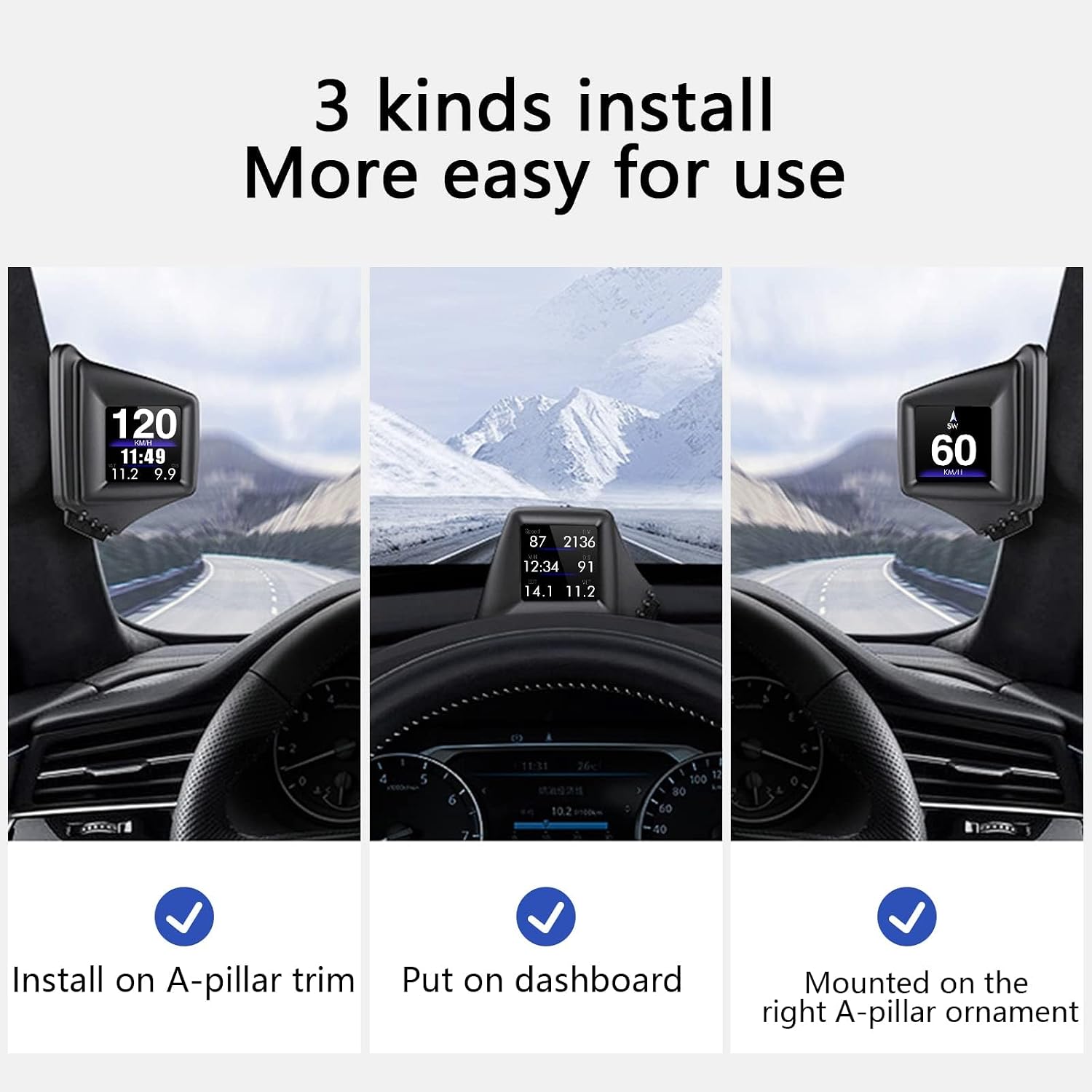
Figure 4.1: Visual representation of the three installation options.

Figure 4.2: The HUD unit installed on the A-pillar, displaying various driving data.
5. Operating Instructions
The AMROOLOO HUD is designed for intuitive operation. Once installed and connected to your vehicle's OBD-II port (if using OBD mode), it will power on automatically with the vehicle ignition.
5.1 Dual System Modes (OBD & GPS)
This product supports both OBD (On-Board Diagnostics) and GPS (Global Positioning System) modes, offering broad compatibility and functionality:
- OBD Mode: Compatible with most car models manufactured after 2008. This mode reads data directly from your vehicle's ECU (Engine Control Unit), providing detailed engine and performance metrics.
- GPS Mode: Works universally with all cars. This mode relies on satellite signals to provide speed, time, and other navigation-related data.
You can freely switch between these modes based on your car's compatibility and your preference. The default mode is OBD2.

Figure 5.1: Overview of functions available in OBD and GPS modes.
5.2 Available Functions
The AMROOLOO HUD displays a wide range of driving data and offers various test functions:
- Driving Data: Car Speed, Driving Time, Local Time, Driving Mileage, Voltage, RPM (Revolutions Per Minute), Engine Temperature, Fuel Consumption, Turbo Pressure, Altitude, Satellite Number.
- Test Functions:
- Acceleration Test: Measures the time taken to accelerate from 0 km/h to 100 km/h.
- Brake Test: Measures the distance and time taken to brake from a certain speed to a complete stop.
- Reminder Functions: Includes overspeed reminder and other customizable alerts.
- Fault Code Clearing: In OBD mode, the device can read and clear fault codes from your vehicle's system.
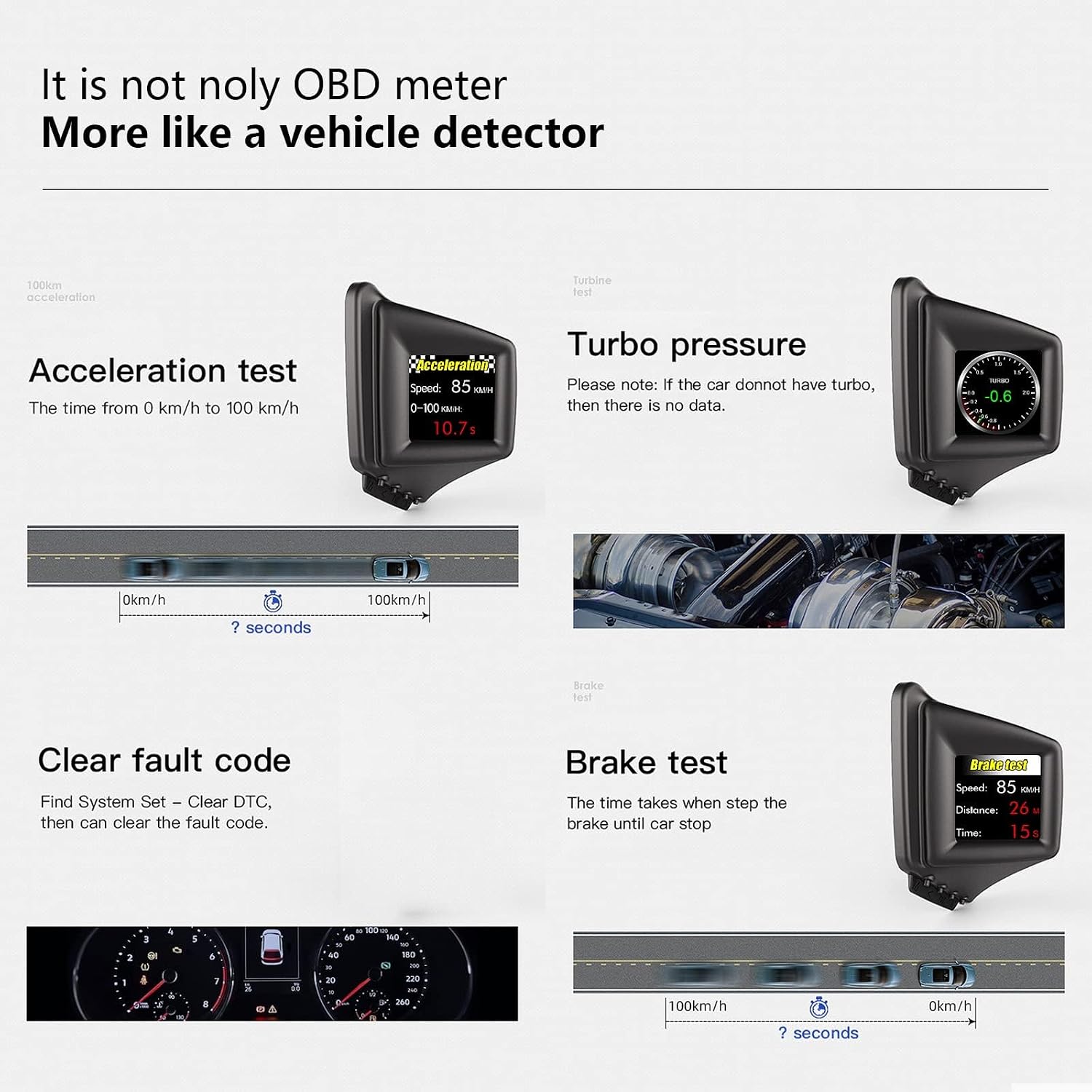
Figure 5.2: Examples of advanced functions like acceleration and brake tests.
5.3 Display Interfaces
The AMROOLOO HUD offers multiple display interfaces that can be freely switched to show information in various layouts, catering to different preferences and driving needs.

Figure 5.3: Examples of the eight different display interfaces.
6. Product Dimensions and Interface
Understanding the physical aspects of your AMROOLOO HUD is important for proper placement and handling.

Figure 6.1: Detailed views of the product, including dimensions and interface locations.
- Power On/Off: Button located on the side.
- OBD2 Interface: Port for connecting the OBD cable.
- Light Sensor: Automatically adjusts display brightness.
- M Button: Menu/Mode selection button.
- Left/Right Buttons: Navigation buttons for menu options.
- OK Button: Confirmation button.
7. Troubleshooting
If you encounter any issues with your AMROOLOO Head-Up Display, please refer to the following common troubleshooting steps:
- No Display/Power: Ensure the OBD cable is securely connected to both the HUD unit and your vehicle's OBD-II port. Check your vehicle's ignition status; the device powers on with the car.
- Inaccurate Speed Reading: If in GPS mode, ensure the device has a clear view of the sky for satellite acquisition. If in OBD mode, ensure your vehicle is compatible (post-2008 models generally are). You may need to calibrate the speed setting in the device's menu.
- Display Flickering/Unstable: Check the cable connection. Ensure the device is firmly mounted and not vibrating excessively.
- Device Not Responding: Try disconnecting and reconnecting the OBD cable. If the issue persists, perform a factory reset via the device's menu (refer to the on-screen menu for specific steps).
- OBD Mode Not Working: Verify your car's model year (must be 2008 or newer for most OBD-II compatibility). Some specific car models might have non-standard OBD-II protocols. Try switching to GPS mode as an alternative.
For persistent issues not covered here, please contact AMROOLOO customer support.
8. Specifications
| Feature | Specification |
|---|---|
| Product Dimensions | 7.3 x 3.09 x 2.3 cm |
| Item Weight | 130 grams |
| First Available Date | December 21, 2022 |
| Manufacturer | AMROOLOO |
| Item Model Number | P8 |
| Brand | AMROOLOO |
| Material | Plastic |
| Item Dimensions L x W x H | 7.3 x 3.1 x 2.3 cm |
| Spare Part Availability in EU | 10 years |
| Screen Size | 7.4 centimeters |
| UPC | 723497750592 |
9. Warranty and Support
AMROOLOO products are manufactured to the highest quality standards. This product comes with a standard manufacturer's warranty against defects in materials and workmanship. Please retain your proof of purchase for warranty claims.
For technical support, warranty inquiries, or any other questions, please visit the official AMROOLOO website or contact their customer service department through the retailer where you purchased the product.
We are committed to providing excellent customer service and support for your AMROOLOO Car Head-Up Display.
Related documentsp8


Ask a question about this manual
Ask about setup, troubleshooting, compatibility, parts, safety, or missing instructions. Manuals+ will review the question and use this page’s manual context to help answer it.