
1. Introduction
Thank you for choosing the KUIYN 383 PRO Ultra-Lightweight Wired Gaming Mouse. This manual provides detailed instructions for setting up, operating, and maintaining your new gaming mouse. Designed for optimal performance and comfort, this mouse features a honeycomb shell, customizable RGB lighting, and adjustable DPI settings to enhance your gaming experience.
2. Product Features
- Ultra-Lightweight Honeycomb Design: The hollow honeycomb shell reduces the mouse weight to approximately 69g, allowing for flexible manipulation and reducing hand fatigue during extended use. Constructed from high-quality, environmentally friendly ABS material.
- 6 RGB Lighting Effects: Integrated with 6 RGB modes, adjustable via the RGB button on the bottom of the mouse. Options include various colorful breathing and cycling effects, or the ability to turn off the lighting.
- 6 Adjustable DPI Levels: Features 6 adjustable DPI settings: 800/1600/2400/3200/4800/6400. The default setting is 1600 DPI. Equipped with a Sunplus 199 sensor for stable transmission and precise analysis, compatible with 4K computer monitors. Switch lifetime: 20 million cycles.
- Ergonomic and Comfortable Use: Ergonomic design with a comfortable grip, suitable for various grip styles and hand sizes. The matte surface texture provides a delicate feel. The honeycomb design aids in heat dissipation, preventing hand perspiration. Plug and play functionality with a 1.7m USB cable.
- 7-Button Design: Includes 6 programmable buttons and 1 RGB button. Custom settings can be configured via the driver software to optimize commands for gaming. Note: The RGB button is not programmable.
3. Setup
- Connect the Mouse: Plug the USB connector of the KUIYN 383 PRO mouse into an available USB port on your computer. The mouse is plug-and-play, and your operating system should automatically detect and install the necessary drivers.
- Install Driver Software (Optional): For advanced customization of programmable buttons and lighting effects, download and install the dedicated driver software. The download link is provided in the product description or on the manufacturer's website.
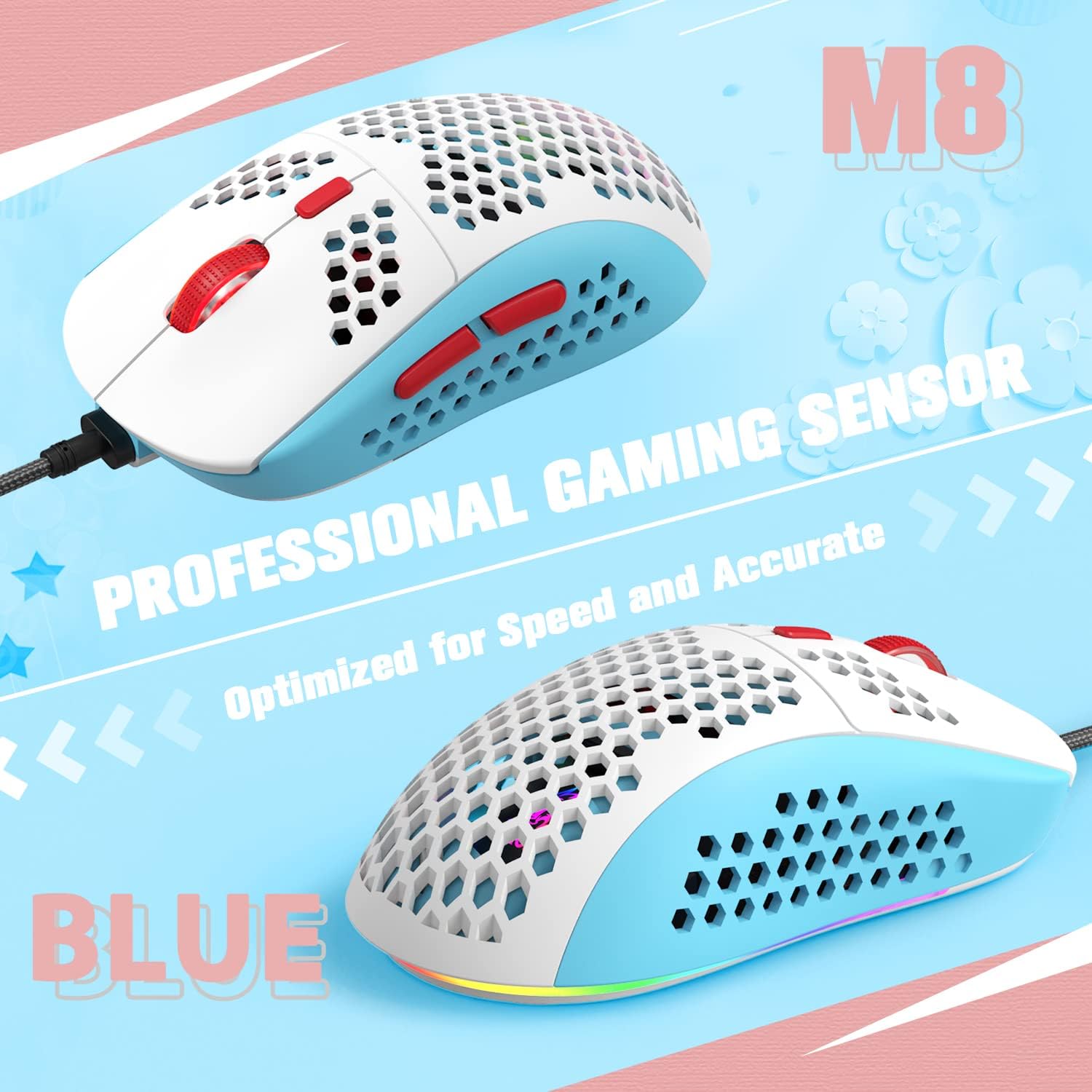
Image: The KUIYN 383 PRO gaming mouse, highlighting its professional gaming sensor and lightweight design.
4. Operating Instructions
4.1 Button Functions
The KUIYN 383 PRO mouse features 7 buttons, including 6 programmable buttons and 1 RGB light switch button. Refer to the diagram below for default button assignments:

Image: Diagram illustrating the 7 buttons on the KUIYN 383 PRO mouse, including Left Key, Right Key, Middle Key, DPI Loop, Forward, Back, and LED Switch Key.
- Left Button: Standard left-click function.
- Right Button: Standard right-click function.
- Middle Button (Scroll Wheel Click): Standard middle-click function.
- DPI Loop Button: Cycles through DPI settings.
- Forward Button: Navigates forward in web browsers or file explorers.
- Back Button: Navigates backward in web browsers or file explorers.
- LED Switch Key: Cycles through RGB lighting modes or turns lights off/on.
4.2 DPI Adjustment
The mouse offers 6 adjustable DPI levels. Press the DPI Loop Button (Button 4 as per diagram) to cycle through the following settings:
- 800 DPI
- 1600 DPI (Default)
- 2400 DPI
- 3200 DPI
- 4800 DPI
- 6400 DPI

Image: Visual representation of the 6 adjustable DPI levels and 4 polling rates for the KUIYN 383 PRO mouse.
4.3 RGB Lighting Control
The mouse features 6 built-in RGB lighting modes. Use the LED Switch Key (Button 7 as per diagram) located on the bottom of the mouse to:
- Cycle through different lighting effects (e.g., colorful breathing, colorful cycle, horse race lamp).
- Turn the RGB lighting on or off.

Image: Close-up details of the KUIYN 383 PRO mouse, showing the honeycomb design, glossy buttons, colorful light strip, and widened side buttons.
4.4 Programmable Buttons
To customize the 6 programmable buttons, you must install the driver software. The software allows you to assign macros, specific functions, or key combinations to these buttons, tailoring the mouse to your gaming style.
Driver Software Download Link: http://306092.haituie.cn/306092/FR-CDiscount/M8%20Gaming%20Mouse.exe
5. Maintenance
- Cleaning: Use a soft, dry cloth to clean the mouse surface. For the honeycomb areas, a can of compressed air can help remove dust and debris. Avoid using liquid cleaners or abrasive materials.
- Storage: Store the mouse in a cool, dry place away from direct sunlight and extreme temperatures.
- Cable Care: Avoid sharp bends or excessive pulling on the USB cable to prevent damage.
6. Troubleshooting
- Mouse Not Responding:
- Ensure the USB cable is securely plugged into a working USB port.
- Try plugging the mouse into a different USB port or another computer to rule out port or system issues.
- Restart your computer.
- RGB Lights Not Working/Changing:
- Press the LED Switch Key on the bottom of the mouse to cycle through modes or turn the lights on.
- Ensure the driver software is installed correctly if you are trying to use custom lighting settings.
- DPI Not Changing:
- Press the DPI Loop Button to cycle through the available DPI settings.
- If using custom DPI settings via software, ensure the software is running and settings are applied.
- Buttons Not Functioning Correctly:
- Check if the driver software has remapped the buttons. Reset to default settings if necessary.
- Ensure no other software is interfering with mouse button assignments.
7. Specifications
| Brand | KUIYN |
| Model Name | 383 PRO |
| Connectivity Technology | USB Wired |
| Movement Detection Technology | Optical |
| DPI Levels | 800/1600/2400/3200/4800/6400 |
| Number of Buttons | 7 (6 programmable, 1 RGB switch) |
| Special Feature | Programmable Buttons, RGB Backlighting |
| Hand Orientation | Ambidextrous |
| Compatible Devices | Gaming Console, PC (Windows 2000/XP/WIN 7/WIN8/WIN10 Vista 32bit, Mac OS or Latest) |
| Cable Length | 1.7 m |
| Weight | Approx. 69g |

Image: Detailed specifications including cable length, size, weight, DPI, and button count for the KUIYN 383 PRO mouse.
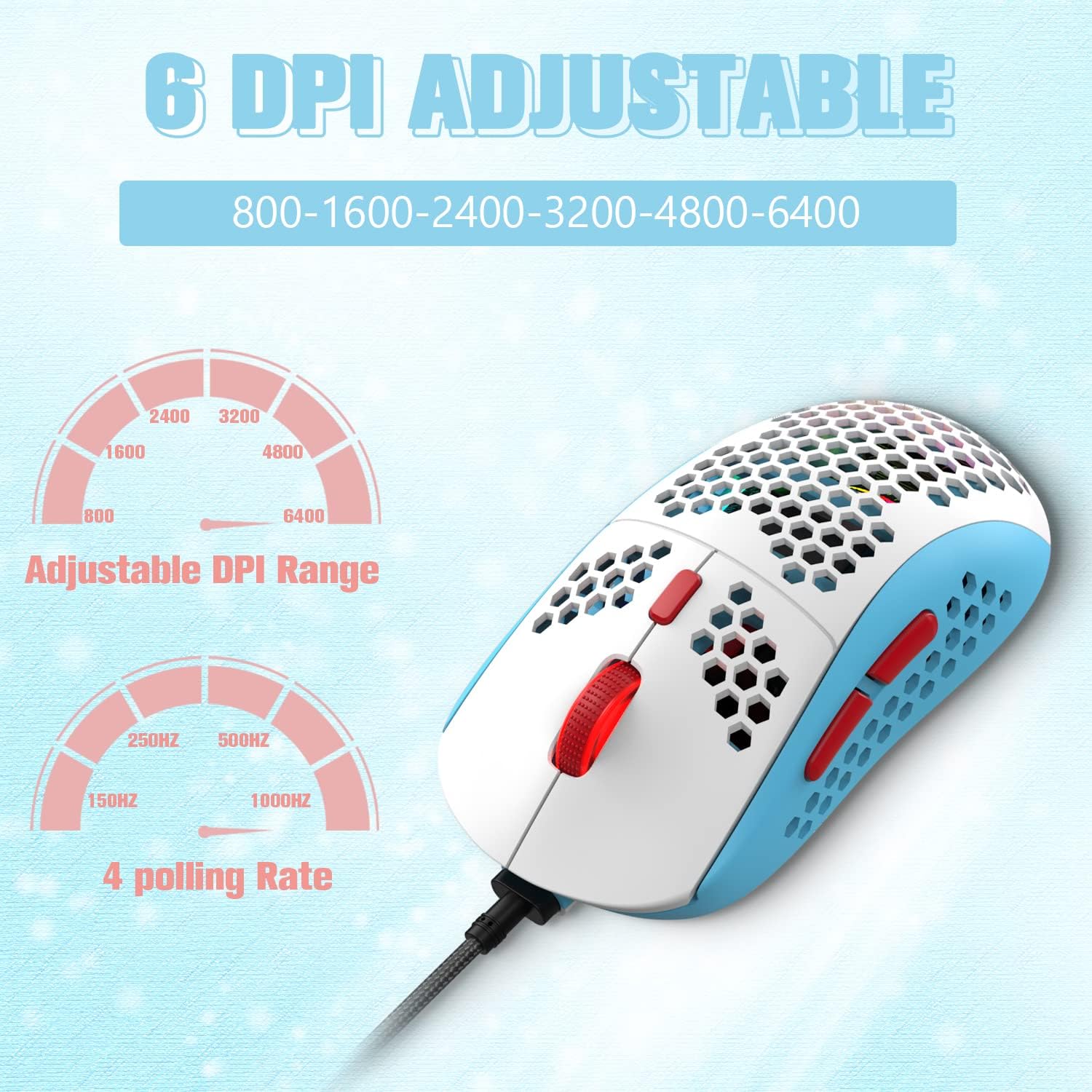
Image: Illustration of the KUIYN 383 PRO mouse's wide compatibility with various operating systems including Windows, Mac, and Linux.
8. Warranty and Support
For warranty information, please refer to the documentation included with your purchase or contact KUIYN customer support. Information regarding spare parts availability and guaranteed software updates is not available at this time.
For further assistance or technical support, please visit the KUIYN official website or contact their customer service.

