
1. Product Overview
The BoxWave Bullet Capacitive Stylus is a compact and portable stylus designed for use with capacitive touchscreens, including the Newline Flex (27 in). This upgraded model features an extendable design for enhanced comfort and precision, along with a convenient keyring attachment for easy portability.
Key features include:
- Extendable Design: Easily extends from 2 inches (5cm) to 3 inches for comfortable use.
- Ultra-Portable: Compact size and integrated keyring loop allow for attachment to key rings.
- Smooth Glide: Rubber tip ensures smooth and sensitive interaction with touchscreens.
- Durable Construction: Made from high-quality silicone and aluminum materials for long-lasting performance.
- Hygienic Use: Provides a way to interact with touchscreens without direct finger contact, ideal for public or shared devices.
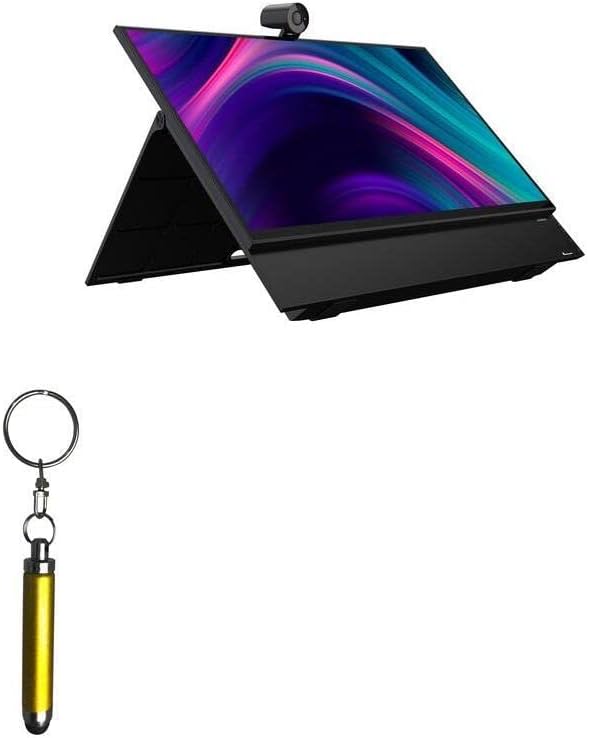
Figure 1.1: The BoxWave Bullet Capacitive Stylus shown alongside a Newline Flex (27 in) display, highlighting its compatibility and compact size.
2. Setup and Attachment
The Bullet Capacitive Stylus requires no complex setup. It is ready for use directly out of the packaging.
2.1 Attaching to a Keyring
To enhance portability, the stylus includes a keyring attachment. Simply hook the integrated loop onto your existing key ring or any desired attachment point.

Figure 2.1: A detailed view of the Bullet Capacitive Stylus, showing the keyring loop for convenient attachment.

Figure 2.2: The stylus attached to a keyring with car keys, demonstrating its portability.
3. Operating Instructions
3.1 Basic Usage
To use the Bullet Capacitive Stylus, simply touch the rubber tip to your device's capacitive touchscreen. The stylus will register your input just like a finger, allowing for precise tapping, swiping, and drawing.
3.2 Extending the Stylus
Gently pull the top section of the stylus away from the main body until it locks into the extended position. This increases its length from 2 inches to 3 inches for more comfortable and precise control.

Figure 3.1: The Bullet Capacitive Stylus extended to its full length for improved ergonomics.
3.3 Applications
The stylus is ideal for various applications, including:
- Navigating menus and applications with greater accuracy.
- Drawing, sketching, and digital art.
- Taking notes or signing documents digitally.
- Maintaining hygiene by avoiding direct finger contact with shared touchscreens.

Figure 3.2: Example of a stylus being used on a tablet for general interaction.
4. Maintenance and Care
To ensure the longevity and optimal performance of your Bullet Capacitive Stylus, follow these simple care instructions:
- Cleaning: Wipe the stylus body and rubber tip with a soft, dry, lint-free cloth. For stubborn smudges, a slightly damp cloth can be used, followed by immediate drying. Avoid abrasive cleaners or solvents.
- Storage: Store the stylus in a clean, dry place when not in use. Utilizing the keyring attachment can help prevent misplacement.
- Avoid Extreme Conditions: Do not expose the stylus to extreme temperatures, direct sunlight for prolonged periods, or excessive moisture.
- Handle with Care: While durable, avoid dropping the stylus or applying excessive force to the tip, as this may affect its performance.
5. Troubleshooting
The Bullet Capacitive Stylus is a passive device and typically requires no troubleshooting. However, if you experience issues, consider the following:
- Stylus Not Responding:
- Ensure the touchscreen of your device is clean and free of smudges or debris.
- Verify that the rubber tip of the stylus is clean and intact.
- Test the stylus on another capacitive touchscreen device to determine if the issue is with the stylus or the device.
- Tip Damage: If the rubber tip appears damaged or worn, contact BoxWave support for assistance.
6. Specifications
| Attribute | Detail |
|---|---|
| Brand | BoxWave |
| Model Name | Bullet Capacitive Stylus |
| Compatible Devices | Capacitive Touchscreens (e.g., Newline Flex (27 in), Smartphones, Tablets) |
| Material | Silicone (tip), Aluminum (body) |
| Color | Bronze |
| Item Weight | 0.7 ounces (approximately 19.8 grams) |
| Length (Retracted) | 2 inches (5 cm) |
| Length (Extended) | 3 inches (7.6 cm) |
| Batteries Required | No |
| Country of Origin | China |
| Date First Available | November 10, 2022 |
7. Support Information
For technical assistance or inquiries regarding your BoxWave Bullet Capacitive Stylus, limited third-party technical support is available. This support includes up to 3 inquiries via electronic messaging.
Please note that this support is provided by a third party and is not affiliated with or endorsed by Newline.
For further assistance, please refer to the contact information provided with your purchase or visit the official BoxWave website.