
Introduction
Thank you for choosing the Kuiyn 383 PRO M8 Ultralight Wired Gaming Mouse. This manual provides essential information for setting up, operating, maintaining, and troubleshooting your new gaming mouse. Designed for performance and comfort, this mouse features a lightweight honeycomb shell, customizable RGB lighting, and adjustable DPI settings to enhance your gaming experience.

Image: The Kuiyn 383 PRO M8 Ultralight Wired Gaming Mouse, showcasing its ergonomic design and honeycomb shell.
Setup
The Kuiyn 383 PRO M8 mouse is designed for plug-and-play convenience. Follow these steps to begin using your mouse:
- Connect the USB Cable: Plug the USB connector of the mouse into an available USB port on your computer or gaming console. The mouse has a 1.7m long USB cable.
- Driver Installation (Optional for Customization): For basic functionality, no drivers are required. For advanced customization, including programming buttons, download the official driver software from the manufacturer's website: http://en.freewolfgaming.com.cn/Download.aspx?ClassID=26&page=2.
- Compatibility: The mouse is compatible with various operating systems and devices, including Windows 2000/XP/WIN 7/WIN8/WIN10, Vista 32bit, Mac OS, HP, Acer, Xbox, and PS4/PS5.

Image: The Kuiyn 383 PRO M8 mouse demonstrating wide compatibility with various operating systems and gaming consoles.
Operating Instructions
Familiarize yourself with the mouse's features and controls for optimal performance.
Button Functions
The Kuiyn 383 PRO M8 features 7 buttons, including 6 programmable buttons and 1 dedicated RGB button.
- Left Button: Standard left-click function.
- Right Button: Standard right-click function.
- Middle Button (Scroll Wheel Click): Standard middle-click function.
- DPI Loop Button: Cycles through DPI settings.
- Forward Button: Navigates forward in web browsers or applications.
- Back Button: Navigates backward in web browsers or applications.
- LED Switch Key (RGB Button): Cycles through RGB lighting modes or turns off the lighting. Note: This button is not programmable.
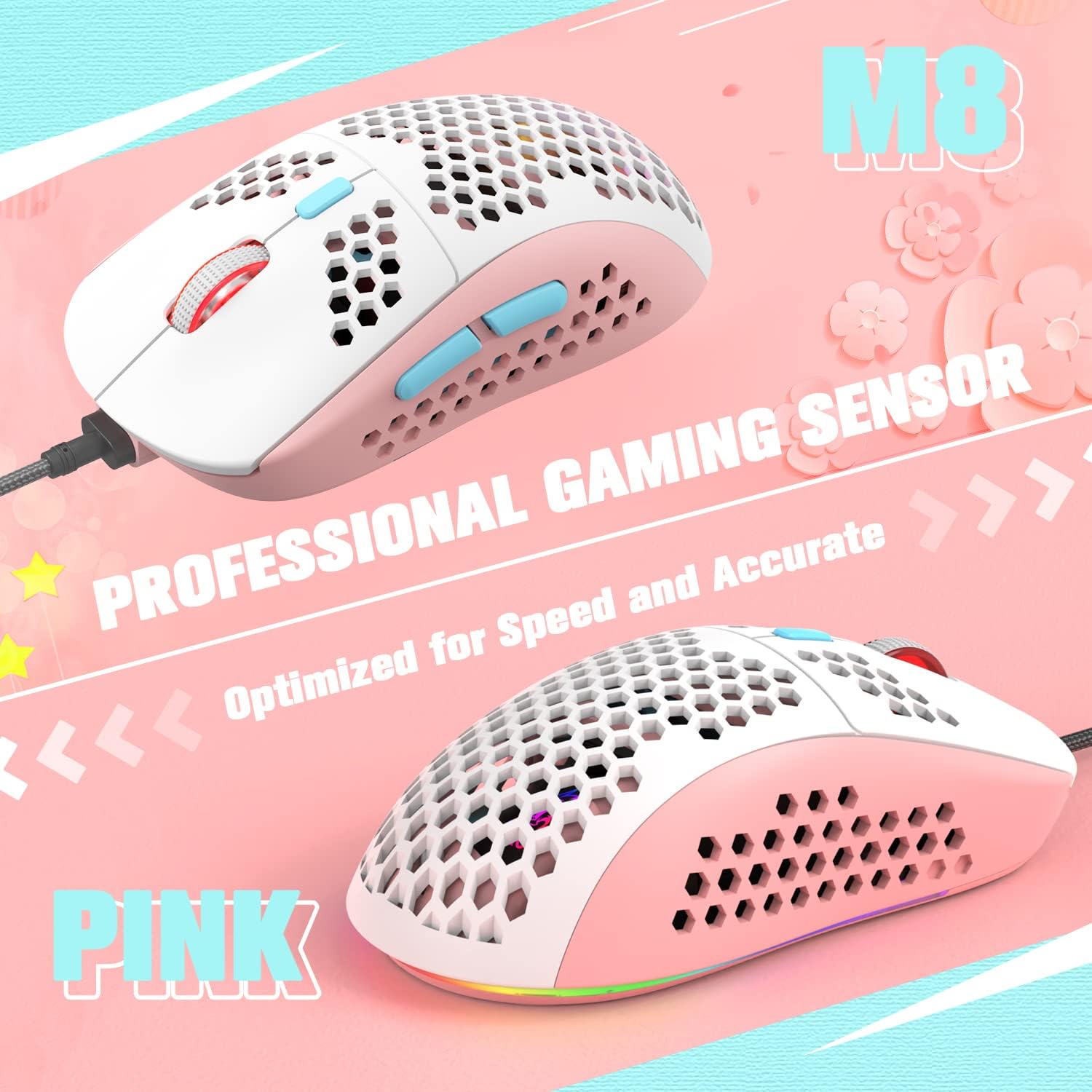
Image: A detailed diagram illustrating the 7 programmable buttons and their default functions on the Kuiyn 383 PRO M8 mouse.
DPI Adjustment
The mouse offers 6 adjustable DPI levels to suit various gaming styles and tasks. The default setting is 1600 DPI.
- DPI Levels: 800 / 1600 / 2400 / 3200 / 4800 / 6400
- Changing DPI: Press the dedicated DPI Loop button (button 4 in the diagram) to cycle through the available DPI settings.

Image: Visual representation of the 6 adjustable DPI levels (800-6400) and polling rates available on the Kuiyn 383 PRO M8 mouse.
RGB Lighting Effects
The mouse features 6 built-in RGB lighting modes. You can customize the lighting to match your setup or preference.
- Adjusting RGB: Press the LED Switch Key (RGB button, button 7 in the diagram) located at the bottom of the mouse to cycle through the different lighting effects.
- Turning Off Lights: Continue pressing the RGB button until the lights turn off.
Maintenance
Proper maintenance ensures the longevity and optimal performance of your Kuiyn 383 PRO M8 mouse.
- Cleaning: Use a soft, dry cloth to wipe the surface of the mouse. For the honeycomb shell, a can of compressed air can help remove dust and debris from inside the openings. Avoid using harsh chemicals or abrasive materials.
- Cable Care: Avoid sharply bending or pulling the USB cable. Store the mouse in a way that prevents the cable from being crimped or tangled.
- Storage: When not in use, store the mouse in a clean, dry environment away from extreme temperatures.

Image: Close-up view highlighting the honeycomb design, glossy scroll wheel, colorful light strip, and widened side buttons, which are key areas for cleaning and inspection.
Troubleshooting
If you encounter issues with your Kuiyn 383 PRO M8 mouse, refer to the following common solutions:
- Mouse Not Responding:
- Ensure the USB cable is securely plugged into a working USB port.
- Try plugging the mouse into a different USB port on your computer.
- Restart your computer or gaming console.
- DPI Not Changing:
- Ensure you are pressing the correct DPI Loop button.
- If using custom software, verify settings are applied correctly.
- RGB Lights Not Working:
- Press the LED Switch Key (RGB button) to cycle through modes or turn them on.
- Ensure the mouse is properly connected and receiving power.
- Cursor Movement is Erratic:
- Clean the optical sensor on the bottom of the mouse with a soft cloth.
- Ensure you are using the mouse on a clean, non-reflective surface. A mouse pad is recommended.
Specifications
Detailed technical specifications for the Kuiyn 383 PRO M8 Ultralight Wired Gaming Mouse.
| Model Name | 383 PRO M8 |
| Model Number | 383 |
| Brand | Kuiyn |
| Connectivity Technology | USB Wired |
| Movement Detection | Optical (Sunplus 199 sensor) |
| DPI Levels | 800 / 1600 / 2400 / 3200 / 4800 / 6400 |
| Maximum Sensitivity | 6400 DPI |
| Number of Buttons | 7 (6 programmable + 1 RGB) |
| Switch Life | 20 million cycles |
| RGB Lighting | 6 modes, adjustable via button |
| Weight | 69 Grams (approx. 65g ±5g) |
| Dimensions (L x W) | 10.9L x 7.6W centimetres (approx. 12.8cm x 6.7cm) |
| Cable Length | 1.7 meters |
| Material | High-quality ABS Plastic |
| Hand Orientation | Right |
| Operating System Compatibility | Win10/XP/Xbox/PS4/PS5/Mac/HP/Acer |

Image: Diagram showing the dimensions (12.8cm x 6.7cm) and key specifications like RGB lighting, USB connectivity, 6400 DPI, 7 buttons, and 65g weight.
Warranty and Support
For warranty information and technical support, please refer to the retailer where you purchased the product or visit the manufacturer's official website. The driver software for customization can be found at: http://en.freewolfgaming.com.cn/Download.aspx?ClassID=26&page=2.
