

Introduction
This manual provides comprehensive instructions for the Xtrfy M8 Wireless Gaming Mouse. Designed for professional gamers, the M8 offers an ultra-lightweight design, symmetrical shape, and lag-free 2.4 GHz wireless connectivity.
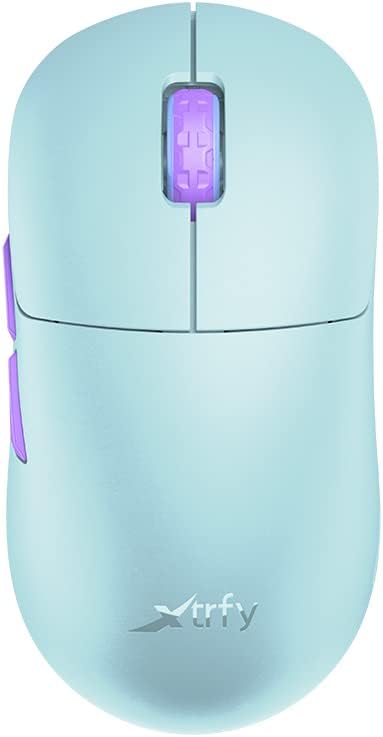
Image: The Xtrfy M8 Wireless Gaming Mouse in Frosty Mint, showcasing its ergonomic design.
A key design feature is its ultra-low front, measuring just 4mm, which allows for a unique grip style.

Image: A close-up view of the Xtrfy M8 mouse's front, highlighting its low profile of 4mm.
Package Contents
Verify that all items are present in your package:
- Xtrfy M8 Wireless Gaming Mouse
- USB-C Charging Cable
- USB Wireless Receiver (Dongle)
- USB-A to USB-C Adapter (for receiver extension)
- Instruction Manual (this document)

Image: The USB-C charging cable and the USB wireless receiver (dongle) for the Xtrfy M8 mouse.
Setup
- Charge the Mouse: Before first use, connect the USB-C charging cable to the mouse and a powered USB port. The mouse has an internal Lithium Ion battery.
- Connect the USB Wireless Receiver:
- Insert the USB wireless receiver directly into an available USB-A port on your computer.
- For optimal signal strength or if your computer's USB port is not easily accessible, use the provided USB-A to USB-C adapter with the charging cable to extend the receiver closer to the mouse.
- Power On the Mouse: Locate the power switch on the underside of the mouse. Slide the switch to the "ON" position.
- Automatic Connection: The mouse should automatically connect to the receiver. No additional pairing software is typically required for 2.4 GHz wireless operation.

Image: The underside of the Xtrfy M8 mouse, displaying the power switch, optical sensor, and hardware adjustment buttons.
Operating Instructions
The Xtrfy M8 mouse features standard left and right click buttons, a scroll wheel, and two side buttons. All functions are plug-and-play compatible with most operating systems.
Hardware Adjustments
The Xtrfy M8 allows for on-the-fly adjustment of key performance settings directly from the mouse hardware, without the need for software. These settings are typically located on the underside of the mouse.
- DPI/CPI (Dots Per Inch / Counts Per Inch): Adjusts mouse sensitivity. Use the dedicated button on the mouse bottom to cycle through preset DPI levels. An indicator light may change color to show the current setting.
- Polling Rate (PR): Determines how often the mouse reports its position to the computer. Higher polling rates (e.g., 1000 Hz) provide smoother tracking but consume more battery.
- Lift-off Distance (LOD): Controls how high the mouse can be lifted before tracking stops. A lower LOD prevents unwanted cursor movement when repositioning the mouse.
Refer to the markings near the buttons on the mouse's underside for specific adjustment procedures.

Image: Side view of the Xtrfy M8 mouse, highlighting the main click buttons, scroll wheel, and two programmable side buttons.
Charging and Battery
The Xtrfy M8 Wireless Gaming Mouse is equipped with a rechargeable Lithium Ion battery. To charge the mouse, connect the supplied USB-C cable to the front port of the mouse and the other end to a powered USB port on your computer or a USB wall adapter.
- A small LED indicator on the mouse will typically show charging status (e.g., solid light for charging, off or different color for fully charged).
- The mouse can be used while charging, though the cable connection point may feel unusual during active use.
- Battery life varies based on usage and polling rate settings.
Maintenance
Proper maintenance ensures the longevity and performance of your Xtrfy M8 mouse.
- Cleaning: Use a soft, dry cloth to wipe the surface of the mouse. For stubborn dirt, slightly dampen the cloth with water. Avoid harsh chemicals or abrasive materials.
- Sensor: Keep the optical sensor on the underside of the mouse clean and free from dust or debris. Use a cotton swab or compressed air if necessary.
- Storage: When not in use for extended periods, store the mouse in a dry, cool place.
- Cable Care: Avoid sharp bends or excessive pulling on the USB-C charging cable to prevent damage.
Troubleshooting
If you encounter issues with your Xtrfy M8 mouse, refer to the following common solutions:
- Mouse Not Responding:
- Ensure the mouse is powered on.
- Check if the USB wireless receiver is securely plugged into a working USB port.
- Verify the mouse battery is charged. Connect the charging cable and observe the indicator light.
- Try plugging the receiver into a different USB port.
- Lag or Disconnections:
- Ensure the receiver is close to the mouse and not obstructed by metal objects.
- Avoid placing the receiver near other wireless devices that may cause interference (e.g., Wi-Fi routers, other wireless peripherals).
- Lower the polling rate setting on the mouse if experiencing frequent disconnections in a crowded wireless environment.
- Inaccurate Tracking:
- Clean the optical sensor on the underside of the mouse.
- Ensure you are using the mouse on a suitable surface (a mouse pad is recommended).
- Adjust the DPI/CPI settings to a comfortable level.
- Scroll Wheel Issues (e.g., jumping):
- Ensure the mouse firmware is up to date (check the Xtrfy official website for any available updates).
- If the issue persists, contact Xtrfy customer support.
Specifications
| Model Number | M8 |
| Brand | Xtrfy |
| Connectivity Technology | Radio Frequency (2.4 GHz), USB (for charging/wired mode) |
| Movement Detection Technology | Optical |
| Special Features | Lightweight, Wireless |
| Item Weight | 1.94 ounces (approx. 55 grams) |
| Batteries | 1 Lithium Ion battery (included) |
| Package Dimensions | 7.32 x 4.06 x 2.44 inches |
| ASIN | B0BMLF5FMT |
| Date First Available | November 16, 2022 |
Warranty and Support
The Xtrfy M8 Wireless Gaming Mouse typically comes with a 1-year manufacturer's warranty. For specific warranty details, claims, or technical support, please contact Xtrfy directly through their official website.
Xtrfy Official Website: www.xtrfy.com
Always refer to the manufacturer's official resources for the most current support information and firmware updates.


