
1. Introduction
Thank you for purchasing the QZT V90 64GB IC Voice Recorder. This device is designed for high-quality audio recording with a large storage capacity and a range of convenient features. Please read this manual carefully to understand the proper operation and maintenance of your new voice recorder.
2. Product Overview
The QZT V90 features a compact design with an intuitive interface, making it easy to operate for various recording needs.
2.1 Key Features
- One-Touch Direct Recording: Start recording instantly even when the device is off.
- High-Quality Audio: Up to 3072kbps recording with dual omnidirectional microphones.
- Noise Cancellation: Equipped with a 2-mic noise cancellation function for clear recordings in noisy environments.
- Large Storage: 64GB internal memory, capable of storing approximately 4552 hours of audio (at 32KBPS).
- Long Battery Life: Up to 35 hours of continuous recording.
- VOR (Voice Operated Recording): Automatically starts recording when sound is detected and pauses when silent, saving storage space.
- Timer Recording: Schedule recordings for specific times or days.
- Variable Speed Playback & A-B Repeat: Useful for language learning and reviewing specific sections.
- Password Protection: Secure your recordings with a password.
- OTG Functionality: Connects to smartphones (Android, iOS 12+) and computers for easy file management.
2.2 Device Layout
Familiarize yourself with the buttons and ports on your QZT V90 recorder.
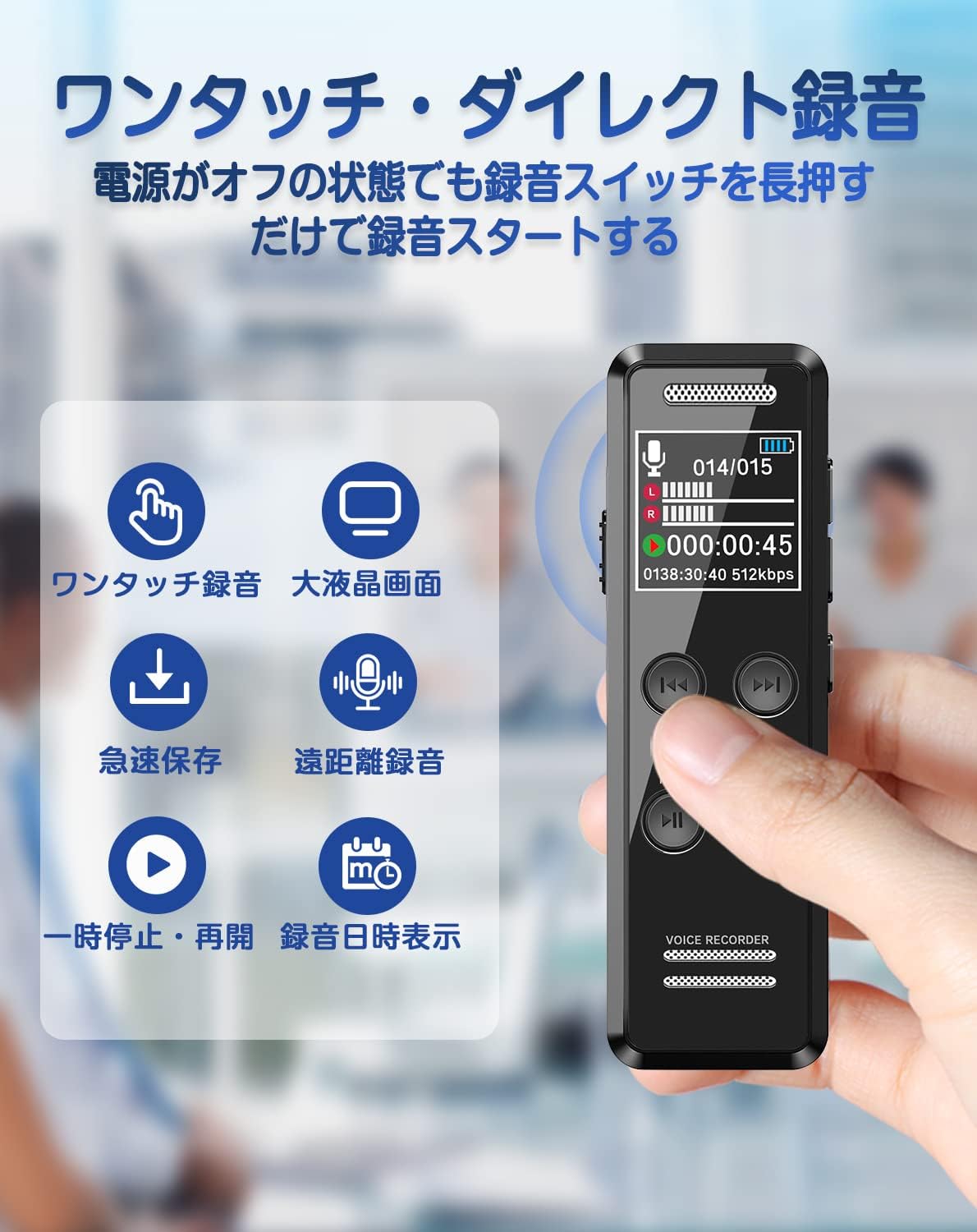
Image: Front view of the QZT V90 Voice Recorder, highlighting the large LCD screen and various function icons including one-touch recording, quick save, remote recording, pause/resume, and date display.
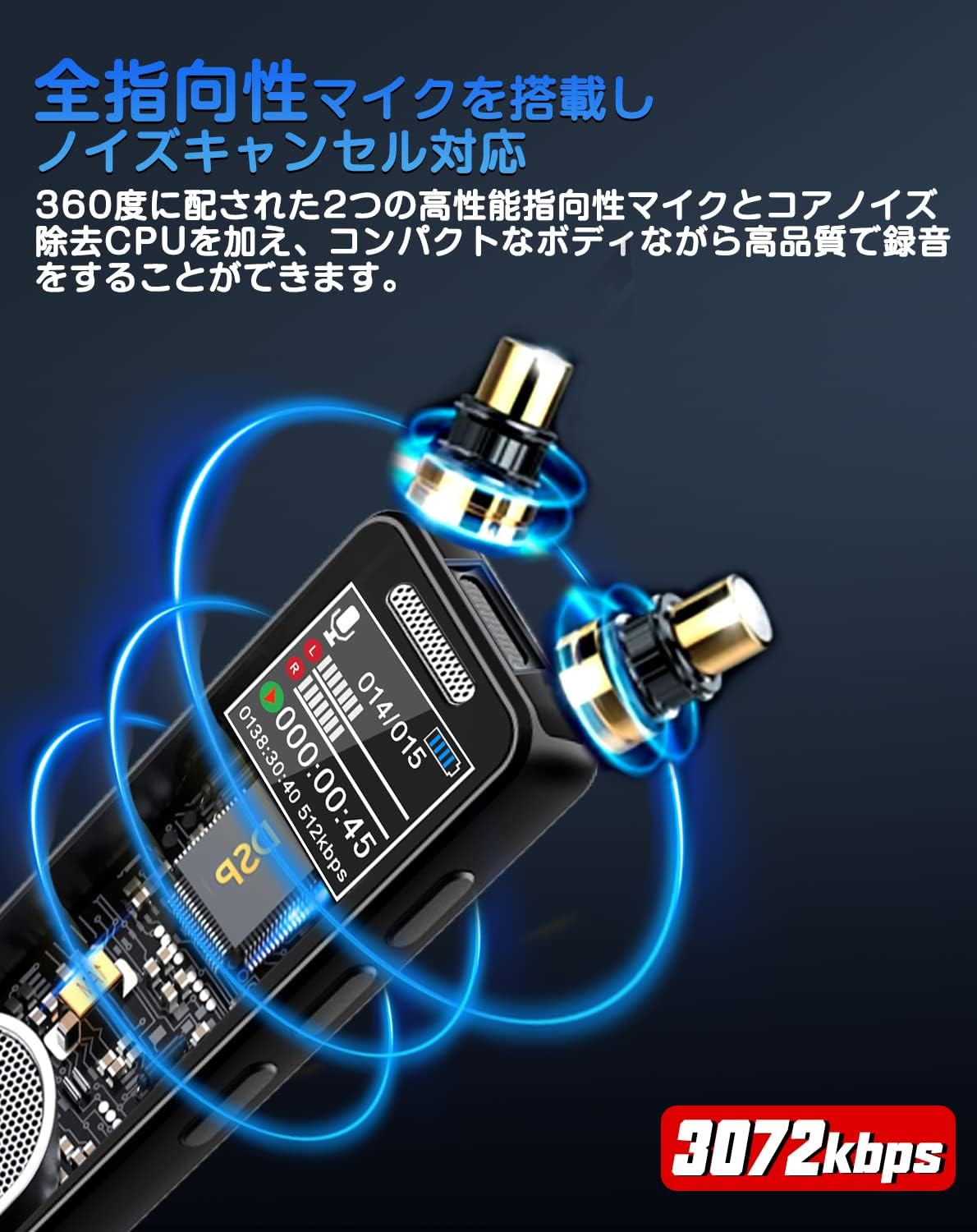
Image: Close-up of the QZT V90 Voice Recorder, illustrating the omnidirectional microphones and emphasizing its 3072kbps high-quality recording and noise cancellation features.
3. Setup
3.1 Charging the Device
Before first use, fully charge the device. Connect the recorder to a computer or a USB power adapter using the provided USB cable. The battery indicator on the screen will show charging status.
3.2 Power On/Off
- To Power On: Slide the power switch to the ON position or long-press the Play/Pause button.
- To Power Off: Slide the power switch to the OFF position or long-press the Play/Pause button.
3.3 Initial Settings
Upon first power-on or after a reset, you may need to set the language, date, and time. Navigate through the menu using the directional buttons and confirm with the Play/Pause button. The device supports 72 languages, including English.
4. Operating Instructions
4.1 One-Touch Recording
To start recording quickly, even when the device is powered off, simply long-press the REC button on the front of the device. The recording will begin automatically. To stop and save the recording, short-press the STOP button.
4.2 High-Quality Recording and Noise Cancellation
The device supports recording quality up to 3072kbps. It features dual high-sensitivity omnidirectional microphones and a noise cancellation function to capture clear audio. You can adjust recording quality settings in the device menu.
4.3 VOR (Voice Operated Recording)
Activate VOR mode in the settings. When VOR is enabled, the recorder will automatically start recording when it detects sound above a certain threshold (e.g., >45dB) and pause when the sound drops below the threshold (e.g., <45dB). This feature helps conserve memory and battery life by only recording when necessary.

Image: Illustration of the VOR recording function on the QZT V90, showing how recording starts automatically when sound is detected and pauses when it becomes silent.
4.4 Timer Recording
Set up scheduled recordings through the menu. You can specify the start time, end time, and frequency (e.g., daily, once). This is useful for recording lectures or meetings automatically.

Image: Displaying the QZT V90's advanced features including timer recording, variable speed playback (1X, 2X, 3X), A-B repeat function for language learning, and a password protection screen.
4.5 Playback Functions
- Normal Playback: Press the PLAY button to listen to your recordings.
- Variable Speed Playback: Adjust the playback speed (16 levels) to suit your needs, ideal for reviewing fast-paced conversations or language learning.
- A-B Repeat: Select a specific segment of a recording to loop for repeated listening.
4.6 File Management and Transfer
You can manage and transfer your recorded files by connecting the device to a computer or a smartphone.
- To Computer: Connect the recorder to your computer using the USB cable. The device will appear as a removable disk, allowing you to drag and drop files.
- To Smartphone (OTG): Use an OTG adapter (included for Android, sold separately for iOS 12+) to connect the recorder to your smartphone. You can then access and manage files directly on your phone.

Image: The QZT V90 Voice Recorder connected to both a laptop and a smartphone, illustrating its capability for charging and efficient file management across different devices using OTG functionality.
4.7 Password Protection
To protect your sensitive recordings, you can set a password for the device. Access the security settings in the menu to enable and configure your password.
5. Maintenance
- Cleaning: Use a soft, dry cloth to clean the device. Avoid using liquid cleaners or solvents.
- Battery Care: To prolong battery life, avoid fully discharging the battery frequently. Charge the device regularly. The device has an automatic save function when the battery is low to prevent data loss.
- Data Backup: Regularly back up important recordings to your computer or cloud storage to prevent accidental loss.
- Storage: Store the device in a cool, dry place away from direct sunlight and extreme temperatures.
6. Troubleshooting
If you encounter any issues with your QZT V90 voice recorder, please refer to the following common problems and solutions:
| Problem | Possible Solution |
|---|---|
| Device does not power on. | Ensure the battery is charged. Connect to a power source and try again. Check if the power switch is in the ON position. |
| Cannot record audio. | Check if there is sufficient storage space. Ensure the microphone is not obstructed. Verify recording settings in the menu. |
| Poor recording quality. | Increase the recording bitrate in settings. Ensure noise cancellation is enabled if in a noisy environment. Record closer to the sound source. |
| Cannot transfer files to computer/smartphone. | Ensure the USB cable is securely connected. Try a different USB port or cable. For smartphones, ensure the OTG adapter is compatible and correctly connected. |
| Device is frozen or unresponsive. | Try resetting the device (if a reset button is available) or power cycle by turning it off and on again. |
7. Specifications
| Feature | Detail |
|---|---|
| Model Number | V90 |
| Memory Storage Capacity | 64 GB |
| Digital Recording Time | Approx. 4552 hours (at 32KBPS) |
| Continuous Use Time (Recording) | Approx. 35 Hours |
| Recording Quality | Up to 3072kbps |
| Microphone Type | Built-in, Stereo, Noise Cancellation |
| Audio Format | WAV |
| Hardware Interface | USB |
| Headphone Jack | 3.5 mm |
| Compatible Devices | Smartphones, PCs |
| Package Dimensions | 13.5 x 13.5 x 1.9 cm |
| Item Weight | 160 g |

Image: The QZT V90 Voice Recorder highlighting its 64GB large capacity memory, 35 hours of continuous recording, 30 days standby time, 2 hours charging time, and a detailed table showing recording quality (KBPS) versus maximum recording duration.
8. Warranty and Support
The QZT V90 IC Voice Recorder comes with a one-year warranty. If you experience any issues or defects during this period, please contact our customer support for assistance. We offer free repair, exchange, or refund services for eligible problems.
For further support, please refer to the contact information provided with your purchase or visit the official QZT website.