
1. Introduction
The TACTACAM 6.0 Action Camera is designed to capture high-quality video and photos in various outdoor environments. Featuring 4K 60 FPS video recording, 8X zoom, integrated image stabilization, and a waterproof design, this camera offers a robust solution for documenting your activities. Its one-touch operation ensures ease of use, allowing you to focus on the moment while capturing clear footage.
2. Safety Information
- Waterproof Rating: The camera is waterproof up to 30 feet (9 meters). Ensure all ports and covers are securely closed before exposing the camera to water.
- Battery Care: Use only TACTACAM approved batteries and chargers. Do not expose batteries to extreme temperatures or dispose of them in fire.
- Mounting: Always ensure the camera is securely mounted to prevent accidental detachment during use. Regularly check the tightness of all mounting components.
- Operating Temperature: Avoid operating the camera in temperatures outside its specified range to prevent damage.
3. Package Contents
Verify that all items listed below are included in your package:
- TACTACAM 6.0 Action Camera
- TACTACAM Replacement Battery
- TACTACAM Clamp Mount
- USB Charging Cable
- Instruction Manual
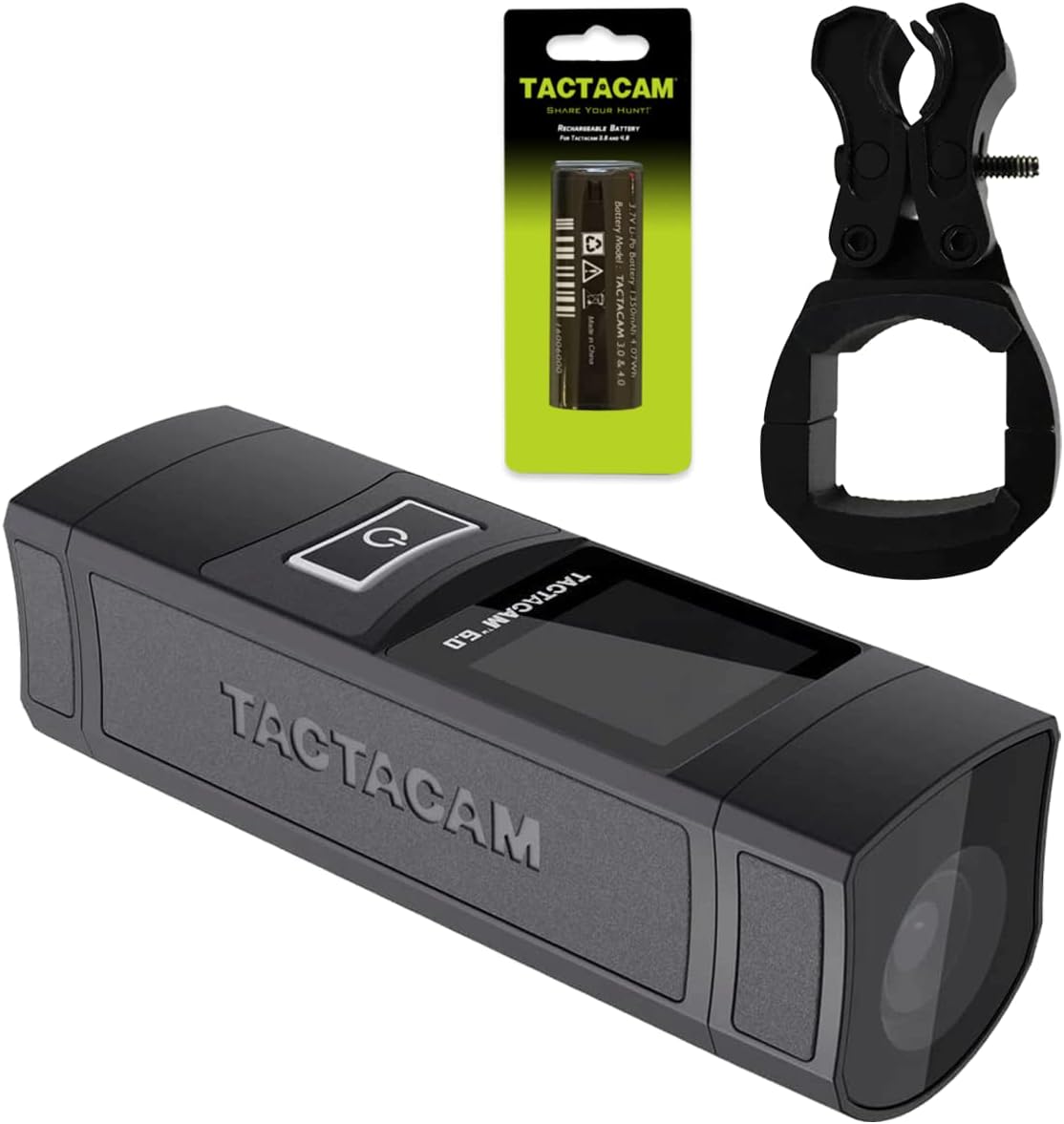
Figure 3.1: TACTACAM 6.0 Action Camera package contents including the camera, replacement battery, and clamp mount.
4. Product Overview
Familiarize yourself with the main components and controls of your TACTACAM 6.0 Action Camera.

Figure 4.1: Front view of the TACTACAM 6.0 Action Camera, highlighting the lens and compact design.

Figure 4.2: Side view of the TACTACAM 6.0 Action Camera, showing the integrated display screen and one-touch operation button.
The camera features an integrated display screen for easy menu navigation and shot preview. The main power/record button is prominently located for quick access.
5. Setup
5.1. Charging the Battery
Before first use, fully charge the camera battery. Connect the camera to a USB power source using the provided USB charging cable. The charging indicator light will show the charging status.

Figure 5.1: The TACTACAM 6.0 camera connected to a USB power source for charging.
5.2. Inserting a Micro SD Card
A Micro SD card (not included) is required for recording. The camera supports high-speed Micro SD cards. To insert the card:
- Unscrew the rear cover of the camera.
- Gently insert the Micro SD card into the designated slot until it clicks into place.
- Securely re-attach the rear cover.

Figure 5.2: Proper insertion of a Micro SD card into the camera's slot.
5.3. Mounting the Camera
The TACTACAM 6.0 comes with a clamp mount for versatile attachment to various equipment such as rifles or bows. Follow these general steps for mounting:
- Attach the clamp mount to your desired equipment (e.g., rifle barrel, bow stabilizer). Ensure it is tightened securely.
- Slide the camera onto the mount until it locks into place.
- Adjust the camera angle as needed and tighten any adjustment screws to fix its position.

Figure 5.3: The TACTACAM 6.0 camera securely attached to a rifle using the clamp mount.
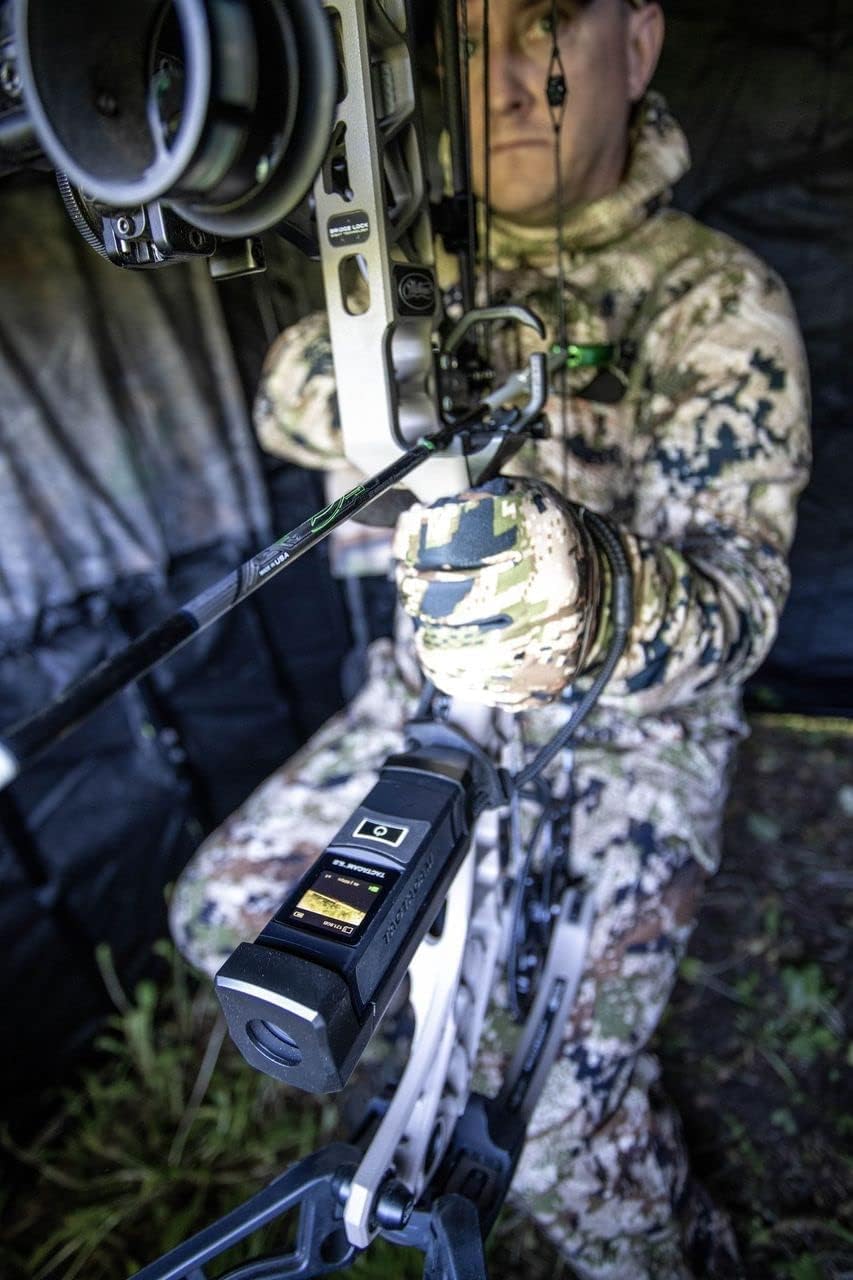
Figure 5.4: The TACTACAM 6.0 camera attached to a bow, ready for action.
For a visual guide on general camera installation, you may refer to the video below. Note that this video demonstrates bike mounts, but the principles of securing the camera to a mount are similar.
Video 5.1: General product installation guide. This video illustrates mounting principles, though it features bike mounts rather than the included clamp mount.
6. Operating Instructions
6.1. Power On/Off
To power on the camera, press and hold the main power button for approximately 3 seconds until the display screen illuminates. To power off, press and hold the same button for 3 seconds until the screen turns off.
6.2. Recording Video
The TACTACAM 6.0 features one-touch operation for video recording:
- Ensure the camera is powered on.
- Press the main power/record button once to start recording. The camera will vibrate and an indicator light will confirm recording has begun.
- Press the main power/record button again to stop recording. The camera will vibrate and the indicator light will change.
6.3. Taking Photos
To capture still photos, you may need to switch the camera mode via the Tactacam App (see section 6.4) or through on-device controls if available. Once in photo mode, press the designated capture button (often the same as the record button) to take a picture.
6.4. Connecting to the TACTACAM App (Wi-Fi)
The TACTACAM App allows you to control your camera remotely, view live footage, and manage settings. To connect:
- Download the TACTACAM App from your smartphone's app store.
- Power on your TACTACAM 6.0 camera.
- Activate the Wi-Fi feature on your camera (refer to the camera's display or specific button if available). The Wi-Fi indicator light will flash.
- On your smartphone, go to Wi-Fi settings and connect to the TACTACAM camera's Wi-Fi network (e.g., "ActionCam_XXXX").
- Open the TACTACAM App. The app should automatically detect and connect to your camera, allowing you to access its features.

Figure 6.1: The TACTACAM app interface on a smartphone, showing connection to the camera.
For a detailed walkthrough of camera operation and app connection, please watch the video below:
Video 6.1: Product operation and settings guide, including Micro SD card insertion, power on, Wi-Fi connection, and app usage.
6.5. Enhanced Features
The TACTACAM 6.0 includes several advanced features:
- Auto Focus: Automatically adjusts focus for clear images.
- Loop Recording: Continuously records, overwriting the oldest files when the memory card is full.
- Time-Lapse: Captures a series of photos at set intervals to create a time-lapse video.
- Moveable Red Dot Option: Provides an on-screen red dot for aiming assistance, configurable via the app.
7. Maintenance
- Cleaning: Use a soft, dry cloth to clean the camera body. For the lens, use a specialized lens cleaning cloth and solution. Do not use abrasive materials.
- Storage: Store the camera in a cool, dry place away from direct sunlight and extreme temperatures. Remove the battery if storing for extended periods.
- Firmware Updates: Periodically check the TACTACAM website or app for firmware updates to ensure optimal performance and access to new features.
8. Troubleshooting
| Problem | Possible Solution |
|---|---|
| Camera does not power on. | Ensure the battery is fully charged. Try charging the battery for at least 2 hours. |
| Cannot connect to the TACTACAM App. | Verify camera Wi-Fi is enabled. Ensure your smartphone is connected to the camera's Wi-Fi network. Restart both the camera and the app. |
| Video recording stops unexpectedly. | Check if the Micro SD card is full or corrupted. Use a high-speed Micro SD card (Class 10 or higher). Ensure the battery has sufficient charge. |
| Poor video quality. | Clean the camera lens. Ensure sufficient lighting. Check camera settings in the app for resolution and frame rate. |
9. Specifications
| Feature | Detail |
|---|---|
| Brand Name | TACTACAM |
| Item Weight | 1.49 pounds |
| Package Dimensions | 11.2 x 8.27 x 4.84 inches |
| Item Model Number | TA-C-FB-6 |
| Color | Black |
| Special Features | Low Light |
| Photo Sensor Technology | CMOS |
| Video Capture Resolution | 4K |
| Maximum Aperture | 1.8 f |
| Flash Memory Type | Micro SD |
| Video Capture Format | MP4 |
| Screen Size | 1.5 Inches |
| Connectivity Technology | Wi-Fi |
10. Warranty and Support
10.1. Warranty Information
The TACTACAM 6.0 Action Camera comes with a one-year warranty when purchased from an official TACTACAM Dealer. Please retain your proof of purchase for warranty claims.
10.2. Customer Support
For technical assistance, troubleshooting, or warranty inquiries, please visit the official TACTACAM website or contact their customer support directly. Contact information can typically be found on the manufacturer's website or product packaging.