
1. Introduction
The TACTACAM 6.0 is a high-performance action camera designed for capturing immersive video and photos in various outdoor environments. Featuring 4K 60 FPS video recording, 8x zoom, integrated image stabilization, and a waterproof design, this camera offers reliable operation with its one-touch control system. This manual provides essential information for setting up, operating, maintaining, and troubleshooting your TACTACAM 6.0 Action Camera.
2. Package Contents
Verify that all items are present in your TACTACAM 6.0 package:
- TACTACAM 6.0 Action Camera
- TACTACAM Remote Control
- USB Charging Cable (not explicitly listed but implied for charging)
- Mounting Accessories (not explicitly listed but implied by product images)
3. Key Features
- Video Resolution: 4K at 60 Frames Per Second (FPS)
- Zoom: Up to 8x optical zoom
- Lens: Ultra-high quality lens with low light sensor
- Image Stabilization: Integrated Electronic Image Stabilization
- Waterproof: Up to 30 feet (without additional housing)
- Operation: One-touch operation with vibration indication
- Display: Integrated display screen
- Focus: Auto Focus capability
- Recording Modes: Loop recording, time-lapse
- Additional Features: Moveable red dot option
- Connectivity: Wi-Fi connection to smartphone via TACTACAM App, TACTACAM remote compatible
4. Setup Guide
4.1 Charging the Camera
Before initial use, fully charge the TACTACAM 6.0. Connect the camera to a USB power source using the provided USB cable. The integrated display will indicate charging status. A full charge ensures maximum recording time.

4.2 Inserting a Micro SD Card
The TACTACAM 6.0 requires a Micro SD card (not included) for storing recordings. Insert the Micro SD card into the designated slot until it clicks into place. Ensure the card is correctly oriented. The camera supports Micro SD cards with a V60 video speed class.

4.3 Mounting the Camera
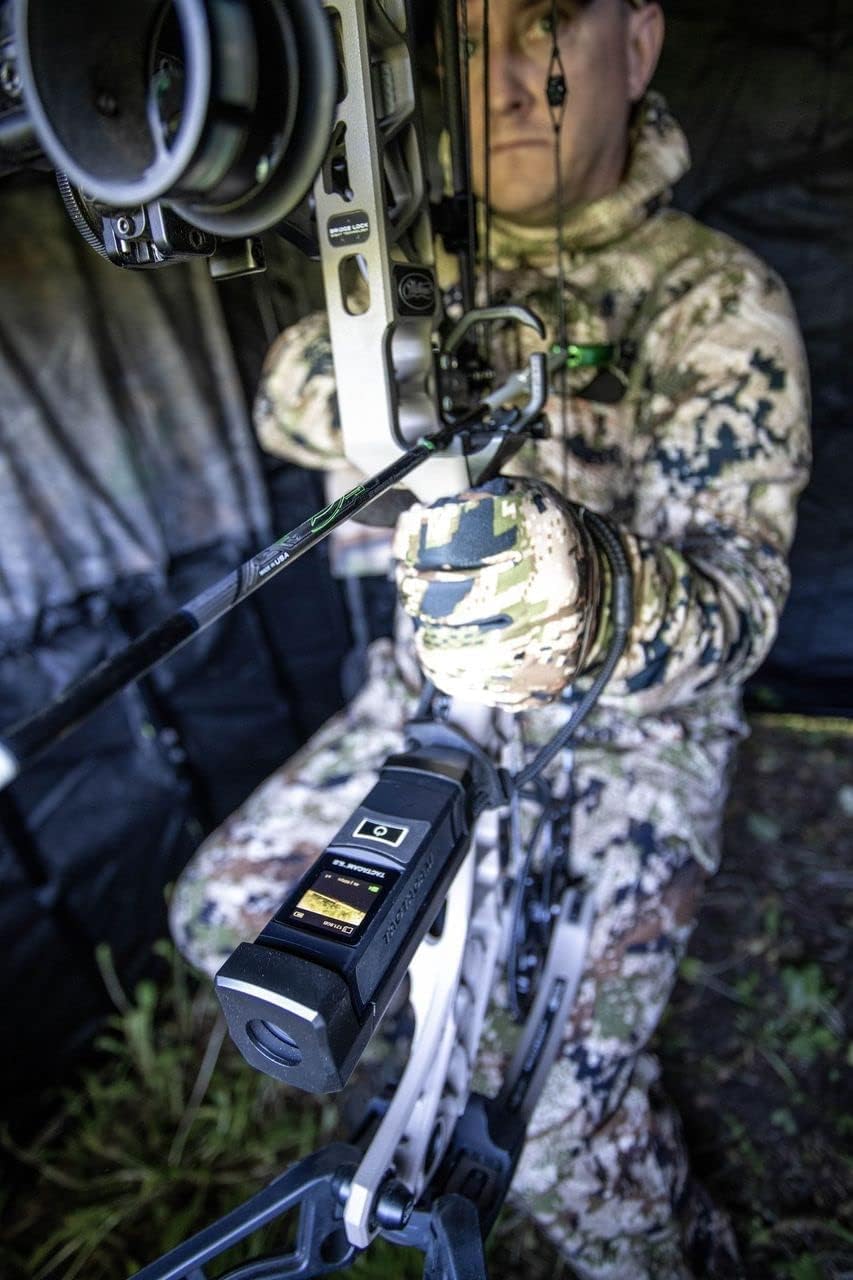
The TACTACAM 6.0 is designed for versatile mounting options, including on firearms and bows. Use appropriate mounting accessories (sold separately) to securely attach the camera. Ensure the camera is stable and pointed in the desired direction for optimal footage.

4.4 Connecting to the TACTACAM App
Download the TACTACAM App to your smartphone. Enable Wi-Fi on your camera and smartphone, then connect to the camera's Wi-Fi network. The app allows for remote control, live view, and footage management.


4.5 Using the TACTACAM Remote
The TACTACAM 6.0 is compatible with the TACTACAM Remote Control for convenient operation. Follow the remote's instructions to pair it with your camera. This allows for hands-free recording activation.
5. Operating Instructions
5.1 One-Touch Operation
The TACTACAM 6.0 features a simple one-touch operation. Press the main power/record button once to power on and begin recording. Press it again to stop recording and power off. The camera provides vibration feedback to confirm actions.

5.2 Recording Modes
The camera supports various recording modes:
- Standard Video: Records in 4K at 60 FPS.
- Loop Recording: Continuously records, overwriting the oldest footage when the memory card is full.
- Time-Lapse: Captures a series of still images over time, which can be compiled into a video.
Adjust recording settings via the integrated display or the TACTACAM App.
5.3 Zoom Functionality
Utilize the 8x optical zoom to bring distant subjects closer without compromising image quality. The zoom can be controlled through the camera's interface or the connected TACTACAM App.
5.4 Waterproof Use
The TACTACAM 6.0 is waterproof up to 30 feet. Ensure all ports and covers are securely closed before exposing the camera to water. No additional housing is required for this depth.
5.5 Image Stabilization and Auto Focus
The integrated electronic image stabilization helps reduce blur from camera movement, providing smoother footage. The auto-focus feature ensures your subjects remain sharp and clear.
5.6 Moveable Red Dot Option
Activate the moveable red dot option for enhanced aiming or targeting assistance, particularly useful in hunting scenarios.
6. Maintenance
6.1 Cleaning
Gently wipe the camera body with a soft, damp cloth. For the lens, use a specialized lens cleaning cloth and solution to avoid scratches. Ensure the camera is powered off and disconnected from any power source before cleaning.
6.2 Storage
Store the camera in a cool, dry place away from direct sunlight and extreme temperatures. Remove the battery if storing for extended periods to prevent damage.
7. Troubleshooting
If you encounter issues with your TACTACAM 6.0, refer to the following common solutions:
- Camera not powering on: Ensure the battery is charged. Connect to a power source and check the charging indicator.
- Recording issues: Verify that a compatible Micro SD card is properly inserted and has sufficient free space. Format the SD card if necessary (this will erase all data).
- Wi-Fi connection problems: Ensure Wi-Fi is enabled on both the camera and your smartphone. Try restarting both devices.
- Poor video quality: Check the lens for dirt or smudges. Ensure sufficient lighting for recording.
- Camera unresponsive: Perform a soft reset by holding down the power button for an extended period (e.g., 10-15 seconds) until the camera restarts.
For further assistance, consult the TACTACAM website or contact customer support.
8. Specifications
| Feature | Specification |
|---|---|
| Brand | TACTACAM |
| Model Number | TA-C-FB-6 |
| Video Capture Resolution | 4K |
| Video Capture Format | MP4 |
| Effective Video Resolution | 3840 Pixels |
| Optical Zoom | 8x |
| Image Stabilization | Electronic Image Stabilization |
| Water Resistance Level | Waterproof (up to 30ft) |
| Flash Memory Type | Micro SD |
| Flash Memory Video Speed Class | V60 |
| Screen Size | 1.5 Inches |
| Connectivity Technology | Wi-Fi |
| Focus Type | Auto Focus |
| Shooting Modes | Time Lapse, Loop Recording |
| Supported Audio Format | AAC |
| Supported Image Format | JPEG |
| Operating System | Proprietary OS |
| Are Batteries Included | Yes |
9. Warranty and Support
9.1 Warranty Information
The TACTACAM 6.0 Action Camera comes with a one-year warranty when purchased from Freedom USA Sales, an official TACTACAM Dealer. Please retain your proof of purchase for warranty claims.
9.2 Customer Support
For technical support, troubleshooting, or further inquiries, please visit the official TACTACAM website or contact their customer service department. The TACTACAM App also provides resources and connectivity options for your camera.

