
SEAGO WB4-6
Beantech Smart Bulb User Manual
Model: WB4-6
Brand: SEAGO
Introduction
The Beantech Smart Bulb is an advanced LED light bulb designed to enhance your home lighting experience with smart control features. This bulb allows for remote control via a dedicated application and voice commands through Amazon Alexa or Google Assistant. It offers a wide range of colors, dimming capabilities, and scheduling options to automate your lighting.
Key features include:
- Smart Control: Control your WiFi smart bulb remotely via the app or by voice with Alexa or Google Assistant.
- Color Changing & Dimmable: Adjust to any color, including various shades of white, and dim the light to your preferred brightness.
- Timer Function: Automate turning the smart bulb on/off by setting schedules in the app.
- Easy Installation: Connects directly to your 2.4GHz Wi-Fi network; no hub or subscription required.
- Energy Saving: Efficient 8-watt LED design helps reduce energy consumption.
- Group Control: Create groups of smart bulbs within the app to control multiple lights simultaneously.
What's in the Box
Upon opening the product packaging, you should find the following items:
- Beantech Smart Light Bulbs (Pack of 6)
- Instruction Manual

Image: A pack of six Beantech Smart Bulbs, showcasing their A19 shape and E26 base, with the top portion of each bulb displaying a vibrant, multi-color gradient, indicating their color-changing capability.
Setup
1. Physical Installation
- Ensure the power to the light fixture is turned off before installation.
- Carefully screw the Beantech Smart Bulb into a standard E26 light bulb socket.
- Turn on the power to the light fixture. The bulb should illuminate.
2. App Download and Pairing
To control your smart bulb, you will need to download the compatible mobile application. The specific app name is not provided, but it is typically found by searching for 'Smart Life' or 'Tuya Smart' in your device's app store, as many smart home devices use these platforms.
- Download the recommended smart home app from your smartphone's app store (e.g., Apple App Store or Google Play Store).
- Register or log in to your account within the app.
- Ensure your smartphone is connected to a 2.4GHz Wi-Fi network. The smart bulb only supports 2.4GHz Wi-Fi.
- In the app, tap 'Add Device' or the '+' icon to begin the pairing process.
- Select 'Lighting' or 'Light Source' from the device categories.
- Follow the on-screen instructions to put the bulb into pairing mode. This usually involves turning the bulb off and on a few times until it starts blinking rapidly.
- Confirm the bulb is blinking rapidly in the app and proceed to connect.
- Enter your 2.4GHz Wi-Fi network password when prompted.
- Wait for the app to discover and connect to the smart bulb. Once connected, you can rename the bulb for easier identification.
3. Voice Assistant Integration (Alexa/Google Assistant)
After successfully pairing the bulb with the app, you can link it to your Amazon Alexa or Google Assistant for voice control.
- Open the Amazon Alexa app or Google Home app on your smartphone.
- Navigate to the 'Skills & Games' section (for Alexa) or 'Works with Google' section (for Google Home).
- Search for the name of the smart home app you used to pair the bulb (e.g., 'Smart Life').
- Enable the skill/service and link your smart home app account by entering your login credentials.
- Once linked, discover devices. For Alexa, say "Alexa, discover my devices." For Google Assistant, devices should appear automatically or can be manually synced.
- Your Beantech Smart Bulb will now be controllable via voice commands.

Image: A person's hands holding a smartphone displaying a smart home application interface, with a lamp in the background, illustrating the remote control capability of the smart bulb.

Image: A woman and a child are seated comfortably, reading a book under the soft glow of a lamp, with an Amazon Echo device visible on a shelf, demonstrating the convenience of voice control for the smart lighting system.
Operating the Smart Bulb
1. App Control
The mobile application provides comprehensive control over your Beantech Smart Bulb.
- On/Off: Toggle the bulb's power directly from the app.
- Color Changing: Select from 16 million colors using a color wheel or predefined color palettes.
- Dimming: Adjust the brightness level from 0% to 100%.
- Scenes: Apply preset lighting scenes (e.g., Night, Read, Meeting, Leisure, Soft, Colors, Colorful, Gorgeous) or create custom scenes to match your mood or activity.
- Group Control: Group multiple Beantech Smart Bulbs together to control them simultaneously with a single command.

Image: A smartphone screen showing a color selection interface for a smart bulb, with a room in the background illuminated by various colors, demonstrating the bulb's multicolor and dimmable features.

Image: A smartphone displaying a smart home app with various pre-set lighting scenes such as 'Night', 'Read', 'Meeting', 'Leisure', 'Soft', 'Colors', 'Colorful', and 'Gorgeous', indicating customizable lighting options.

Image: An exterior view of a house at night, with various rooms illuminated by different colored smart bulbs, and a hand holding a smartphone displaying the app interface, demonstrating remote control from anywhere.
2. Voice Control
Once integrated with Amazon Alexa or Google Assistant, you can use simple voice commands to control your smart bulb.
- "Alexa, turn on the lights."
- "Hey Google, dim the living room light to 50%."
- "Alexa, set the bedroom light to blue."
- "Hey Google, turn off the kitchen lights."

Image: A bedroom setting with a smart speaker on a nightstand, showing speech bubbles with voice commands like "Alexa, turn on the bulbs" and "Alexa, dim the bulb to 80%", illustrating hands-free control.
3. Scheduling and Timer Functions
Automate your lighting to fit your daily routine and save energy.
- Set Schedules: Program the bulb to turn on or off at specific times on specific days. For example, set the bedroom light to turn on at 7:00 AM and turn off at 10:30 PM.
- Timer: Use the timer function for temporary lighting needs, such as turning off the light after a set duration.
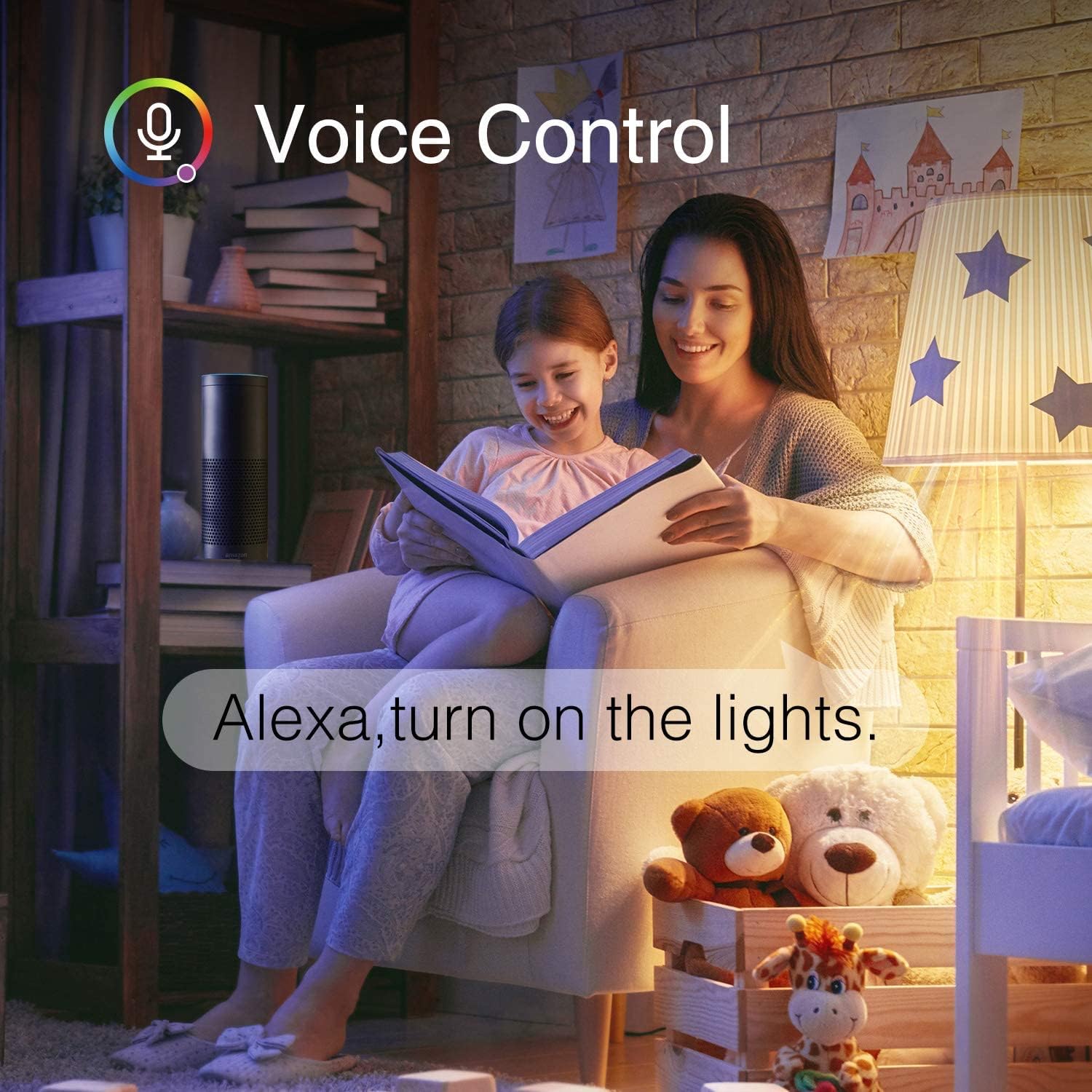
Image: A split image showing a house during the day and at night, with text indicating scheduled lighting changes (e.g., 09:30 Friday for daytime, 20:30 Friday for nighttime), highlighting the energy-saving schedule feature.

Image: Two panels illustrating a daily routine: one showing a person sleeping with 'Bedtime 10:30pm Bedroom OFF', and another showing a person waking up with 'Wake up 7:00am Bedroom ON', demonstrating how to set schedules with your routine.
Maintenance
The Beantech Smart Bulb requires minimal maintenance. Follow these guidelines to ensure optimal performance and longevity:
- Cleaning: Before cleaning, ensure the bulb is off and cool. Gently wipe the bulb with a soft, dry cloth. Do not use liquid cleaners or abrasive materials, as they may damage the bulb's surface or internal components.
- Environment: Use the bulb in indoor environments only, as specified. Avoid exposure to excessive moisture or extreme temperatures.
- Handling: Handle the bulb by its base when installing or removing it to avoid damaging the glass or internal electronics.
Troubleshooting
If you encounter issues with your Beantech Smart Bulb, refer to the following common problems and solutions:
| Problem | Possible Cause | Solution |
|---|---|---|
| Bulb does not turn on. | No power to the fixture, bulb not screwed in properly, bulb is faulty. | Check the light switch and circuit breaker. Ensure the bulb is securely screwed into the socket. Test the bulb in another working fixture. |
| Bulb does not connect to the app or Wi-Fi. | Incorrect Wi-Fi band (not 2.4GHz), incorrect pairing mode, weak Wi-Fi signal, incorrect Wi-Fi password. | Ensure your router is broadcasting a 2.4GHz Wi-Fi signal and your phone is connected to it during pairing. Try resetting the bulb by turning it off and on 3-5 times until it blinks rapidly (if it doesn't blink rapidly, repeat the power cycle). Move the bulb closer to the router. Double-check your Wi-Fi password. |
| Voice control is not working. | Incorrect voice command, skill/service not enabled, account not linked, device not discovered. | Ensure you are using the correct commands. Verify that the smart home app skill/service is enabled and linked in your Alexa or Google Home app. Perform a device discovery in your voice assistant app. |
| Bulb loses connection frequently. | Weak Wi-Fi signal, network interference, power fluctuations. | Ensure the bulb is within good range of your 2.4GHz Wi-Fi router. Minimize interference from other 2.4GHz devices. If power blinks frequently, the bulb may need to be reconnected to the network. Consider a Wi-Fi extender if the signal is consistently weak. |
| Colors or dimming not responding. | App glitch, temporary connection issue. | Close and reopen the app. Turn the bulb off and on from the physical switch. Check your Wi-Fi connection. |
Specifications
| Feature | Specification |
|---|---|
| Brand | SEAGO (Beantech) |
| Model Name | WB4-6 |
| Light Type | LED |
| Special Feature | Color Changing, Dimmable |
| Wattage | 8 watts |
| Bulb Shape Size | A19 |
| Bulb Base | E26 |
| Light Color | RGB + White (2700 Kelvin) |
| Voltage | 120 Volts |
| Unit Count | 6.0 Count |
| Indoor/Outdoor Usage | Indoor |
| Material | Glass |
| Control Method | App, Voice (Alexa, Google Assistant) |
| Product Dimensions | 5.28"W x 4.84"H |
| Item Weight | 0.9 Pounds (14.4 ounces) |
| Color Rendering Index (CRI) | 80 |
Warranty and Support
Specific warranty details are not provided with this product. For any issues or support inquiries, please refer to the official user manual PDF available online or contact the seller directly through the platform where the product was purchased.
A digital version of the user manual is available for download:
Related documentsWB4-6


Ask a question about this manual
Ask about setup, troubleshooting, compatibility, parts, safety, or missing instructions. Manuals+ will review the question and use this page’s manual context to help answer it.