
1. Introduction
Thank you for choosing the CelsusSound S100 Bone Conduction Headphones. These open-ear headphones are designed to provide high-fidelity audio while maintaining awareness of your surroundings, making them ideal for sports and outdoor activities. Featuring Bluetooth 5.2 connectivity, a noise-canceling microphone, and an IP54 waterproof rating, the S100 offers a comfortable and reliable listening experience.

Image: A person cycling while wearing the CelsusSound S100 headphones, demonstrating the open-ear design that allows for environmental awareness, such as hearing an approaching car.
2. What's in the Box
Please check the package contents to ensure all items are present:
- CelsusSound S100 Open-Ear Headphones
- Type-C Charging Cable
- User Manual (this document)

Image: The retail box for the CelsusSound S100 headphones, displaying the headphones, a Type-C charging cable, and the user manual.
3. Product Overview
The CelsusSound S100 headphones feature an ergonomic, open-ear design for comfort and stability during various activities. They are constructed with lightweight and durable memory titanium, covered in a skin-friendly silicone material.
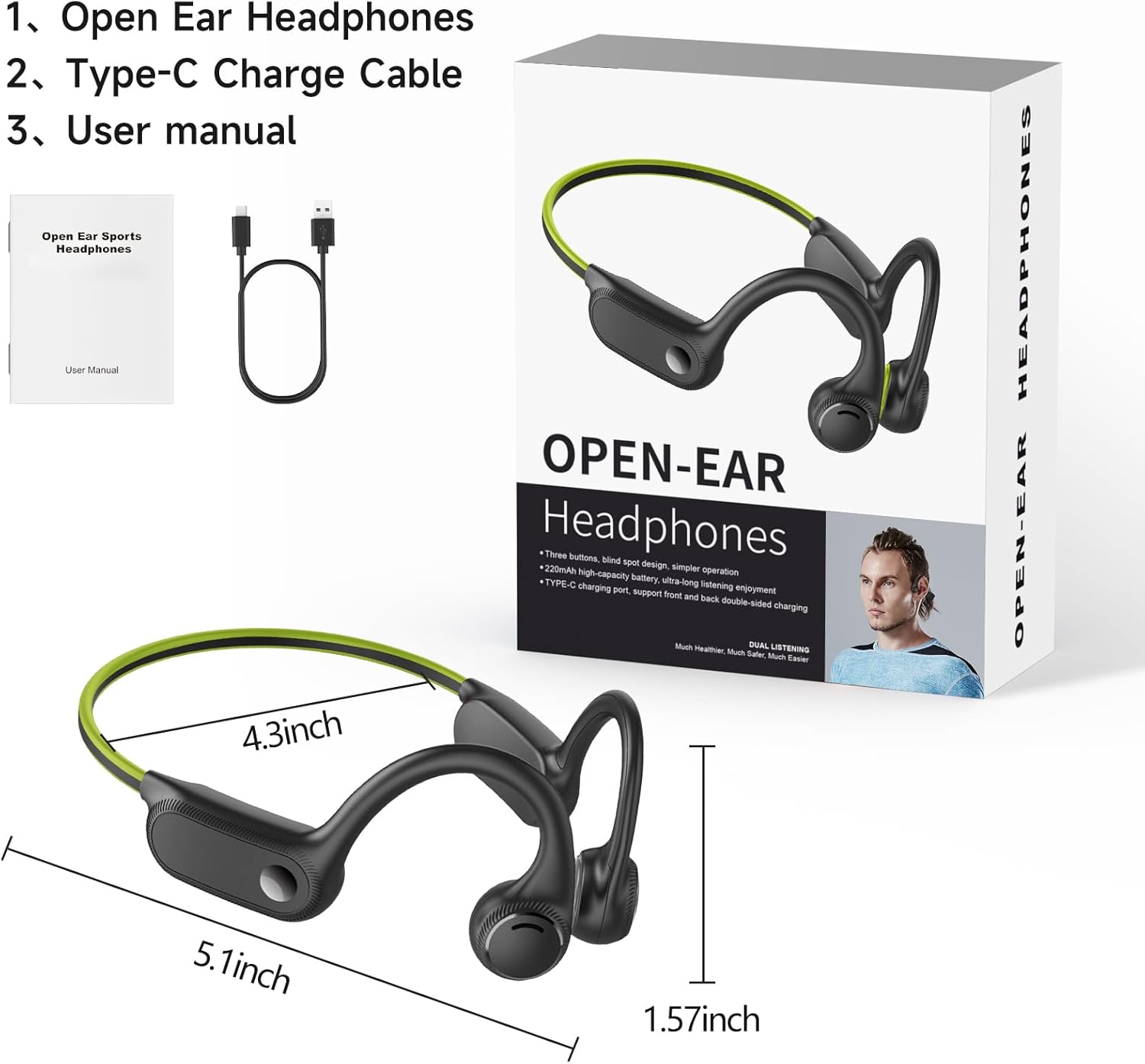
Image: A close-up view of the CelsusSound S100 headphones, showing the multi-function buttons for volume, track control, power, and the Type-C charging port.
Key Features:
- Open-Ear Design: Allows you to hear your surroundings for increased safety during outdoor activities.
- Bone Conduction Technology: Delivers sound through your cheekbones, bypassing the eardrums.
- Noise-Canceling Microphone: Enhances call clarity by reducing environmental noise.
- Bluetooth 5.2: Provides stable and fast wireless connection.
- IP54 Waterproof: Resistant to sweat and light rain.
- Long Battery Life: Up to 10 hours of music and calls.
- Lightweight & Flexible: Weighs only 28g (0.98oz) with a memory titanium frame for a secure fit.
4. Setup
4.1 Charging the Headphones
Before first use, fully charge your headphones. Use the provided Type-C charging cable.
- Connect the Type-C end of the charging cable to the charging port on the headphones.
- Connect the USB-A end of the cable to a compatible USB power source (e.g., computer, wall adapter).
- The red LED indicator will be on during charging.
- Once fully charged, the blue LED indicator will turn on.

Image: A detailed view of the Type-C charging port on the headphones.
Video: Demonstrates connecting the Type-C charging cable to the headphones. The red LED indicates charging, and the blue LED indicates a full charge.
4.2 Power On and Bluetooth Pairing
Follow these steps to power on your headphones and connect them to your device:
- Power On: Press and hold the On/Off button for 3 seconds. The blue and red lights will flash, indicating the headphones are in pairing mode.
- Enable Bluetooth: On your smartphone, tablet, or other Bluetooth-enabled device, go to "Settings" and enable Bluetooth.
- Connect: In the list of available Bluetooth devices, select "S100" to connect. Once connected, the blue light will flash slowly or remain solid.
Video: Demonstrates powering on the headphones and connecting them via Bluetooth to a smartphone. The video shows navigating to Bluetooth settings and selecting "S100" for connection.
5. Operating Instructions
The CelsusSound S100 headphones feature intuitive controls for managing your audio and calls.
5.1 Music Control
- Play/Pause: Click the On/Off button once.
- Volume Up: Short press the "+" button.
- Volume Down: Short press the "-" button.
- Next Song: Long press the "+" button.
- Previous Song: Long press the "-" button.
Video: Demonstrates how to play/pause music, adjust volume up and down, and skip to the next or previous song using the headphone buttons.
5.2 Call Control
- Answer/Hang Up Call: Short press the "+" button.
- Reject Call: Long press the "+" button.
5.3 Voice Assistant
- Activate Voice Assistant (Siri/Google Assistant): Double-click the On/Off button.
Video: Shows how to activate the voice assistant (Siri) by double-clicking the switch button on the headphones.
6. Care and Maintenance
Proper care will extend the life of your CelsusSound S100 headphones.
- Cleaning: Wipe the headphones with a soft, damp cloth. Avoid using harsh chemicals or abrasive cleaners.
- Water Resistance: The headphones are IP54 waterproof, meaning they are resistant to splashes and sweat. Do not submerge them in water or expose them to strong jets of water. Ensure the charging port cover is securely closed when not charging.
- Storage: Store the headphones in a cool, dry place away from direct sunlight and extreme temperatures.
- Flexibility: The memory titanium frame is designed to be flexible. Avoid excessive bending or twisting that could damage internal components.

Image: A person engaged in sports, wearing the headphones, emphasizing their suitability for active use due to stable fit and water resistance.
7. Troubleshooting
If you encounter issues with your headphones, refer to the following common solutions:
| Problem | Solution |
|---|---|
| Headphones won't power on. | Ensure the headphones are fully charged. Connect to a power source using the Type-C cable. |
| Cannot pair with device. |
|
| No sound or low volume. |
|
| Call quality is poor. |
|
8. Specifications
| Feature | Detail |
|---|---|
| Model Name | S100 |
| Connectivity Technology | Bluetooth 5.2, Wireless |
| Wireless Communication Technology | Bluetooth |
| Battery Life | Up to 10 Hours (Music and Calls) |
| Standby Time | Up to 360 Hours |
| Charging Port | Type-C |
| Water Resistance Level | IP54 (Waterproof) |
| Material | Silicone, Titanium |
| Item Weight | 28g (0.98oz) |
| Ear Placement | Open Ear |
| Noise Control | Active Noise Cancellation (for microphone) |
| Bluetooth Range | 10 Meters (33 feet) |
| Compatible Devices | Cellphones, Laptops, PC, Television, iPhone, Smart Watches |
9. Warranty and Support
CelsusSound products are manufactured to the highest quality standards. For warranty information and customer support, please refer to the warranty card included in your product packaging or visit the official CelsusSound website. If you experience any issues or have questions, please contact our customer service team for assistance.