
1. Introduction
Welcome to the Yoidesu PW201 Battery-Free Graphic Tablet Pen user manual. This guide provides essential information for setting up, operating, and maintaining your digital pen. The PW201 is designed to enhance your digital drawing and writing experience with its advanced features and ergonomic design, offering precise control and comfort without the need for batteries.
2. Product Overview
Key Features
- 4096 Levels Pressure Sensitivity: Allows for precise control over line thickness and opacity, mimicking traditional art tools.
- 5080 LPI Resolution: Ensures high accuracy and detail in your digital artwork, capturing every stroke with clarity.
- Battery-Free EMR Technology: Eliminates the need for charging or batteries, providing uninterrupted and eco-friendly use.
- Ergonomic Design: Features an anti-slip, comfortable grip for extended periods of use, reducing hand fatigue.
- Two Programmable Shortcut Buttons: Customize functions for increased efficiency and quick access to frequently used tools.
- Lightweight: Weighing only 9 grams, it is easy to handle and highly portable.
Package Contents
- 1 x Yoidesu PW201 Stylus Pen
Pen Components
The Yoidesu PW201 pen features a durable ABS plastic body, a pressure-sensitive tip (nib), and two customizable side buttons for enhanced functionality.
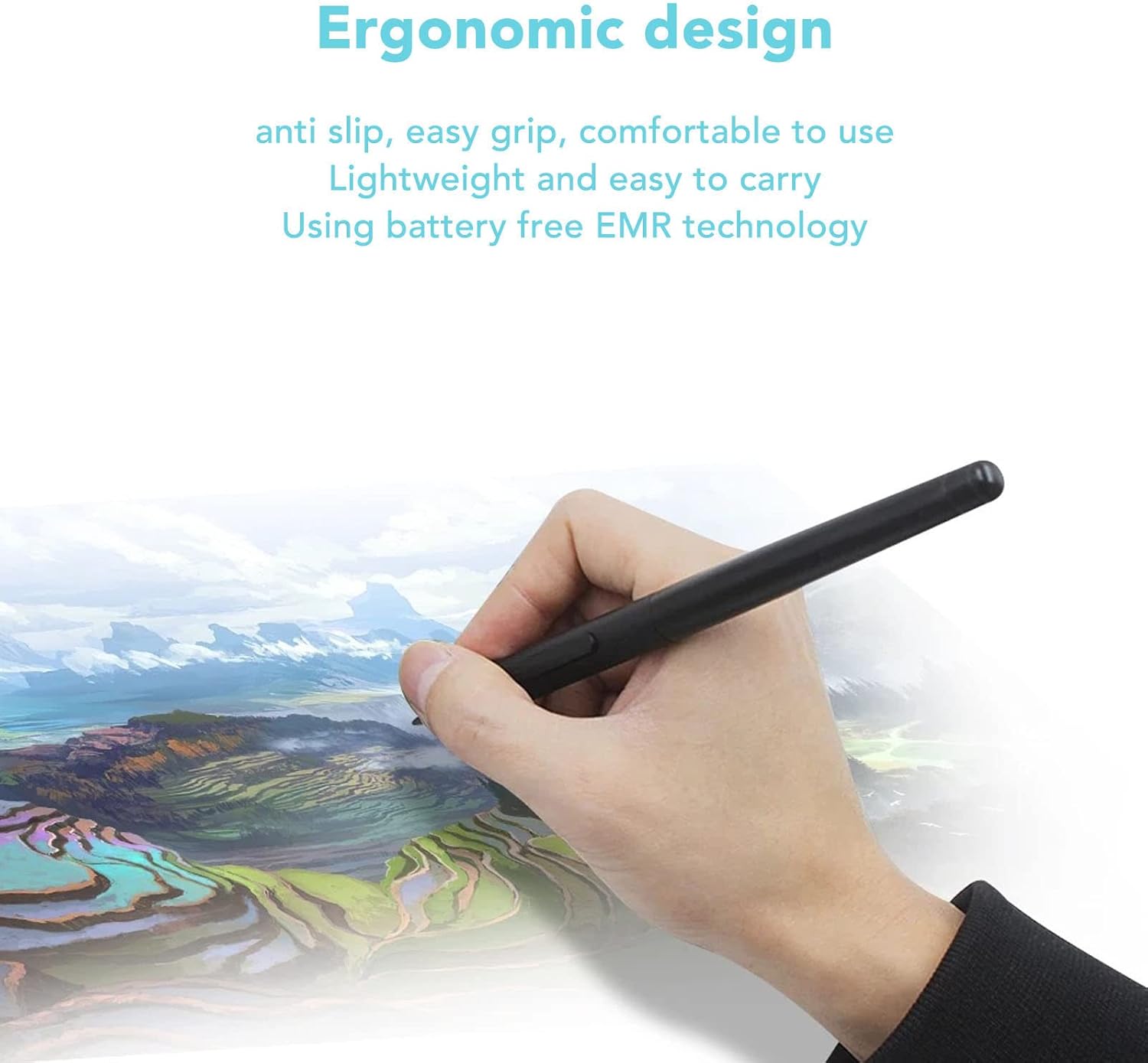
This image shows the Yoidesu PW201 pen being held, highlighting its ergonomic and anti-slip design for comfortable use during digital drawing or writing.

The Yoidesu PW201 pen is depicted with digital strokes, illustrating its 4096 levels of pressure sensitivity and 5080 LPI resolution for detailed and responsive input.

A detailed view of the Yoidesu PW201 pen, focusing on the two customizable shortcut buttons located on its side, designed for enhanced workflow efficiency.

This image features the Yoidesu PW201 pen alongside icons that signify its battery-free operation, emphasizing convenience and environmental benefits.

The Yoidesu PW201 pen is shown with a feather graphic, symbolizing its lightweight construction (9 grams) for easy portability and comfortable handling.

The Yoidesu PW201 pen is shown in use with a compatible graphic tablet, demonstrating its function as a powerful drawing tool.
3. Setup
The Yoidesu PW201 pen utilizes Battery-Free Electromagnetic Resonance (EMR) technology, meaning it does not require batteries or charging. It is designed for direct use with compatible graphic tablets.
Compatibility
The PW201 pen is compatible with the following graphic tablet models:
- HST640
- H610PROV2
- HC16
- HS64
- HS610
- GC610
- H1161
- H320M
Initial Use
- Ensure your graphic tablet is properly connected to your computer and its drivers are installed according to the tablet's manufacturer instructions.
- Simply bring the PW201 pen close to the active area of your compatible graphic tablet. The pen should be recognized automatically.
- Test the pen's functionality by drawing or writing on the tablet surface.
4. Operating Instructions
Using the Pen Tip
The pen tip acts as your primary input. Apply varying pressure to control line thickness, opacity, or other brush parameters in your software, thanks to the 4096 levels of pressure sensitivity. This allows for a natural and intuitive drawing experience.
Customizing Shortcut Buttons
The two buttons on the side of the PW201 pen are programmable. Their functions can be customized through the driver software of your graphic tablet. Refer to your tablet's manual for specific instructions on how to assign functions such as:
- Right-click
- Eraser
- Scroll
- Zoom
- Application-specific shortcuts
This image details the two programmable shortcut buttons on the Yoidesu PW201 pen, illustrating common functions like key combinations, mouse click/scroll, and brush switching that can be assigned via tablet drivers.
5. Maintenance
Cleaning
To clean your PW201 pen, gently wipe its surface with a soft, dry, or slightly damp cloth. Avoid using harsh chemicals, solvents, or abrasive materials, as these can damage the pen's finish or internal components.
Storage
Store the pen in a safe place when not in use to prevent accidental damage. Avoid exposing it to extreme temperatures, high humidity, or direct sunlight, which can affect its performance and longevity.
Nib Replacement
While the product description does not explicitly mention nib replacement, graphic tablet pens typically have replaceable nibs that wear down over time. If your pen's tip wears down, consult your graphic tablet's manual or the manufacturer's website for information on compatible replacement nibs and how to change them.
6. Troubleshooting
Pen Not Responding
- Check Compatibility: Ensure your tablet model is listed as compatible with the PW201 pen.
- Tablet Connection: Verify that your graphic tablet is correctly connected to your computer and powered on.
- Driver Installation: Confirm that the latest drivers for your graphic tablet are installed and functioning correctly. Reinstall if necessary.
- Interference: Move away from strong electromagnetic fields (e.g., monitors, speakers) that might interfere with EMR technology.
Pressure Sensitivity Issues
- Driver Settings: Check your graphic tablet's driver settings for pressure curve adjustments or calibration options.
- Software Compatibility: Ensure the drawing software you are using supports pressure sensitivity and that it is enabled within the software settings.
- Nib Condition: A worn-out nib might affect pressure sensitivity. Consider replacing it if applicable (refer to Maintenance section).
Buttons Not Functioning
- Driver Configuration: Reconfigure the shortcut buttons in your graphic tablet's driver software. Ensure the desired functions are assigned.
- Software Focus: Ensure the application you are using is in focus, as button functions can sometimes be application-specific or require the application to be active.
7. Specifications
| Feature | Detail |
|---|---|
| Model | PW201 |
| Pressure Sensitivity | 4096 Levels |
| Resolution | 5080 LPI (Lines Per Inch) |
| Buttons | 2 Programmable Buttons |
| Technology | Battery-Free Electromagnetic Resonance (EMR) |
| Material | ABS Plastic |
| Weight | 9 Grams |
| Compatible Tablets | HST640, H610PROV2, HC16, HS64, HS610, GC610, H1161, H320M |
8. Warranty and Support
Warranty Information
Specific warranty details for the Yoidesu PW201 pen are typically provided by the seller or manufacturer at the time of purchase. Please retain your proof of purchase for any warranty claims. For detailed warranty terms and conditions, refer to the documentation included with your product or contact the seller directly.
Customer Support
For further assistance, technical support, or inquiries regarding your Yoidesu PW201 pen, please contact the seller or the Yoidesu customer support channel. Contact information can usually be found on the product packaging or the official Yoidesu website.