
Introduction
Thank you for choosing the cimetech Rechargeable Dual-Mode Wireless Mouse. This mouse offers flexible connectivity options via Bluetooth 5.1 and 2.4G USB, ensuring compatibility with a wide range of devices. Its silent click design and adjustable DPI settings provide a comfortable and efficient user experience. Please read this manual carefully to ensure proper use and maintenance of your device.
Package Contents
- 1 x cimetech Wireless Mouse
- 1 x Nano USB Receiver
- 1 x User Manual
Setup
1. Charging the Mouse
Before first use, or when the red indicator light flashes, charge the mouse using the provided Type-C cable. Connect the cable to the mouse's Type-C port and a power source (e.g., computer USB port, power bank, or wall charger). A full charge typically takes 2-3 hours and provides approximately 2 months of use. Avoid using fast chargers to prevent damage to the battery.
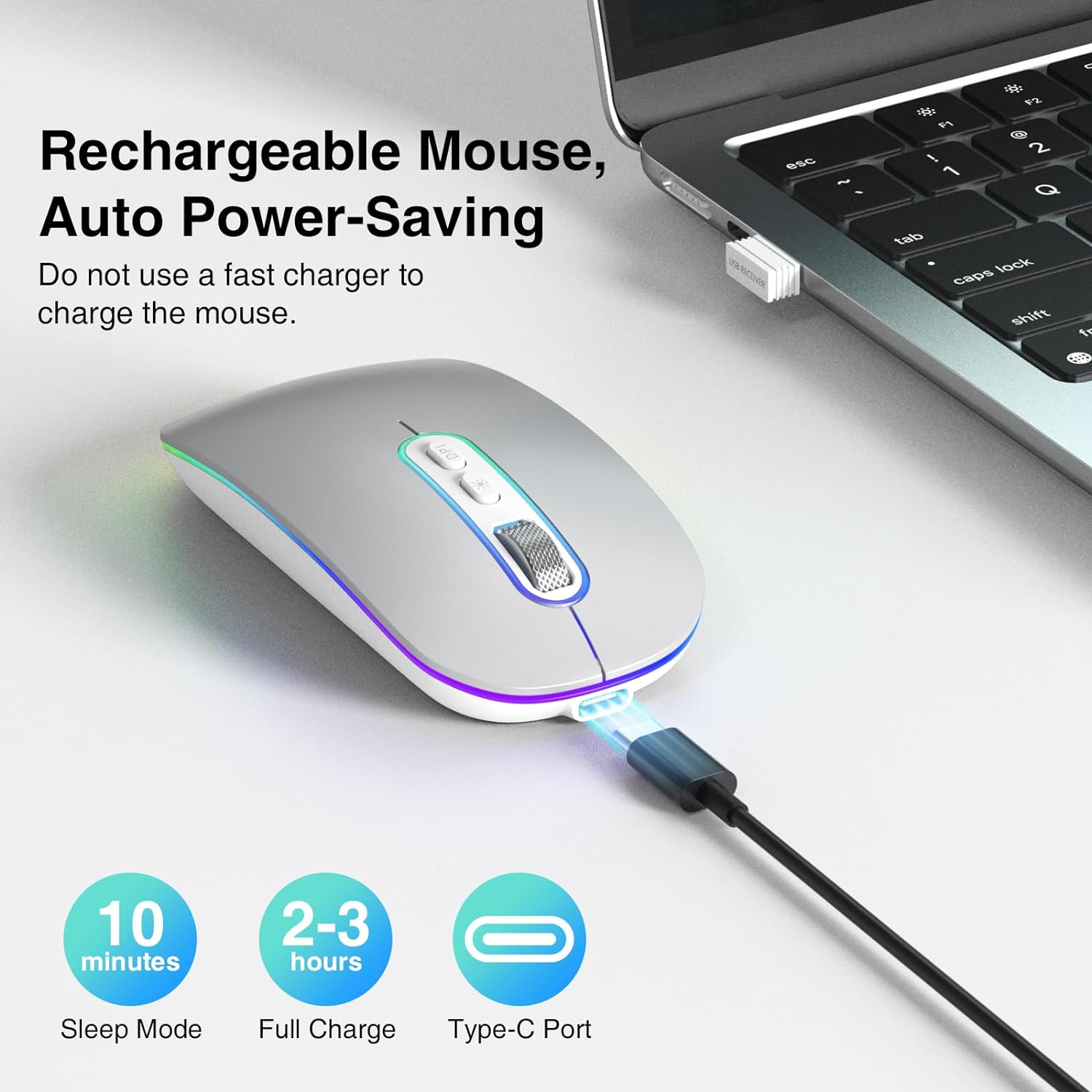
The cimetech mouse being charged via its Type-C port, emphasizing its rechargeable battery and automatic power-saving functions, including sleep mode and full charge time.

This image demonstrates the charging process for the cimetech mouse, showing it connected via a Type-C cable to a laptop, power bank, or wall charger, and highlighting its long battery life after a short charge.
2. Connecting the Mouse
The mouse supports two connection modes: 2.4G USB and Bluetooth 5.1. You can switch between modes using the selector switch on the bottom of the mouse.
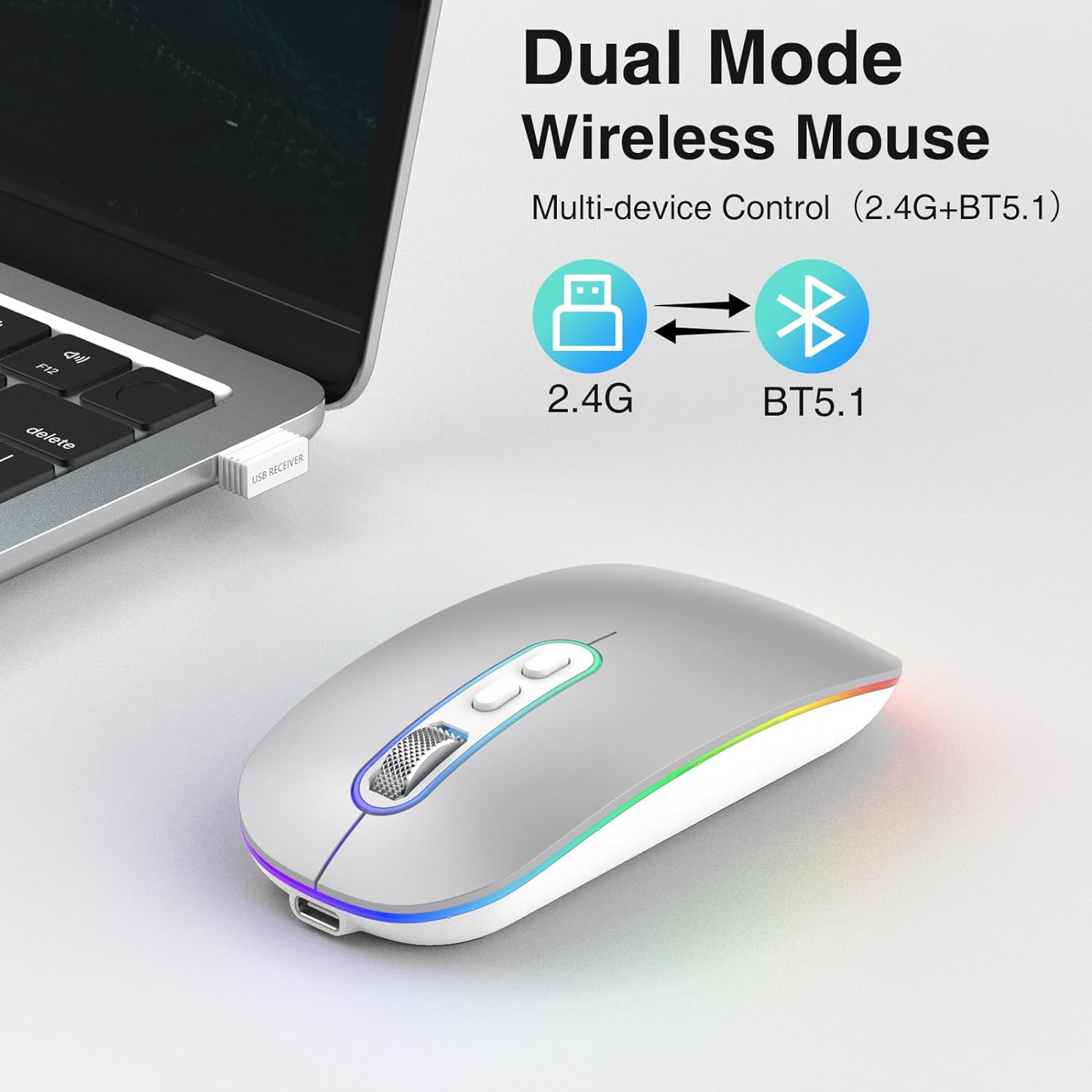
This image illustrates the dual connectivity modes of the cimetech wireless mouse, supporting both 2.4G USB and Bluetooth 5.1 for versatile use across multiple devices.

This diagram shows the switch located on the underside of the mouse, allowing users to easily select between 2.4GHz USB mode and Bluetooth mode for connection.
2.1. 2.4G USB Connection
- Locate the Nano USB receiver, which is stored in a compartment on the bottom of the mouse.
- Plug the USB receiver into an available USB port on your computer or laptop.
- Slide the mode switch on the bottom of the mouse to the '2.4G' position.
- The mouse should connect automatically. No driver installation is required.
2.2. Bluetooth 5.1 Connection
- Slide the mode switch on the bottom of the mouse to the 'BT' position.
- The mouse will enter pairing mode, and an indicator light may flash.
- On your device (MacBook, iPad, Tablet, PC), go to Bluetooth settings.
- Search for new devices and select "cimetech Mouse" (or similar name) from the list.
- Confirm pairing. The mouse indicator light will become solid once connected.
Operating Instructions
1. DPI Adjustment
The mouse features 3 adjustable DPI levels (1000, 1200, 1600) to customize cursor sensitivity. Press the DPI button located on the top of the mouse, behind the scroll wheel, to cycle through the settings. Each press will change the DPI, allowing you to find your preferred cursor speed.

An illustration detailing the adjustable DPI settings of the mouse, allowing users to switch between 1000, 1200, and 1600 DPI for precise cursor control.
2. Silent Click Feature
The cimetech mouse is designed with advanced sensors to reduce clicking noise by up to 90%. This feature ensures a quiet working environment, making it suitable for offices, libraries, and other quiet spaces.
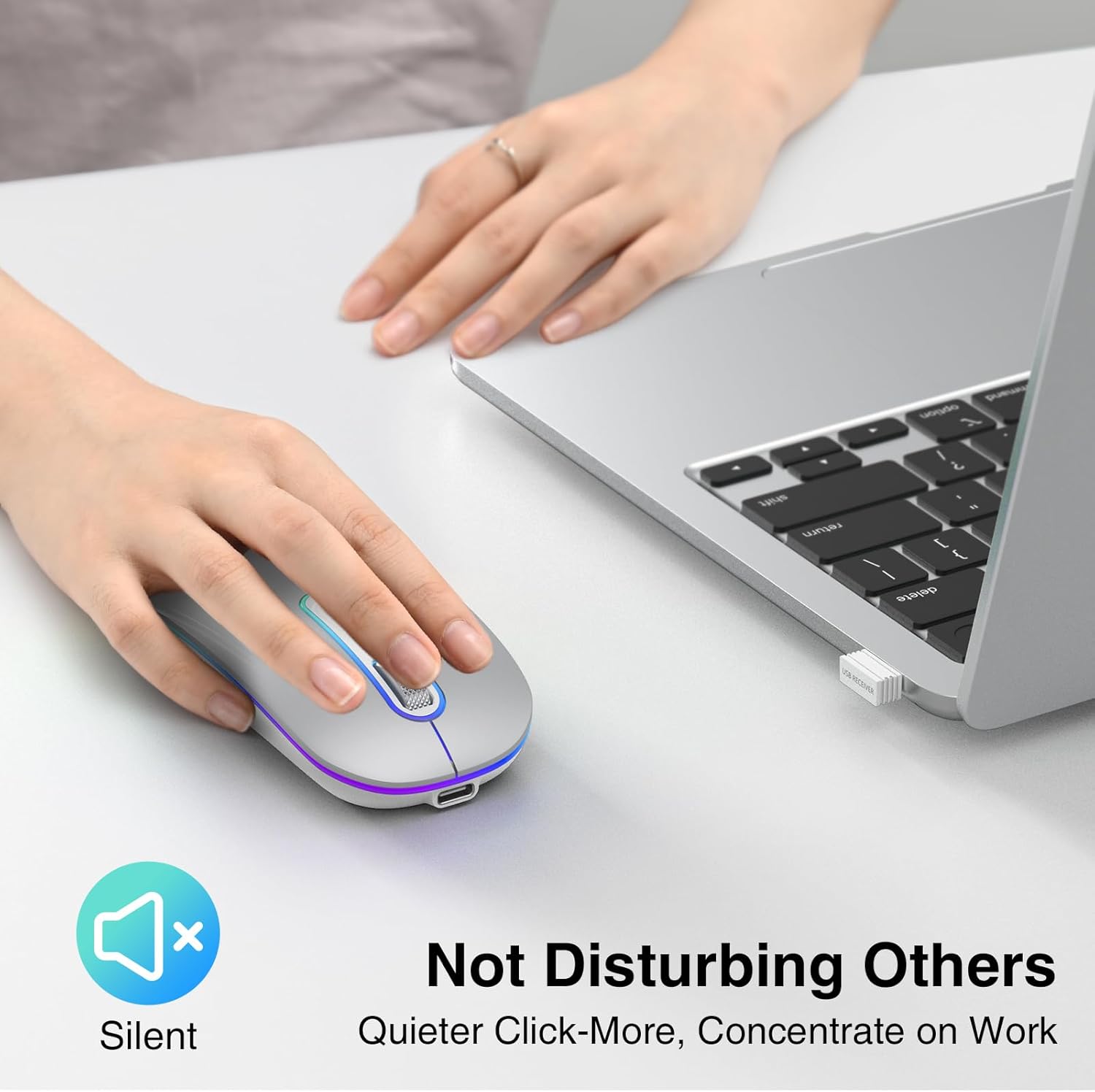
This image highlights the silent click feature of the cimetech mouse, designed to provide a quiet user experience, ideal for environments requiring minimal noise.
3. Power Saving Mode
The mouse features automatic power-saving functions, including superficial and deep hibernation modes. If the mouse is inactive for a period, it will enter sleep mode to conserve battery. To wake it up, simply move or click the mouse.

This image displays the underside of the mouse, highlighting the ON/OFF switch and explaining its low power consumption features, including automatic superficial and deep hibernation.
4. Button Functions
The mouse is equipped with 4 effective buttons:
- Left Click Button: Standard selection and activation.
- Right Click Button: Accesses contextual menus.
- Scroll Wheel: Scrolls through documents and web pages.
- DPI Adjustment Button: Cycles through 1000/1200/1600 DPI settings.

A detailed diagram illustrating the mouse's buttons, including the scroll wheel, left/right click, and DPI adjustment button, along with its dimensions.
Maintenance
- Keep the mouse clean by wiping it with a soft, dry cloth.
- Avoid exposing the mouse to extreme temperatures, direct sunlight, or liquids.
- Store the USB receiver in its designated compartment when not in use to prevent loss.
- Do not use abrasive cleaners or solvents on the mouse.
- To prolong battery life, avoid fully discharging the mouse frequently.
Troubleshooting
1. Mouse Not Responding
- Check Battery: Ensure the mouse is charged. If the red light is flashing, recharge the mouse.
- Check Connection Mode: Verify the switch on the bottom of the mouse is set to the correct mode (2.4G or BT).
- For 2.4G Connection: Ensure the USB receiver is securely plugged into a working USB port. Try a different USB port.
- For Bluetooth Connection: Ensure Bluetooth is enabled on your device. Go to Bluetooth settings and try to reconnect or re-pair the mouse.
- Restart: Turn the mouse off and on again using the power switch on the bottom.
2. Cursor Movement is Erratic or Slow
- Adjust DPI: Press the DPI button to change the cursor sensitivity (1000/1200/1600 DPI).
- Surface: Ensure you are using the mouse on a suitable, non-reflective surface.
- Interference: Move away from other wireless devices that might cause interference.
3. Charging Issues
- Cable Check: Ensure the Type-C charging cable is properly connected to both the mouse and the power source.
- Power Source: Try a different USB power source.
- Indicator Light: If the red light is not coming on during charging, contact support.
Specifications
| Brand | cimetech |
| Model Number | EU-M01-RD-SR |
| Color | Silver |
| Connectivity Technology | Bluetooth 5.1, 2.4G USB |
| Special Features | LED Light, Lightweight, Portable, Rechargeable, Wireless |
| Movement Detection Technology | Optical |
| Number of Buttons | 4 |
| Hand Orientation | Ambidextrous |
| Recommended Uses | Laptop, PC, Tablet |
| Compatible Devices | Laptop, PC, Tablet, iPad, MacBook |
| Item Weight | 95 Grams |
| Operating System | Windows, macOS, Linux, Chrome OS |
| Battery Type | 1 C-type battery (included) |
| Power Source | Battery Powered |
| Max Sensitivity | 1600 DPI |
| Wireless Range | 10 meters |
| Material | Plastic |
| Country of Origin | China |
Warranty
This cimetech product comes with a 60-day warranty against manufacturer defects from the date of purchase. This warranty covers defects in materials and workmanship under normal use. It does not cover damage caused by misuse, accident, unauthorized modification, or external causes. Please retain your proof of purchase for warranty claims.
Support
If you encounter any issues or have questions regarding your cimetech Rechargeable Dual-Mode Wireless Mouse that are not covered in this manual, please contact cimetech customer support. Refer to the product packaging or the official cimetech website for contact information.