
cimetech EU-M01
cimetech Rechargeable Wireless Mouse (Model EU-M01-RD-BK) User Manual
1. Introduction
Welcome to the user manual for your cimetech Rechargeable Wireless Mouse. This guide provides detailed instructions for setting up, operating, and maintaining your mouse, ensuring optimal performance and longevity. Please read this manual thoroughly before using the product.

Figure 1.1: cimetech Rechargeable Wireless Mouse
2. Product Overview
2.1 Key Features
- Versatile Compatibility: Compatible with Windows, macOS, Chrome OS, Linux systems, and various devices such as MacBooks, iPads, tablets, laptops, and PCs.
- Dual-Mode Connectivity: Supports both Bluetooth 5.1 and 2.4GHz USB receiver for flexible connection options.
- Rechargeable Battery: Built-in 480mAh lithium battery, rechargeable via Type-C port, offering extended usage.
- Energy-Saving Design: Features automatic hibernation modes to conserve battery life.
- Adjustable DPI: Three adjustable DPI levels (1000-1200-1600) for precise cursor control.
- Silent Click: Designed for quiet operation, minimizing disturbance in shared environments.
- Ambidextrous Design: Comfortable slim shape suitable for both left and right-handed users.
2.2 Package Contents
- 1 x cimetech Rechargeable Wireless Mouse
- 1 x USB Receiver (stored in the mouse)
- 1 x USB-C Charging Cable
- 1 x User Manual
2.3 Mouse Components

Figure 2.1: Mouse Components Diagram
- Middle Button/Roller: Scroll wheel and middle click function.
- Light Effect Switch: Button to control or turn off the LED lighting.
- DPI Adjustment: Button to cycle through DPI settings (1000/1200/1600).
- Type-C Charging Port: For connecting the USB-C charging cable.
- Bluetooth Pairing Switch: Button to initiate Bluetooth pairing mode.
- 2.4G Receiver: Storage slot for the USB receiver.
- Power Switch, 2.4G & Bluetooth Connectivity: Slide switch to turn the mouse on/off and select connection mode.
3. Setup
3.1 2.4GHz USB Receiver Connection
- Locate the USB receiver stored in the compartment on the bottom of the mouse.
- Plug the USB receiver into an available USB port on your computer or device.
- Slide the power switch on the bottom of the mouse to the '2.4G' position.
- The mouse should connect automatically. No driver installation is required.
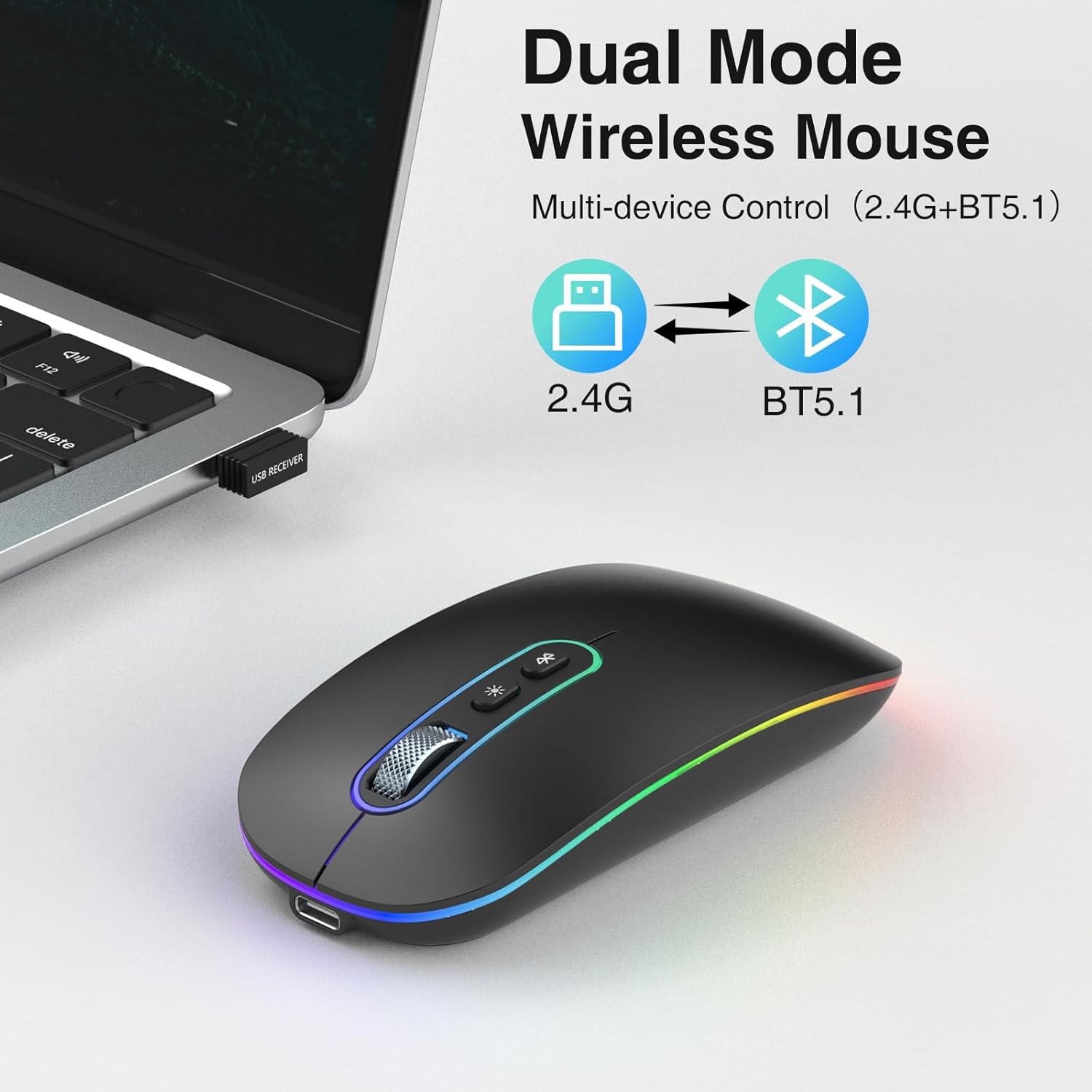
Figure 3.1: 2.4GHz USB Receiver Connection
3.2 Bluetooth 5.1 Connection
- Slide the power switch on the bottom of the mouse to the 'BT' position.
- Press and hold the Bluetooth Pairing Switch (refer to Figure 2.1) for 3-5 seconds until the LED indicator on the mouse starts flashing, indicating it is in pairing mode.
- On your device (e.g., laptop, tablet, smartphone), go to Bluetooth settings and search for new devices.
- Select 'cimetech Mouse' or a similar name from the list of available devices to pair.
- Once paired, the LED indicator on the mouse will stop flashing and remain solid for a few seconds, then turn off.

Figure 3.2: Bluetooth Multi-Device Connection
4. Operating Instructions
4.1 Power On/Off and Mode Switching
Use the slide switch on the bottom of the mouse to turn it on or off, and to select between 2.4G USB mode and Bluetooth (BT) mode.
4.2 DPI Adjustment
Press the DPI Adjustment button (refer to Figure 2.1) to cycle through the available DPI settings: 1000 DPI, 1200 DPI, and 1600 DPI. The LED indicator may briefly change color to indicate the current DPI setting.
4.3 LED Light Effect Control
Press the Light Effect Switch button (refer to Figure 2.1) to change the LED lighting mode or to turn the lights off. This allows you to customize the aesthetic or conserve battery life.
4.4 Energy Saving Mode
The mouse is designed with automatic hibernation features to conserve battery:
- Light Hibernation: If no action is detected for one minute, the mouse enters a light hibernation state. It can be woken up by simply moving the mouse.
- Deep Hibernation: If no action is detected for 10 minutes, the mouse enters a deep hibernation state. To wake it up, you must click any button.

Figure 4.1: Silent Click Feature
5. Charging the Mouse
5.1 Charging Procedure
- When the battery is low, a red indicator light will flash to remind you to charge the mouse.
- Connect the provided USB-C charging cable to the Type-C Charging Port on the front of the mouse (refer to Figure 2.1).
- Connect the other end of the cable to a USB power source (e.g., computer USB port, USB wall adapter).
- A full charge typically takes 2-3 hours. The mouse can be used while charging.
- Note: Do not use a fast charger to charge the mouse.

Figure 5.1: Mouse Charging and Power Saving Information

Figure 5.2: USB-C Charging Port
6. Maintenance
6.1 Cleaning
- To clean the mouse, gently wipe its surface with a soft, dry cloth.
- Avoid using harsh chemicals, abrasive cleaners, or excessive moisture, as these can damage the device.
- Ensure no dust or debris accumulates in the optical sensor area on the bottom of the mouse.
6.2 Storage
- When not in use for extended periods, turn off the mouse to conserve battery.
- Store the USB receiver inside its designated slot on the mouse to prevent loss.
- Keep the mouse in a cool, dry place away from direct sunlight and extreme temperatures.
7. Troubleshooting
7.1 Connection Issues
- Mouse not connecting (2.4GHz USB):
a. Ensure the USB receiver is securely plugged into a working USB port.
b. Verify the mouse's power switch is set to '2.4G'.
c. Try plugging the receiver into a different USB port or another computer to rule out port issues. - Mouse not connecting (Bluetooth):
a. Ensure the mouse's power switch is set to 'BT'.
b. Confirm the mouse is in pairing mode (LED flashing) by pressing the Bluetooth Pairing Switch.
c. Make sure Bluetooth is enabled on your device and it's discoverable.
d. Remove any previous pairings of the mouse from your device's Bluetooth list and try pairing again. - Intermittent connection:
a. Ensure the mouse is within the effective range (typically 10 meters) of your device.
b. Avoid using the mouse near strong interference sources (e.g., other wireless devices, large metal objects).
7.2 Cursor Movement Issues
- Cursor is erratic or not moving:
a. Check the optical sensor on the bottom of the mouse for any obstructions or dirt.
b. Ensure you are using the mouse on a suitable surface (non-reflective, non-transparent).
c. The battery might be low; try charging the mouse. - Cursor speed is too fast or too slow:
a. Press the DPI Adjustment button to change the DPI setting to your preference.
7.3 Battery/Charging Issues
- Mouse not charging:
a. Ensure the USB-C charging cable is securely connected to both the mouse and the power source.
b. Try using a different USB-C cable or power source.
c. Confirm the power source is active and providing power. - Battery drains quickly:
a. Ensure the mouse is turned off when not in use.
b. The LED lighting consumes battery; consider turning it off if not needed.
8. Specifications
| Feature | Detail |
|---|---|
| Brand | cimetech |
| Model Name | EU-M01 |
| Item Model Number | EU-M01-RD-BK |
| Color | Black |
| Connectivity Technology | Bluetooth, USB (2.4GHz) |
| Movement Detection Technology | Optical |
| DPI Settings | 1000, 1200, 1600 |
| Number of Buttons | 4 (Left, Right, Middle/Scroll, DPI, Light Effect) |
| Hand Orientation | Ambidextrous |
| Special Features | LED Light, Lightweight, Portable, Rechargeable, Wireless, Silent Click |
| Compatible Devices | Personal Computer, Smartphone, Tablet |
| Recommended Uses for Product | Laptop, PC, Tablet |
| Operating System | Windows, macOS, Chrome OS, Linux |
| Battery Type | Lithium (480mAh) |
| Battery Included | Yes (1 C-type battery) |
| Manufacturer | cntorich |
| Date First Available | November 11, 2022 |
| Spare Parts Availability | Information unavailable |
| Guaranteed Software Updates Until | Information unavailable |
9. Warranty and Support
For warranty information or technical support, please refer to the documentation included with your purchase or contact cimetech customer service through their official website or the retailer where the product was purchased. Please have your model number (EU-M01-RD-BK) and purchase date ready when contacting support.
Ask a question about this manual
Ask about setup, troubleshooting, compatibility, parts, safety, or missing instructions. Manuals+ will review the question and use this page’s manual context to help answer it.