
1. Introduction
Thank you for choosing the Link Dream BH60 Trucker Bluetooth Headset. This manual provides detailed instructions to help you set up, operate, and maintain your headset for optimal performance. Designed for comfort and clarity, this wireless headset features advanced noise cancellation, a smart mute microphone, and long-lasting battery life, making it ideal for online meetings, office work, call centers, and mobile use.

Figure 1: Link Dream BH60 Trucker Bluetooth Headset with included USB Dongle.
2. What's in the Box
- Link Dream BH60 Bluetooth Headset
- USB Dongle
- USB-C Charging Cable
- User Manual
- Extra Earpad Padding
- Travel Storage Bag
3. Product Overview
The BH60 headset is designed for ease of use and comfort during extended periods. Key components and controls are detailed below:
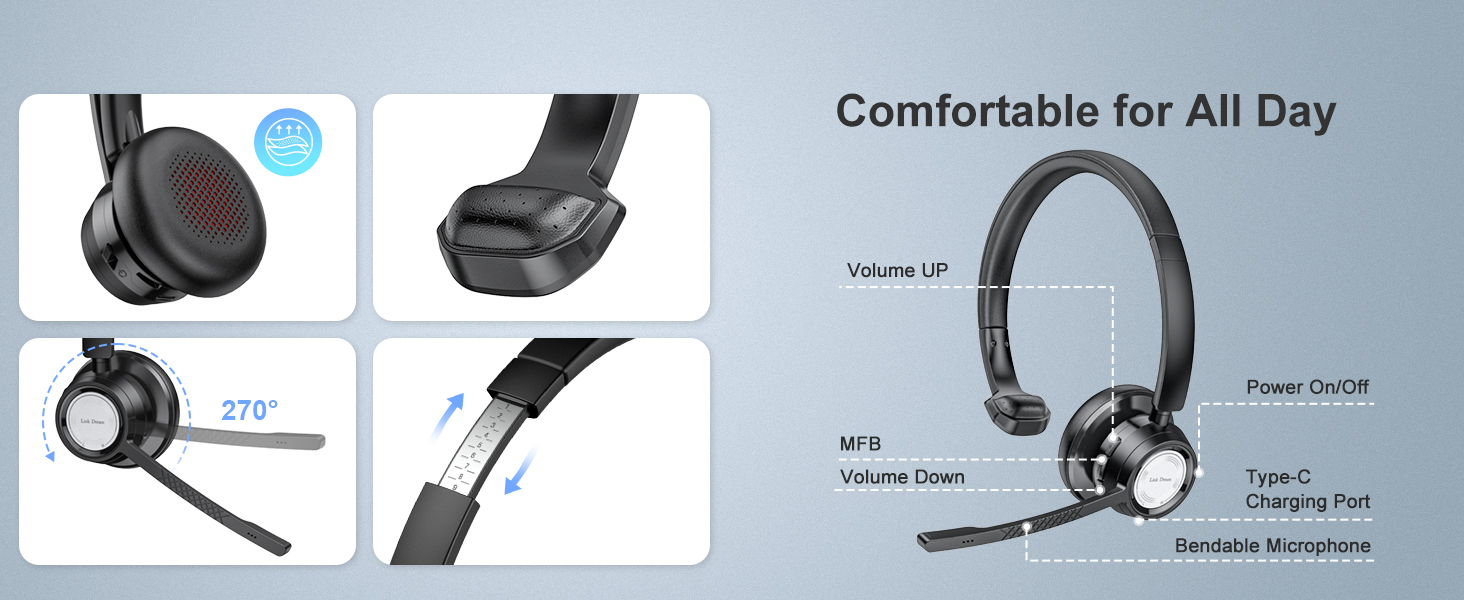
Figure 2: Headset controls including Volume UP/DOWN, MFB (Multi-Function Button), Power On/Off switch, Type-C Charging Port, and Bendable Microphone.
3.1 Key Features
- Noise Cancellation: Equipped with Qualcomm DSP chip and CVC 8.0 technology to reduce background noise for clear communication. (Note: This is not Active Noise Cancelling.)
- Smart Mute Microphone: Rotate the microphone arm up to mute, and down to unmute.
- Long Lasting Battery: Up to 20 hours talk time and 10 months standby time on a 2-hour charge.
- Stable Connection: Qualcomm chip ensures stable Bluetooth 5.0 connectivity up to 10 meters.
- Comfortable Wearing: Soft earpads and adjustable headband for extended comfort.
Video 1: A brief overview of the Single Ear Wireless Headset, highlighting its design and primary function.
4. Setup
Follow these steps to connect your Link Dream BH60 headset to your devices.
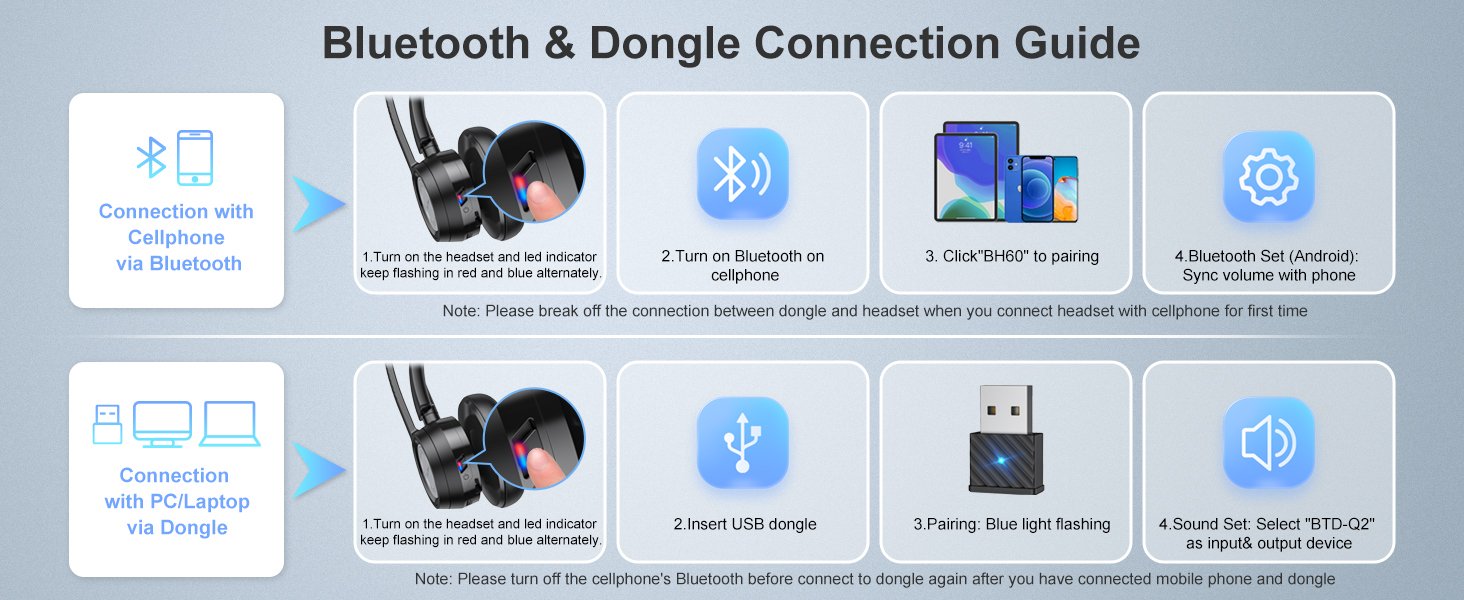
Figure 3: Visual guide for connecting the headset via Bluetooth to a cellphone and via USB Dongle to a PC/Laptop.
4.1 Connecting to a PC/Laptop via USB Dongle
- Turn on the headset using the Power On/Off switch. The LED indicator will flash red and blue alternately.
- Insert the USB Dongle into an available USB port on your PC/Laptop.
- The dongle's blue light will start flashing, indicating it's searching for the headset.
- Once connected, the headset will announce "Connected" and the lights on both the headset and dongle will become solid blue.
- In your PC/Laptop's sound settings, select "BTD-Q2" as the input and output device.
Video 2: A step-by-step guide on how to connect the headset to a PC or laptop using the included USB dongle.
4.2 Connecting to a Cellphone via Bluetooth
- Ensure the headset is turned on and the LED indicator is flashing red and blue alternately.
- On your cellphone, go to Bluetooth settings and turn Bluetooth on.
- Select "BH60" from the list of available devices to pair.
- Once connected, the headset will announce "Connected".
- For Android devices, sync the volume with your phone for optimal control.
Note: Please break the connection between the dongle and headset when you connect with a cellphone for the first time. Also, turn off your cellphone's Bluetooth before connecting to the dongle again after you have connected your mobile phone.
Video 3: Instructions on how to pair the headset with a mobile phone via Bluetooth.
5. Operating Instructions
5.1 Power On/Off
- To power on, slide the Power On/Off switch. The headset will announce its status and battery percentage.
- To power off, slide the Power On/Off switch again.
5.2 Volume Control
- Press the Volume UP button to increase the listening volume.
- Press the Volume DOWN button to decrease the listening volume.
5.3 Mute Function
- To mute the microphone, rotate the microphone arm upwards until it clicks into the vertical position. The headset will announce "Mute On".
- To unmute, rotate the microphone arm downwards to the speaking position. The headset will announce "Mute Off".

Figure 4: Demonstrating the smart mute microphone feature by rotating the microphone arm.
5.4 Call Management
- Answer/End Call: Press the Multi-Function Button (MFB) once.
- Reject Call: Press and hold the MFB for 2 seconds.
- Redial Last Number: Double-press the MFB.
Video 4: Demonstration of the noise-cancelling capabilities of the wireless headset.
6. Maintenance
- Charging: Connect the USB-C charging cable to the headset's charging port and a power source. A full charge takes approximately 2 hours.
- Cleaning: Use a soft, dry cloth to clean the headset. For earpads, gently wipe with a damp cloth and allow to air dry completely.
- Storage: When not in use, store the headset in the provided travel bag to protect it from dust and damage. Avoid extreme temperatures.
7. Troubleshooting
7.1 No Sound or Low Volume
- Ensure the headset is powered on and properly connected to your device.
- Check the volume levels on both the headset and your connected device. Increase both to maximum if necessary.
- Verify that the correct audio output device is selected in your computer's sound settings (e.g., "BTD-Q2" for dongle connection).
7.2 Disconnection Issues
- Ensure the headset is within the 10-meter Bluetooth range of your device.
- Check for interference from other wireless devices.
- If connecting to a cellphone, ensure the USB dongle is disconnected from any PC/Laptop.
- Try restarting both the headset and the connected device.
7.3 Microphone Not Working
- Ensure the microphone arm is rotated down and not in the muted position.
- Check the microphone input settings on your computer or phone to ensure the headset is selected as the default input device.
- Test the microphone in a different application or device to rule out software-specific issues.
8. Specifications
| Feature | Specification |
|---|---|
| Model Name | BH60 |
| Connectivity Technology | Wireless (Bluetooth) |
| Bluetooth Version | 5.0 |
| Bluetooth Range | 10 Meters |
| Battery Life (Talktime) | Up to 20 Hours |
| Charging Time | 2 Hours |
| Microphone | Noise Cancelling, 270° Rotatable, Smart Mute |
| Compatible Devices | Cellphones, Computers, Laptops, Tablets |
| Control Type | Media Control (Volume, Play/Pause, Call Management) |
| Item Weight | 103 Grams (3.63 ounces) |
| Ear Placement | On Ear |
9. Warranty and Support
Link Dream products are manufactured with high-quality standards. For any product-related inquiries, technical support, or warranty claims, please refer to the contact information provided on the product packaging or visit the official Link Dream website. Please retain your proof of purchase for warranty validation.
