
Laser LSH-ODCAM-A
Laser Smart Home Outdoor Security Camera User Manual
Model: LSH-ODCAM-A
Introduction
This manual provides detailed instructions for the installation, operation, and maintenance of your Laser Smart Home Outdoor Security Camera. Designed for both indoor and outdoor use, this Full HD camera offers features such as 2-way audio, motion detection, night vision, and compatibility with smart home assistants like Alexa and Google. Please read this manual thoroughly before using the product to ensure proper functionality and safety.

Image: Front view of the Laser Smart Home Outdoor Security Camera.
Setup
1. Package Contents
Verify that all components are present in the package:
- Outdoor Camera
- USB Cable
- Screw Set
- User Manual (this document)
2. Charging the Camera
The camera is battery-powered and comes with 2 Lithium Ion batteries included. Before first use, fully charge the camera using the provided USB cable. Connect the USB cable to the camera's charging port and a standard USB power adapter (not included). The charging indicator light will show the charging status.
3. App Installation and Account Creation
To control and monitor your camera, download the "Laser SmartHome" app from your mobile device's app store (Google Play Store for Android or Apple App Store for iOS). Follow the on-screen instructions to create an account and log in.
4. Initial Pairing and Wi-Fi Connection
Ensure your mobile device is connected to a 2.4GHz Wi-Fi network. The camera does not require a separate hub. Follow these steps to pair the camera with the app:
- Open the Laser SmartHome app and tap "Add Device" or the "+" icon.
- Select "Security Camera" or the appropriate camera type from the list.
- Power on the camera. The camera's indicator light will flash, indicating it's ready for pairing.
- Follow the in-app instructions, which typically involve scanning a QR code displayed on your phone with the camera, or entering your Wi-Fi credentials.
- Once connected, the camera's indicator light will turn solid, and the camera will appear in your app's device list.
5. Mounting the Camera
The camera is designed for wall mounting. Choose a location that provides the desired viewing angle (100 degrees) and is within range of your Wi-Fi network. The camera is weatherproof (IP65 rated) and suitable for outdoor installation.
- Use the provided screw set to securely mount the camera to a wall or suitable surface.
- Ensure the camera is positioned to capture the desired area without obstruction.
- The camera's viewing angle is 100 degrees.

Image: Example of the security camera mounted on an outdoor wall, showing its placement for surveillance.
Operating the Camera
1. Live View
Access the live video feed from your camera through the Laser SmartHome app. The camera provides 1080p Full HD resolution for clear and detailed images at 15 frames per second. Simply open the app and select your camera from the device list to view real-time footage of your premises.
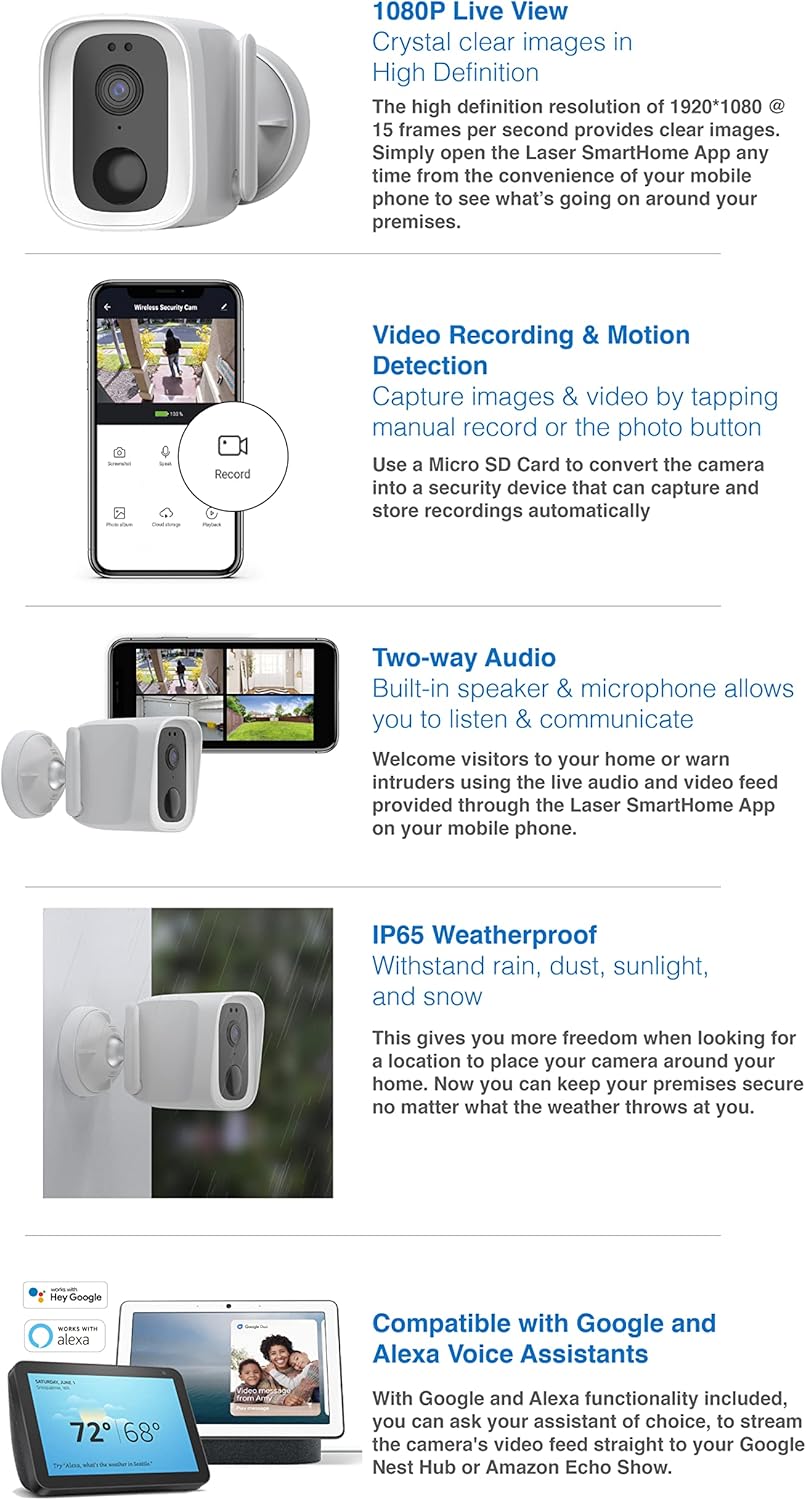
Image: A mobile phone displaying the live view from the security camera, showing clear, high-definition footage.
2. Video Recording and Motion Detection
The camera features motion detection capabilities that send real-time alerts directly to your phone. You can also manually record video or capture photos through the app. For local storage, insert a Micro SD card (not included) into the camera. This allows the camera to automatically capture and store recordings when motion is detected.
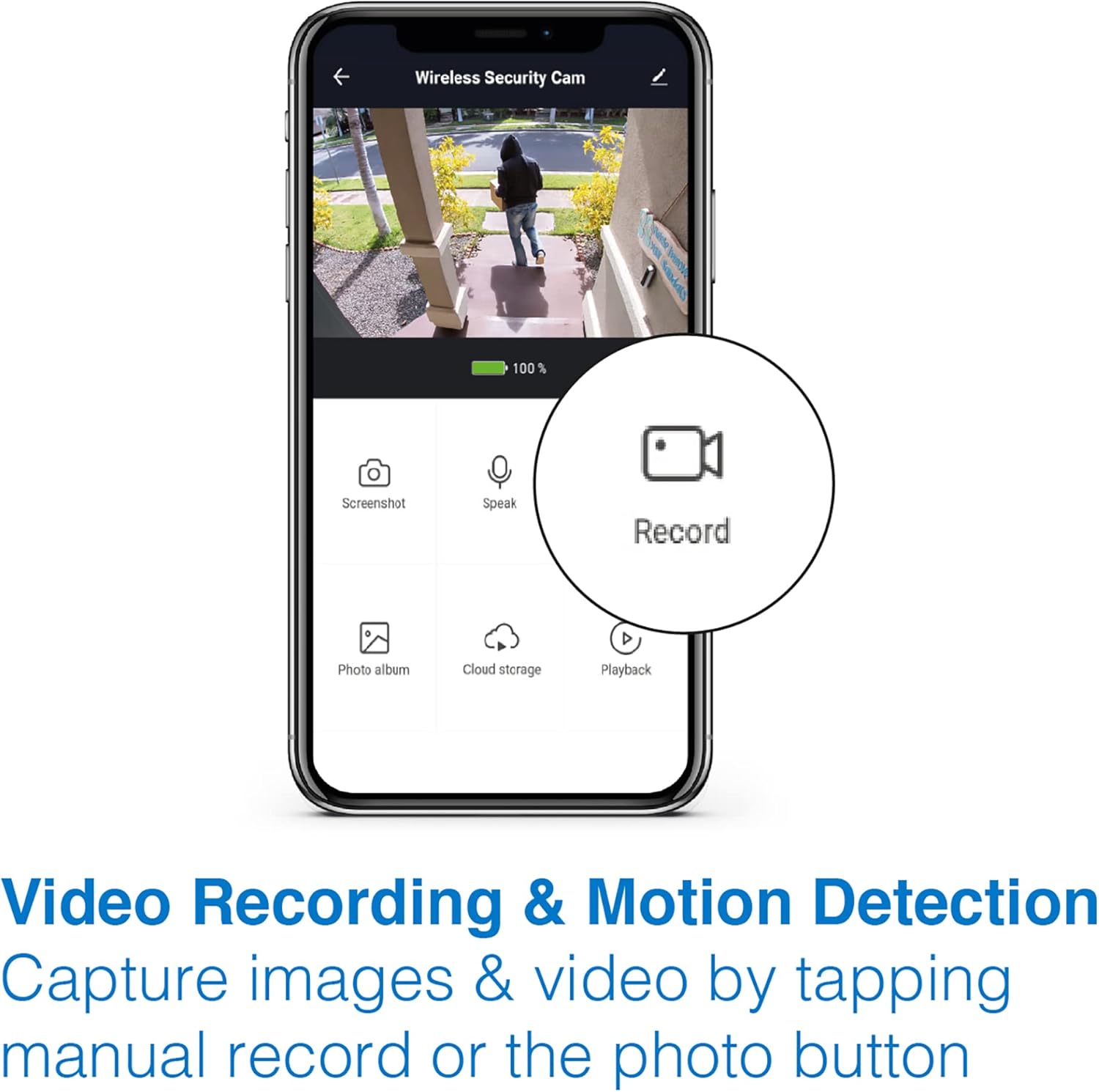
Image: A mobile phone screen showing the Laser SmartHome app interface with options for screenshot, speak, photo album, cloud storage, playback, and a prominent "Record" button.
3. Two-Way Audio
Utilize the built-in microphone and speaker for two-way communication. This feature allows you to listen to sounds from the camera's location and speak through the camera from your mobile device. This is useful for communicating with visitors or deterring unwanted intruders.

Image: A mobile phone displaying multiple camera views, illustrating the two-way audio feature with the camera itself shown next to the phone.
4. Night Vision
The camera is equipped with infrared night vision, allowing it to capture clear footage in low-light or no-light conditions. The night vision range is up to 8 meters, ensuring surveillance even after dark.
5. Smart Assistant Compatibility
The Laser Smart Home Outdoor Security Camera is compatible with Google Assistant and Amazon Alexa. You can stream the video feed directly to your compatible smart devices, such as Google Nest Hub or Amazon Echo Show, using voice commands.

Image: Smart displays (Google Nest Hub and Amazon Echo Show) demonstrating compatibility with the camera, showing video feeds on their screens.
Maintenance
1. Cleaning
To ensure optimal performance, periodically clean the camera lens and body. Use a soft, dry cloth to wipe away dust and dirt. For stubborn marks, a slightly damp cloth can be used, followed by a dry cloth. Avoid using harsh chemicals or abrasive cleaners.
2. Battery Management
Monitor the battery level through the Laser SmartHome app. Recharge the camera promptly when the battery is low to ensure continuous operation. For prolonged periods of inactivity, it is recommended to fully charge the camera before storage and recharge it every few months to maintain battery health.
3. Weather Resistance
The camera has an IP65 weatherproof rating, meaning it is protected against dust ingress and low-pressure water jets from any direction. While designed to withstand rain, dust, sunlight, and snow, avoid submerging the camera in water or exposing it to extreme weather conditions beyond its rating.

Image: The security camera mounted outdoors, with raindrops visible, illustrating its weatherproof design.
Troubleshooting
| Problem | Possible Cause | Solution |
|---|---|---|
| Camera not connecting to Wi-Fi | Incorrect Wi-Fi password; Camera too far from router; Router is 5GHz only. | Double-check password. Move camera closer to router. Ensure router supports 2.4GHz Wi-Fi. |
| Poor video quality | Weak Wi-Fi signal; Dirty lens. | Improve Wi-Fi signal strength. Clean the camera lens. |
| Motion detection not working | Sensitivity settings too low; Obstructions in view; Battery low. | Adjust motion detection sensitivity in the app. Clear any obstructions. Recharge battery. |
| Two-way audio not functioning | Microphone/speaker muted in app; App permissions. | Check audio settings in the app. Ensure app has microphone permissions on your phone. |
| Camera not turning on | Battery depleted; Faulty charging cable/adapter. | Charge the camera for several hours. Try a different USB cable and power adapter. |
Specifications
| Feature | Detail |
|---|---|
| Model Number | LSH-ODCAM-A |
| Indoor/Outdoor Usage | Outdoor, Indoor |
| Connectivity Protocol | Wi-Fi (2.4GHz) |
| Power Source | Battery Powered (2 Lithium Ion batteries included) |
| Video Capture Resolution | 1080p Full HD |
| Frame Rate | 15 frames per second |
| Viewing Angle | 100 Degrees |
| Night Vision Range | 8 Meters |
| Audio | 2 Way Audio (Built-in microphone and speaker) |
| Weather Resistance | IP65 Weatherproof, Waterproof |
| Motion Detection | Yes, with real-time alerts |
| Smart Assistant Compatibility | Amazon Alexa, Google Assistant |
| Mounting Type | Wall Mount (Screw In) |
| Dimensions (L x W x H) | 10.8 x 7.1 x 14.5 cm |
| Weight | 300 g |
| Material | Metal |
| Included Components | Outdoor Camera, USB Cable, Screw Set, User Manual |
Warranty and Support
1. Warranty Information
This Laser Smart Home Outdoor Security Camera comes with a 12-month warranty from the date of purchase. This warranty covers manufacturing defects and faulty workmanship under normal use. Please retain your proof of purchase for warranty claims.
2. Customer Support
For technical assistance, troubleshooting, or warranty inquiries, please contact Laser customer support. Refer to the official Laser website or your purchase documentation for the most up-to-date contact information.
Manufacturer: Laser
Related documentsLSH-ODCAM-A


Ask a question about this manual
Ask about setup, troubleshooting, compatibility, parts, safety, or missing instructions. Manuals+ will review the question and use this page’s manual context to help answer it.