
1. Introduction
The Cryfokt 4G Mobile Hotspot provides high-speed 3G/4G internet access, supporting major frequency bands globally. Its compact design makes it ideal for car users, business travelers, and outdoor enthusiasts, allowing up to 10 users to connect simultaneously.
1.1 What's in the Box
- Portable WiFi Hotspot
- Matching Battery
- Charging Cable
- User Manual
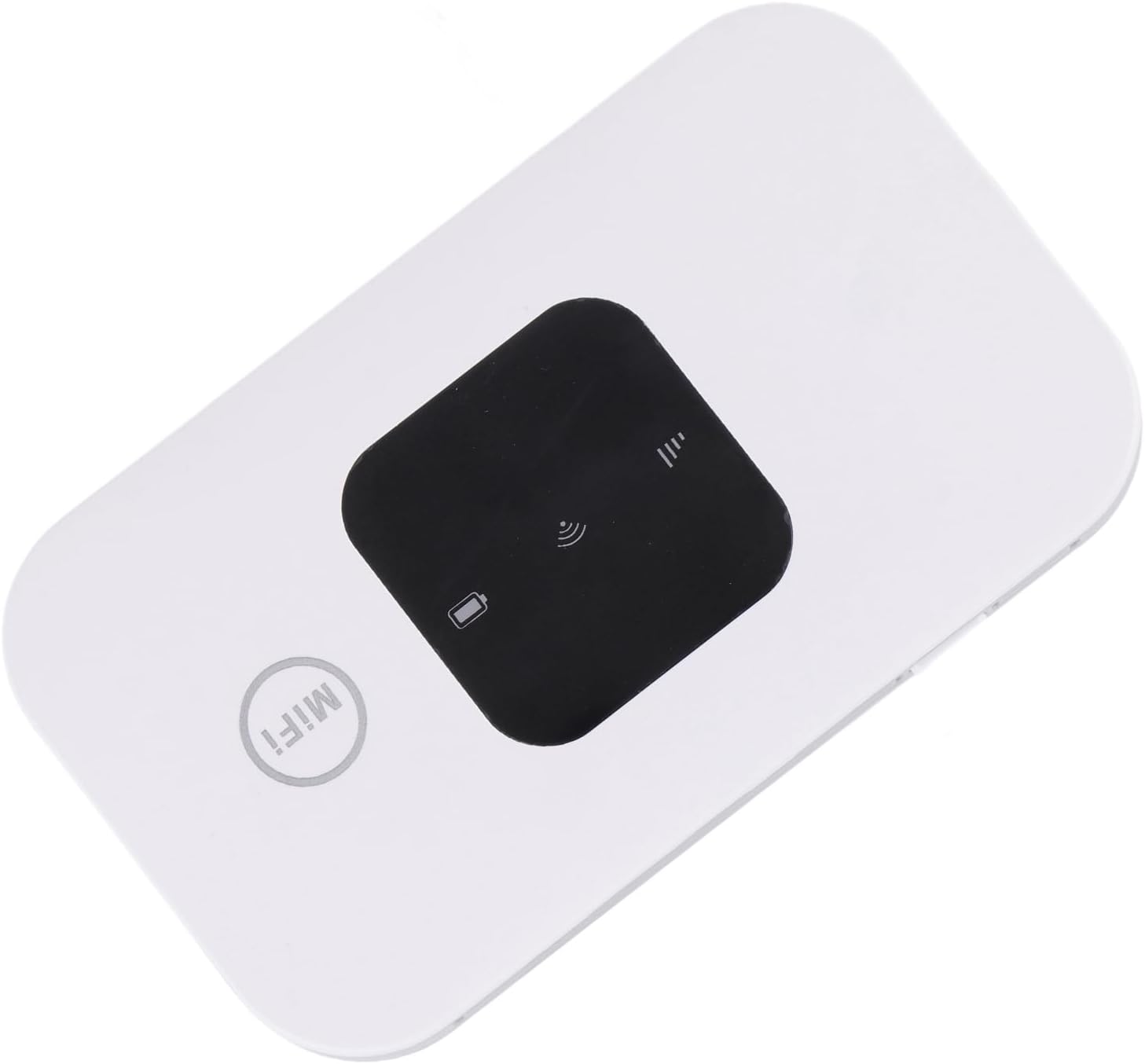
Image 1.1: The Cryfokt 4G Mobile Hotspot device.
2. Setup
2.1 Inserting the SIM Card and Battery
- Carefully remove the back cover of the hotspot device.
- Locate the SIM card slot. Insert your standard SIM card into the designated slot, ensuring proper orientation.
- Insert the provided battery into its compartment, aligning the contacts correctly.
- Replace the back cover, ensuring it clicks securely into place.

Image 2.1: Illustration of inserting the SIM card and battery into the device.
2.2 Powering On and Initial Connection
- Press and hold the power button for 3-5 seconds to turn on the device. The LED smart display will illuminate.
- On your mobile phone, laptop, desktop, or tablet, search for available Wi-Fi networks.
- Select the network name (SSID) corresponding to your hotspot. The default SSID and password are typically found on a label inside the battery compartment or on the device itself.
- Enter the Wi-Fi password to connect.
Video 2.1: A demonstration of the Cryfokt 4G Mobile Hotspot, showing its compact size and basic operation.
3. Operating the Hotspot
3.1 LED Indicators
The device features an LED smart display that provides important status information:
- Signal Indicator: Shows the strength of the 3G/4G network signal.
- Wi-Fi Indicator: Flashes when users are accessing the Wi-Fi network.
- Battery Indicator: Displays the current battery level.
3.2 Connecting Multiple Devices
The Cryfokt 4G Mobile Hotspot supports up to 10 devices simultaneously. Once connected to the Wi-Fi network, all connected devices can access the internet.
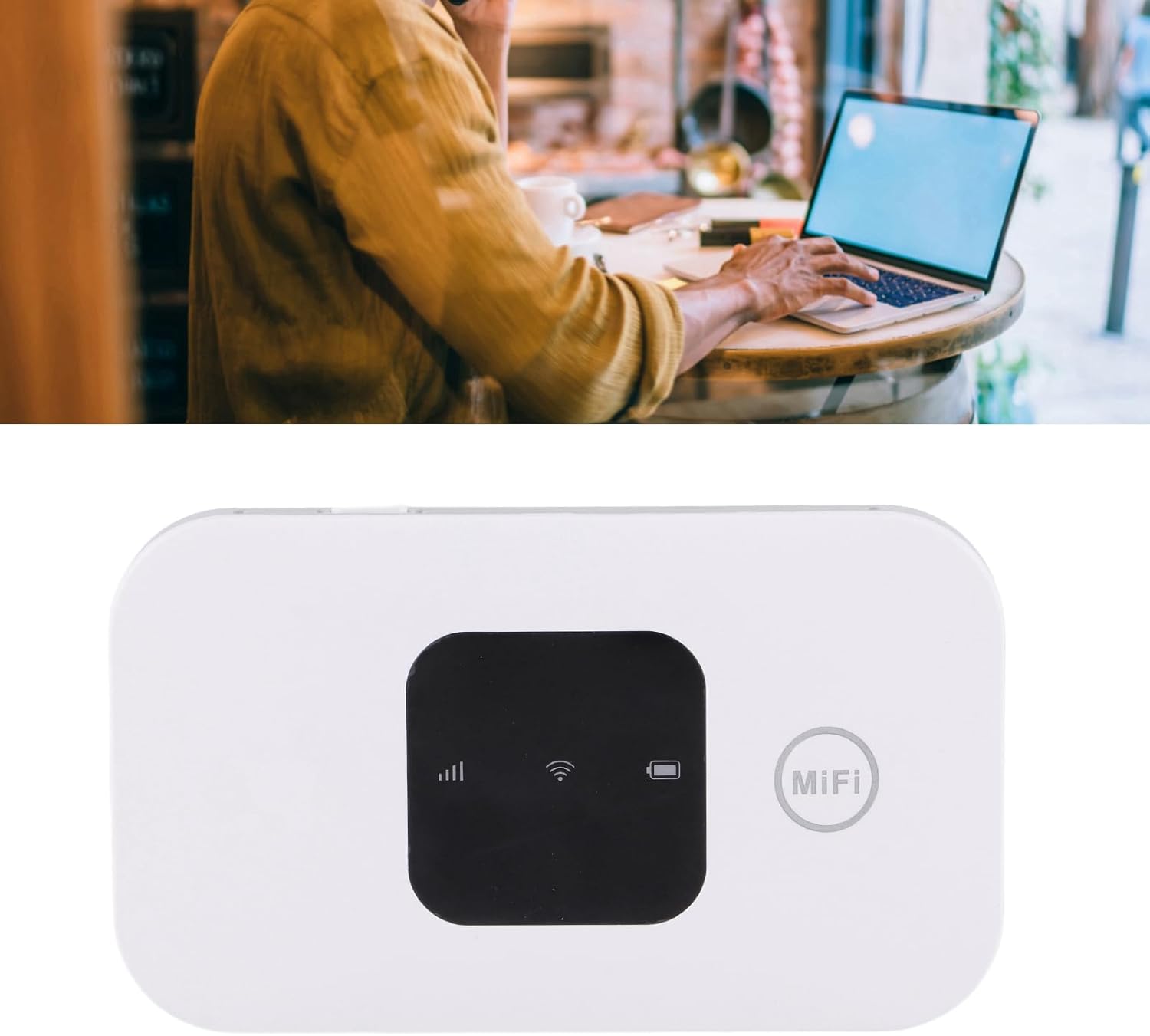
Image 3.1: A user operating a laptop connected to the mobile hotspot.
4. Maintenance
- Keep the device in a dry environment and avoid extreme temperatures.
- Clean the device with a soft, dry cloth. Do not use liquid cleaners.
- Ensure the charging cable is properly connected during charging to prevent damage.
- Avoid dropping or subjecting the device to strong impacts.
5. Troubleshooting
5.1 No Internet Connection
- Check SIM Card: Ensure the SIM card is correctly inserted and activated with a data plan.
- Signal Strength: Verify the signal indicator on the device. If the signal is weak, try moving to an area with better network coverage.
- Restart Device: Turn off the hotspot, wait a few seconds, and then turn it back on.
5.2 Unable to Connect to Wi-Fi
- Correct Password: Double-check that you are entering the correct Wi-Fi password (found on the device label).
- Device Proximity: Ensure your connecting device is within range of the hotspot.
- Refresh Wi-Fi List: On your connecting device, turn Wi-Fi off and then back on to refresh the list of available networks.
6. Specifications
| Feature | Detail |
|---|---|
| Brand | Cryfokt |
| Model Name | Cryfokthw190ta5cf |
| Connectivity Technology | Wi-Fi |
| Wireless Communication Standard | 802.11b |
| Frequency Band Class | Quad-Band |
| Special Feature | WPS |
| Compatible Devices | Laptop, Tablet |
| Recommended Uses For Product | Home |
| Item Weight | 3.87 ounces |
| Package Dimensions | 4.33 x 2.8 x 1.42 inches |
| Color | White |
7. Warranty and Support
For warranty information and technical support, please refer to the documentation included with your product or visit the official Cryfokt website. Keep your purchase receipt for warranty claims.