
1. Introduction
This manual provides essential instructions for the safe and efficient use of your Phomemo M04AS Mini Printer. Please read this manual thoroughly before operating the device and retain it for future reference.
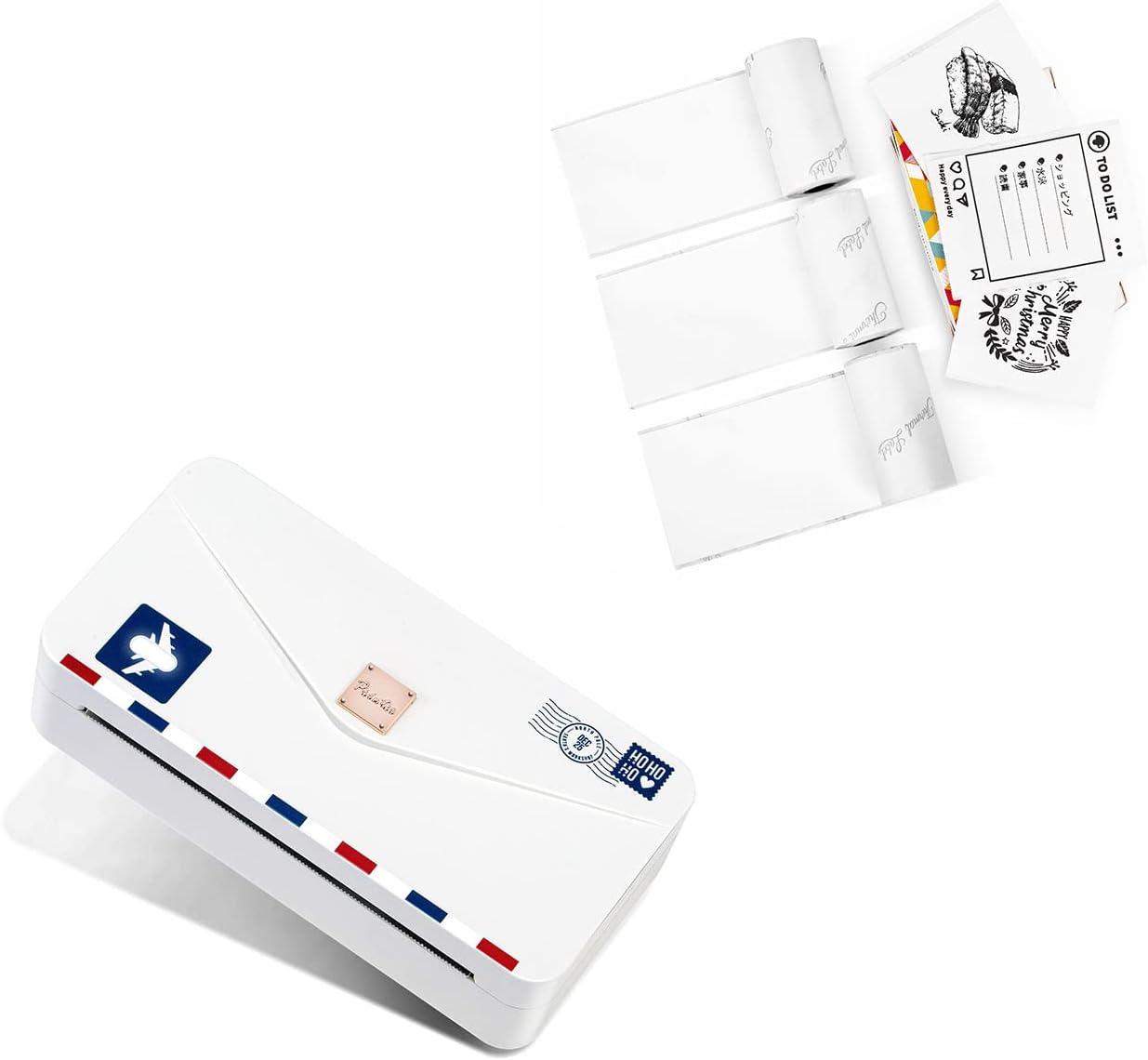
Image: The Phomemo M04AS Mini Printer shown alongside rolls of thermal paper, illustrating the compact design and included accessories.
1.1 What's in the Box
- Phomemo M04AS Mini Printer
- 53mm White Adhesive Paper (one roll)
- USB Charging Cable (not explicitly listed but standard for such devices)
2. Setup Guide
2.1 Charging the Printer
Before first use, fully charge the printer. Connect the provided USB cable to the printer's charging port and a compatible USB power adapter (not included). The indicator light will show charging status and turn off when fully charged.
2.2 Installing Thermal Paper
- Open the printer cover by gently sliding or lifting it according to the printer's design.
- Insert the thermal paper roll into the paper compartment, ensuring the printing side faces the print head.
- Pull a small length of paper out of the printer and close the cover securely.
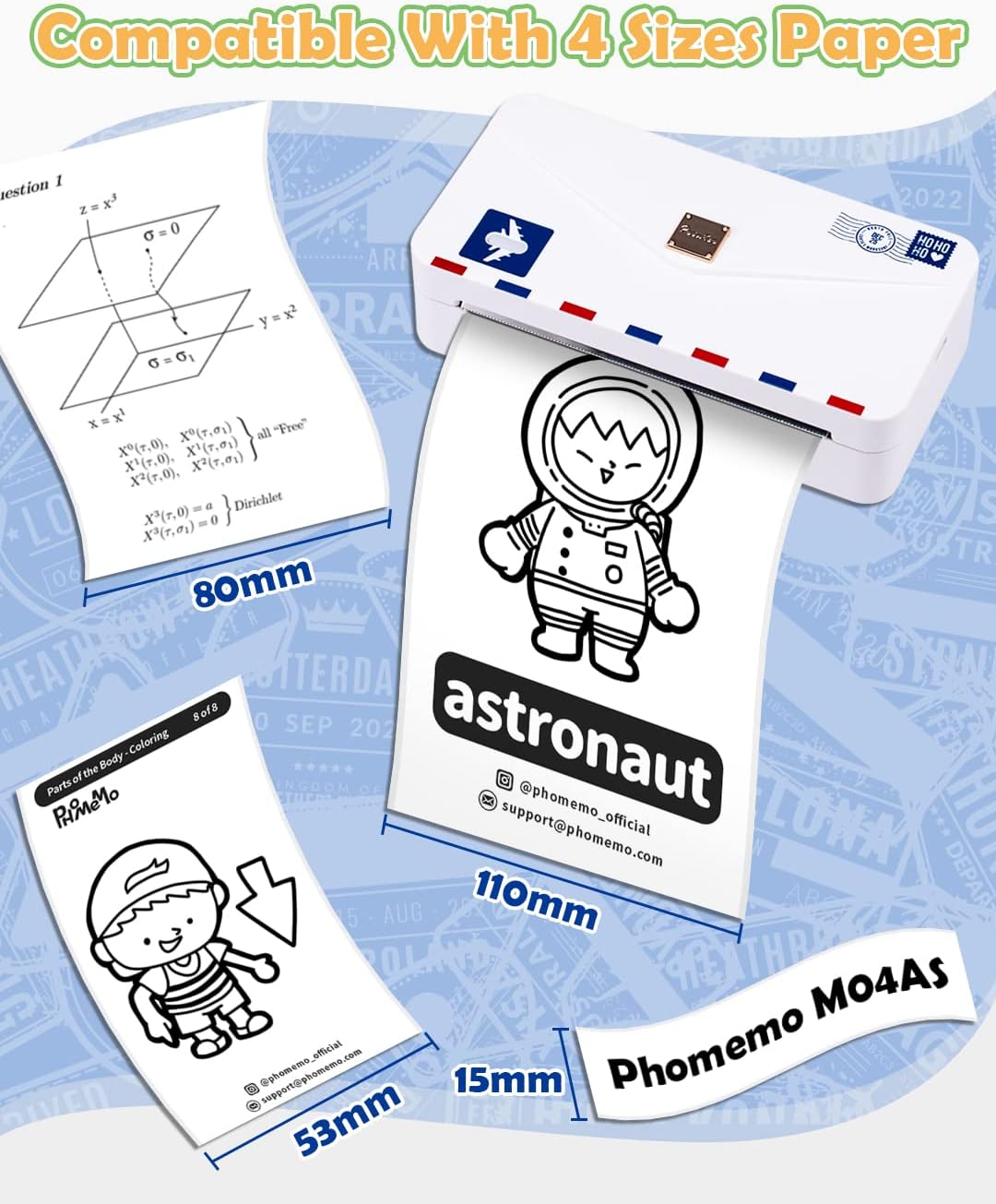
Image: The Phomemo M04AS printer demonstrating its compatibility with thermal paper rolls of different widths: 15mm, 53mm, 80mm, and 110mm.
2.3 App Download and Connection
- Download the 'Phomemo' application from your mobile device's app store (available for iOS and Android).
- Turn on the Phomemo M04AS printer by pressing and holding the power button.
- Open the Phomemo app on your smartphone or tablet.
- Within the app, navigate to the device connection section and select your M04AS printer from the list of available Bluetooth devices.
- Confirm the connection. The printer is now ready for use.

Image: A smartphone displaying the Phomemo application interface, showcasing various functions such as photo printing, document printing, and label creation.
3. Operating Instructions
3.1 Printing from the App
The Phomemo app offers various printing functionalities:
- Photo Printing: Select a photo from your gallery, edit if necessary, and print.
- Document Printing: Import documents (e.g., PDF, text files) for printing.
- Webpage Printing: Print content directly from web pages.
- OCR Scanning: Use the OCR function to convert images of text into editable text for printing.
- Label Workshop: Utilize pre-designed templates or create custom labels and stickers.

Image: A user interacting with the Phomemo app on a smartphone, preparing to print a label from the Phomemo M04AS printer.
3.2 Paper Types and Compatibility
The Phomemo M04AS is compatible with a wide range of thermal papers, including:
- White, Color, Transparent, Semi-transparent, and Shine thermal paper.
- Both sticker and non-sticker options are available.

Image: A roll of white thermal adhesive paper, highlighting its specifications including a width of 50mm, total length of 3.5m, and features such as BPA-free, oil-proof, durable, and waterproof properties.
4. Maintenance
4.1 Cleaning the Print Head
To ensure optimal print quality, regularly clean the print head. Use a cotton swab lightly dampened with isopropyl alcohol to gently wipe the print head surface. Ensure the printer is turned off and completely dry before use.
4.2 Paper Storage
Store thermal paper in a cool, dry place away from direct sunlight and heat. Exposure to high temperatures or light can cause the paper to darken prematurely or fade printed images.
5. Troubleshooting
- Printer not connecting via Bluetooth: Ensure the printer is powered on and within range. Restart both the printer and your mobile device. Check app permissions for Bluetooth access.
- Poor print quality: Check if the paper roll is inserted correctly. Ensure the printer is fully charged. Clean the print head as described in the maintenance section. Use high-quality thermal paper.
- Paper jam: Turn off the printer. Carefully open the cover and remove any jammed paper. Ensure the paper is loaded smoothly without wrinkles.
- Printer not turning on: Ensure the printer is fully charged. If the issue persists, contact customer support.
6. Specifications
| Feature | Specification |
|---|---|
| Model Name | M04AS |
| Printing Technology | Thermal |
| Max Print Resolution | 300 dpi |
| Compatible Paper Widths | 15mm, 53mm, 80mm, 110mm |
| Connectivity | Bluetooth, USB |
| Compatible Devices | Smartphones, Tablets |
| Control Method | App |
| Printer Output | Monochrome |
| Special Feature | Portable |
7. Warranty and Support
The Phomemo M04AS Mini Printer comes with a manufacturer's warranty. For specific warranty terms and conditions, please refer to the warranty card included with your product or visit the official Phomemo website. For technical support, troubleshooting assistance, or any other inquiries, please contact Phomemo customer service through their official channels.
Manufacturer: Phomemo
Date First Available: November 10, 2022


