
Zizo Roar Z3 (SPK-RRZ3-BLK)
Zizo Roar Z3 Portable LED Speaker User Manual
Model: Roar Z3 (SPK-RRZ3-BLK)
Brand: Zizo
Introduction
Thank you for choosing the Zizo Roar Z3 Portable LED Speaker. This manual provides essential information for setting up, operating, and maintaining your speaker. The Roar Z3 is designed for portability and powerful sound, featuring True Wireless Stereo (TWS) technology, Bluetooth 5.0 connectivity, and IPX5 water resistance, making it an ideal companion for various environments.
Package Contents
- Zizo Roar Z3 Portable LED Speaker
- Charging Cable (USB-C, assumed)
- User Manual
- (Optional: Shoulder Strap, based on image 81I8miiERpL)
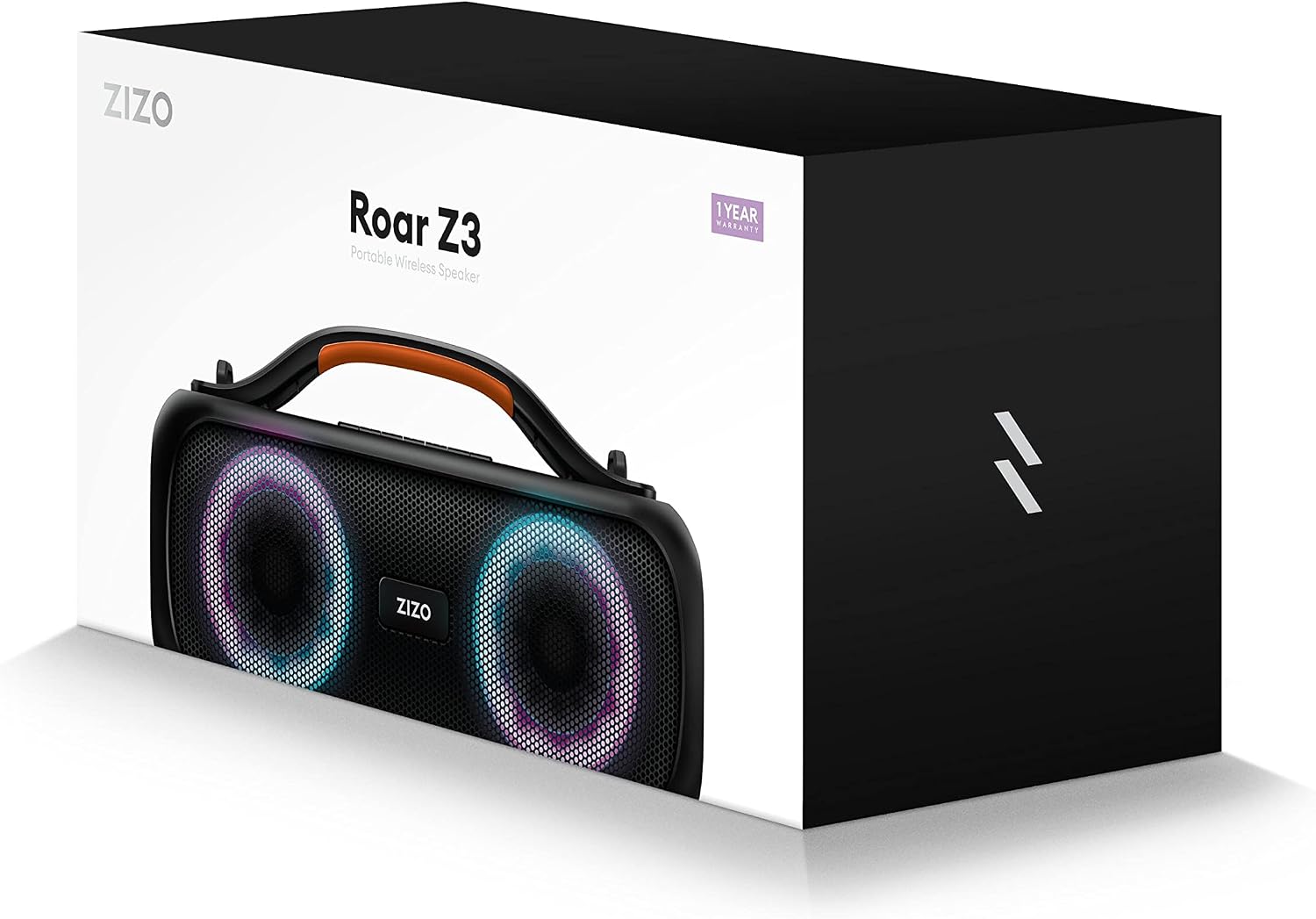
Figure 1: Zizo Roar Z3 Speaker Packaging. The box contains the speaker and its accessories.
Product Overview
The Zizo Roar Z3 features a robust design with integrated LED lights and intuitive controls. Its portable form factor, complete with a built-in handle, allows for easy transport.

Figure 2: Front view of the Zizo Roar Z3 speaker, showcasing the dual speaker grilles and dynamic LED light rings.

Figure 3: Angled view of the Zizo Roar Z3, highlighting the integrated carrying handle and the control panel located on top.
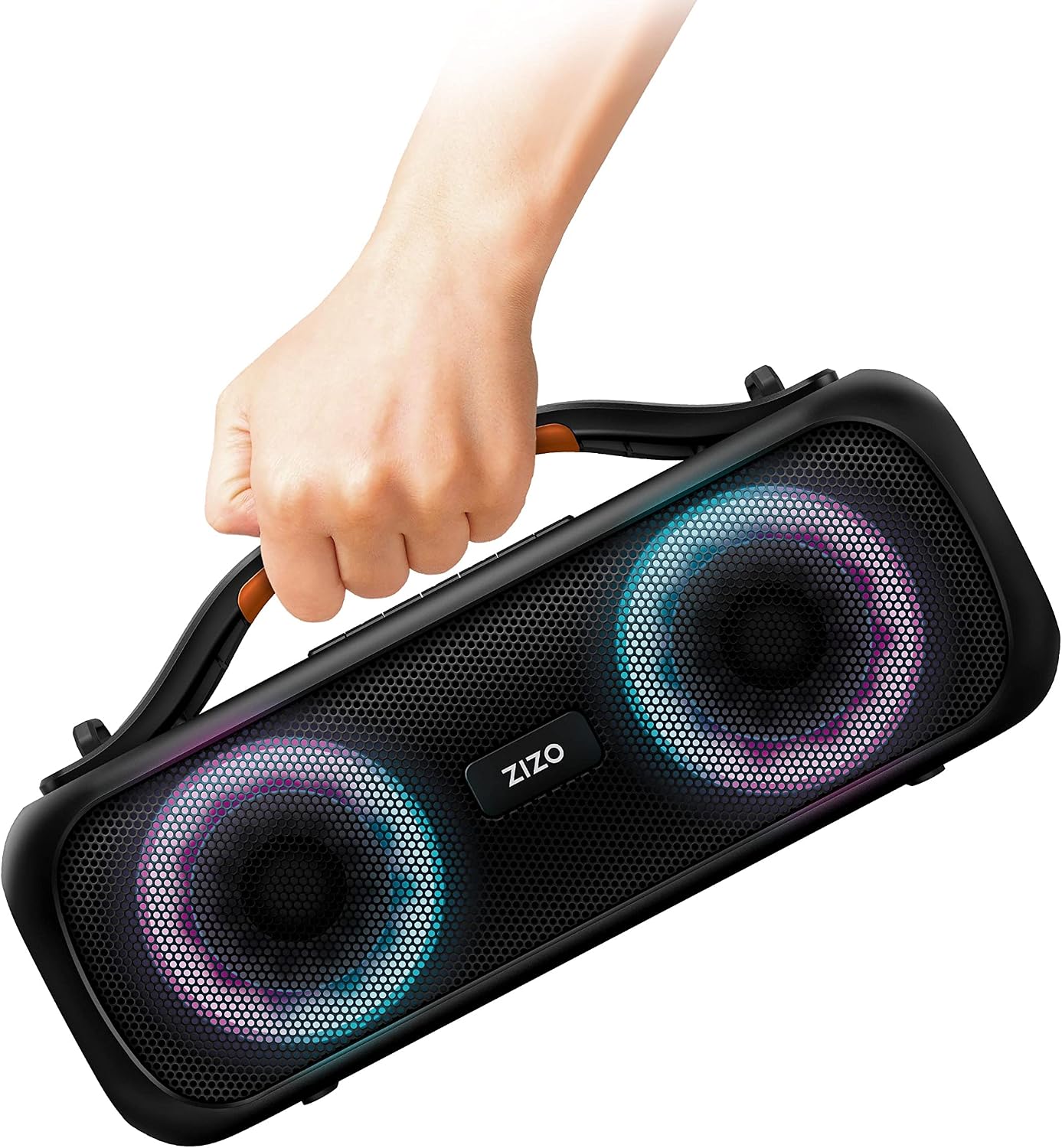
Figure 4: Demonstrates the portability of the Zizo Roar Z3, held comfortably by its ergonomic handle.

Figure 5: Detail of the Zizo Roar Z3's handle and the secure attachment point for an optional shoulder strap, enhancing carrying convenience.
Controls and Indicators
The Zizo Roar Z3 features an intuitive control panel located on the top of the speaker.
- Power Button: Press and hold to turn the speaker On/Off.
- Volume Down (-): Press to decrease volume.
- Volume Up (+): Press to increase volume.
- Previous Track (<): Press to go to the previous song.
- Next Track (>): Press to skip to the next song.
- Play/Pause Button (►▮▮): Press to play or pause audio. Also used for answering/ending calls.
- Mode Button (M): Press to switch between Bluetooth, AUX, and other modes.
- LED Light Button (☀): Press to cycle through LED light modes or turn them off.
- Bluetooth Indicator: LED light indicating Bluetooth pairing status.
- Charging Port: USB-C port for charging the speaker.
Setup
1. Charging the Speaker
Before first use, fully charge the Zizo Roar Z3 speaker.
- Connect the charging cable to the speaker's charging port.
- Connect the other end of the cable to a USB power adapter (not included) or a computer's USB port.
- The charging indicator light will illuminate. It takes approximately 4 hours for a full charge.
- Once fully charged, the indicator light will change or turn off. Disconnect the charging cable.
2. Powering On/Off
- To Power On: Press and hold the Power button for a few seconds until you hear an audible prompt and the LED lights illuminate.
- To Power Off: Press and hold the Power button again for a few seconds until you hear an audible prompt and the LED lights turn off.
3. Bluetooth Pairing
Pair your Zizo Roar Z3 with your Bluetooth-enabled device (smartphone, tablet, laptop).
- Ensure the speaker is powered on and in Bluetooth pairing mode (the Bluetooth indicator light will be blinking).
- On your device, go to Bluetooth settings and enable Bluetooth.
- Search for available devices. Select "Zizo Roar Z3" from the list.
- Once connected, the Bluetooth indicator light will become solid, and you will hear a confirmation sound.
- The speaker will automatically reconnect to the last paired device when powered on, if the device is within range and Bluetooth is enabled.
4. True Wireless Stereo (TWS) Pairing
You can pair two Zizo Roar Z3 speakers together for a true wireless stereo experience.
- Ensure both Zizo Roar Z3 speakers are powered on and not connected to any Bluetooth device.
- On one speaker (this will be the primary speaker), press and hold the Play/Pause button for 3-5 seconds until you hear a TWS pairing prompt.
- The primary speaker will automatically search for and connect to the second speaker.
- Once successfully paired, you will hear a confirmation sound. The LED lights on both speakers will synchronize.
- Now, connect your device to the primary speaker via Bluetooth as described in the "Bluetooth Pairing" section. Audio will play through both speakers in stereo.
Operating the Speaker
Playing Audio
- After successful Bluetooth pairing, open your music application on your device and start playing audio.
- Use the Play/Pause button on the speaker to control playback.
- Use the Previous Track (<) and Next Track (>) buttons to navigate through your playlist.
Volume Control
- Press the Volume Up (+) button to increase the volume.
- Press the Volume Down (-) button to decrease the volume.
- You can also adjust the volume directly from your connected device.
Call Functions
- Answer Call: Press the Play/Pause button once to answer an incoming call.
- End Call: Press the Play/Pause button once during a call to end it.
- Reject Call: Press and hold the Play/Pause button for 2 seconds to reject an incoming call.
LED Light Modes
The Zizo Roar Z3 features dynamic LED lights.
- Press the LED Light button (☀) to cycle through different light modes.
- Continue pressing to turn the LED lights off.
Maintenance
- Cleaning: Wipe the speaker with a soft, dry cloth. Do not use abrasive cleaners or solvents.
- Water Resistance: The speaker has an IPX5 water resistance rating, meaning it can withstand splashes and light rain. Do not submerge the speaker in water. Ensure the charging port cover is securely closed when exposed to water.
- Storage: Store the speaker in a cool, dry place away from direct sunlight and extreme temperatures.
- Battery Care: To prolong battery life, avoid fully discharging the battery frequently. Charge the speaker regularly, even if not in use for extended periods.
Troubleshooting
| Problem | Possible Cause | Solution |
|---|---|---|
| Speaker does not turn on. | Low battery. | Charge the speaker fully. |
| Cannot pair via Bluetooth. | Speaker not in pairing mode; device Bluetooth off; too far from device. | Ensure speaker is in pairing mode. Turn device Bluetooth off/on. Move device closer to speaker (within 35 feet). |
| No sound or low volume. | Volume too low on speaker or device; speaker not connected. | Increase volume on both speaker and device. Re-pair the speaker. |
| TWS pairing fails. | Speakers already paired to a device; too far apart. | Ensure both speakers are disconnected from other devices. Place speakers close to each other during TWS pairing. |
Specifications
| Feature | Detail |
|---|---|
| Model Name | Roar Z3 |
| Model Number | SPK-RRZ3-BLK |
| Speaker Type | Outdoor / Portable |
| Connectivity Technology | Bluetooth V5.0 |
| Max Speaker Output Power | 40 Watts |
| Signal-to-Noise Ratio | 83 dB |
| Battery Capacity | 3000 mAh |
| Music Playback Time | Up to 4 hours |
| Charging Time | 4 hours |
| Transmission Distance | 35 feet (approx. 10.6 meters) |
| Water Resistance Rating | IPX5 |
| Dimensions (Package) | 38.1 x 20.32 x 15.24 cm |
| Weight (Package) | 2.31 kg |
Warranty and Support
The Zizo Roar Z3 Portable LED Speaker is backed by a 1-year warranty. For detailed information regarding warranty terms and conditions, or for technical support, please visit the official Zizo website:zizowireless.com/warranty.
Please retain your proof of purchase for warranty claims.
Related documentsRoar Z3 (SPK-RRZ3-BLK)


Ask a question about this manual
Ask about setup, troubleshooting, compatibility, parts, safety, or missing instructions. Manuals+ will review the question and use this page’s manual context to help answer it.