1. Introduction
This manual provides instructions for the iOCHOW K2 23MP Document Camera and Portable Scanner. This device is designed for high-definition scanning of documents and books, featuring advanced technologies for image correction and text recognition. It is suitable for office and educational environments.
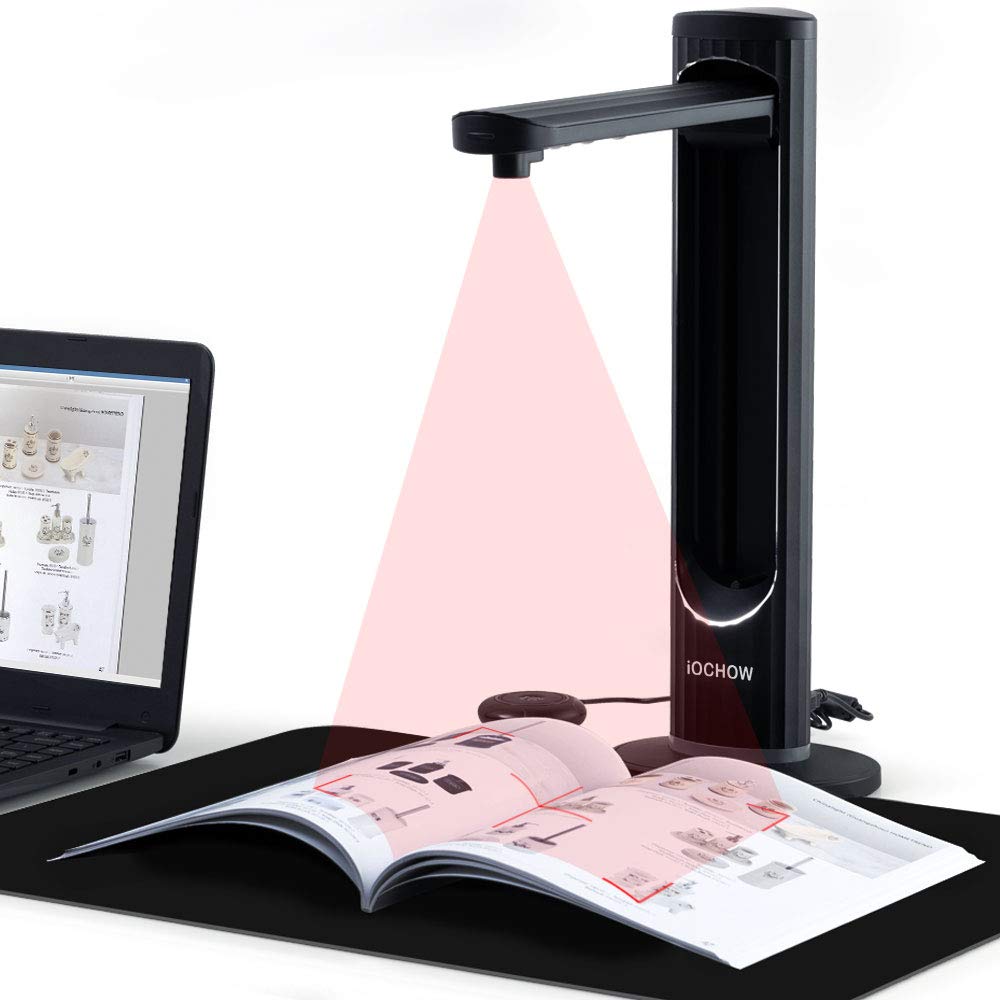
Figure 1: iOCHOW K2 Document Camera and Portable Scanner.
2. Key Features
- 23 Megapixel Camera: Captures documents and books in Ultra HD resolution, ensuring clear and detailed images.
- Auto-Flatten & Deskew Technology: Intelligently detects and corrects the curvature of open books, flattening pages and removing finger marks for optimal scanning results.
- A3 Capture Size: Capable of scanning documents up to A3 size, accommodating large format materials.
- Smart Multi-Language OCR: Optical Character Recognition software converts scanned images into editable text formats such as TXT, Word, JPG, and PDF, supporting multiple languages.
- Built-in LED Lights: Features 6 LED lights to ensure sufficient illumination for scanning, even in low-light conditions.
- Continuous Shooting: A timer function allows for automatic continuous shooting after page turns, streamlining the scanning process for books.
- Multiple Trigger Options: Scanning can be initiated via mouse, an external shutter button, or a foot pedal for hands-free operation.
- Software Functions: Includes features like background purification, automatic correction, multifile scanning, finger-free cropping, automatic edge filling, and image segmentation.
- Video Recording & Real-time Projecting: Supports live video demonstration and recording, useful for presentations and online teaching.
- SDK & TWAIN Support: Provides compatibility for integration with other software systems.
- Operating System Compatibility: Supports Windows and Mac OS.
3. Setup Guide
Follow these steps to set up your iOCHOW K2 Document Camera and Portable Scanner:
- Unpack the Device: Carefully remove all components from the packaging. Ensure you have the scanner unit, USB cable, power adapter, external shutter button (if included), and foot pedal (if included).
- Position the Scanner: Place the scanner on a stable, flat surface. Ensure there is enough space for the documents or books you intend to scan.
- Connect to Computer: Connect the scanner to your computer using the provided USB cable.
- Connect Power: Plug the DC-IN cable into the scanner and then connect the power adapter to an electrical outlet.
- Install Software: Insert the provided CD or visit the iOCHOW website to download and install the necessary scanning software. Follow the on-screen instructions for installation.
- Connect Accessories: If using the external shutter button or foot pedal, connect them to the designated ports on the scanner.
- Initial Test: Open the installed software and perform a test scan to ensure all components are functioning correctly.
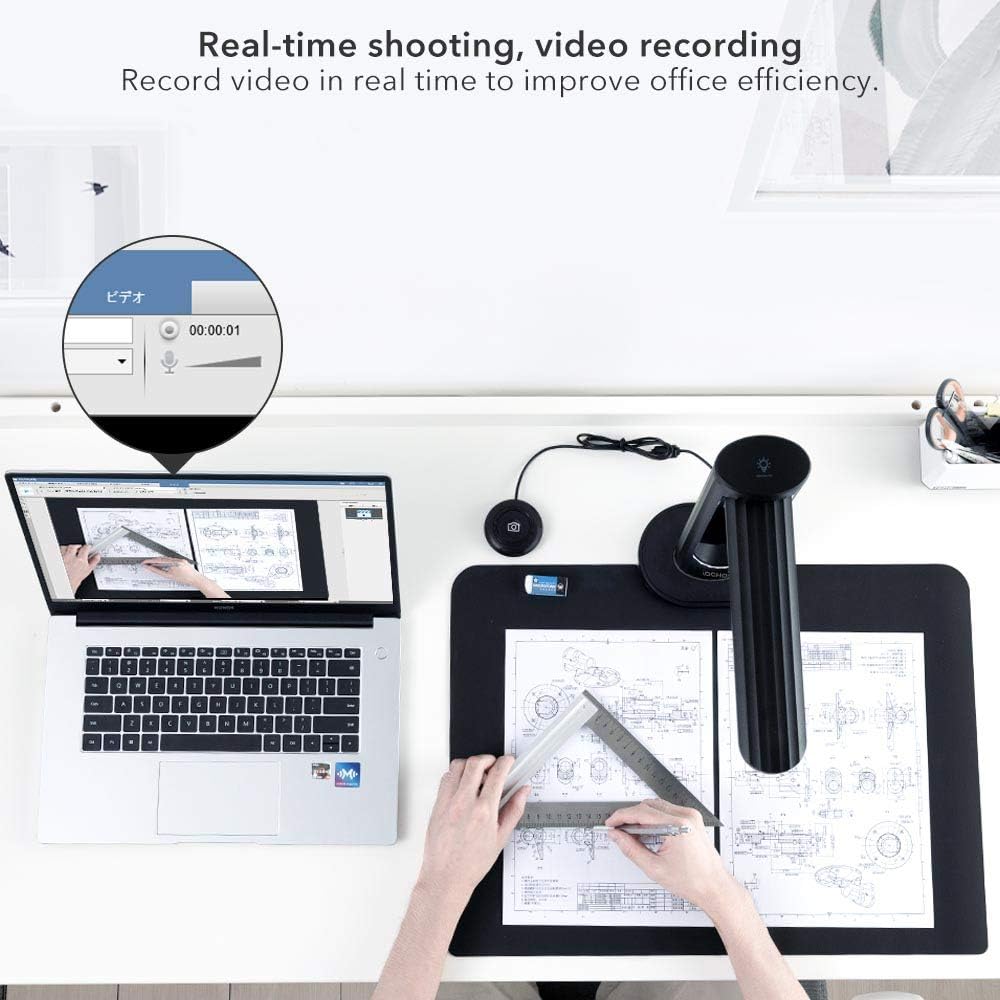
Figure 2: Connecting the iOCHOW K2 scanner to a computer and power source, with optional foot pedal.
4. Operating Instructions
4.1 Basic Scanning
- Place Document: Position the document or book under the camera lens. Ensure it is flat and within the scanning area.
- Open Software: Launch the iOCHOW scanning software on your computer.
- Adjust Settings: Select your desired scan mode (e.g., single page, continuous), output format (e.g., JPG, PDF), and image settings (e.g., color, grayscale, black & white).
- Initiate Scan: Click the "Scan" button in the software, press the external shutter button, or use the foot pedal to capture the image.
- Review and Save: The scanned image will appear in the software. Review it for quality and make any necessary adjustments before saving to your desired output folder.

Figure 3: Scanning a book using the iOCHOW K2, demonstrating the flattening curve technology.
4.2 Book Scanning with Auto-Flattening
The iOCHOW K2 is equipped with technology to handle bound books:
- Position Book: Open the book and place it under the camera. The software will detect the book's curvature.
- Activate Auto-Flatten: In the software, ensure the "Curve Fitting" or "Auto-Flatten" option is enabled.
- Continuous Scanning: Utilize the "Auto-Scan Tech" feature for continuous shooting. Set the scan interval, then simply turn pages. The scanner will automatically capture each page when it detects stability.
- Finger Hiding: The software can automatically remove images of fingers used to hold down pages during scanning.
Video 1: Demonstration of iOCHOW K2 Book & Document Camera features, including auto-flattening, laser positioning, auto-scan, and OCR software. This video illustrates the process of scanning books and documents, highlighting the device's ability to correct page curvature and convert scanned text into editable formats.
4.3 Optical Character Recognition (OCR)
The integrated OCR software allows you to convert scanned documents into editable text:
- Scan Document: Perform a scan of the document containing text you wish to convert.
- Select OCR Option: In the software, choose an output format that supports OCR, such as Word, TXT, or searchable PDF.
- Select Language: Specify the language of the text for accurate recognition.
- Convert: Initiate the conversion process. The software will process the image and generate an editable text file.

Figure 4: The iOCHOW K2 scanner's OCR software interface, demonstrating the conversion of scanned documents into editable formats like Word, Excel, or PDF.
4.4 Advanced Software Functions
- Automatic Correction: The software can automatically correct skewed images and fill damaged edges of scanned pages.
- Image Segmentation: Automatically separates multiple items placed on the scanning mat into individual images.
- Background Purification: Cleans up the background of scanned images for a cleaner result.
- Real-time Projection: Use the device as a visualizer to project documents or objects onto a screen in real-time.
- Video Recording: Record video of documents or objects under the camera for instructional or presentation purposes.

Figure 5: Overview of the iOCHOW K2 software's advanced features, including background purification, automatic correction, and multi-file scanning.
5. Maintenance
To ensure the longevity and optimal performance of your iOCHOW K2 scanner, follow these maintenance guidelines:
- Cleaning the Lens: Gently wipe the camera lens with a soft, lint-free cloth. For stubborn smudges, use a lens cleaning solution specifically designed for optical surfaces. Avoid abrasive materials.
- Cleaning the Device Body: Use a dry or slightly damp soft cloth to clean the exterior of the scanner. Do not use harsh chemicals or solvents.
- Software Updates: Periodically check the iOCHOW website for software updates to ensure you have the latest features and bug fixes.
- Storage: When not in use, store the scanner in a clean, dry environment away from direct sunlight and extreme temperatures.
6. Troubleshooting
If you encounter issues with your iOCHOW K2 scanner, refer to the following common problems and solutions:
- Device Not Recognized:
- Ensure the USB cable is securely connected to both the scanner and the computer.
- Try connecting to a different USB port.
- Verify that the power adapter is correctly connected and the device is receiving power.
- Reinstall the scanner software and drivers.
- Poor Image Quality:
- Check that the camera lens is clean and free of dust or smudges.
- Ensure adequate lighting. Use the built-in LED lights if necessary.
- Verify that the document is placed flat and within the camera's focus area.
- Adjust image settings (e.g., brightness, contrast) in the software.
- OCR Not Working Correctly:
- Ensure the document text is clear and legible.
- Select the correct language for OCR in the software settings.
- Try scanning at a higher resolution.
- Software Crashes or Freezes:
- Close and restart the software.
- Ensure your computer meets the minimum system requirements for the software.
- Check for and install any available software updates.
- If on Mac, note that some users have reported stability issues with certain features; ensure you have the latest Mac-compatible software version.
If problems persist, contact iOCHOW customer support for further assistance.
7. Specifications
| Feature | Detail |
|---|---|
| Product Dimensions | 6 x 4.3 x 16.1 inches |
| Item Weight | 6.52 pounds |
| ASIN | B0BLVLQHY6 |
| Date First Available | November 9, 2022 |
| Manufacturer | iOCHOW |
| Camera Resolution | 23 Megapixels |
| Max Capture Size | A3 |
| Operating System Support | Windows, Mac OS |
8. Warranty and Support
For warranty information, technical support, or service inquiries, please refer to the documentation included with your product or visit the official iOCHOW website. Keep your purchase receipt as proof of purchase for warranty claims.
Contact Information: Please refer to the iOCHOW official website or your product packaging for the most up-to-date customer support contact details.


