
XTRONS TAD128
XTRONS TAD128 10.1-inch Double Din Android Car Stereo User Manual
Model: TAD128
Introduction
This manual provides detailed instructions for the installation, operation, and maintenance of your XTRONS TAD128 10.1-inch Double Din Android Car Stereo. Please read this manual thoroughly before using the product to ensure proper function and safety.
Product Overview
The XTRONS TAD128 is an advanced 10.1-inch QLED IPS touch screen head unit designed for vehicle integration. It features GPS navigation, support for Wireless and Wired CarPlay and Android Auto, Bluetooth 5.4, a built-in Digital Sound Processor (DSP), and includes an ADAS camera for enhanced driving safety.

Image: The 10.1-inch QLED IPS display of the XTRONS TAD128 car stereo, showcasing vibrant colors and wide viewing angles. The display features 1280x800 pixels resolution and G+G touch screen technology.
Included Accessories
Verify that all the following items are included in your package:
- 1 x ADAS Camera
- 1 x ISO Wiring Harness
- 1 x Camera Cable
- 1 x RCA Cables
- 2 x USB Cable
- 1 x GPS Antenna
- 1 x Rear Output Cable
- 1 x Adhesive Pad
- 2 x Fitting Kits
- 8 x Screws
- 1 x User Manual (this document)
- 1 x Installation Instruction
Setup and Installation
Important: Before beginning installation, ensure your vehicle's ignition is off and the key is removed. Disconnect the vehicle's battery to prevent electrical shorts.
Compatibility Check
This unit is designed for a standard double DIN slot with dimensions of 100mm (Height) x 178mm (Width) x 108mm (Depth). Ensure your vehicle has a compatible double DIN slot.

Image: Diagram illustrating the dimensions of the XTRONS TAD128 unit and comparing a double DIN slot with a single DIN slot. The unit requires a 178x100mm slot. Note: Custom fit fascia and ISO cable/CANBus box may be required for specific car models.
Basic Assembly Steps
Follow these steps to assemble the TAD128 monitor and the main unit. Refer to the separate "Installation Instruction" document for detailed wiring diagrams and vehicle-specific guidance.
- Connect Power Cable: Connect the ribbon cable from the main unit to the monitor. Ensure the connector is fully seated.
- Align Monitor: Pick up the monitor and align the spring buckles on the back of the monitor with the corresponding slots on the main unit.
- Secure Monitor: Gently push the monitor down onto the main unit until the spring buckles engage and lock the monitor into place.
- Final Check: Verify that the monitor is securely attached to the main unit.

Image: Four-step visual guide for assembling the TAD128 monitor to the main unit. Steps show connecting the power cable, aligning spring buckles, securing the monitor, and releasing hands.
Floating Panel Mechanism Adjustment
The TAD128 features a floating panel design allowing for vertical adjustment and tilt/swivel to optimize viewing angles and avoid blocking vehicle vents or controls.
- Vertical Adjustment: The screen can be adjusted vertically by up to 60mm to achieve a comfortable viewing position.
- Tilt & Swivel: The screen can be tilted and swiveled up to 30 degrees for optimal visibility from various seating positions.

Image: Visual representation of the floating panel mechanism, demonstrating 60mm vertical adjustment and up to 30-degree tilt and swivel capabilities for the screen.
Operating Instructions
Power On/Off and Basic Navigation
Press the power button (usually a physical button or a touch icon on the screen) to turn the unit on or off. Navigate the interface using the QLED IPS touch screen. The intuitive UI provides access to various functions.
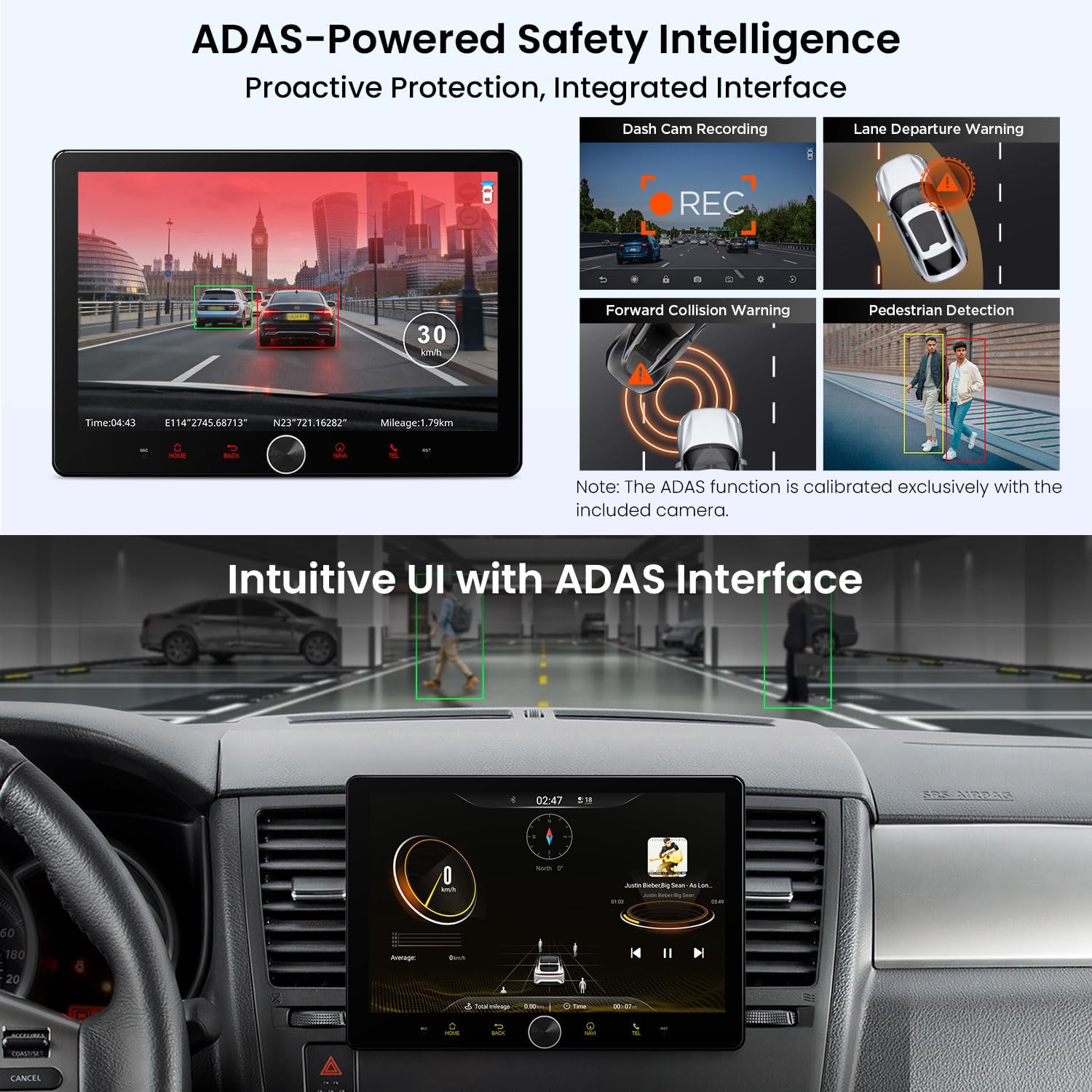
Image: Screenshot of the XTRONS TAD128's intuitive user interface, showing various applications and controls. This image also highlights the ADAS interface with dash cam recording, forward collision warning, lane departure warning, and pedestrian detection features.
Smartphone Connectivity (CarPlay & Android Auto)
The unit supports both Wireless and Wired CarPlay for iPhone users, and Wireless and Wired Android Auto for Android device users. This allows seamless integration of your smartphone's features onto the car stereo display.
- Wireless Connection: Enable Bluetooth and Wi-Fi on your smartphone. Pair your phone with the TAD128 via Bluetooth. Follow the on-screen prompts to initiate Wireless CarPlay or Android Auto.
- Wired Connection: Connect your smartphone to the unit using a USB cable. The system should automatically detect and launch CarPlay or Android Auto.
Once connected, you can access GPS navigation, make hands-free calls, stream music, and use voice assistants (Siri/Google Assistant) directly from the head unit.

Image: Display showing the CarPlay and Android Auto interfaces on the XTRONS TAD128 screen, demonstrating how smartphones connect wirelessly or via wire to access apps like Phone, Music, Maps, and Messages.
Bluetooth 5.4 Functionality
Utilize Bluetooth 5.4 for stable and fast wireless connections. This enables hands-free calling with noise cancellation and high-quality audio streaming from your paired devices.
- Pairing: Go to the Bluetooth settings on the TAD128 and your phone. Search for available devices and select "XTRONS TAD128" to pair.
- Hands-Free Calls: Once paired, you can answer, make, and end calls directly from the head unit.
- Audio Streaming: Play music from your phone through the car stereo speakers.
Digital Sound Processor (DSP)
The built-in DSP allows for advanced audio customization. Access the DSP settings to fine-tune equalization, balance, fader, and other sound parameters to optimize your listening experience.

Image: Screenshot of the XTRONS TAD128's audio interface, showing options for fine-tuning DSP settings, playing local files, browsing AM/FM radio, streaming via Bluetooth, and exploring digital radio.
ADAS Camera and Safety Alerts
Connect the included ADAS (Advanced Driver-Assistance System) camera to enable real-time safety features. The ADAS function is calibrated exclusively with the included camera.
- Lane Departure Warning (LDW): Provides alerts if the vehicle drifts out of its lane without signaling.
- Forward Collision Warning (FCW): Warns the driver of potential frontal collisions.
- Dash Cam Recording: Records driving footage, which can be useful for incident documentation.
- Pedestrian Detection: Assists in identifying pedestrians in the vehicle's path.
These features are designed to enhance driver awareness and safety, especially during long journeys.
Dual-Band Wi-Fi (2.4GHz/5.8GHz)
The unit supports dual-band Wi-Fi for flexible and reliable internet connectivity. The 2.4GHz band offers wider coverage, while the 5.8GHz band provides higher speeds and lower latency, ideal for streaming and system updates.
Steering Wheel Control
If your vehicle supports it, the TAD128 can integrate with your existing steering wheel controls. This allows you to adjust volume, change tracks, answer calls, and perform other functions without taking your hands off the wheel. Refer to the installation instructions for wiring details.
Picture-in-Picture (PIP)
The Picture-in-Picture feature allows you to view a video or navigation simultaneously with another application, enhancing multitasking capabilities without interrupting your primary task.

Image: Composite image showcasing various advanced features: Advanced DSP Audio settings, Bluetooth 5.4 connectivity for calls and music, Dual-Band Wi-Fi (2.4GHz and 5.8GHz), and Steering Wheel Control integration.
Maintenance
- Screen Cleaning: Use a soft, lint-free cloth to gently wipe the screen. For stubborn smudges, slightly dampen the cloth with water or a screen-safe cleaner. Avoid harsh chemicals or abrasive materials.
- Software Updates: Periodically check for software updates from the XTRONS official website to ensure optimal performance and access to new features.
- General Care: Avoid exposing the unit to extreme temperatures, direct sunlight for prolonged periods, or excessive moisture.
Troubleshooting
| Problem | Possible Cause / Solution |
|---|---|
| Unit does not power on. | Check power connections and vehicle's fuse box. Ensure the vehicle battery is connected. |
| No sound. | Verify speaker connections. Check volume levels and DSP settings. Ensure the correct audio source is selected. |
| Bluetooth connection issues. | Ensure Bluetooth is enabled on both the unit and your phone. Delete previous pairings and re-pair. Restart both devices. |
| CarPlay/Android Auto not connecting. | For wired connection, try a different USB cable. For wireless, ensure Bluetooth and Wi-Fi are active and paired. Check phone settings for CarPlay/Android Auto permissions. |
| GPS signal weak or inaccurate. | Ensure the GPS antenna is properly installed and has a clear view of the sky. Avoid obstructions. |
| ADAS features not working. | Verify the ADAS camera is correctly connected and calibrated. Ensure the camera lens is clean and unobstructed. |
Specifications
- Brand: XTRONS
- Model: TAD128
- Screen Size: 10.1 Inches
- Display Type: QLED IPS Touch Screen, 1280x800 Pixels
- Processor: Advanced processor with 3 TOPS AI computing capability
- Memory: 4GB DDR4 RAM
- Storage: 64GB High-speed storage
- Connectivity: Bluetooth 5.4, Dual-Band Wi-Fi (2.4GHz/5.8GHz), USB
- Special Features: GPS Navigation, Wireless/Wired CarPlay, Wireless/Wired Android Auto, Built-in DSP, ADAS Camera Support, Steering Wheel Control, Picture-in-Picture
- Compatible Devices: Smartphone, iPhone
- Vehicle Service Type: Car
- Unit Dimensions (Main Unit): 100mm (Height) x 178mm (Width) x 108mm (Depth)
Warranty Information
XTRONS products typically come with a manufacturer's warranty. For specific warranty terms, duration, and claim procedures, please refer to the warranty card included with your product or visit the official XTRONS website. Keep your proof of purchase for warranty claims.
Customer Support
If you encounter any issues not covered in this manual or require further assistance, please contact XTRONS customer support. You can usually find contact information (email, phone, or support portal) on the official XTRONS website or through your retailer.
Online Resources: For additional FAQs, software updates, and detailed product information, visit the official XTRONS website: www.xtrons.com
Related documentsTAD128


Ask a question about this manual
Ask about setup, troubleshooting, compatibility, parts, safety, or missing instructions. Manuals+ will review the question and use this page’s manual context to help answer it.