
Introduction
This manual provides detailed instructions for the installation, operation, and maintenance of your WOSTOKE Android Car Navigation Stereo. This unit is designed as a replacement head unit for BMW Mini Cooper R56 models, offering advanced multimedia and navigation features.
Please read this manual thoroughly before installation and use to ensure proper function and to prevent damage.
Safety Information
- Ensure the vehicle is turned off and the battery is disconnected before beginning any installation procedures.
- Professional installation is recommended. If you choose to install it yourself, ensure you have the necessary tools and technical knowledge.
- Important: If your car is equipped with an original factory amplifier, contact the seller before installation to confirm compatibility and any specific wiring requirements.
- Do not operate the device in a way that distracts you from driving. Always prioritize road safety.
- Avoid exposing the unit to extreme temperatures, direct sunlight for prolonged periods, or excessive moisture.
Package Contents
Verify that all items listed below are included in your package:
- 1 x Android Car Head Unit (including plastic frame)
- 1 x GPS Antenna
- 1 x Power Cable
- 2 x USB Port Cables
- 1 x RCA Expansion Cable
- 1 x RCA Connector for Backup Camera
- 1 x CANBUS Decoder (pre-installed or separate, ensure proper setting for vehicle compatibility)
Setup and Installation
This unit is designed for a plug-and-play installation, compatible with the original car's wiring. Basic DIY ability to remove existing car equipment is generally sufficient. However, professional installation is recommended for optimal results.
Pre-Installation Checks:
- Amplifier Check: Confirm if your vehicle has an original factory amplifier. If so, consult the seller for specific instructions.
- CANBUS Decoder: The CANBUS decoder is crucial for integrating the unit with your car's systems (e.g., steering wheel controls). Ensure it is correctly connected and configured according to your vehicle's specifications.
General Installation Steps:
- Disconnect the vehicle's battery to prevent electrical shorts.
- Carefully remove the original car radio/head unit and dashboard trim.
- Connect the new Android head unit's power cable to the vehicle's wiring harness. Ensure all connections are secure.
- Connect the GPS antenna and route it to a location with a clear view of the sky (e.g., dashboard, A-pillar).
- Connect the USB port cables and route them to a convenient location (e.g., glove compartment, center console).
- If installing a backup camera, connect the RCA connector and route the camera cable to the rear of the vehicle.
- Connect the CANBUS decoder to the appropriate harness. Refer to the vehicle-specific wiring diagram if available.
- Carefully mount the new head unit into the dashboard opening.
- Reconnect the vehicle's battery and test all functions before fully reassembling the dashboard trim.
Operating Instructions
The unit operates on an Android system, similar to a tablet. It features a multi-touch IPS full HD screen for intuitive control.
Initial Power On and System Overview:
Upon first power-on, the system will boot to the main interface. You can navigate through various applications by swiping the screen or using the touch controls.

Image: Main interface screen displaying various application icons including App Store, AUX, Bluetooth, Calculator, Car Link, Control, EasyConnection, Equalizer, and FileManager.

Image: Second screen of the main interface, showing icons for Front Video, Gallery, Maps, Music Player, Operation guide, Play Store, Radio, and Settings.

Image: Third screen of the main interface, displaying icons for Touch-Assistant, Video, and Voice Search.
CarPlay & Android Auto (Octa Core Version):
The Octa Core version includes built-in CarPlay and Android Auto. Connect your compatible iOS or Android device via USB to access phone features, navigation, and music directly on the head unit's screen. Voice assistants can be used for hands-free operation.
Navigation:
Utilize the pre-installed navigation application (e.g., Maps icon) or download your preferred navigation apps from the Play Store. The GPS antenna ensures accurate positioning.

Image: Split screen view demonstrating simultaneous use of a music player and Google Maps navigation.
Bluetooth Connectivity:
Pair your mobile phone via Bluetooth for hands-free calling and audio streaming. Access the Bluetooth application from the main interface.
- Pairing: Go to Settings > Bluetooth on the head unit and enable Bluetooth. Search for available devices on your phone and select the head unit's name to pair.
- Music Playback: Once paired, you can play stereo music from your mobile phone through the car's speakers.
- Hands-Free Calling: Make and receive calls directly from the head unit.

Image: Bluetooth music playback interface with standard controls.

Image: Bluetooth phone dialer screen, allowing direct number input for calls.
Radio:
Access the Radio application to tune into FM/AM stations. The unit features small radiation interference for better reception.

Image: Radio interface showing current frequency (87.50 MHz) and a list of preset stations.
Multimedia Playback:
The unit supports 1080P hardware decoding and various audio formats. Play music and videos from USB drives or internal storage using the Music Player and Video applications.
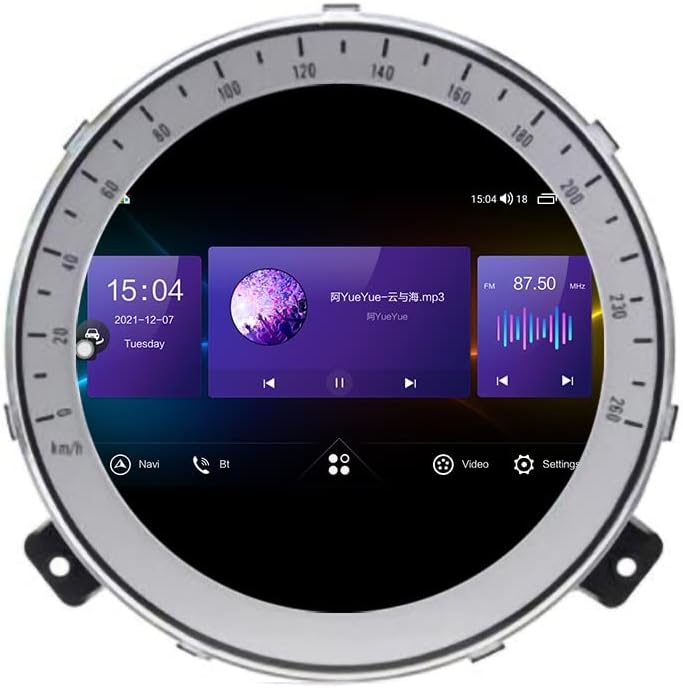
Image: Music playback screen displaying track details, album art, and playback controls.
Steering Wheel Control:
The unit supports original steering wheel controls. After proper CANBUS configuration, you can adjust volume, switch songs/channels, and answer/hang up calls directly from your steering wheel.
Mirror Link:
Supports Mirror Link for both Android phones and iPhones, allowing you to mirror your phone's screen onto the head unit display.
Wi-Fi and Hotspot Sharing:
Connect to Wi-Fi networks or use your mobile phone's hotspot to access online features, download apps, and browse the internet.
Maintenance
- Screen Cleaning: Use a soft, lint-free cloth to clean the touchscreen. Do not use abrasive cleaners or solvents.
- Software Updates: Periodically check for system updates to ensure optimal performance and access to new features. Updates can usually be found in the system settings.
- Data Backup: Regularly back up important data if stored on the device.
- Environmental Care: Avoid exposing the unit to extreme heat or cold, which can affect its lifespan and performance.
Troubleshooting
| Problem | Possible Cause / Solution |
|---|---|
| Unit does not power on. | Check power cable connections. Ensure vehicle battery is connected and charged. Verify fuse integrity. |
| No sound or distorted audio. | Check speaker wiring. Verify volume settings. If an external amplifier is present, ensure it is correctly connected and powered. Confirm CANBUS settings if applicable. |
| GPS signal is weak or inaccurate. | Ensure the GPS antenna is properly connected and placed in a location with a clear view of the sky. Avoid obstructions. |
| Steering wheel controls not working. | Verify CANBUS decoder connection and configuration. Check system settings for steering wheel control mapping. |
| Bluetooth connection issues. | Ensure Bluetooth is enabled on both the head unit and your phone. Delete previous pairings and re-pair. Move devices closer. |
| Touchscreen unresponsive or inaccurate. | Restart the unit. Ensure the screen is clean and free of debris. If persistent, a system reset may be required. |
| System is slow or freezes. | Close unnecessary background applications. Clear cache. Perform a system restart. If issues persist, consider a factory reset (note: this will erase all user data). |
Specifications
| Feature | Detail |
|---|---|
| Model Name | Stile Originale Android Auto Navigazione Stereo Dash Kit (WS-D7628) |
| Operating System | Android 10 |
| CPU | Octa Core (6G RAM + 128G ROM variant) |
| RAM / ROM | 6GB RAM / 128GB ROM (for this specific variant) |
| Screen Size | 7 Inches |
| Display Type | IPS Full HD Multi-touch Capacitive LCD |
| Resolution | 1024 x 600 |
| Connectivity | Wi-Fi, Cellular (via hotspot), Bluetooth |
| Special Features | Built-in CarPlay & Android Auto (Octa Core), GPS Navigation, DSP, Steering Wheel Control, Mirror Link, USB Input (2 ports), 1080P Video Decoding, Rear View Camera Support (RCA type) |
| Audio Output Mode | Stereo |
| Supported OSD Languages | English, French, German, Spanish, Italian, etc. (over 20 languages) |
| Compatible Vehicle Type | BMW Mini Cooper R56 |
| Manufacturer | WOSTOKE |
Warranty and Support
For warranty information and technical support, please refer to the documentation provided with your purchase or contact your retailer. Keep your purchase receipt as proof of purchase.
For specific inquiries regarding compatibility with original factory amplifiers or advanced troubleshooting, it is recommended to contact the seller directly.