
Introduction
This manual provides essential information for setting up, operating, maintaining, and troubleshooting your Fujitsu Stylistic Q7312 Tablet PC. Please read these instructions carefully to ensure proper use and to maximize the lifespan of your device.
The Fujitsu Stylistic Q7312 is a robust tablet PC designed for professional use, featuring a 12th generation Intel Core vPro processor, 16GB RAM, 512GB SSD, and Windows 11 Pro. It includes advanced security features and a durable, reinforced casing.
Setup
1. Unboxing and Initial Inspection
Carefully remove all components from the packaging. Verify that all items are present: the Fujitsu Stylistic Q7312 tablet, power adapter, and any included accessories. Inspect the device for any signs of damage during transit.
2. Powering On and Initial Charge
Connect the power adapter to the tablet's charging port and then to a power outlet. Allow the device to charge for at least 30 minutes before initial use. Press and hold the power button located on the side of the tablet to turn it on.
3. Windows 11 Pro Setup
Follow the on-screen instructions to complete the initial setup of Windows 11 Pro. This includes selecting your language, region, connecting to a Wi-Fi network, and setting up your user account.
4. Connecting Peripherals
The Stylistic Q7312 supports various peripherals. Use the available ports, including Thunderbolt 4, to connect external displays, keyboards, mice, or a stylus. For wireless connectivity, ensure Bluetooth is enabled in Windows settings.

Image: Fujitsu Stylistic Q7312 tablet with detachable keyboard, showing the screen and keyboard layout. This configuration allows for both tablet and laptop modes.
5. Network Connectivity
To connect to the internet, use the integrated WLAN (Wi-Fi) or LTE capabilities. Access network settings in Windows to configure your preferred connection. For LTE, ensure a compatible SIM card is inserted (if applicable to your model).
Operating Instructions
1. Basic Navigation
Navigate the Windows 11 Pro interface using the touchscreen, an external mouse, or the integrated touchpad on the optional keyboard dock. The stylus provides precise input for drawing or writing.
2. Security Features
Your device includes advanced security features:
- IR Hello Camera: Use Windows Hello for facial recognition login.
- Fingerprint Support: Configure fingerprint recognition for secure access.
- Kensington Lock: Secure your device physically using a compatible Kensington lock.
3. Using Thunderbolt 4
The Thunderbolt 4 port offers high-speed data transfer, video output, and power delivery. Connect compatible docks, external GPUs, or high-speed storage devices for enhanced functionality.
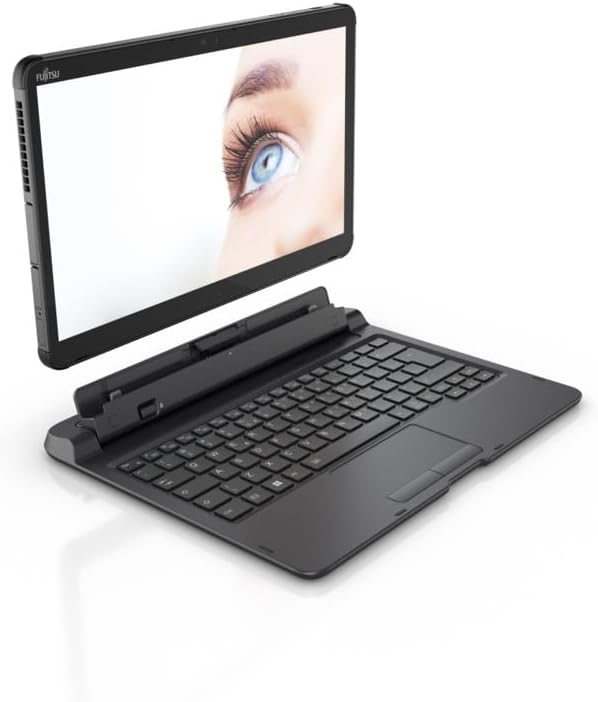
Image: Fujitsu Stylistic Q7312 tablet with detachable keyboard, shown from a slightly elevated angle, highlighting its compact design and connectivity options.
Maintenance
1. Cleaning the Device
Use a soft, lint-free cloth slightly dampened with water or a screen cleaner to clean the display and exterior surfaces. Avoid abrasive materials or harsh chemicals. Ensure all ports are closed with their plugs (if applicable) before cleaning to maintain IP42 rating.
2. Software Updates
Regularly check for and install Windows updates to ensure your system has the latest security patches and performance improvements. Go to Settings > Windows Update to manage updates.
3. Battery Care
To prolong battery life, avoid extreme temperatures and fully discharging the battery frequently. For long-term storage, charge the battery to approximately 50-70%.
4. Robust Casing
The device features a robust casing with reinforced edges and connection plugs (IP42 rated). While designed for durability, avoid excessive force or dropping the device to prevent damage.
Troubleshooting
This section addresses common issues you might encounter with your Fujitsu Stylistic Q7312.
- Device does not power on: Ensure the power adapter is securely connected and the battery has sufficient charge. Try holding the power button for 10-15 seconds.
- Display issues: If the screen is blank or flickering, try restarting the device. If connected to an external display, ensure the cable is properly connected and the correct display output is selected in Windows settings.
- Connectivity problems (Wi-Fi/LTE): Check if Wi-Fi or cellular data is enabled in Windows settings. Restart your router or modem for Wi-Fi issues. Verify SIM card insertion for LTE.
- Peripheral not recognized: Ensure the peripheral is properly connected. Try a different port or restart the device. Update drivers if necessary.
For more complex issues, refer to the official Fujitsu support website or contact their customer service.
Specifications
| Feature | Detail |
|---|---|
| Model Name | Fujitsu Stylistic Q7312 |
| Model Number | VFY:Q7312MP5AMDE |
| Operating System | Windows 11 Pro |
| Processor | Intel Core i5-1235U (12th Gen Intel Core vPro) |
| RAM | 16 GB |
| Storage | 512 GB SSD |
| Display Size | 13.3 Inches |
| Display Resolution | 1920 x 1080 pixels (Full HD) |
| Graphics | Intel Iris Xe Graphics (Integrated) |
| Connectivity | WLAN (802.11g), LTE, Thunderbolt 4 |
| Compatible Peripherals | External Display, Keyboard, Mouse, Stylus |
| Dimensions (Package) | 43.5 x 36.5 x 13.7 cm |
| Weight (Package) | 2.65 kilograms |
| IP Rating | IP42 (Robust casing with reinforced edges and connection plugs) |
Warranty and Support
Your Fujitsu Stylistic Q7312 Tablet PC comes with a standard manufacturer's warranty. For specific warranty terms and conditions, please refer to the documentation included with your purchase or visit the official Fujitsu support website.
For technical assistance, driver downloads, or service requests, please visit the official Fujitsu support portal. Ensure you have your model number (VFY:Q7312MP5AMDE) and serial number ready when contacting support.
Online Support: www.fujitsu.com/global/support/


