
Introduction
Thank you for choosing the Havit Gaming Mouse MS955. This optical gaming mouse features a USB interface, adjustable DPI settings, and RGB backlighting, designed to enhance your gaming experience. This manual provides essential information for setting up, operating, and maintaining your mouse.
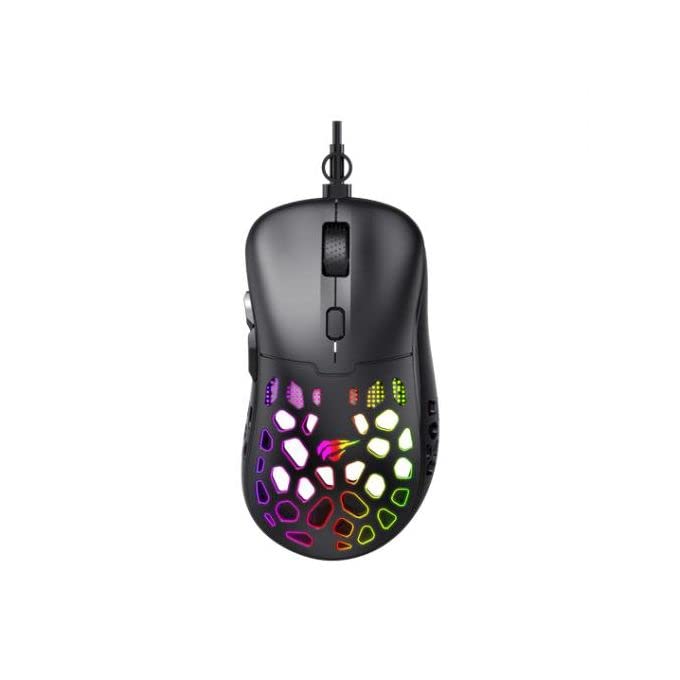
Image: Top-down view of the Havit Gaming Mouse MS955, showcasing its ergonomic design and vibrant RGB lighting through the honeycomb shell.
Setup
- Unpack the Mouse: Carefully remove the Havit Gaming Mouse MS955 from its packaging.
- Connect to Computer: Locate an available USB port on your computer. Insert the USB connector of the mouse into the USB port.
- Driver Installation: The mouse is plug-and-play. Your operating system (Windows XP, Windows 7, Linux, etc.) will automatically detect and install the necessary drivers. No additional software installation is typically required for basic functionality.
- Test Functionality: Once connected, move the mouse and click the buttons to ensure it is working correctly.
Operating Instructions
The Havit Gaming Mouse MS955 features 6 programmable buttons and adjustable DPI settings for precise control.

Image: Side view of the Havit Gaming Mouse MS955, highlighting the left-side buttons and scroll wheel.
- Left Click Button: Primary button for selection and interaction.
- Right Click Button: Secondary button for context menus and alternative actions.
- Scroll Wheel: Used for scrolling through documents and web pages. It also functions as a clickable middle button.
- DPI Adjustment Button: Located behind the scroll wheel. Press this button to cycle through different DPI sensitivity levels (800-1200-2400-3200 DPI). Each press changes the sensitivity, allowing you to adapt to various gaming or work scenarios.
- Side Buttons: Two buttons are located on the left side of the mouse. These are typically used for 'forward' and 'backward' navigation in web browsers or can be programmed for in-game actions.
RGB Lighting
The Havit Gaming Mouse MS955 features an integrated RGB backlight system. The lighting effects are typically automatic and may change with DPI settings or cycle through various colors. There are no dedicated buttons for controlling the RGB lighting directly on the mouse.
Maintenance
- Cleaning: To clean the mouse, disconnect it from your computer. Use a soft, dry cloth to wipe the surface. For stubborn dirt, a slightly damp cloth can be used, ensuring no liquid enters the mouse. Do not use harsh chemicals or abrasive cleaners.
- Storage: Store the mouse in a clean, dry environment away from extreme temperatures and direct sunlight.
- Cable Care: Avoid bending or twisting the USB cable excessively to prevent damage.
Troubleshooting
- Mouse Not Responding:
- Ensure the USB cable is securely plugged into a working USB port on your computer.
- Try plugging the mouse into a different USB port.
- Restart your computer.
- DPI Not Changing:
- Press the DPI button firmly. Ensure you are pressing the correct button.
- The mouse cycles through fixed DPI settings; there is no visual indicator other than cursor speed change.
- RGB Lights Not Working:
- Verify the mouse is properly connected to your computer.
- The RGB lighting is automatic; if the mouse is functioning otherwise, the lighting should also be active.
Specifications
| Feature | Detail |
|---|---|
| Brand | Havit |
| Model | MS955 |
| Interface Type | USB |
| Dimensions | 115.2 x 63 x 37.6 mm |
| Number of Keys | 6 |
| Chipset | NST5311 |
| DPI Resolution | 800-1200-2400-3200 DPI |
| Operating Voltage | 5V |
| Key Lifespan | 3,000,000 clicks |
| Cable Length | 1.5 m |
| Movement Detection | Optical |
| Hand Orientation | Right |
| Recommended Use | Gaming |
| Operating Systems | Linux, Windows 7, Windows XP |
| Color | Black |
Warranty and Support
For warranty information or technical support, please refer to the documentation included with your purchase or visit the official Havit website. Keep your proof of purchase for warranty claims.


